Hiberfil.sys Still Huge After Disabling Hibernate
Quick Navigation:
- Why the File Stays Large
- Confirm the Size and Back Up First
- Read the State in Windows Tools
- Back Up, Check, and Reclaim Space
- Frequently Asked Questions
Hiberfil.sys holds a copy of memory so the machine can resume after a full power-off, and on a machine with 16 GB of RAM it can easily take 6 GB or more of the system drive. When hibernation is turned off it should shrink or disappear, yet on many Windows 11 systems it stays at its old size and the C: drive stays full. The file is protected and held open by the kernel, so the usual delete key does nothing. The fix is to find out why it is still in use, back up the data that matters, and free the space in an order that does not break startup.
Why the File Stays Large
Windows sizes the file when hibernation is prepared, and the default is a fraction of installed memory rather than a fixed figure. A machine with more RAM therefore carries a larger file, and a file that was large last year stays large until the power configuration is changed and the system restarts.
Fast startup is the most common reason the file survives. This feature uses a hibernation file to shorten boot time, and it can remain enabled when the Hibernate option is hidden from the shutdown menu. Hiding the menu entry does not turn the feature off, so the file keeps its full size and keeps its lock on the disk.
The file is also a protected operating system file. Explorer does not show it unless protected files are visible, and a delete attempt from Explorer or a cleanup tool fails because the kernel holds the file open. Force-deleting it with a third-party unlocker while the feature is on leaves the system in a state where fast startup and crash dumps no longer work.
A policy, a management tool, or a power settings reset can turn hibernation back on after it was disabled. A feature update that rewrites the power plan, a vendor utility that restores performance defaults, and a scheduled task are all able to recreate the file at full size, which is why it sometimes returns a week after it was removed.
Finally, the file may not be the only reason the system drive is full. System Restore points, the update cache, a page file, and an old Windows installation can each hold several gigabytes. Measure the file before you assume it is the whole problem.
Confirm the Size and Back Up First
Turn on hidden items and protected operating system files in File Explorer, then look at the root of C:. Note the exact size of hiberfil.sys and compare it with the installed memory. If the two numbers are close, the file is still at its full reservation and the feature is still active somewhere.
Back up the system partition before you change power settings or attempt to remove the file. The change itself is small, but it touches boot behavior, and a backup is what makes the change reversible if fast startup or resume stops working afterwards. Store the image on another disk, never on the same drive that is running out of space.
Do not delete the file through a boot disk or a file unlocker as a first move. Removing it that way does not turn hibernation off; Windows recreates it at the next boot or fails to start, and the space you gained is temporary at best.
Read the State in Windows Tools
Power Options, Disk Management, Event Viewer, Device Manager, and PowerShell are Microsoft tools and are not part of Qiling Disk Master. They are used here only to read the current state of the system, while the backup, check, and clone described later are performed with Qiling Disk Master.
In Power Options, open Choose what the power buttons do and check whether the Hibernate entry is available. Then confirm in the same window whether fast startup is enabled, because that single setting explains most files that refuse to shrink. Change the setting, shut down fully, and measure the file again rather than judging it while the old session is still running.
Disk Management shows the free space on C: and whether unallocated space sits next to it. That matters when the file is already gone and the drive is still full: free space inside a volume and unallocated space outside it are two different problems with two different fixes. Device Manager is useful only to confirm that the storage controller is not reporting errors at the same time.
Event Viewer records unexpected shutdowns and power events. A machine that loses power without a clean shutdown can have its hibernation state rebuilt, which explains a file that reappears after a power cut. A power configuration query in PowerShell reports whether hibernation is currently enabled, and it is read-only, so it changes nothing on the disk.
Back Up, Check, and Reclaim Space
Qiling Disk Master does not remove hiberfil.sys, and it should not try: that file belongs to Windows. What it can do is protect the system before the power settings are changed, verify that the file system is healthy after repeated full drives, and move the system to a larger disk when the space cannot be recovered any other way. The three operations below are independent and each has its own purpose.
Operation 1: Back Up the System Partition
This operation applies before any power setting is changed, and it is the only one that protects you if the machine refuses to resume afterwards.
Step 1. Select the system partition and a destination on another disk. Open Backup and Recovery, choose Disk/Partition backup, tick the system partition and any recovery partition Windows created, then set the destination to a disk with room for the whole system.
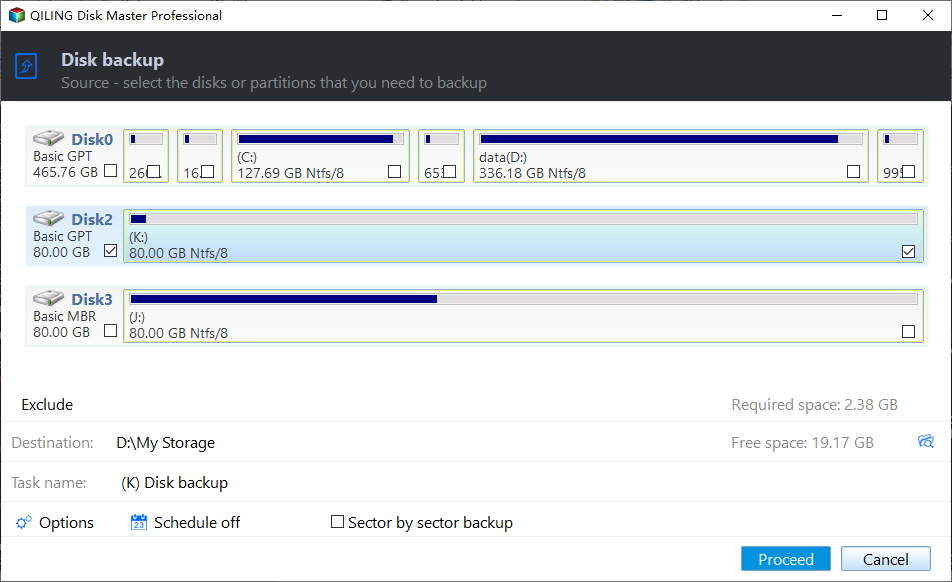
Step 2. Preview the task, click Proceed, and verify the image. Confirm the partitions and the destination in the preview, run the task to completion, then open the image and read a folder from it. Keep the image until the machine has restarted normally at least once.
Operation 2: Check the File System on C:
This operation applies when the drive has been full for a long time and Windows has complained about the volume. It is a diagnostic and does not free space by itself.
Step 1. Run a check without the repair option. Right-click the system partition, open Advanced, then Check File System, and run the first pass with the repair option cleared. The report shows whether a full drive interrupted a write and left the index inconsistent.
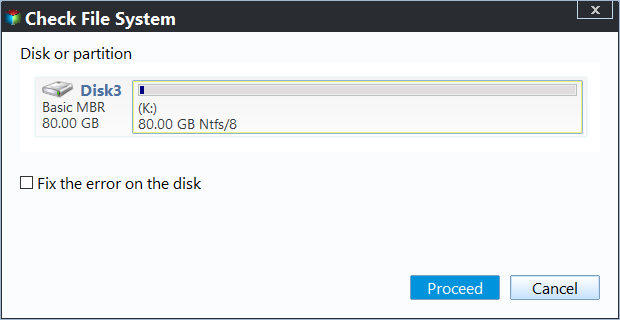
Step 2. Read the log before you decide on a repair. Look for index errors rather than for free space, and note whether the check reports problems at all. A clean result means the space problem is the only issue and no repair is needed.
Operation 3: Clone the System to a Larger Disk
This operation applies when the space cannot be recovered, for example when the file is gone and C: is still too small for the workload. The destination disk is overwritten, so it must hold nothing you still need.
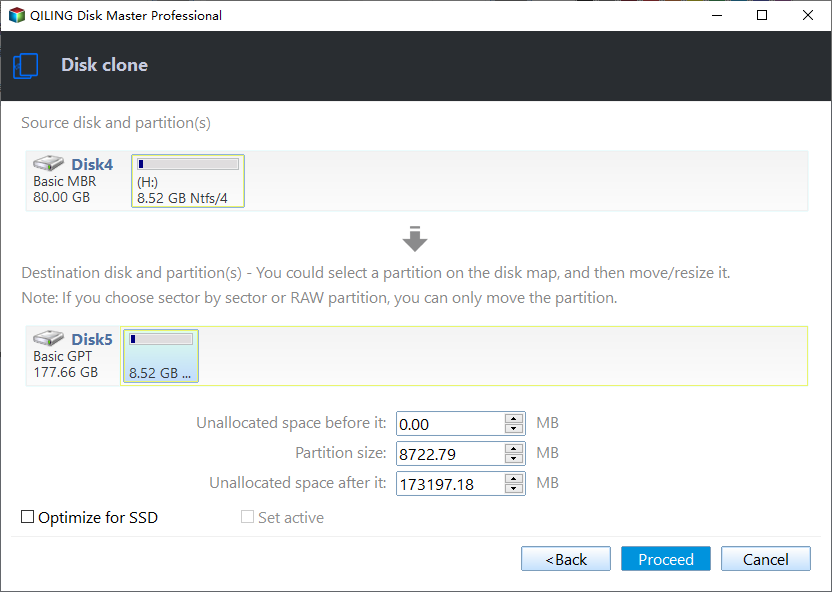
Step 1. Choose the system disk as the source and the larger disk as the destination. Open Disk/Partition clone, select the system disk, then the new disk. If the destination is larger, the extra space stays unallocated until the system is running from it.
Step 2. Preview the task and click Proceed. Check both disks in the preview, run the clone, and read the new disk once before the old one is retired. Do not start the clone while a hibernation file is still being written to the source.
Frequently Asked Questions
Can I just delete hiberfil.sys?
Not while hibernation or fast startup is enabled. The kernel holds the file open, and a forced deletion can break both features. Turn the features off through the power settings, restart, and confirm the size before you look for the file again.
Why did the file come back after I disabled hibernation?
Fast startup, a group policy, or a vendor utility turned it back on, or the change was made without a full restart. Check the shutdown settings and the policy, restart, and measure the file again before you conclude that the change failed.
How much space should disabling hibernation free?
Roughly the amount Windows reserved for the file, which is often around 40 percent of installed memory on a default configuration. The exact figure depends on the hibernation type and the amount of RAM, so compare the size before and after rather than expecting a fixed number.
Related Articles
- Why You Cannot Extend C: With Unallocated Space
- Thin Provisioned Volume Runs Out of Space
- VHDX File Does Not Shrink
- Disk Management Keeps Refreshing
- Clean vs Formatting a Hard Drive
Products
Articles & Tutorials
- Data Recovery
- Data Backup
- File Recovery
- File Backup
- System Backup and Restore
- Disk and Partition Clone
- Technical articles
- Mobile articles
- Disk Master Help
- Windows Data Recovery Tutorials
- Windows Secure Delete Tutorials
- Windows Partition Management Tutorials
- Windows File Backup and Restore Tutorials
- Windows System Backup and Restore Tutorials
- Windows Disk Backup and Restore Tutorials
- Windows Clone Tutorials