Fix 0x80070569: Logon Failure When Mounting a VHD
Quick Navigation:
- What 0x80070569 Really Reports
- Check the Account, the Share, and the File Lock
- When the Files Matter More Than the Mount
- Recover the Files from the Image with Qiling Disk Master
- Frequently Asked Questions
A virtual disk that attached without complaint last week now refuses to mount, and Windows answers with 0x80070569 followed by "Logon failure: the user has not been granted the requested logon type at this computer". It reads like a wrong password, and it is indeed a logon problem, just not one a password field can solve. The account that performs a VHD attach is often not the account that clicked the menu. Once that gap is clear, the repair becomes a short list of permissions, file locks, and one route that skips the mount entirely when the files are all you need.
What 0x80070569 Really Reports
0x80070569 wraps Windows error 1385, the status code for a logon type that the target computer refuses. In the VHD case the request does not come from your desktop session alone. Disk Management hands the attach job to the Virtual Disk Service, and that service runs under a system account, so the file is opened as that account or, when the file sits on a network path, as the machine account behind it.
The virtual disk is usually intact. A damaged VHDX produces different symptoms: an attach that fails with a format or chain error, a disk that mounts as RAW, or a parent-child mismatch on a differencing disk. 0x80070569 arrives before any of that, at the moment access to the file is decided, which is why no repair tool should be pointed at the file until permissions have been ruled out.
Three situations produce the same result. The file lives in a folder only your user profile can read, such as a redirected profile, an encrypted folder, or a cloud placeholder that is not fully downloaded. The file lives on a share whose permissions never granted the machine account access. Or a local policy removes the logon right the service account needs, typically a hardened baseline or an IT template applied at startup.
Check the Account, the Share, and the File Lock
Start with the simplest test: copy the VHD to a plain local NTFS folder such as C:\VHD, outside any user profile, and attach it from there. If it mounts, the folder permissions or the cloud placeholder were the obstacle, and the original location can be fixed by granting read access to the machine account. Clear the read-only attribute on the file as well, because a VHD marked read-only can only be attached in read-only mode.
Then rule out a lock. Another virtual machine window, a Storage Spaces entry, a running backup job, or a file preview pane can hold the file open, and the attach fails on the lock before any logon right is checked. Close those programs and try once more. For a file on a share, map the path with explicit credentials first; net use is a Microsoft command-line tool used here only to prove that a connection can be made, and it is not part of Qiling Disk Master. Disk Management itself is a Microsoft built-in tool used only to view disks and to attach the file, not a component of Qiling software.
Attach in read-only mode to isolate the last variable. If read-only succeeds and read-write fails, the remaining causes are a lock held by a writer, an antivirus filter, or write permission missing on the parent folder rather than anything wrong with the virtual disk.
When the Files Matter More Than the Mount
Many VHDX files are never meant to boot again. They sit inside a backup image, created so that a whole machine could be stored as one file, and the only reason to open one is to pull out a handful of documents. Attaching such a disk on a machine that was not its owner invites exactly the permission wall described above: a foreign security identifier, an unfamiliar share, a service account that was never granted access.
If the virtual disk was captured by Qiling Disk Master, the image can be browsed directly. File Restore reads the backup container, lists the folders that were inside the machine, and copies the selection to a new location. No attach, no drive letter, no service account, and no risk of writing to the original image. Mount the VHD only when the whole system has to start from it; open the image when a folder or a set of files is the goal.
Recover the Files from the Image with Qiling Disk Master
Keep the backup image where it is and work from the machine that can reach that location. The three steps below read the image, pick the moment in time you need, and copy the folders out to a new path, which leaves the original image and every VHD inside it untouched.
Step 1. Open File Restore and select the backup task and its location. Choose the restore module, pick the task that produced the image, and point the program at the folder or drive that holds it. The task name, not the VHD file name, is what the list shows.
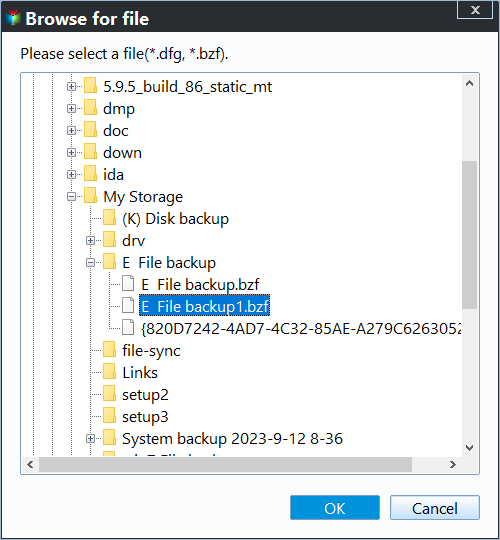
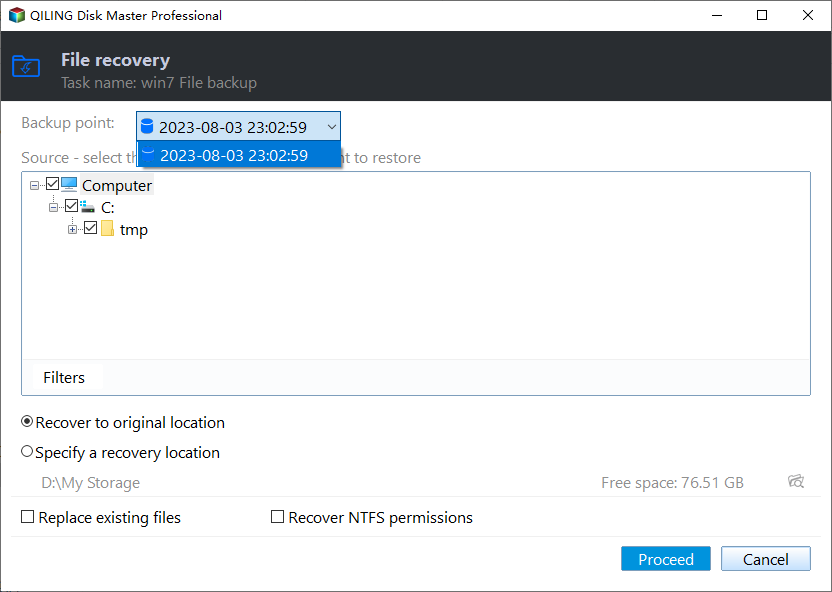
Step 2. Choose the backup point and tick the folders. Each backup point carries a date and a time, so select the one from before the file was lost or overwritten. The image is opened inside the program at this stage, so the folders can be listed and ticked without attaching anything to Windows.
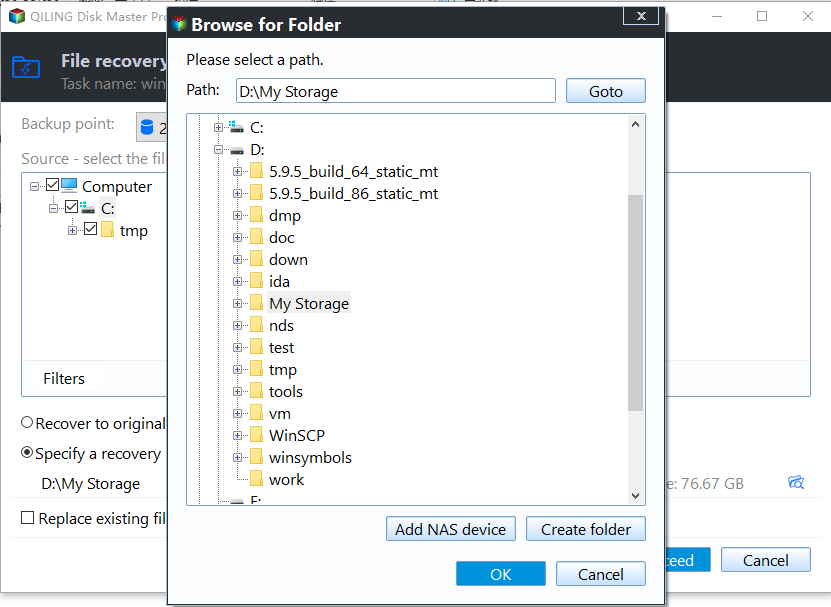
Step 3. Set a new destination and start the recovery. Select Specify a recovery location, browse to a folder other than the original path so nothing is overwritten, then start the job and wait for the completion notice before you open the destination.
Afterwards, compare a few restored files with the originals and only then delete anything. If the VHD still has to be mounted for an application that expects a disk, repeat the checks from part two from a local folder with the read-only attribute cleared, and keep the image as the fallback until that attach succeeds.
Frequently Asked Questions
Does 0x80070569 mean the VHD file is corrupted?
Almost never. The code is raised while access to the file is being authorized, before the virtual disk header is parsed. Corruption shows up as a format error, a RAW volume, or a broken differencing chain instead.
Why does the same VHD attach on one PC and fail on another?
Because the decision is made per machine: the local security policy, the machine account used for a network path, and the folder permissions all differ. A file inherited from another computer often carries access rules that the new machine cannot satisfy.
Can I read a VHDX without attaching it?
Yes, when it is stored inside a backup image. File Restore opens the image and lists the folders inside, which is enough for copying files out. A bare VHDX outside a backup must be attached, mounted, or parsed by a tool that understands the format.
Related Articles
- Dynamic VHDX Stops Growing at Its Maximum Size
- Storage Spaces Virtual Disk Stuck Degraded at 0% Repair
- ReFS.sys Error Leaves Volume Inaccessible After Reboot
- Recover a Deleted VHDX Virtual Disk on Windows
- DiskPart List Disk Shows No Disks: What to Check
Products
Articles & Tutorials
- Data Recovery
- Data Backup
- File Recovery
- File Backup
- System Backup and Restore
- Disk and Partition Clone
- Technical articles
- Mobile articles
- Disk Master Help
- Windows Data Recovery Tutorials
- Windows Secure Delete Tutorials
- Windows Partition Management Tutorials
- Windows File Backup and Restore Tutorials
- Windows System Backup and Restore Tutorials
- Windows Disk Backup and Restore Tutorials
- Windows Clone Tutorials