Storage Spaces Virtual Disk Stuck Degraded at 0% Repair
Quick Navigation:
- What Degraded at 0% Means
- Find the Disk Blocking the Repair
- Order of Work Before a Reset
- Image the Volumes First
- Frequently Asked Questions
A virtual disk in Storage Spaces that shows Degraded and stays at 0% repair is not rebuilding slowly, it is not rebuilding at all. The pool has accepted the repair job, but no regenerated copy has been written, so the volume keeps being served without the redundancy it was designed for. Every hour at 0% is an hour in which a second disk failure ends in data loss instead of a warning. This guide explains what the percentage actually tracks, which physical disk normally blocks the job, and why the copy of the volumes has to be finished before the pool is reset or a member disk is removed.
What Degraded at 0% Repair Actually Means
Degraded is a resiliency statement, not a failure statement. The virtual disk is still online and still answers reads, but at least one copy of its data is missing, so the pool cannot rebuild a lost slab from the remaining members. A healthy pool in that position starts a regeneration job immediately and the percentage climbs as slabs are copied onto spare capacity.
A value that stays at 0% for hours tells you the job never left its first step. The job was queued, the virtual disk was marked as repairing, and then the pool found no usable place to write the regenerated copy. That is a different problem from a slow rebuild, which moves by a fraction of a percent per hour on a full pool and still finishes.
The percentage also resets in a way that hides progress. When a repair is restarted, the counter begins again from zero, so a disk that cycles between 0% and a low number is usually being retried rather than rebuilt. The operational status of the members is the reliable indicator, and the repair counter only describes the current attempt.
Find the Physical Disk That Blocks the Repair
Open the Storage Spaces page and read the member list of the pool, not just the virtual disk. The blocking member normally shows one of three states: Lost Communication, which means the pool knows the disk exists but cannot reach it; Unknown, which means the enclosure or the controller no longer reports it; or a healthy-looking disk whose allocated capacity is too small to hold a slab.
Capacity is the second common reason for a repair that never starts. A pool with no unallocated space has nowhere to place the regenerated copy, and the job waits at 0% until space is released. Compare the pool's free capacity with the size of the slab that has to be rebuilt, and remember that a thinly provisioned virtual disk can look healthy while the pool behind it is full.
Timing separates the two cases. A member that dropped off the bus after a reboot, a driver update, or an enclosure power event leaves a repair at 0% that starts moving as soon as the disk is visible again. A member that reports media errors while staying visible leaves the job at 0% and keeps it there, because the pool refuses to write a fresh copy onto a disk it no longer trusts.
The Storage Spaces page in Server Manager, the pool details, and the System event log are Microsoft components and are not part of Qiling Disk Master. They supply the evidence, while the copy described below protects the data that is still readable.
Set the Order of Work Before Any Reset
Treat the array as fragile until the data is copied. Removing a member, resetting the pool, or forcing a repair on a degraded virtual disk can turn a warning into an unreadable volume, because the remaining copies are exactly the ones keeping the data available. None of those actions restores redundancy on their own.
Copy first, in order of value. Read the volumes through Windows while the virtual disk is still online, and write the data to storage that is physically independent of the pool — another server, a NAS, or a direct-attached disk. A copy made through the degraded volume is slower than usual but far safer than a rebuild on a disk that is already returning errors.
Then decide the repair path: replace the failed member and let the pool regenerate onto the new disk, or restore the copy onto a freshly built pool. A pool that never claims a replacement drive has its own cause, covered in a storage pool that will not claim a replacement drive, and it is worth reading before the old disk is pulled.
Image the Volumes Before the Pool Is Repaired
Qiling Disk Master can capture the volumes on the degraded virtual disk as image files on another physical disk, so the data survives a repair that goes wrong. A disk image keeps the folder structure and the files that fail to open, which a manual copy cannot. Work from the running system while the virtual disk is still online.
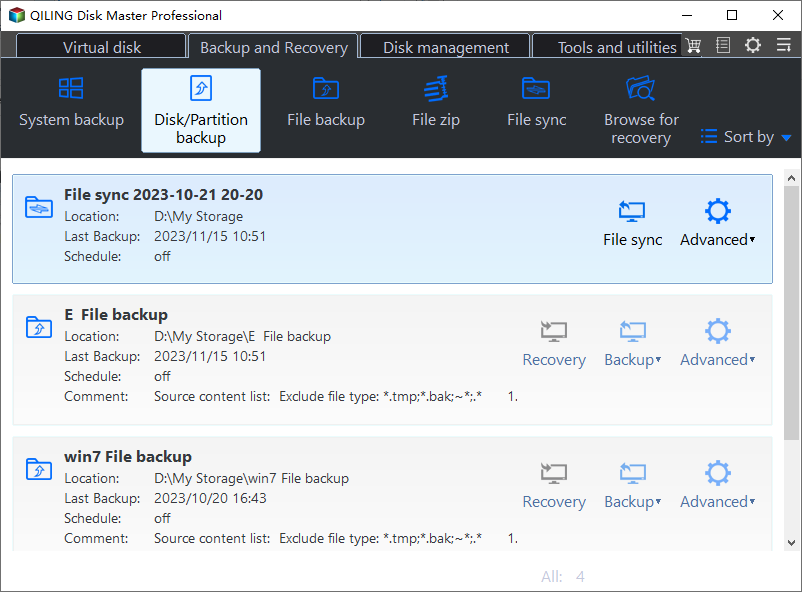
Step 1. Open Disk Backup
Go to the Backup and Recovery tab and choose Disk Backup. An image copies the volume as a unit instead of file by file, which is what a virtual disk with a missing copy needs.
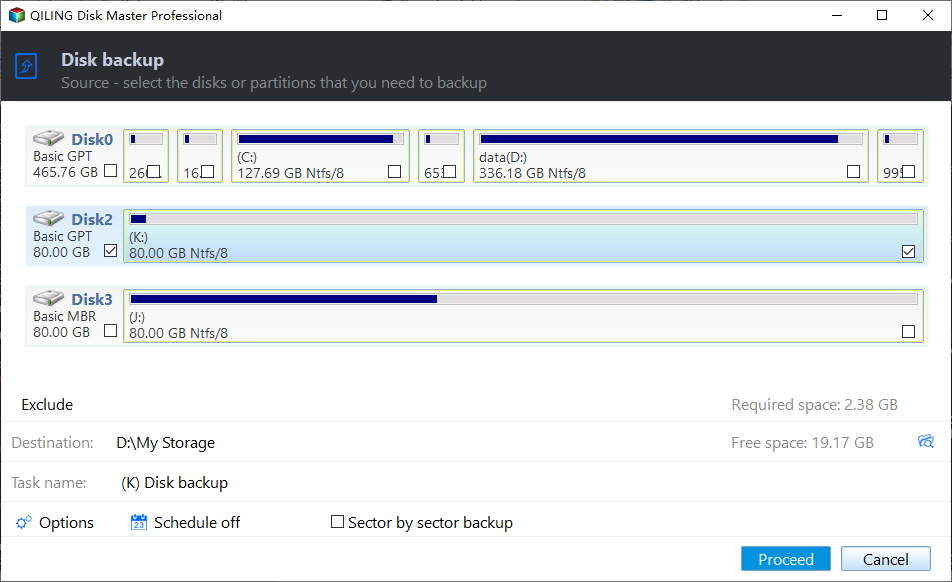
Step 2. Tick the Volume on the Degraded Disk
Select the disk that holds the degraded virtual disk and tick the volumes it carries. Compare the capacity in the list with the size shown on the Storage Spaces page so the wrong member is not captured.
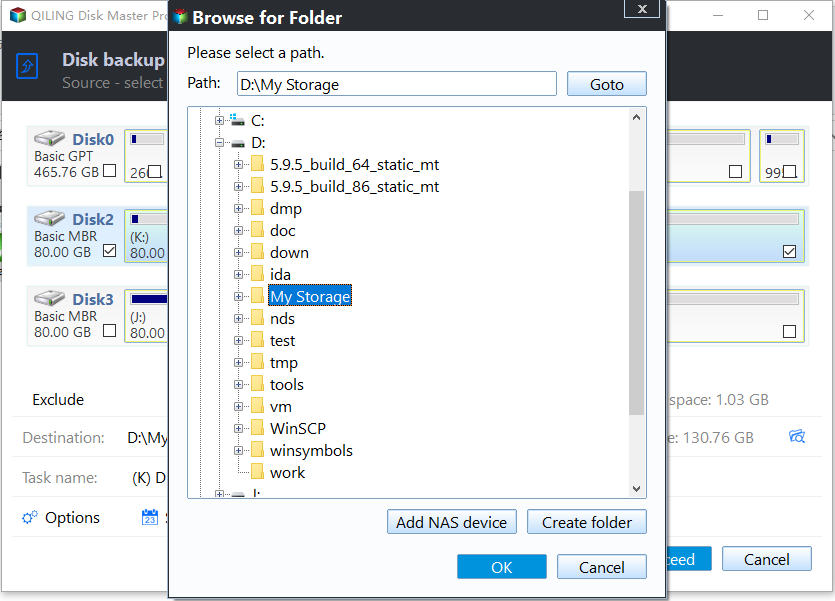
Step 3. Set a Destination Outside the Pool
Point Destination at a folder on a disk that is not a member of the pool. Writing the image back into the same pool would consume the free capacity the repair needs.
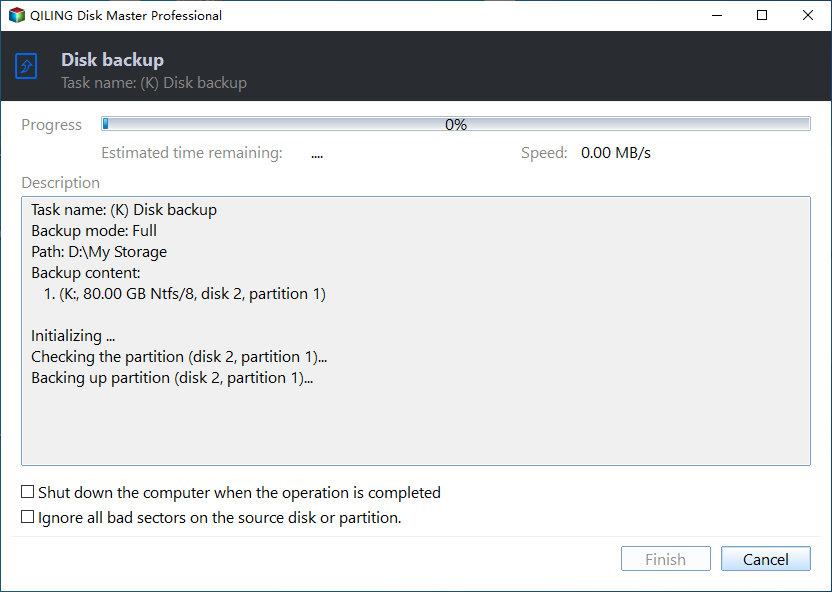
Step 4. Preview the Task and Proceed
Check the source, the destination, and the required space in the task summary, then preview the pending operation and click Proceed. A task that stops at the same percentage twice marks the area that is already unreadable, which is the evidence to keep when the failed member is replaced.
Frequently Asked Questions
Can a repair stuck at 0% finish on its own?
Only if the cause disappears. A member that was temporarily unreachable can come back and the job will move; a member with media errors or a full pool will keep the counter at zero until the disk is replaced or space is added.
Is it safe to restart the server while the repair is at 0%?
The job has written nothing, so a restart does not lose regeneration progress. It does interrupt access to the volume, so close open files and confirm that the copy of the important data is complete before the restart.
Does the replacement disk have to be identical?
No. It has to be at least as large as the member it replaces and it has to be supported by the pool. A disk of a different model is accepted, but a smaller one is rejected and the repair stays at 0%.
Related Articles
- Storage Spaces Drive Shows Lost Communication
- Storage Spaces Physical Disk Shows Unknown Status
- Storage Spaces Reduce Resiliency Warning
- Storage Pool Will Not Claim a Replacement Drive
- Storage Spaces Direct Pool Stuck Storage Job
Products
Articles & Tutorials
- Data Recovery
- Data Backup
- File Recovery
- File Backup
- System Backup and Restore
- Disk and Partition Clone
- Technical articles
- Mobile articles
- Disk Master Help
- Windows Data Recovery Tutorials
- Windows Secure Delete Tutorials
- Windows Partition Management Tutorials
- Windows File Backup and Restore Tutorials
- Windows System Backup and Restore Tutorials
- Windows Disk Backup and Restore Tutorials
- Windows Clone Tutorials