ReFS.sys Error Leaves Volume Inaccessible After Reboot
Quick Navigation:
- What the ReFS.sys Stop Means
- Volume Fault or Disk Fault
- Copy Before Any Repair
- Clone the Volume Offline
- Frequently Asked Questions
A ReFS.sys error is reported when Windows loads the Resilient File System driver for a volume and the driver cannot read or validate the metadata it needs to mount that volume. The stop usually appears during the restart that follows a write, a driver update, or an unexpected shutdown, and the volume is then missing from Explorer, shown without a drive letter, or listed with no file system at all. The data is normally still on the disk. What failed is the map that tells Windows where the data begins, which is why the order of the next steps matters more than the repair tool itself.
What the ReFS.sys Error Reports
The driver loads at boot for every ReFS volume that is attached. Before any file can be opened it reads the container's metadata, checks the integrity streams, and builds the in-memory view of the file system. A failure at that stage raises a bugcheck, because the driver has no safe way to continue serving a volume whose map it cannot trust. The machine either restarts immediately or returns the same stop on every attempt, which is the loop most users see.
The error names the driver, not the disk. That distinction decides the whole troubleshooting order: a driver-level stop says the volume could not be mounted, while a hardware-level failure would show up as the disk disappearing from the controller altogether. Both can be true at the same time, and the only way to separate them is to look at the disk outside the broken boot sequence.
Three presentations share the same cause. The machine may stop before the login screen; it may boot but list the volume without a letter; or it may show the volume in Disk Management with a capacity and an unrecognized file system. In all three cases Windows is refusing to mount metadata it considers inconsistent, and a second reboot repeats the same read against the same damaged structure.
Decide Whether the Volume or the Disk Failed
Start from the hardware, because a volume repair on a failing disk makes the damage worse. Check whether the disk is detected in the firmware setup and in Disk Management, whether its capacity is still reported correctly, and whether the drive reports health warnings. A disk that is absent at that level has a cable, port, or controller problem, and no file system work will change the result.
If the disk is detected and only one volume on it is affected, the metadata of that volume is the likely fault. If every volume on the same disk is affected, or if the volume size has changed, suspect the partition table or the disk itself. A single volume that mounts read-only after a crash points at metadata that was half-written, which fits the reboot scenario.
Timing is the third clue. A volume that became inaccessible right after a power loss, a snapshot, or a pool operation usually has recoverable metadata. A volume that disappeared after months of slow reads and retried IO has a hardware cause behind it, and the related ReFS volume that goes offline with a metadata write failure describes that pattern in more detail.
Windows ships tools for this state, including the ReFS integrity and repair routines and the storage diagnostics in Server Manager. They are Microsoft components and are not part of Qiling Disk Master, and they should only be pointed at a volume after a copy of it exists.
Copy the Data Before Any Repair Attempt
Every repair writes to the volume it is trying to fix. ReFS repair routines rewrite metadata, and a rewrite on top of inconsistent metadata can consume the structures that still describe where the files are. The copy is therefore not a precaution after the repair, it is the step that makes the repair safe to attempt.
Copy at the disk level rather than the file level. An inaccessible volume cannot be opened in Explorer, so a file copy is not available, but a sector-level clone reproduces the volume exactly as it sits on the platter, including the metadata Windows refuses to mount. That image can be attached later, after a repair, or read by a recovery tool without touching the original.
Boot from external media so the clone does not run on the broken installation. A running Windows that stops on ReFS.sys never reaches a desktop, and a volume that is mounted read-only still holds a lock that some tools cannot bypass. Media that boots its own environment reads the disk directly and leaves the original untouched.
Clone the Volume With Qiling Disk Master
Qiling Disk Master boots its own environment from a USB drive and clones a disk or a partition sector by sector, which is the only copy method that works when the file system cannot be mounted. Create the media on a working machine first.
Step 1. Create the Bootable Media
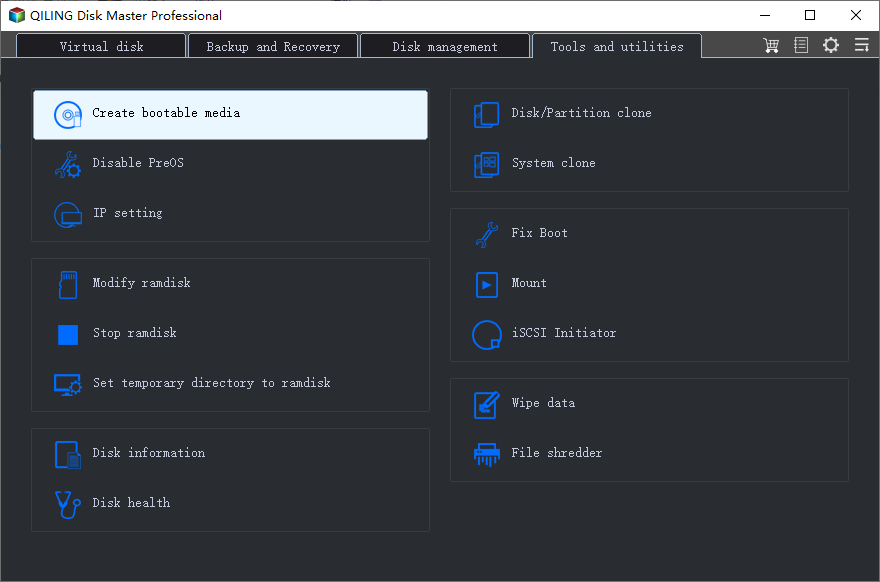
Open the Tools and utilities tab and choose Create bootable media, then point the wizard at a USB drive that holds nothing you need. The media starts its own environment, so the failing installation is never loaded.
Step 2. Start the Clone and Tick Sector by Sector
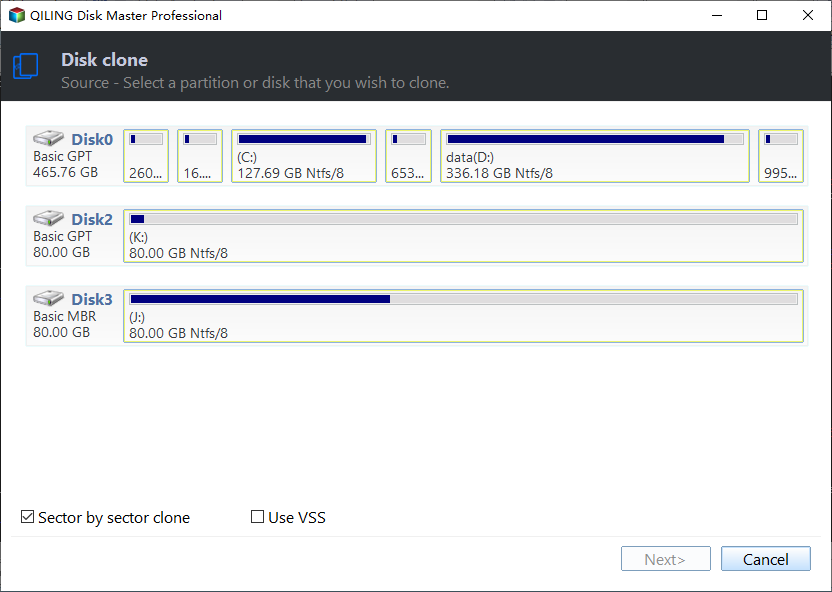
Boot the affected machine from the USB drive, open Disk Clone, and select the disk that carries the ReFS volume. Tick Sector by sector clone so the copy includes the metadata exactly as it is stored, rather than only the files that can be read.
Step 3. Choose a Destination Disk
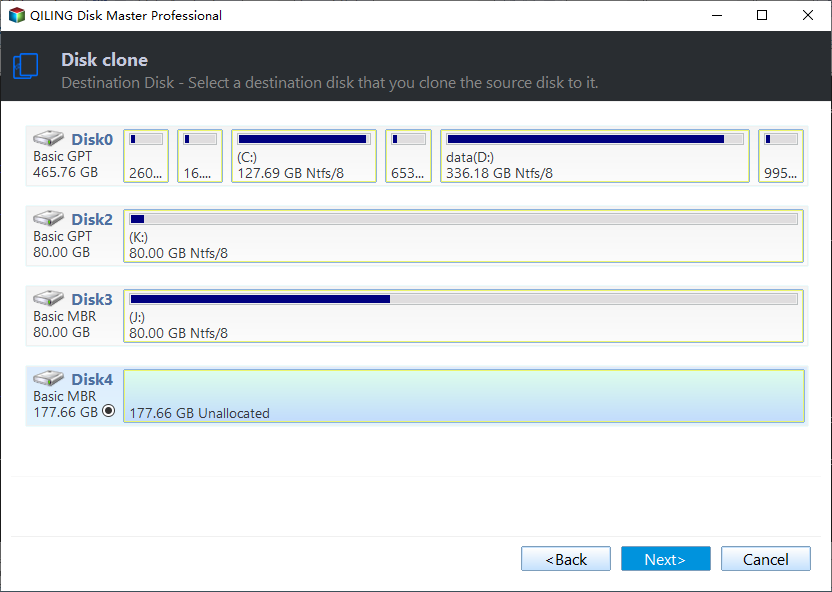
Pick a disk at least as large as the source and confirm that it holds no data you need. The destination is overwritten completely during a sector-level clone.
Step 4. Preview the Task and Proceed
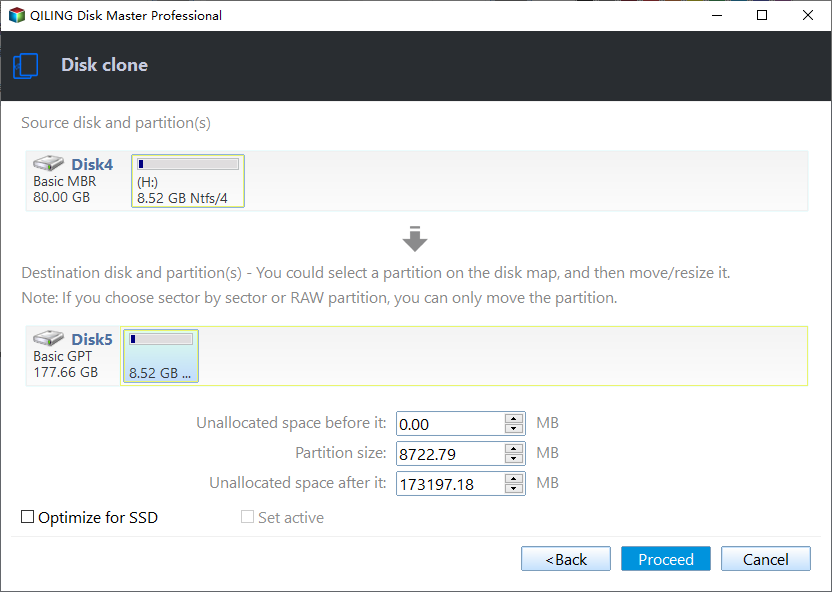
Read the source, the destination, and the size in the summary, then preview the pending operation and click Proceed. When the clone finishes, keep the original disk untouched until the copied image has been verified.
Frequently Asked Questions
Did the ReFS.sys error delete my files?
No. The files are still written on the disk. Windows stopped because it could not read the metadata that maps them, and a sector-level copy of the volume usually brings that data back into reach.
Can a repair tool fix the volume in place?
Sometimes, but only after the copy exists. An in-place repair rewrites metadata, and a failed attempt leaves less structure for the next tool to work with, which is why the copy comes first.
Will the clone work if the volume has no drive letter?
Yes. A sector-level clone works below the file system, so a missing letter or an unrecognized file system does not prevent it. The volume only has to be reachable as a block device.
Related Articles
- ReFS Volume Offline: Metadata Write Failed
- ReFS Block-Level Reconstruction Explained
- ReFS Volume Won't Mount: Unsupported Version
- Storage Pool Metadata Corrupted After Power Loss
- ReFS Volume Slows Down After the Backup Window
Products
Articles & Tutorials
- Data Recovery
- Data Backup
- File Recovery
- File Backup
- System Backup and Restore
- Disk and Partition Clone
- Technical articles
- Mobile articles
- Disk Master Help
- Windows Data Recovery Tutorials
- Windows Secure Delete Tutorials
- Windows Partition Management Tutorials
- Windows File Backup and Restore Tutorials
- Windows System Backup and Restore Tutorials
- Windows Disk Backup and Restore Tutorials
- Windows Clone Tutorials