ReFS Volume Won't Mount: Unsupported ReFS Version
Quick Navigation:
- What the Unsupported Version Message Means
- Version Problem or Corruption
- Get the Data Out Without Formatting
- Copy the Volume to a Supported System
- Frequently Asked Questions
The message means what it says: the volume was written by a newer ReFS version than the running Windows understands. Windows refuses to mount it rather than risk misreading structures it does not know. That is a compatibility refusal, not evidence that the files are damaged, and the difference decides whether a copy is enough or a repair is needed.
What the Unsupported Version Message Means
ReFS carries an on-disk version, and each Windows release supports a range of them. When a volume is mounted on a newer build, that build may upgrade the version to enable newer features, and the change is one way.
Windows Server 2025 and the newest client builds ship a ReFS version that older releases, including Server 2019 and Server 2022, cannot read. A disk moved from one of those systems to an older one shows the unsupported version message even though it mounted perfectly a day earlier.
The same refusal appears when a volume is attached through an enclosure or a passthrough disk that exposes an older storage stack, so confirm the Windows build before you blame the drive.
Version Problem or Corruption
Look at what changed. A volume that worked on this machine before a reinstall or a downgrade, and now reports the version, is almost certainly a compatibility problem. A volume that stopped mounting after a bad shutdown on the same build is more likely damaged.
ReFS writes events when it cannot mount a volume. Event ID 133 records a volume that failed to come online, and Event ID 135 records a metadata or integrity failure found during the mount attempt. If neither appears and the only evidence is the version message, the data is probably intact.
A damaged volume often shows a size of zero, a RAW label, or a mount that succeeds and then drops. A version mismatch usually leaves the volume visible with its correct capacity and simply refuses to open it.
Windows Event Viewer and Disk Management are Microsoft tools and are not part of Qiling Disk Master. Read the events there before you connect the disk to anything else.
Get the Data Out Without Formatting
Do not format the volume to make it usable. Formatting writes a new file system at the start of the volume and discards the old metadata, which is the only map to the files.
The cleanest route is a machine running the same or a newer Windows build. Attach the disk there, mount the volume, and copy the files to a disk formatted with a version the older machine can read.
If no such machine is available, image the volume from the older system and extract the files from the image later. An image copies the bytes without asking the file system to interpret them, so the version does not matter during the capture.
Keep the disk write-protected or offline between attempts. A failed mount can trigger an automatic repair that writes to the volume, and that is the one change you cannot undo. A volume that goes offline after a metadata write failure follows a different path, described in a ReFS volume that drops offline. A volume that still mounts but has become slow is a separate case, covered in a ReFS volume that slows down after a backup.
Copy the Volume to a Supported System
When the volume will not mount, capture it as an image. Qiling Disk Master copies the whole disk at the block level, so an unsupported file system version is not an obstacle to the backup. The image can be explored or restored on a system that supports it.
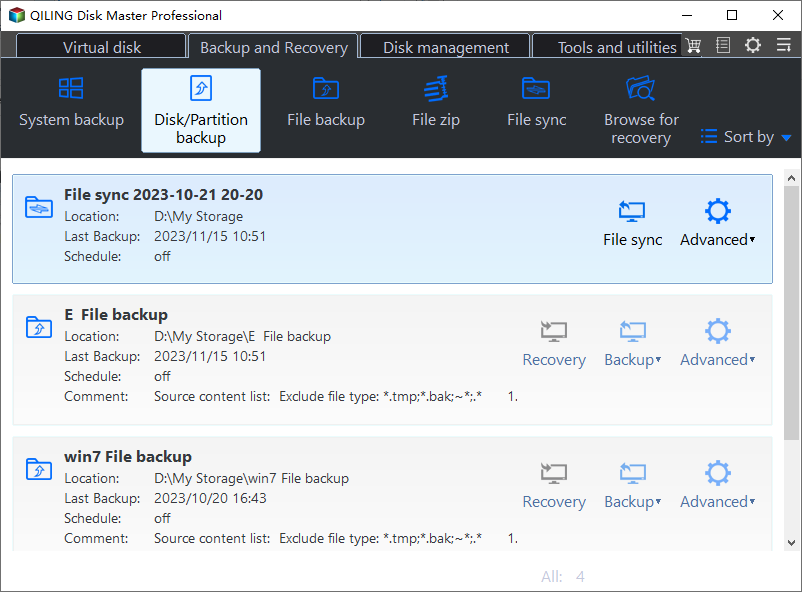
Step 1. Open Disk Backup
Go to the Backup and Recovery tab and choose Disk Backup. A full disk image keeps the ReFS volume exactly as it was written, version included.
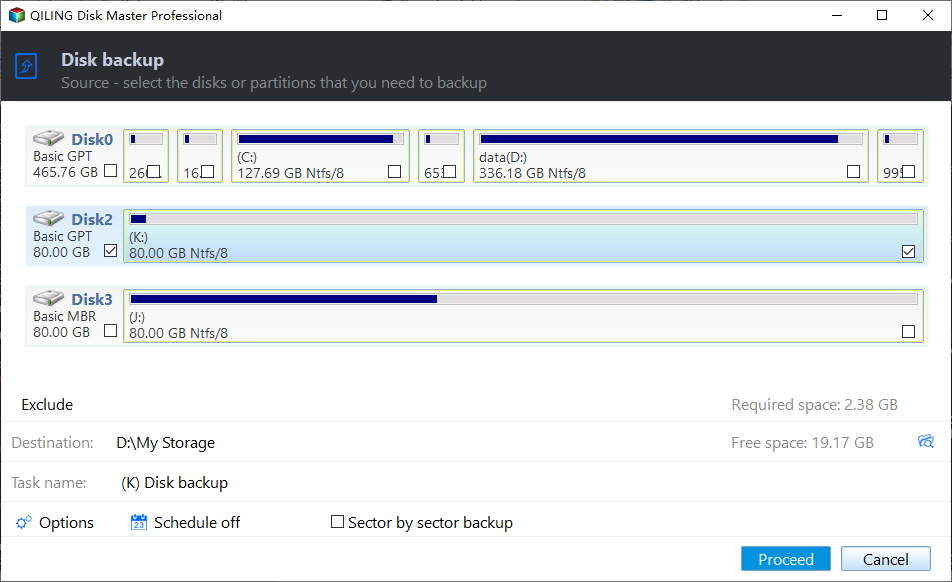
Step 2. Tick the Disk in the Source List
Tick the disk that holds the ReFS volume in the source list and match its capacity to the entry in Disk Management, so the correct physical drive is captured.
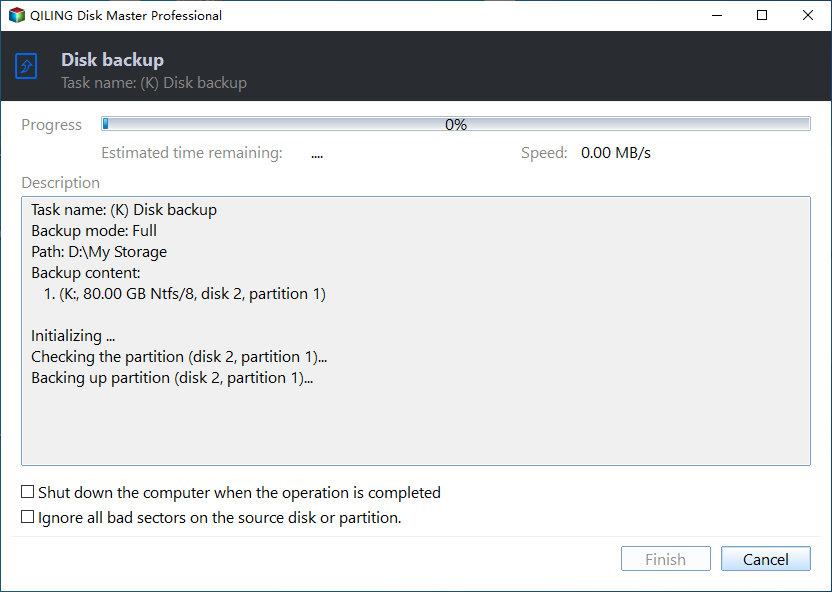
Step 3. Set the Destination and Proceed
Choose a destination on a disk the older Windows can read, preview the pending operation, and click Proceed. Keep the image until the files have been copied to their final location.
Frequently Asked Questions
Can I downgrade the ReFS version?
No supported downgrade exists. Once a newer build upgrades the volume, the only way back is to copy the data and create a new volume on the older build.
Will reinstalling the newer Windows bring the volume back?
Usually yes, if the volume is otherwise intact. Install the same or a newer build, attach the disk, and mount it before you change anything else.
Is the data lost if the volume shows RAW?
Not necessarily. RAW is what Windows reports when it cannot read the file system, and a block level image taken before any repair can still yield the files.
How ReFS repairs damaged blocks from its own copies is explained in ReFS block level reconstruction.
Related Articles
- ReFS Volume Offline: Metadata Write Failed to the Disk
- ReFS Volume Slow After a Backup
- ReFS Block-Level Reconstruction and What It Repairs
- Disk Offline After a Windows Update
- Windows 10 Drive Converted to RAW Format
Products
Articles & Tutorials
- Data Recovery
- Data Backup
- File Recovery
- File Backup
- System Backup and Restore
- Disk and Partition Clone
- Technical articles
- Mobile articles
- Disk Master Help
- Windows Data Recovery Tutorials
- Windows Secure Delete Tutorials
- Windows Partition Management Tutorials
- Windows File Backup and Restore Tutorials
- Windows System Backup and Restore Tutorials
- Windows Disk Backup and Restore Tutorials
- Windows Clone Tutorials