What Is Clipboard and How to Copy and Paste? [Full Guide]
What Is Clipboard?
The Clipboard, also known as pasteboard, is a memory location on your device that stores cut or copied data, such as text and images. Once you store something in the clipboard, you can paste it anywhere, allowing you to easily reuse and share content.
The clipboard retains the last copied or cut information until it is updated with new content. It loses this information when the user logs out of the computer, requiring a new copy or cut action to refresh the clipboard's contents.
For instance, copying text from Microsoft Word and pasting it into an email message showcases how the clipboard functions in everyday tasks.
With the ability to copy or cut information, you can paste it multiple times without needing to go back and re-copy each time, making the process more efficient and convenient.
1. What Is Clipboard on Computer?
A clipboard in a computer allows you to copy and paste information across platforms and also has a clipboard history where you can access previously copied information without having to go back and forth between the source and destination.
To turn on clipboard history in Windows 10/11, go to Settings > System > Clipboard, then enable the Clipboard feature. This allows you to save and reuse copied content.
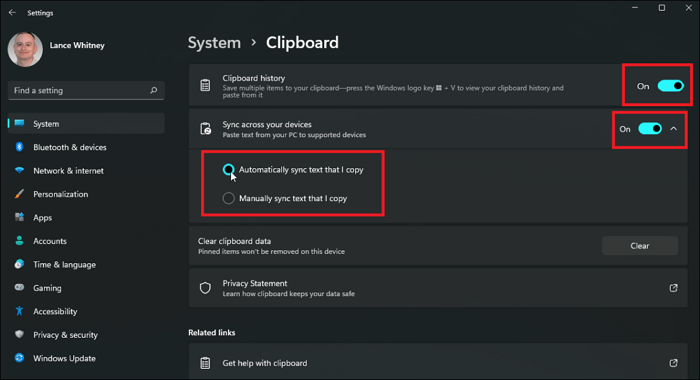
To open the clipboard tool on a Windows system, press the Windows key + V, and select the item you want to paste from the recently copied ones.
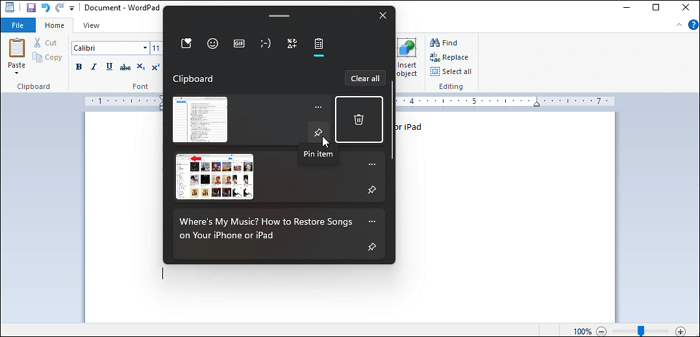
You can clear the clipboard history on Windows to prevent any privacy leakage from the clipboard.
2. What Is a Clipboard on iPhone and Android?
Unlike Android devices, iPhones do not allow users to see their clipboard content, instead allowing it to run in the background.
On an Android:
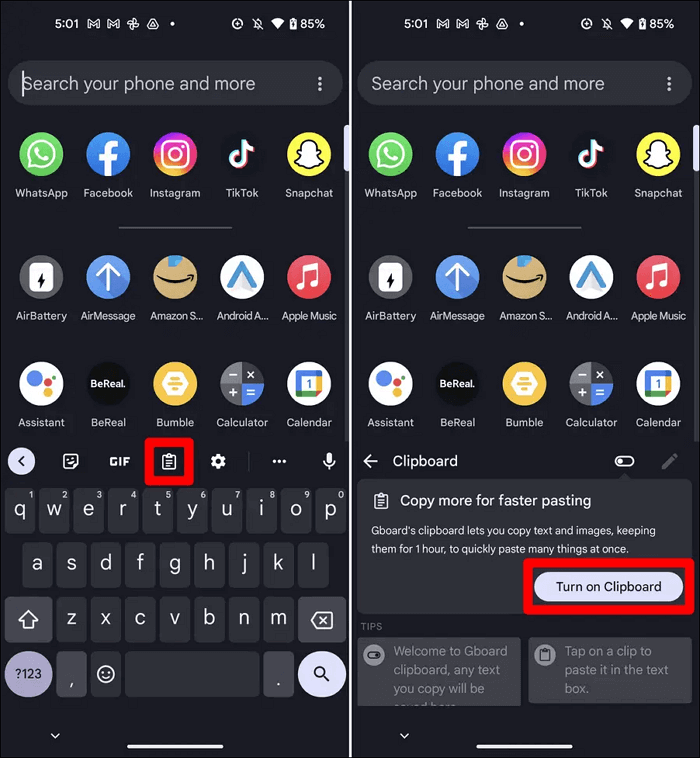
Gboard is the official keyboard of most Android phones and comes preinstalled. If your device doesn't have it, you can download it from the Google Play Store. One of its unique features is the clipboard history, which sets it apart from other regular keyboards.
To view your clipboard on Gboard, tap the clipboard icon in the top row while typing, which is located right before the settings gear. This action will open a new page where you can turn on the clipboard feature.
On an iPhone:
On an iPhone, the clipboard works differently than on an Android, and it doesn't save a history of copied information. Instead, it only keeps the most recent data, so if you cut or copy something and then copy something else, the first piece of information will be lost.
To avoid losing previous data, make sure to use the information you've cut or copied before copying something new.
How Do You Copy and Paste?
The process of copying and pasting information can vary across different devices, so it's essential to know which device you're working with before starting.
1. How to Copy to Clipboard?
On a computer:
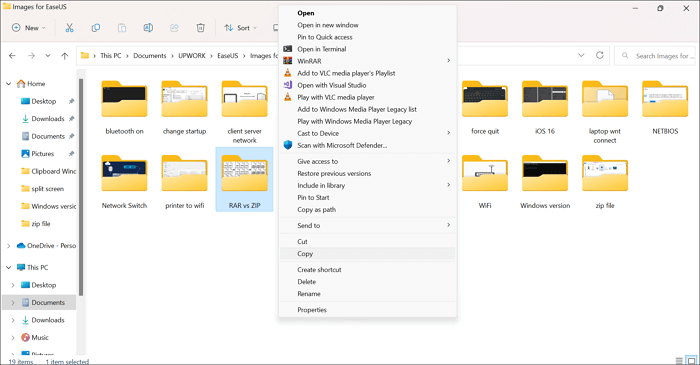
To copy something to the clipboard on a computer, highlight the text, object, or image you want to copy, right-click it, and choose the copy option, or use a shortcut like Command + C on a Mac or Ctrl + C on a Windows PC.
The cut feature can be used to move text content from one program to the next. To do this, select the text you want to move, press Ctrl + X on Windows or Command + X on a Mac, and then go to the new program and press Ctrl + V on Windows or Command + V on a Mac to paste the text.
This process can be repeated to move the text content between multiple programs.
On a mobile device:
On a mobile device, you can copy text or a picture by highlighting it with your finger, then choosing to copy or cut it.
2. How to Paste from Clipboard?
You can only paste from the keyboard after copying or cutting to the clipboard. Otherwise, there will be nothing for the clipboard to paste from memory.
On a computer:
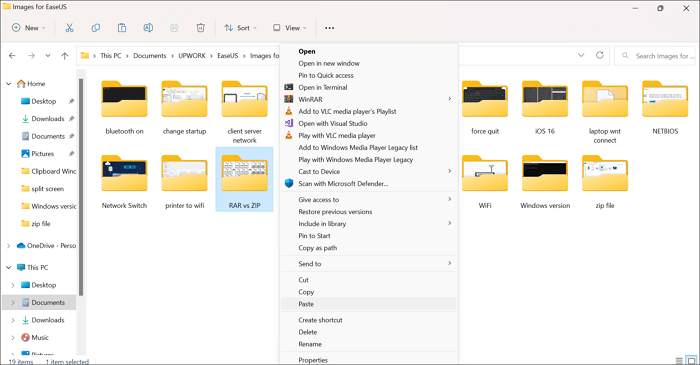
To paste text, objects, or pictures, right-click a blank area and select the paste option, or use the keyboard shortcut Ctrl + V on Windows or Command + V on a Mac.
On a mobile device:
On both iOS and Android devices, you can paste content after copying it, but you need to interact with the app or program where you want to paste. A paste option will be available, allowing you to insert the copied content. This functionality is a standard feature on both operating systems.
Related Articles
- GPU vs CPU? What's the Difference? Which Is Better?
- Target Disk Mode | How to Use Target Disk Mode on Mac
- Windows 11 Games Crash or Freeze? Don't Miss Quick Fixes Here!
- Apple M2 Chip: Release Date, New Features, and Performance
- All About Samsung SSD Reset Tool | Full Guide
Learn what Samsung SSD reset tools do, when to reset an SSD, and how to prepare data before restoring drive settings. - How to Fix Samsung SSD Slow Write Speed on Windows 10/8/7 [Step-by-Step Guides]
If your Samsung SSD is running slowly, causing issues with copying, pasting, or moving files, there's a solution.
Products
Articles & Tutorials
- Data Recovery
- Data Backup
- File Recovery
- File Backup
- System Backup and Restore
- Disk and Partition Clone
- Technical articles
- Mobile articles
- Disk Master Help
- Windows Data Recovery Tutorials
- Windows Secure Delete Tutorials
- Windows Partition Management Tutorials
- Windows File Backup and Restore Tutorials
- Windows System Backup and Restore Tutorials
- Windows Disk Backup and Restore Tutorials
- Windows Clone Tutorials