How to Download Free Apps without Password on iPhone/iPad/iTouch
Quick Navigation:
- How to Get Free apps without Password on iPhone
- How to Get Free apps without Password on iPhone When Touch ID Turned On
If you're an Apple App Store enthusiast, you might be frustrated with the hassle of typing your password every time you want to download a free app. But as an old iPhone user, you're probably accustomed to getting free apps with just one click. The good news is that you can bypass the password prompt when downloading free apps. To do this, follow the steps, and you'll be able to download free apps without entering your password.
Tip: This method is also applied to iPad and iTouch.
Related blog: How to delete Apps on iPhone
How to fix App Store Not Working
How to Get Free apps without Password on iPhone
Here we offer you the steps to download free apps without typing the password:
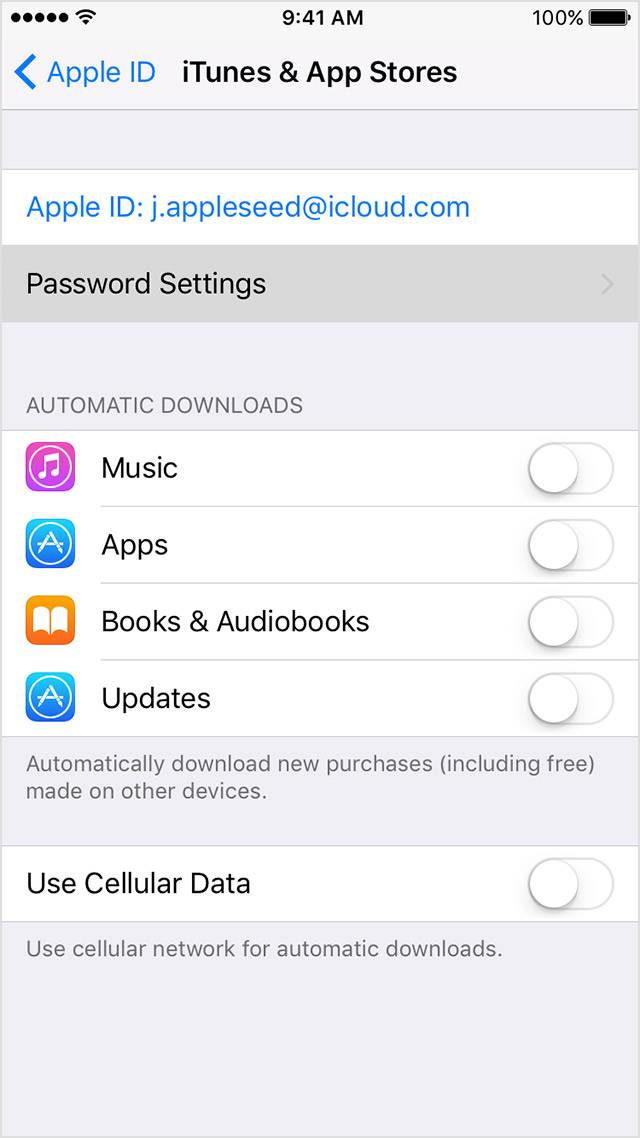
Step 1: Click Settings > [your name] > iTunes & App Store (In case your iPhone is running iOS 10.2 or earlier, go to Settings > iTunes & App Store)
Step 2: Click Password Settings. In case you have turned on Touch ID, the menu "Password Settings"is not to be seen. We will tell you how to get free apps without password below, don't worry.
Step 3: Tick either Always Require or Require After 15 Minutes, then turn off Require Password under the item"Free Downloads"
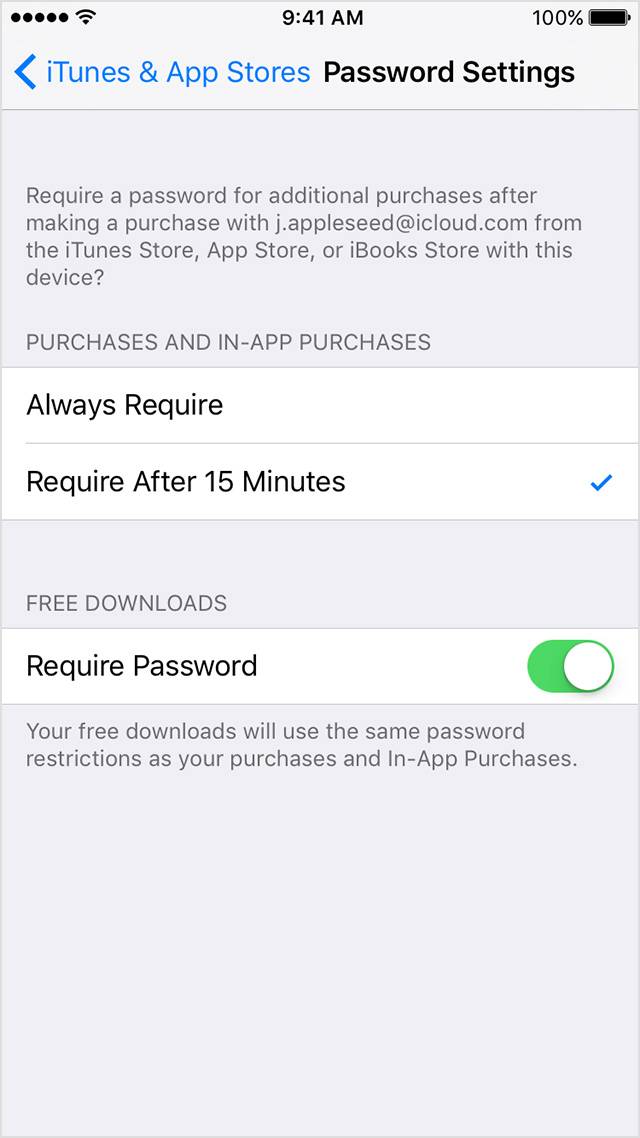
Step 4: After this, type your Apple ID password and click OK.
You can now download free apps on App Store without having to type in your password every time, as Touch ID has been turned off and the procedure for closing the app has been followed.
How to Get Free apps without Password on iPhone When Touch ID Turned On
To get free apps without entering a password, close Touch ID before changing settings. This allows you to access settings without needing to authenticate with Touch ID.
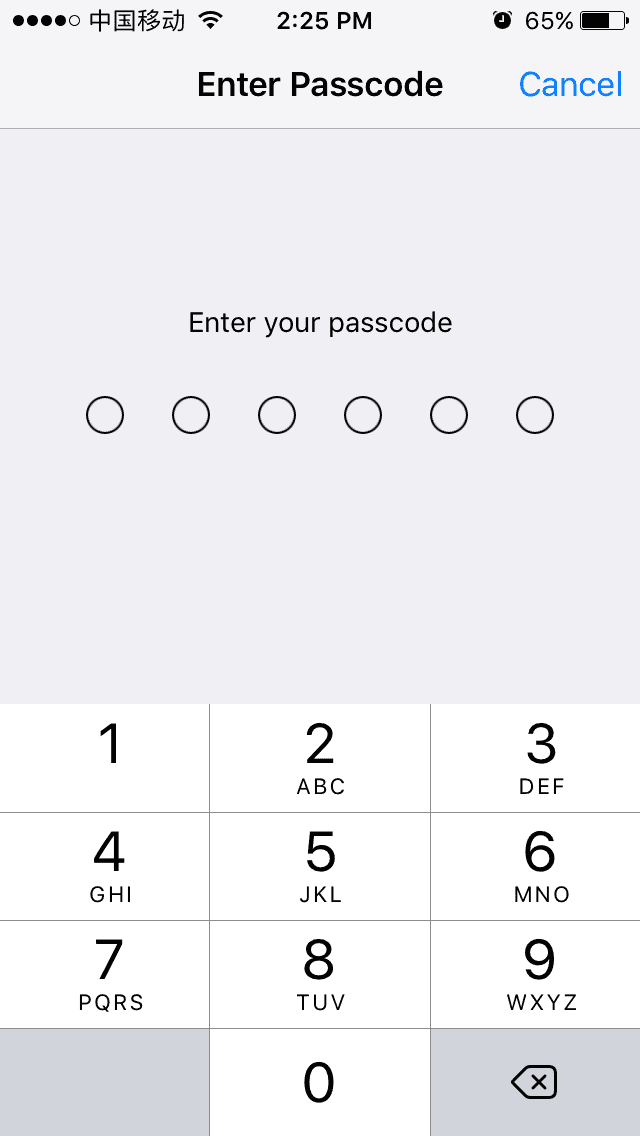
Step 1: Go to Settings > Touch ID & Passcode, then enter your passcode.
Step 2: Turn off iTunes & App Store
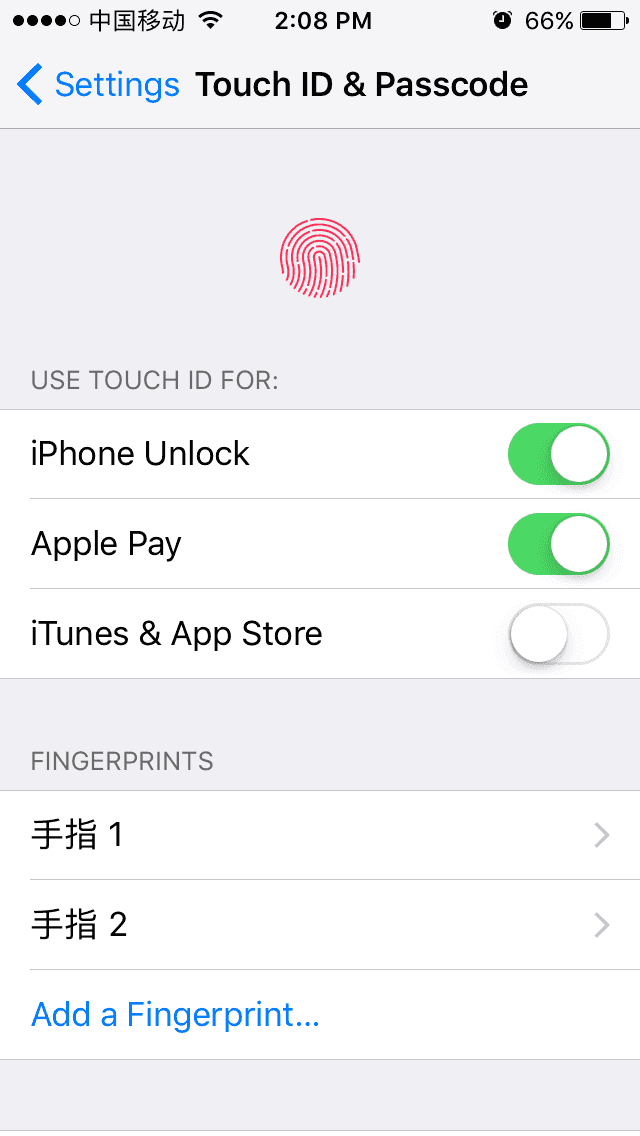
Step 3: When asked, enter your Apple ID password and click OK
You have successfully turned off Touch ID for downloading apps from the App Store. To get free apps without typing your password every time, follow the steps under "How to Get Free apps without Password on iPhone".
Related Articles
- Photos Not Showing Up on iPhone X/iPhone 8? Fixes Here!
- How to Make a FaceTime Call on Mac
- 4 Quick Fixes to Screenshot on Mac Not Working
- The Most Simple Way to Browse Files on iPad for Well File Management
Products
Articles & Tutorials
- Data Recovery
- Data Backup
- File Recovery
- File Backup
- System Backup and Restore
- Disk and Partition Clone
- Technical articles
- Mobile articles
- Disk Master Help
- Windows Data Recovery Tutorials
- Windows Secure Delete Tutorials
- Windows Partition Management Tutorials
- Windows File Backup and Restore Tutorials
- Windows System Backup and Restore Tutorials
- Windows Disk Backup and Restore Tutorials
- Windows Clone Tutorials