How to Add Ringtones to iPhone 12
Quick Navigation:
- Method 1. How to Add Ringtones to iPhone 12 from Computer
- Method 2. How to Add Ringtones to iPhone with a Ringtone Maker
- Method 3. How to Add Ringtones to iPhone 12 from iTunes
- Method 4. How to Download Free Ringtones to iPhone 12
- Method 5. How to Add Ringtones to iPhone 12 from Another iPhone
- Bonus Tip: How to Custom Ringtone on iPhone 12
- The Bottom Line
If you're tired of the default ringtones that come with your iPhone, you can change them by adding new tones from a computer or another iPhone with a data transfer tool or by creating new ringtones with a ringtone maker. You can follow the steps below to add ringtones to your iPhone 12, 11, XR, XS, X, 8, 7, or 6.
If you're using an Android device, you can refer to this blog to trim an audio file and set it as a ringtone.
Method 1. How to Add Ringtones to iPhone 12 from Computer
To set a custom ringtone on your iPhone 12, you can transfer the downloaded ringtones from your computer to your iPhone, then go to Settings > Sounds > Ringtone, and select the custom ringtone you want to use. Make sure the ringtone is in a compatible format, such as MP3 or M4A, and is not too large in size.
To add ringtones to your iPhone 12, you can use the iPhone data transfer software - Qiling MobiMover, which allows you to easily transfer and manage your iPhone data, including ringtones.
- Transfer files from PC to iPhone/iPad/iPod or vice versa
- Transfer data from one iPhone/iPad/iPod to another
- Access and manage iDevice content from a computer or Mac
- Transfer files between iPhone and Mac
This tool supports adding various types of content, including photos, videos, music, contacts, books, and more, in addition to ringtones, making it a versatile solution for personalizing an iPhone. Whether the goal is to add ringtones or transfer music to an iPhone, this tool can facilitate the process.
Qiling MobiMover is a free video & audio downloader that allows users to download online video and audio files to their computer or iPhone/iPad without any cost.
To add ringtones to iPhone 12:
Step 1. Connect your iPhone to your computer, then run Qiling MobiMover. On your iPhone, tap "Trust" and click "Allow" to enable the program to access your device.
Step 2. To add ringtones to your phone, click on the "Ringtones" option and then select "Add Contents" from the menu. This will allow you to locate and add your desired ringtones that are stored on your computer.
Step 3. To transfer a ringtone from your computer to your iPhone, select the desired ringtone on your computer, click "Open" to initiate the transfer, and once it's complete, go to your iPhone's Settings app, tap on "Sounds & Haptics," and then select "Ringtone" to view the newly transferred ringtones.
Method 2. How to Add Ringtones to iPhone with a Ringtone Maker
If you've created a ringtone and want to add it to your device, you can use Method 1. However, if you haven't made a ringtone yet, you'll need to create one first using iTunes, which can be a lengthy and complicated process. Alternatively, you can use a simpler and more user-friendly option, such as Qiling Ringtone Editor, an iPhone ringtone maker that can help you create and manage your ringtones with ease.
Qiling Ringtone Editor is a user-friendly program that enables you to transform songs, YouTube videos, and SoundCloud music into personalized ringtones, with customizable features such as special effects, recording integration, and fade-in/fade-out options.
To add ringtones to iPhone with Qiling Ringtone Editor:
Step 1. Launch Qiling Ringtone Editor on your computer and import the song you want to turn into a ringtone by either dragging it into the program or browsing your computer to select it.
Step 2. To clip your song, drag the slider to select your preferred part, then click "Clip" to proceed. Alternatively, you can click "Skip without Clip" to skip this step.
Step 3. To make your favorite part of a song fade in and out, and adjust the volume, you can swipe left to right to fade in, swipe right to left to fade out, and swipe up and down to adjust the volume. After making these adjustments, click "Export" to finalize your changes.
Step 4. From the export options, you can choose to export the ringtone to your computer or iPhone.
Method 3. How to Add Ringtones to iPhone 12 from iTunes
Using iTunes to make a song a ringtone and sync it to your iPhone is an option, but it's a bit more complex than other methods. You'll need to manually create the ringtone through iTunes, which can be a drawback compared to simpler alternatives.
If you prefer to make a custom ringtone on your own, you can follow these steps. To start, find an audio clip or song that you want to use as your ringtone, then trim it to the desired length using a video editing app or software like iMovie, GarageBand, or Audacity.
To add ringtones to your iPhone 12 from iTunes:
Step 1. Connect your iOS device to the computer and wait for iTunes to launch automatically.
Step 2. To set a song as a ringtone that's not in your iTunes library, go to File > Add File to Library, then select the song you want to add and click Open, and it will be added to your iTunes library where you can then set it as a ringtone.
Step 3. To manually manage music and videos on your device, click the "Device" button, navigate to "Summary," and toggle the option "Manually manage music and videos" to the "On" position.
Step 4. Click the "Back" button and go to "Songs" > "Library."
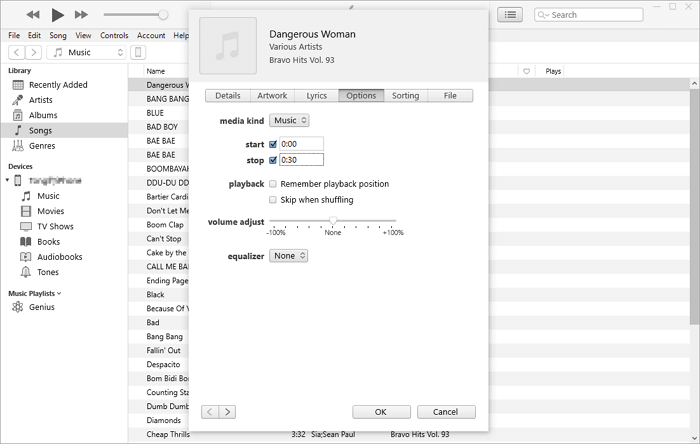
Step 5. Right-click the target song and choose "Song Info." Tap the "Options" tab in the new window.
Step 6. To set the start and stop options for a ringtone, check the "Start" and "Stop" options and set the starting and stopping points of the ringtone to be less than 30 seconds.
Step 7. To reduce the size of a song in iTunes, select the original song, go to "File" > "Convert" > "Create AAC Version". This will create a smaller version of the song.
Step 8. Right-click the shortened version and choose "Show in Windows Explorer" (or Show in Finder on Mac) to view its location.
Step 9. Copy and paste the song to your desktop and change the extension from .m4a to .m4r. Confirm your changes.
Step 10. Delete the shortened version of the song from the iTunes Library by right-clicking on it, selecting "Delete from Library", then "Delete Song", and finally "Move to Recycle Bin".
Step 11. To add a custom ringtone to your iPhone 12, tap the "Tones" tab, drag and drop the ringtone from your desktop into iTunes, and the custom ringtone will be added to your iPhone 12.
Method 4. How to Download Free Ringtones to iPhone 12
To download ringtones to your iPhone, you can visit websites that offer free ringtone downloads. These websites often have a "download" button that allows you to save the ringtone to your computer. Once saved, you can transfer the ringtone to your iPhone using a USB cable and iTunes. Alternatively, you can also purchase ringtones from the iTunes Store or other online music stores.
- https://cellbeat.com/
- https://www.melofania.club/
- https://www.mobile9.com/ (Registration Required)
To transfer ringtones from your computer to your iPhone 12, you can use a USB cable to connect your iPhone to your computer, then select the ringtones you want to transfer and drag them to the iPhone icon on your computer's desktop. Once the transfer is complete, you can go to your iPhone's Settings app, select "Sounds," and then choose the newly transferred ringtone as your iPhone's ringtone.
If there's no download button available on the website, a free video & audio downloader can help you download online audio files to your computer via the URL.
Regardless of whether you're transferring downloaded ringtones to your iPhone or downloading online ringtones to your device, the iPhone transfer software, Qiling MobiMover, can assist with the process.
Method 5. How to Add Ringtones to iPhone 12 from Another iPhone
You can add ringtones to your iPhone from a computer using three methods: transferring from iTunes, using a USB drive, or downloading from a computer. Alternatively, you can also transfer ringtones from your previous iOS device to your iPhone 12.
Qiling MobiMover allows you to transfer files between two iDevices, making it possible to put ringtones on your iPhone 12 from another iPhone, iPad, or iPod.
To put ringtones to iPhone 12 from another iPhone:
Step 1. To connect your two iOS devices to the computer, first, make sure that both devices are turned on and connected to the same Wi-Fi network. Then, open Qiling MobiMover on your computer and click on the "Connect" button.
To allow Qiling MobiMover to access your iPhone or iPad, tap "Trust" on the device screen and click "Allow" on the program window.
To transfer data from your iPhone to a Qiling phone, select the "Phone to Phone" mode, set the transfer direction to "iPhone" to "Qiling", and proceed by clicking "Next".
Step 2. Select the "Audio" option and then choose "Ringtones" from the list on your source iPhone to transfer ringtones.
Step 3. To transfer ringtones from your source iPhone to another iPhone or iPad, click the "Transfer" button to initiate the process.
Wait patiently until the process finishes.
Once the process is complete, go to your device's Settings, then tap on "Sounds & Haptics" and select "Ringtone" to confirm the transferred ringtone is playing.
Bonus Tip: How to Set a Custom Ringtone on iPhone 12
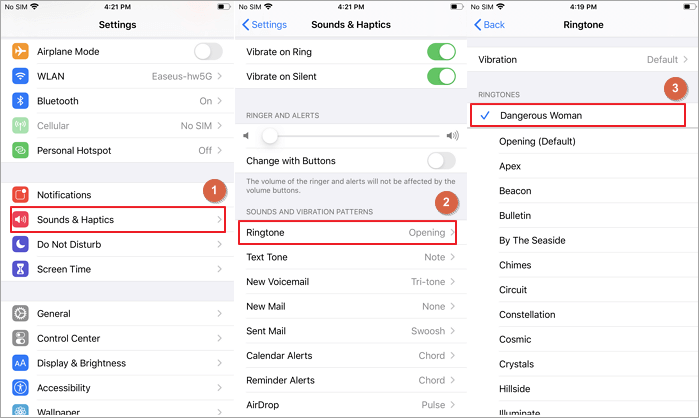
To set a custom ringtone on your iPhone, simply go to Settings, then Sounds and Haptics, tap on Ringtone, and choose the custom ringtone you've added from the list. Alternatively, you can also set a custom ringtone for specific contacts by going to Settings, then Contacts, selecting a contact, and choosing the custom ringtone from the list.
Step 1. Go to "Settings" on your iPhone.
Step 2. Tap "Sounds & Haptics" > "Ringtone".
Step 3. To set a custom ringtone on your iPhone, select the ringtone you like from the list, and click on it to make it the custom ringtone.
The Bottom Line
If you're looking to change the default ringtone on your phone, there are a few options available. You can either create a new ringtone using a music editing app like iTunes, or you can download a ringtone from a website and transfer it to your device. This way, you can customize the sound that your phone uses to alert you to incoming calls, making it more personalized and enjoyable.
Related Articles
- How to Transfer Ringtone from iPhone 6/6s/7/8/X/XR/11/12 to Computer or iTunes
- How to Convert Large YouTube Files to MP3
- How to Transfer Data from iPhone 6 to iPhone 8 in 3 Easy Ways
- The Easiest Way to Export Outlook Contacts to iCloud
Products
Articles & Tutorials
- Data Recovery
- Data Backup
- File Recovery
- File Backup
- System Backup and Restore
- Disk and Partition Clone
- Technical articles
- Mobile articles
- Disk Master Help
- Windows Data Recovery Tutorials
- Windows Secure Delete Tutorials
- Windows Partition Management Tutorials
- Windows File Backup and Restore Tutorials
- Windows System Backup and Restore Tutorials
- Windows Disk Backup and Restore Tutorials
- Windows Clone Tutorials