How to Unlock iPhone Without Passcode in 4 Ways
Four proven ways for you to unlock an iPhone without a passcode.
About Getting into a Locked iPhone Without Password
Apple's iPhone has robust data protection features, making it difficult for unauthorized access. However, this security comes at a cost: if you forget your passcode, you'll be locked out of your device. This trade-off between security and convenience is a common issue in many digital products.
"Forgot iPhone passcode" occurs more frequently than you may have expected. That's probably why you are searching for "How to unlock iPhone without passcode" now. If you want to get into a locked iPhone without the passcode, read on and learn four feasible ways on how to get it done.
If you're having trouble unlocking your iPad, try applying the same solutions that work for unlocking an iPad without a passcode, as some users may have encountered the same issue.
Notes: To get into a locked iPhone without the password, you have to erase all data and settings on the device so that you can remove the passcode, which will put your iPhone to factory settings. If you have an iTunes or iCloud backup available, you can restore your device from the backup during the setup process.
Option 1. How to Get into Locked iPhone Without Passcode with an iPhone Unlocker
The method in question has several advantages over the following four methods, including its simplicity. With only five easy steps, you can unlock a locked iPhone without a hitch, regardless of whether you're using a 4-digit code, 6-digit code, Touch ID, or Face ID. The iPhone unlock software Qiling MobiUnlock makes this process even more straightforward, allowing you to unlock your iPhone without a passcode.
This iPhone unlocker is helpful not only for getting into a locked iPhone, but also when you need to access your device for other reasons, such as when you need to remove a forgotten passcode, when your iPhone is disabled, or when you want to reset your iPhone to its factory settings.
- Fix a disabled iPhone/iPad/iPod touch
- Factory reset an iPad without passcode
- Bypass the iPhone passcode
- Unlock iPad without Apple ID
- Erase/wipe an iPhone without a password
- Fix iPhone stuck on loading circle
To unlock an iPhone without the passcode:
Step 1. Connect your iPhone to the computer, run Qiling MobiUnlock, and select "Unlock Screen Passcode" to proceed.
Step 2. After your device is detected, click "Start" to continue.
Step 3. Verify your device model and download the suitable firmware for your iPhone. If the firmware package has been downloaded, select it by clicking the "Select" button at the bottom of the screen.
Step 4. After downloading the firmware, click "Unlock" and enter the required information in the box to regain access to your locked iPhone.
Step 5. To set up your iPhone, iPad, or iPod, wait for the unlock process to complete, then follow the on-screen instructions to set up your device.
Option 2. How to Get into Locked iPhone Using Recovery Mode
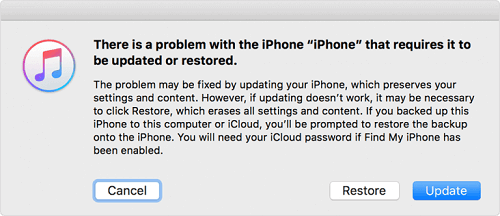
To fix a forgotten iPhone passcode, put your iPhone into recovery mode, connect it to a computer, and use iTunes to restore the device. This will erase all data and settings, including the passcode, allowing you to set up the iPhone again. Follow Apple's guide or the steps below to do this.
To get into a locked iPhone without the password:
Step 1. Install the latest version of iTunes on your Mac or PC.
Step 2.Connect your iPhone to the computer with a USB cable. If iTunes opens, close it.
Step 3.To access the iTunes icon on your iPhone, press and hold the Home button until the icon appears on the screen. The exact steps may vary depending on your iPhone model.
iPhone models with Face ID: To put your device in recovery mode, press and quickly release the "Volume Up" button, then press and quickly release the "Volume Down" button, and finally press and hold the "Top" button until it boots into recovery mode.
iPhone with Home button: To enter recovery mode on your device, press and hold both the "Home" and the "Top" (or Side) buttons simultaneously, and continue holding them until the recovery-mode screen appears.
Step 4. Open your iTunes on the computer. It will recognize your device and ask you to restore your device. Then, follow the prompts to complete the restore process.
Step 5. After that, you can set up your iPhone.
Option 3. How to Unlock iPhone Without Passcode via Find My iPhone
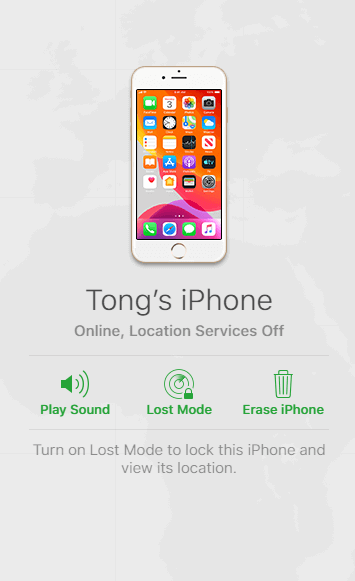
Apple's Find My iPhone feature enables users to remotely wipe an iPhone, including its passcode, which can be the easiest solution to access a locked iPhone. However, to utilize this method, users must ensure that the iPhone is connected to their iCloud account and that the Find My iPhone feature is enabled on the device. Additionally, the user must have access to the iPhone's associated iCloud account credentials to initiate the remote wipe. If these conditions are met, the remote wipe can be used to access the iPhone.
- If you've previously synced your iPhone with iTunes, you can restore it from a backup. If you're unable to access the iPhone, you can try using recovery mode to restore it.
- You have enabled the Find My iPhone feature on the device. This means that you can locate the device on a map, remotely lock or erase the device, and play a sound on the device to help you locate it if it's lost or stolen.
- There is an Internet connection on the iPhone
If you do, follow the steps below to unlock your iPhone without a passcode:
Step 1. Go to iCloud.com on your computer.
Step 2.To access your iPhone, log in to iCloud's website using the Apple ID and password you use on the locked iPhone. This will allow you to remotely access your phone's data and potentially recover your device.
Step 3. To view all devices linked to your Apple ID, go to "Find My" and click on the "All Devices" option.
Step 4. Select the locked iOS device.
Step 5. You will be shown various options, including "Play Sound", "Lock", and "Erase iPhone."
Step 6. Click on the "Erase iPhone" button to erase the iPhone.
Option 4. Get into Locked iPhone Without Passcode or Computer with Siri
Siri allows you to access your locked iPhone without needing an Apple ID or using a computer, and won't erase your existing data.
The jailbreak option for iOS 13.7 has some limitations. It only works on devices running iOS 8.0 to iOS 13, and it may not always be successful. The process is complex, but if you're willing to take the risk, you can follow the instructions to attempt it.
To unlock iPhone without passcode using Siri:
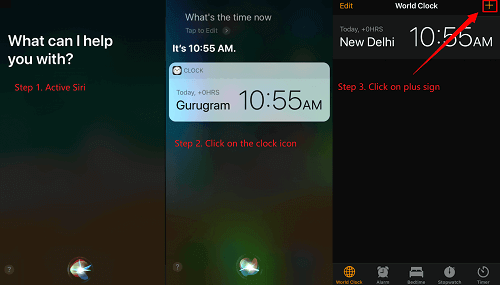
Step 1. To activate Siri on your locked iPhone, you can simply long press the home button. This will prompt Siri to speak to you, allowing you to ask her any question or give her any command.
Step 2.To check the current time, simply ask Siri "What's the time now?" and she will display the local time.
Step 3. Once the clock icon appeared, click it.
Step 4. This menu shows the world clock with some small icons, similar to the provided picture.
Step 5.Click on the plus sign in the upper right corner.
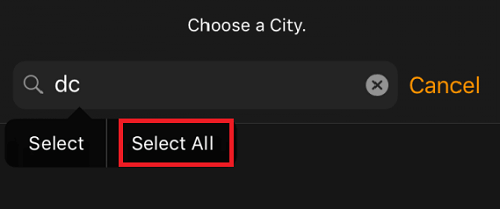
Step 6. A search box will appear, allowing you to type any characters, and then select all of those characters.
Step 7. To continue, tap on "Share".
Step 8. Select the Message app.
Step 9. To send a message, open a new message window, tap any character in the "To" field, and tap "return" from your keyboard.
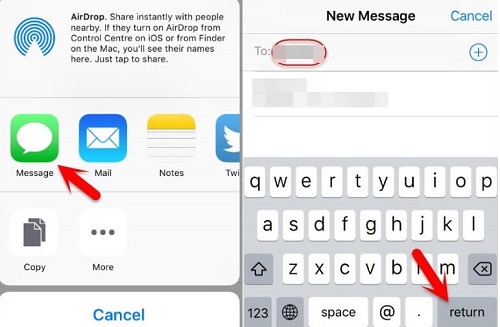
Step 10. To unlock your iPhone, wait for a while and then press the Home button. This will unlock your iPhone.
To create a voice command on your iPhone, go to Settings > Face ID & Passcode, then tap on "Add Command". Choose "Unlock with Siri" and follow the instructions. Once you've set up the voice command, you can say "Hey Siri, unlock" to unlock your iPhone without needing to enter your password.
The Bottom Line
Here's a brief conclusion: If you've forgotten your iPhone password, you can try using Face ID or Touch ID to unlock it. If that doesn't work, you can try using the "Forgot Passcode" option to reset your password. If you're unable to access your iPhone, you can try using a computer to restore your iPhone from a backup or to erase all of its data.
Qiling MobiUnlock is the quickest way to access a locked iPhone, with the added convenience of using Siri to unlock without data loss. Alternatively, recovery mode can be used, but it will erase existing data. Find My iPhone can also be used if it's enabled on the device, allowing for easy access to the locked iPhone.
Hope this guide is useful to you.
FAQ
1. Can you access a locked iPhone?
If you're unable to access a locked iPhone, you can't access it. If you're unsure how to unlock it, refer to the methods in this guide.
2. How do I unlock a locked iPhone to its owner?
When you see the iPhone locked to its owner, it means the owner has remotely erased the device via iCloud. In this case, you'll need to use Qiling MobiUnlock's Remove Activation Lock feature to unlock the device and set it up.
3. How to get into a locked iPhone without the password without losing data?
You can't get into a locked iPhone without a password or losing data, but you can ask Apple Support for help to remove the screen passcode while keeping your data.
Related Articles
- 3 Ways to Remove Apple ID from iPhone without Password
- How to Bypass Activation Lock on iPhone/iPad/Apple Watch
- How to Unlock iCloud Account Without Password
- How to Bypass Disabled iPhone 5/6/7/8/X in 3 Simple Ways
Products
Articles & Tutorials
- Data Recovery
- Data Backup
- File Recovery
- File Backup
- System Backup and Restore
- Disk and Partition Clone
- Technical articles
- Mobile articles
- Disk Master Help
- Windows Data Recovery Tutorials
- Windows Secure Delete Tutorials
- Windows Partition Management Tutorials
- Windows File Backup and Restore Tutorials
- Windows System Backup and Restore Tutorials
- Windows Disk Backup and Restore Tutorials
- Windows Clone Tutorials