How to Save a Video from Facebook to Your iPhone or Computer
Quick Navigation:
- Can You Download a Video from Facebook
- How to Save a Video from Facebook in 5 Ways
- Method 1. How to Save a Video from Facebook with Fast Facebook Video Downloader
- Method 2. How to Download Videos from Facebook with Browser Extension
- Method 3. How to Download Video from Facebook with Online Facebook Video Downloader
- Method 4. How to Save a Video from Facebook in the App
- Method 5. How to Download a Facebook Video with Mobile Apps
- The Bottom Line
This guide provides five ways to download videos from Facebook, allowing you to save them to either your mobile phone or computer.
Can You Download a Video from Facebook
Of course, you can.
YouTube and Facebook have policies against downloading videos from their platforms. While YouTube explicitly prohibits video downloads, Facebook also discourages users from saving videos to their mobile devices or computers.
You can download Facebook videos safely and successfully using tried and worked tips. Whether you want to save a video to your phone or computer, there are corresponding solutions available.
How to Save a Video from Facebook in 5 Ways
You can save videos from Facebook in five different ways, either by downloading them to your computer or saving them directly to your iPhone. Whether you want to watch videos offline, share them with others, or edit them, there's a method that suits your needs. Read on to learn more about these options and find the one that works best for you to get the Facebook video you like.
Method 1. How to Save a Video from Facebook with Fast Facebook Video Downloader
Applies To: PC, Mac, iPhone, iPad, Android Phone
Qiling MobiMover is an iOS content manager and fast video downloader that allows users to download Facebook videos directly to their computer, iPhone, or iPad using the video URL, or to their Android device using this trustworthy Facebook video downloader.
Qiling MobiMover supports video sharing on multiple platforms beyond Facebook, including YouTube, Vimeo, Twitter, and Metacafe among others.
To download a video from Facebook to your computer, follow these steps. Alternatively, if you want to save the video to your iPhone or iPad, simply connect your mobile device to your computer and set it to save the video to your device.
Notes: Unlike getting the URL of a YouTube video from the address bar, you need to right-click a Facebook video and choose "Show video URL" to get its URL.
To save a video from Facebook to your computer:
Step 1. To download Facebook videos, launch the MobiMover and navigate to the "Video Downloader" section, where you can set up the software to download Facebook videos directly to your computer.
Step 2. Copy the URL of the video in the bar and click "Download".
Step 3. Wait for MobiMover to download Facebook videos to your computer. Once it's done, you can enjoy the video offline without needing an internet connection.
To save Facebook videos to your Android phone, download the video from Facebook to your computer, then transfer the video from the computer to your phone using a USB cable.
Now that you've saved a video from Facebook, you can watch, share, or edit it as you like.
Method 2. How to Download Videos from Facebook with Browser Extension
Applies to: Mac or PC
To download a video from Facebook to your computer, you can use a reliable browser extension. This will allow you to save a video directly from Facebook when you visit the social network using a browser, not the Facebook app.
You can search for a reliable extension online or use the one I've tried and trusted, the Video Downloader for Facebook from Getfvid.
To save Facebook videos:
Step 1. To add the GetFvid extension to your browser, go to https://www.getfvid.com/extension and follow the instructions to add it to your browser, such as Google Chrome.
Step 2. Restart the browser.
Step 3. Go to Facebook and log in.
Step 4. Find and play the Facebook video you want to download.
Step 5. To download a Facebook video, hover your cursor over the video and click the "Download" button that appears. This will allow you to save the video to your computer.
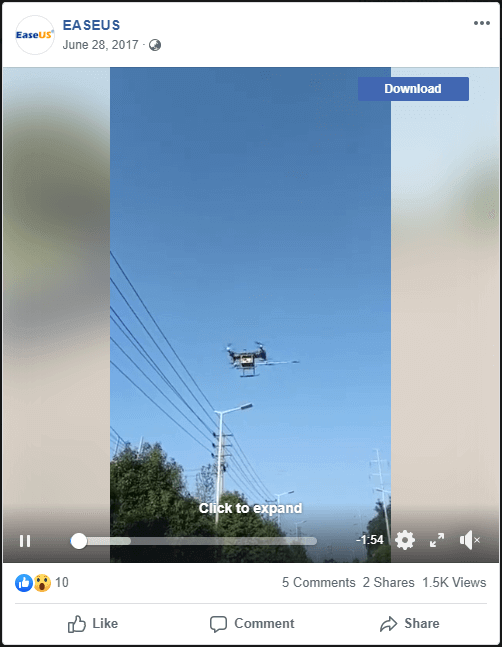
This free video downloader for Facebook is easy to use, allowing you to save a video from Facebook to your computer by simply clicking the "Download" button, eliminating the need to copy and paste the video's URL.
Method 3. How to Download Video from Facebook with Online Facebook Video Downloader
Applies To: Mac or PC
Downloading Facebook videos using online tools is a convenient option as it eliminates the need to download and install software or other programs.
Using an online tool to download videos can be problematic. I've had issues with online video downloaders being full of ads, and when you click the "Download" button, you might be taken to an unexpected page or confused by ads masquerading as the "Download" button.
If you still want to use an online video downloader, be prepared for ads and take care to avoid incorrect options.
FBDOWN.net is a website that allows users to download videos from various online platforms, including YouTube, Facebook, and others, in multiple formats and resolutions. It also supports the download of music files and other types of media. The website is free to use and does not require registration or login credentials.
To download a video from Facebook:
Step 1. Go to Facebook and sign in.
Step 2. To get the video, right-click on it, select "Show video URL", and copy the URL.
Step 3. Go to FBDOWN.net and paste the URL to the address bar.
Step 4. To download a video from Facebook, click on the "Download Video in Normal Quality" or "Download Video in HD Quality" option, and select the desired video format from the "More Options" menu. Note: Avoid clicking on "Download HD" or "Download 4K" as these are ads.
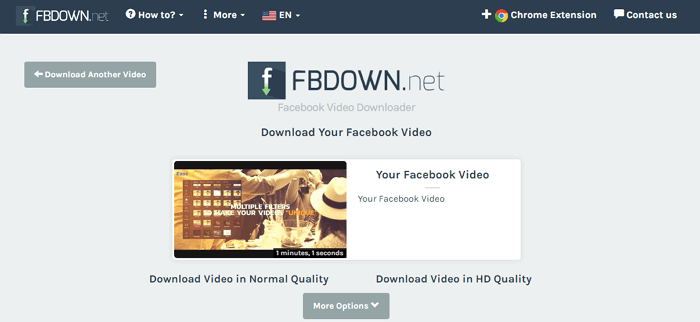
An online video downloader can work on a computer, and some may also work on mobile devices like iPhone/iPad and Android phones/tablets, depending on the specific tool used, such as FBDOWN.net which also works with Android using Google Chrome.
Method 4. How to Save a Video from Facebook in the App
Applies To: Mac or PC
To download a Facebook video that you posted, you can save it directly to your computer.
To save a Facebook video you posted:
Step 1. To find your Facebook videos, click on your name at the top of the page, then select "Photos", followed by "Albums", and finally "Videos".
Step 2. To download a video, play it first and then click on the three dots below the video window.
Step 3. To save a Facebook video to your computer, select the "Download Video" option.
Step 4. Once the download is complete, head to the "Downloads" folder (on PC) to verify that the video has been successfully downloaded.
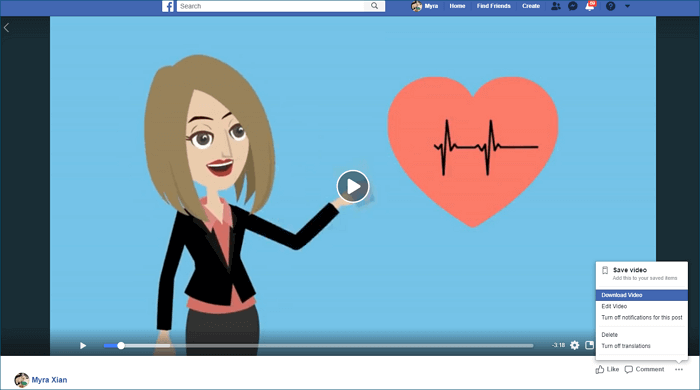
To download your own Facebook video, go to the Facebook page where you posted it, click on the three dots next to the video, and select "Save video as" from the dropdown menu. Then, choose a location on your device to save the video. You can also copy the video's URL, open a new tab, and paste the URL into a YouTube video downloader.
You can save a Facebook video to your phone or computer using various methods. While the last three options only allow you to download the video to your computer, you can then transfer the video to your mobile device by copying it from your computer to your iPhone or Android using a USB cable.
To save a Facebook video to your phone, you can download the Facebook app if you haven't already, open the app, navigate to the video you want to save, tap the three dots at the top right corner, select "Save to Camera Roll" or "Save" (depending on your phone's operating system), and then confirm that you want to save the video. This will save the video to your phone's camera roll or gallery, where you can access it later. Alternatively, you can also save the video by tapping the "Save" button on the video player, or by long-pressing on the video and selecting "Save" from the context menu.
Method 5. How to Download a Facebook Video with Mobile Apps
Applies to: Mobile Phones (iOS or Android)
There are apps for downloading Facebook videos available for both iPhone and Android devices, which can be found on the App Store for iOS and AppGallery for Android.
Since there are many different choices, each working differently, no specific example is provided here. You can explore the application and see how it works through the app's introduction.
The Bottom Line
You can download a Facebook video using different methods. Simply apply one of them to get the video on your computer or save it to your iPhone's Camera Roll with just a few clicks.
Related Articles
- 7 Ways to Transfer MP3 to iPhone from PC or Mac
- How to Transfer Music from Windows 10 to iPhone and Vice Versa
- How to Open HEIC File in Photoshop
- How to Move Photos from Mac to iPhone
Products
Articles & Tutorials
- Data Recovery
- Data Backup
- File Recovery
- File Backup
- System Backup and Restore
- Disk and Partition Clone
- Technical articles
- Mobile articles
- Disk Master Help
- Windows Data Recovery Tutorials
- Windows Secure Delete Tutorials
- Windows Partition Management Tutorials
- Windows File Backup and Restore Tutorials
- Windows System Backup and Restore Tutorials
- Windows Disk Backup and Restore Tutorials
- Windows Clone Tutorials