How to Transfer Music from iPhone to Mac for Free
Quick Navigation:
- How to Transfer Music from iPhone to Mac for Free
- Bonus Tip: How to Sync Music from iPhone to Mac Automatically
- The Bottom Line
Applies to: MacBook Air, MacBook Pro, iMac
Transferring music from an iPhone to a computer, be it a Mac or PC, can be more challenging than photo transfer. However, with the aid of a reliable tool, you can easily and quickly transfer music from your iPhone to a Mac for free.
How to Transfer Music from iPhone to Mac for Free
With the free iPhone data transfer tool - Qiling MobiMover installed on your Mac, you can transfer music, photos, videos, and more from your iPhone to Mac directly, and also transfer files from Mac to iPhone or between iDevices.
To transfer music from iPhone to Mac:
Step 1. Connect your iPhone/iPad to your Mac with a USB cable and tap "Trust This Computer" on your device's screen if prompted. On your Mac, open Qiling MobiMover for Mac, select "Phone to Mac" on the main screen, and click "Next" to proceed.
Step 2. MobiMover allows you to transfer various types of data from iPhone to Mac, including contacts, photos, audio, videos, messages, and books, either all at once or selectively. When exporting music, the files will be saved on the desktop by default, but you can customize the destination path to suit your needs.
Step 3. Click the "Transfer" button to copy your music from your iPhone or iPad to your Mac.
Qiling MobiMover is a free video downloader that allows you to download videos from websites or devices using a URL, enabling you to download YouTube videos to your Mac or save Facebook videos to your iPhone.
Bonus Tip: How to Sync Music from iPhone to Mac Automatically
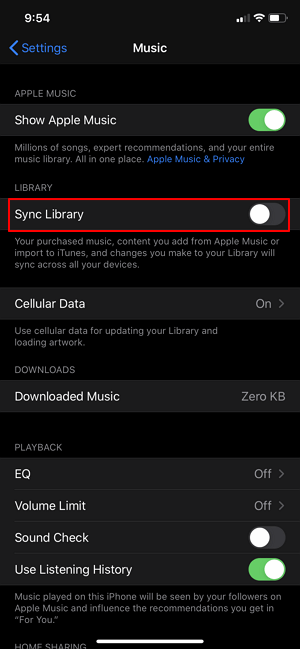
If you're an Apple Music subscriber, you don't need to transfer music from your iPhone to Mac to sync songs across devices. You can simply turn on music syncing on your devices, which allows you to access and listen to your iPhone music on your Mac without needing to transfer files. This feature enables seamless music syncing between your iPhone and Mac, making it easy to enjoy your favorite songs on both devices.
To sync music from iPhone to Mac via Apple Music:
Step 1. On your iPhone, go to "Settings" > "Music" and turn on "Sync Library."
Step 2. On your Mac, open the Apple Music app.
Step 3. Go to "Music" > "Preferences."
Step 4. To sync your library, click the "General" tab and select the "Sync Library" checkbox. After that, click "OK" to confirm the changes.
To transfer music from your iPhone to your Mac, make sure you're using the same Apple ID on both devices. Alternatively, consider using Apple Music, which allows for music transfer without needing a computer.
The Bottom Line
Transferring music from iPhone to Mac can be easily done using a tool like Qiling MobiMover, which is also useful for other data transfer situations such as transferring photos from Mac to iPhone, syncing music from one iPhone to another, and backing up contacts from iPhone to Mac.
Related Articles
- How to Transfer Photos from iPad to SD Card
- How to Sync iPhone X/iPhone 8 Calendar with Windows PC in 2 Ways
- How to Transfer Playlists from iPhone to iTunes 12
- How to Transfer iPhone Videos to Computer without iTunes
Products
Articles & Tutorials
- Data Recovery
- Data Backup
- File Recovery
- File Backup
- System Backup and Restore
- Disk and Partition Clone
- Technical articles
- Mobile articles
- Disk Master Help
- Windows Data Recovery Tutorials
- Windows Secure Delete Tutorials
- Windows Partition Management Tutorials
- Windows File Backup and Restore Tutorials
- Windows System Backup and Restore Tutorials
- Windows Disk Backup and Restore Tutorials
- Windows Clone Tutorials