How to Transfer Files from Laptop to iPhone or Vice Versa
Transferring data from a laptop to an iPhone or vice versa is a relatively straightforward process that can be achieved through various methods.
Transferring data from a laptop to iPhone or from iPhone to a laptop can be done in various ways, depending on the type and size of the content. The best method varies, but options include using a USB cable, wirelessly with AirDrop or iCloud, or through cloud storage services like Google Drive or Dropbox. Each method has its own advantages, and choosing the right one depends on the specific needs and requirements of the transfer.
- Part 1. How to Transfer Files from Laptop to iPhone
- Part 2. How to Transfer Data from iPhone to Laptop
Part 1. How to Transfer Files from Laptop to iPhone in 6 Ways
Here are six ways to copy files from your laptop to your iPhone: you can use AirDrop, email the files, use a cloud service like Google Drive or Dropbox, transfer files using a USB cable, use a third-party file transfer app, or use a computer to transfer files via iTunes or Finder.
Method 1. How to Send Files from Laptop to iPhone without iTunes
This service allows users to transfer various types of digital content, including photos, videos, music, ringtones, contacts, PDF files, and ebooks, from one device to another.
If you want to transfer photos, videos, audio files, or PDFs, using the iPhone transfer software Qiling MobiMover is perfect. This tool, installed on your Mac, PC, or laptop, allows you to transfer these file types with ease.
- Transfer files between laptop and iPhone
- Transfer data from one iPhone/iPad to another
- View, access, and manage iPhone content from a computer
You can use Qiling MobiMover to transfer photos from computer to iPhone, download iPhone photos onto PC, transfer music from iPhone to iPhone, and more using a USB cable only.
To transfer files (e.g., photos) from laptop to iPhone:
Step 1. To connect your iPhone to your laptop running Windows 7 or later, use a USB cable. Then, run Qiling MobiMover, select the "PC to Phone" option, and click "Select Files" on the screen.
Step 2. To transfer files from your laptop to your iPhone, open a new window on your computer, navigate to the files you want to transfer, select them, and click the "Open" button to proceed.
Step 3. To add more photos, click "Add Contents" or drag and drop them. MobiMover will load all supported files. You can transfer all files or select only "Pictures" to transfer photos from laptop to iPhone. Click "Transfer" to start the transfer process.
If you want to transfer photos from your iPhone to a laptop using Qiling MobiMover, simply choose "Phone to PC" instead of "PC to Phone" in step 1. Additionally, this tool can also be used to transfer files between a Mac and an iPhone, making it a convenient solution for those who need to move data between these devices.
Qiling MobiMover offers data transfer features, as well as additional tools like WhatsApp management and file conversion, allowing users to transfer WhatsApp between phones and convert HEIC images to JPG.
Method 2. How to Transfer Data from Laptop to iPhone with iCloud
Applies to: Photos and videos
You can use iCloud to copy photos and videos from your computer to your iOS device, making it possible to send photos from a laptop to an iPhone, iPad, or iPod Touch or vice versa.
To use iCloud, sign in with the same Apple ID on your computer and iOS device, connect to a stable network, and ensure there is enough free space in iCloud to store your files.
If you decide to transfer pictures from a laptop to iPhone using iCloud, go to the guide on how to transfer photos from PC to laptop for detailed steps.
Method 3. How to Send Files from Laptop to iPhone with iCloud Drive
Applies To: Documents
iCloud Drive allows you to access your documents across multiple devices, including iPhone, iPad, iPod Touch, Mac, and Windows computer, with the ability to wirelessly transfer files between devices.
To transfer files from laptop to iPhone using iCloud Drive:
Step 1. To enable iCloud Drive on your iPhone, go to the "Settings" app, select your name from the top of the screen, and then tap on "iCloud". From there, toggle the switch next to "iCloud Drive" to the right, which will turn it on.
Step 2. To transfer files from your computer to iCloud, you can upload the desired files to iCloud Drive. This can be done by selecting the files you want to transfer, right-clicking on them, and choosing the "iCloud Drive" option from the context menu.
If you have iCloud for Windows installed, enable iCloud Drive and place the documents you want to share into the iCloud Drive folder on your laptop.
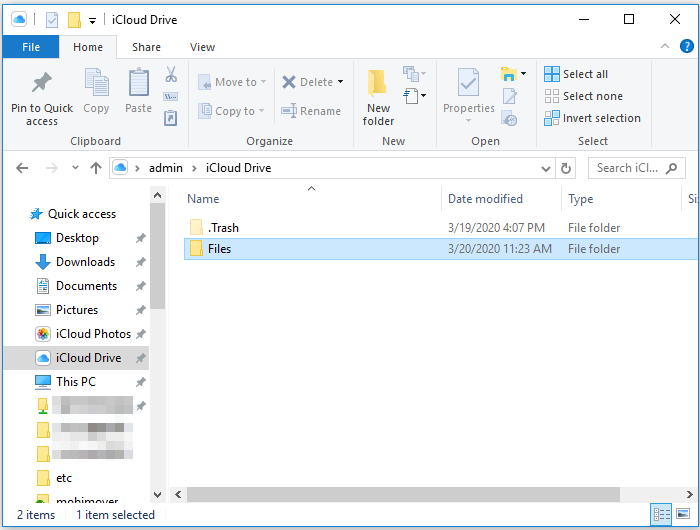
If you don't have the iCloud control panel, you can upload files to iCloud by visiting iCloud.com from your computer, signing in, and choosing "iCloud Drive" to upload the files.
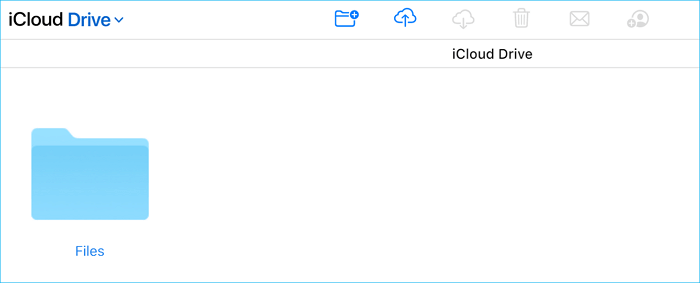
Step 3. After syncing, you can check the transferred files by going to "Files" > "Browse" > "iCloud Drive" on your iOS device.
Step 4. To save the files to your mobile device, click the download icon to download them to your iPhone.
If your iCloud Drive may not sync on your computer, you can either follow the troubleshooting guide to solve the problem or try other practicable ways.
Method 4. How to Transfer Data from Laptop to iPhone with Other Cloud Services
This tool can scan and detect various types of files, including photos, videos, audio files, as well as Microsoft Office files like Word, Excel, and PPT, and even texts.
Many cloud storage services, aside from iCloud, allow you to share files between your laptop and iPhone. Services like Dropbox, Google Drive, and OneDrive enable you to transfer files from laptop to iPhone or data from iPhone to laptop.
Here are the universal requirements you need to meet while using cloud-based services:
- Use the same account on the devices
- There is enough storage
- Your devices are well-connected to networks
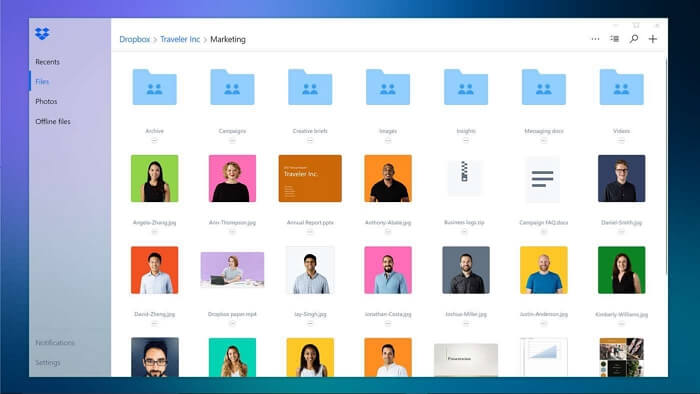
To share files between an iOS device and a computer, you can use cloud services like Dropbox. You can download the Dropbox app on your iOS device, sign up for a free account, and upload your files to Dropbox. Then, you can access your Dropbox account on your computer, download the Dropbox app, and sync your files.
To copy files from laptop to iPhone:
Step 1. Download and install Dropbox on your iPhone and laptop.
Step 2. Sign in to Dropbox with the same account on your devices.
Step 3. On your computer, upload files to Dropbox from the application, or send them via Dropbox.com if you don't want to download the software.
Step 4. To access and download files from your computer using the Dropbox app on your iPhone, go to the app and log in with your Dropbox account credentials. Once logged in, you can browse through your Dropbox folders and select the files you want to download.
Method 5. How to Send Files from Laptop to iPhone Using Email
Applies To: Photos, videos, documents...
You can transfer files from your computer to your iPhone, or vice versa, by attaching them to an email, making it a quick and easy method for transferring individual files.
To send files from laptop to iPhone via email:
Step 1. Create a new email on your laptop.
Step 2. Attach the files you want to transfer to the email as attachments.
Step 3. Send the email to your account.
Step 4. Check the email on your iPhone and download the attachments to your device.
Method 6. How to Sync Data from Laptop to iPhone Using iTunes
Applies to: Photos, videos, music, audiobooks...
You can transfer files from a laptop to an iPhone without using iTunes by using one of the five methods mentioned earlier. Alternatively, if you prefer, you can sync data from your PC or laptop to your iPhone using iTunes.
iTunes will help you in two ways: syncing or file sharing. You can either use iTunes syncing to transfer files from your PC to your iPhone, or use iTunes File Sharing for the same purpose.
To transfer data using iTunes syncing, be aware that synced items will replace existing data on your iOS device, potentially erasing important files. For guidance on using iTunes syncing, refer to the guide on transferring audiobooks to iPhone with iTunes.
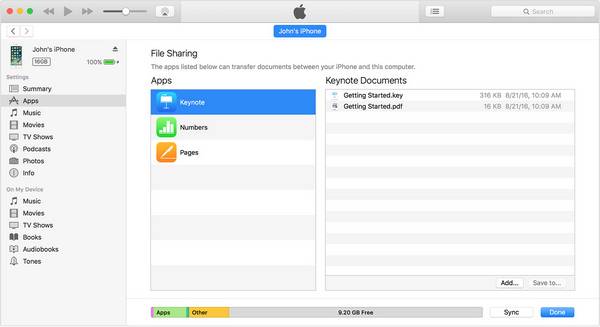
To send files from your laptop to your iPhone using iTunes File Sharing, connect your iPhone to your laptop and open iTunes. Select your iPhone from the top left menu and click on the "File Sharing" tab.
Step 1. Connect your iPhone to your laptop with a USB cable.
Step 2. In the iTunes window, click the device icon and select "File Sharing".
Step 3. Select the app that you want to transfer a file to or from.
Step 4. To copy files to your iPhone, click "Add" to select the file you want to transfer, then click "Add" to add it to your iPhone.
Step 5. Go to the app you just selected to check the transferred files.
Part 2. How to Transfer Data from iPhone to Laptop
Transferring data from iPhone to laptop is just as easy as the other way around, and all six methods introduced earlier can be used in reverse. If you're looking to transfer photos from your iPhone to your computer, you can also use Windows File Explorer as an additional option. This allows for seamless transfer of files and photos between devices.
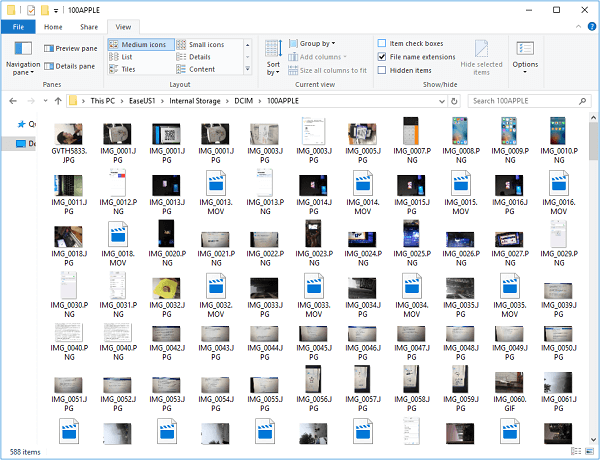
To transfer pictures from iPhone to computer via File Explorer:
Step 1. Connect your iPhone to your computer with a USB cable.
Step 2. To unlock your device, physically press the power button and enter your passcode, fingerprint, or facial recognition to access your home screen. Once you're in, tap on the prompt that appears, and select "Trust" or "Allow" to proceed with the installation.
Step 3. If your computer recognizes the iDevice, go to "This PC" > [your iPad's name] > "Internal Storage" > "DCIM" > "Apple100" to copy photos from your iPhone to the laptop.
You can transfer files between an iPhone and a Mac using AirDrop, a built-in file sharing utility on both devices. This feature allows for easy file sharing between devices running macOS, making it a convenient option for users.
The Bottom Line
You can successfully transfer files from your laptop to your iPhone or vice versa using the tips provided, by specifying your needs and applying the most suitable method with a few simple clicks.
FAQ
1. Can you AirDrop from laptop to iPhone?
AirDrop is a file sharing utility on iOS and macOS that is available only between Apple devices. If you have a Mac laptop, you can easily share files with your iPhone using AirDrop, but this feature is not compatible with Windows operating systems.
2. What is the best file transfer app for iPhone to PC?
Choosing the best file transfer app can be subjective as different apps cater to different needs. The "best" app is one that meets your specific requirements. To find the right one, consider your needs and preferences, and select an app that aligns with them.
- It is always a good idea to review the app's details to see if it has any risks.
- Check if it is time-saving. The process should be simple and quick.
- Use the free trials before purchasing an app, as they provide insight into its features and functions, allowing you to determine whether it's worth the investment.
3. Can I transfer files from a laptop to an iPhone via Bluetooth?
Bluetooth file transfer is not supported between an iPhone and a laptop, so you should use a USB cable or iCloud to transfer files.
Related Articles
- How to Transfer Videos from iPhone to PC in Windows 10/11
- URL Video Downloader: Download Any Video from Any Site Using URL
- How to Transfer Music from iPad to iPad in Proven Ways
- How to Transfer Photos from iPhone 8/8 Plus to Computer
Products
Articles & Tutorials
- Data Recovery
- Data Backup
- File Recovery
- File Backup
- System Backup and Restore
- Disk and Partition Clone
- Technical articles
- Mobile articles
- Disk Master Help
- Windows Data Recovery Tutorials
- Windows Secure Delete Tutorials
- Windows Partition Management Tutorials
- Windows File Backup and Restore Tutorials
- Windows System Backup and Restore Tutorials
- Windows Disk Backup and Restore Tutorials
- Windows Clone Tutorials