Check SSD TBW and Total Bytes Written on Windows
Quick Navigation:
- What TBW Means
- Read Total Bytes Written from SMART
- Compare the Result With the Rating
- Replace the Drive Before It Wears Out
- Frequently Asked Questions
Every SSD has a write budget: the amount of data the manufacturer expects the flash to accept before wear becomes a problem. Reading the host writes from SMART and comparing them with that budget tells you how much of the drive's life has been used.
What TBW Means
TBW stands for terabytes written, the endurance figure quoted on an SSD data sheet. A drive rated at 600 TBW is expected to absorb 600 terabytes of host writes within its warranty period. Enterprise drives often quote DWPD instead, which is the number of full drive writes per day the drive supports for the warranty term.
The figure is a warranty definition, not a hard failure point. NAND blocks wear out gradually and the controller hides worn blocks behind spare capacity, so a drive that passes its TBW rating usually keeps working. What it loses is the vendor's guarantee, and the margin of spare blocks that keeps performance stable.
Two different numbers are often reported. Host writes count what the operating system sends to the drive; NAND writes count what the controller actually programs after garbage collection and write amplification, which is always higher. SMART reports host writes, so use that number for the comparison with TBW.
Read Total Bytes Written from SMART
On an NVMe drive, open the vendor utility or a SMART reader and look for Data Units Written. One unit equals 1000 blocks of 512 bytes, so multiply the reported value by 512,000 to get bytes, then divide by a trillion for terabytes. On a SATA SSD, the byte total usually hides in a vendor-specific attribute such as Total_LBAs_Written, where each LBA is one 512-byte block.
The fastest route is the manufacturer's own tool: Samsung Magician, Crucial Storage Executive, WD Dashboard, Kingston SSD Manager, and Kioxia SSD Utility all display total host writes and a health percentage. A generic reader such as CrystalDiskInfo exposes the same SMART attributes, and smartctl -a prints them as text, which is convenient on a machine without the vendor software.
Write the number down with the date. A single reading tells you the total, but two readings a month apart show the write rate, and that rate is what matters when you decide whether the drive will last another year in its current role.
Compare the Result With the Rating
Divide the host writes by the TBW rating to get the share of endurance used. A drive with 150 TB written out of a 600 TBW rating has used about a quarter of its budget. Consumer drives of 1 TB are commonly rated between 300 and 600 TBW, while high-endurance and enterprise models quote several times more for the same capacity.
Cross-check that percentage against the vendor health figure and the spare-block count. A drive that shows 40 percent of its TBW used but a health value near 100 is behaving normally; a drive with low host writes and a health value that keeps dropping is showing a controller or NAND problem instead of wear.
Watch the rate rather than the total. A video editing workstation can add tens of terabytes a year, while an office laptop adds a few. The same drive is fine in one machine and close to its limit in the other.
Replace the Drive Before It Wears Out
When the numbers show the drive is near the end of its useful life, plan a replacement instead of waiting for a failure in the middle of a working day. Qiling Disk Master clones the existing disk to a new SSD so that the system, programs, and files arrive on the new drive without reinstalling Windows.
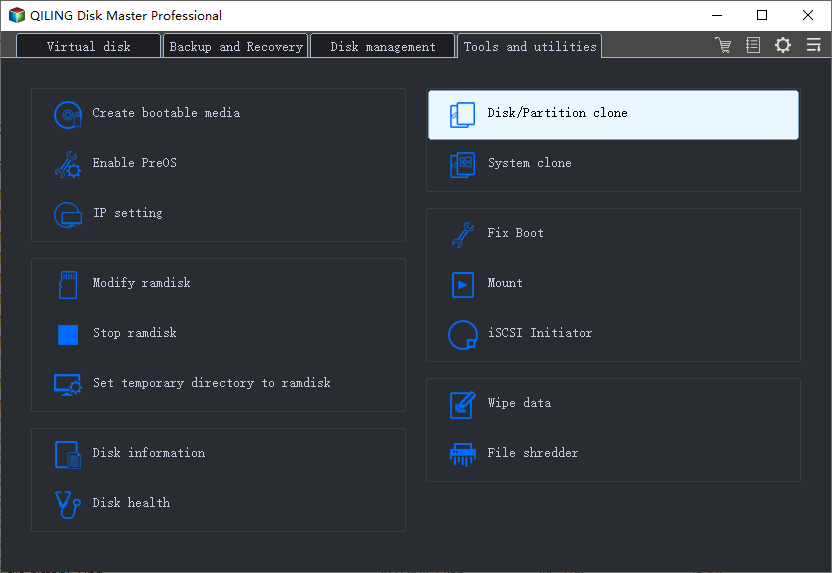
Step 1. Choose Disk Clone
Connect the new SSD through a USB adapter or a free internal port, open the program, and pick the disk clone option. Confirm that the new drive is at least as large as the data on the old one, not necessarily as large as the old disk.
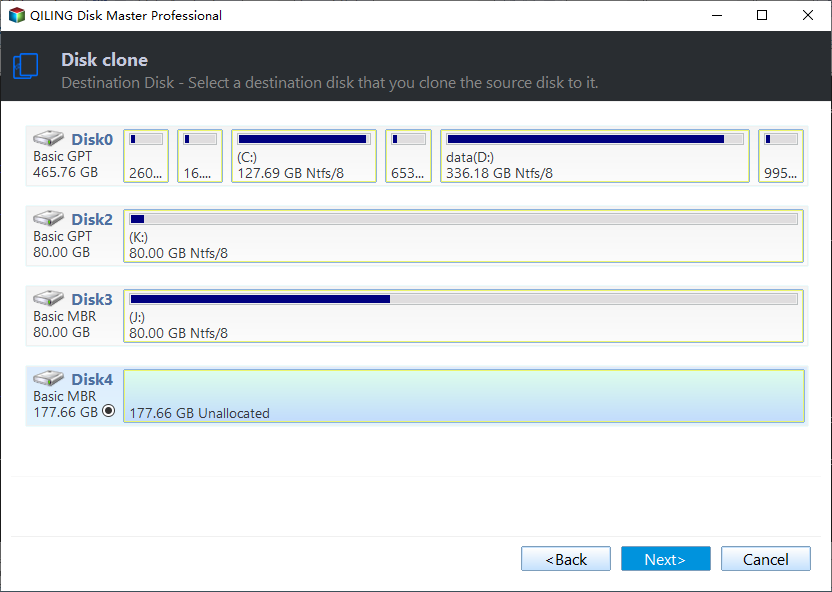
Step 2. Select Source and Destination
Choose the worn SSD as the source and the new drive as the destination. The destination is overwritten, so verify its capacity and model before continuing, and disconnect any other external disk that could be mistaken for it.
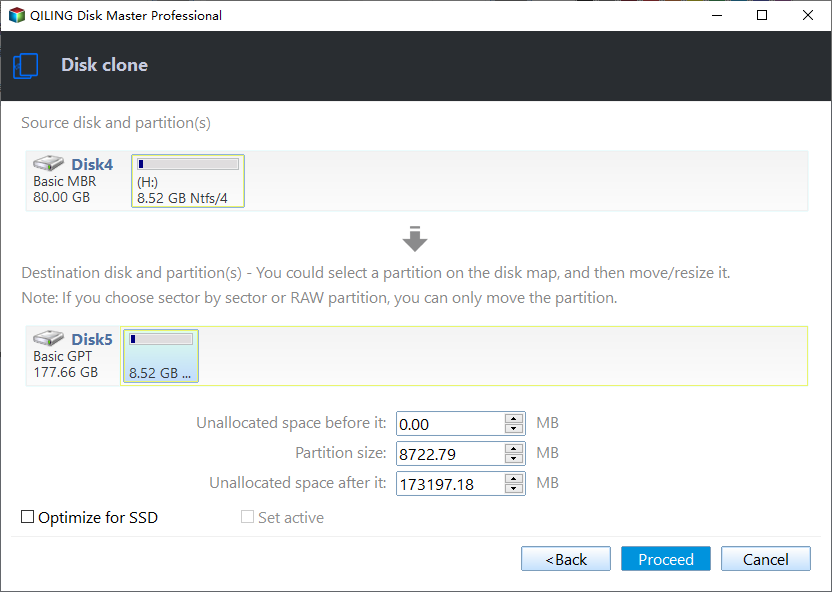
Step 3. Preview and Proceed
Check the preview for partition sizes, alignment, and the option to clone all sectors, click Proceed, and wait for it to finish, then boot from the new drive with the old one disconnected to confirm that everything works before you wipe or retire the original.
Frequently Asked Questions
Does exceeding TBW break the drive immediately?
No. TBW marks the end of the warranty, not a hardware cliff. The drive continues to work until the spare blocks run out, but its reliability margin is smaller and a replacement should be planned.
Why is the vendor health percentage different from my TBW calculation?
They measure different things. TBW compares host writes with a rating, while the health value is derived from spare blocks, program and erase counts, and uncorrectable errors.
Do reads count toward TBW?
No. TBW tracks writes only. Reading a drive heavily does not consume its write endurance.
Can I check TBW on an external USB SSD?
Often, yes, if the enclosure passes SMART through. Some USB bridges block SMART commands, in which case the vendor tool may still read the drive over a direct SATA or NVMe connection.
If you are evaluating a second-hand drive, read is it safe to buy a used SSD before you trust the numbers.
Related Articles
- How Long Do SSDs Last
- Is It Safe to Buy a Used SSD
- Scan a Hard Drive for Bad Sectors with SMART
- Disk Queue Length and Latency: Is the Drive the Bottleneck?
Products
Articles & Tutorials
- Data Recovery
- Data Backup
- File Recovery
- File Backup
- System Backup and Restore
- Disk and Partition Clone
- Technical articles
- Mobile articles
- Disk Master Help
- Windows Data Recovery Tutorials
- Windows Secure Delete Tutorials
- Windows Partition Management Tutorials
- Windows File Backup and Restore Tutorials
- Windows System Backup and Restore Tutorials
- Windows Disk Backup and Restore Tutorials
- Windows Clone Tutorials