Scan a Hard Drive for Bad Sectors with SMART
Quick Navigation:
- What Bad Sectors Are
- Read SMART Before the Test
- Run a Surface Test the Safe Way
- Copy the Data Off First
- Frequently Asked Questions
A bad sector is a small block of the disk that no longer stores data reliably. Scanning finds them, but a scan is a read operation and a failing disk does not recover from being stressed. The order matters: check SMART, scan with a read-only test, and copy the data before any repair.
What Bad Sectors Are
Hard drives store data in 512-byte or 4096-byte sectors protected by error correction codes. When a sector cannot be read back correctly, the drive marks it as pending and may remap it to a spare sector the next time it is written. Once remapped, the sector is reallocated and the original location is never used again.
The distinction explains the SMART counters. Reallocated sectors have already been replaced and the drive is still running. Pending sectors are unstable and waiting for a write to decide their fate. Uncorrectable sectors could not be read at all, which is what usually surfaces as a copy error or a file that suddenly cannot be opened.
Bad sectors come from two sources. Physical damage, such as a head touch or a particle on the platter, is permanent and tends to spread. Logical errors from a power cut or a firmware glitch can sometimes be cleared by a rewrite, but writing to a failing drive is exactly what you want to avoid until the data is safe.
Read SMART Before the Test
Open the drive with a SMART reader or the manufacturer's tool and read three attributes: Reallocated Sector Count, Current Pending Sector Count, and Uncorrectable Sector Count. A raw value of zero across all three is a good sign; a growing reallocated count means the surface is degrading even if the drive still passes a quick test.
Look at the trend, not only the total. Ten reallocated sectors that appeared years ago and never moved is different from two hundred that appeared this week. If you have an older health report, compare the numbers, and note the power-on hours so the age of the drive is part of the picture.
Also listen to the drive. Clicking, ticking, or a repeated spin-up means a mechanical problem, and no scan will fix it. Power the machine down and take the drive to a lab rather than running a surface test that puts the heads back over a damaged area.
Run a Surface Test the Safe Way
A surface test reads every sector and reports the slow and unreadable ones. Use a read-only test first: it stresses the disk far less than a write test and cannot trigger reallocation across the whole surface. A full read of a multi-terabyte drive takes hours, so run it when the machine can stay on.
Qiling Disk Master includes a surface test that maps the result across the disk, which makes a cluster of bad sectors easy to spot. Start with the read test, and only consider a write or repair pass after the data has been copied somewhere else.
Step 1. Select the Disk
Open the program, right-click the drive you want to check, and choose the surface test option. Confirm the disk number and capacity first; on a machine with several drives, selecting the wrong one means hours spent testing the wrong hardware.
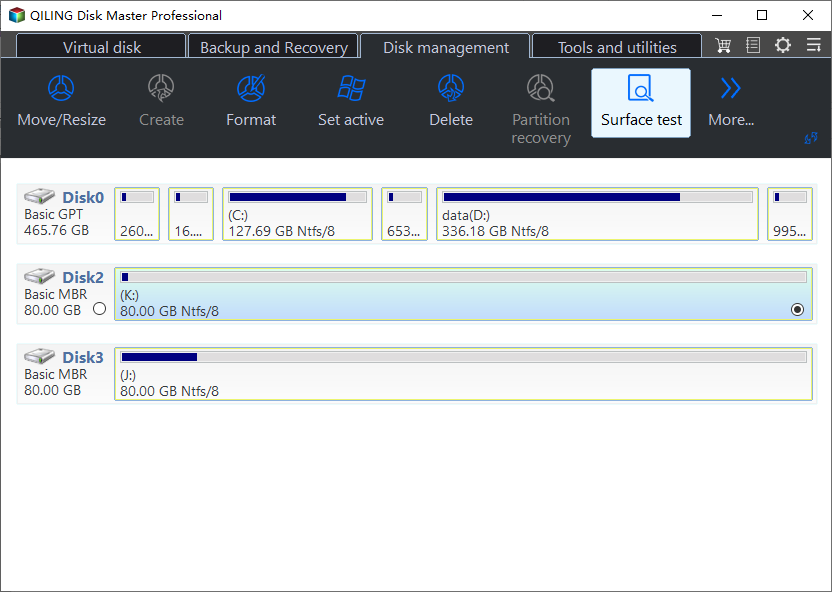
Step 2. Start the Read-Only Test
Choose the read test and start it. Leave the machine powered and connected until the test ends; interrupting a scan hides the part of the surface that was never checked, and the result becomes misleading.
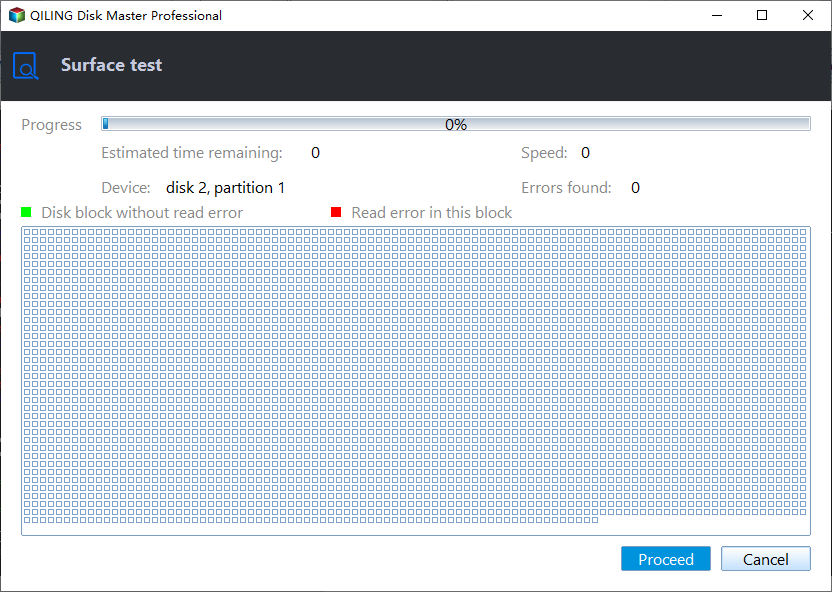
Step 3. Read the Map
Red or unreadable blocks concentrated in one area point to physical damage. Scattered slow blocks across the whole surface suggest a drive that is simply old. Either way, write down the block ranges and treat the drive as unreliable from now on.
Copy the Data Off First
Recovery comes before repair. Connect a healthy destination disk with enough free space and clone or copy the failing drive, accepting that unreadable sectors will be skipped. Cloning a drive with bad sectors gives you a working copy to recover files from without touching the original again.
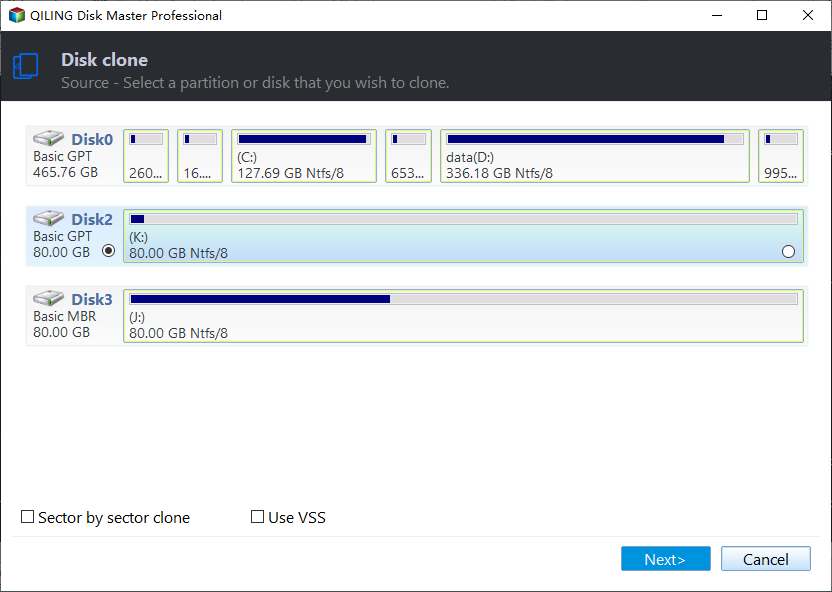
Step 1. Choose the Source Disk
In Disk Master, start a disk clone and select the failing drive as the source. Do not repair, format, or repartition it first; every write reduces the chance that the remaining sectors can still be read.
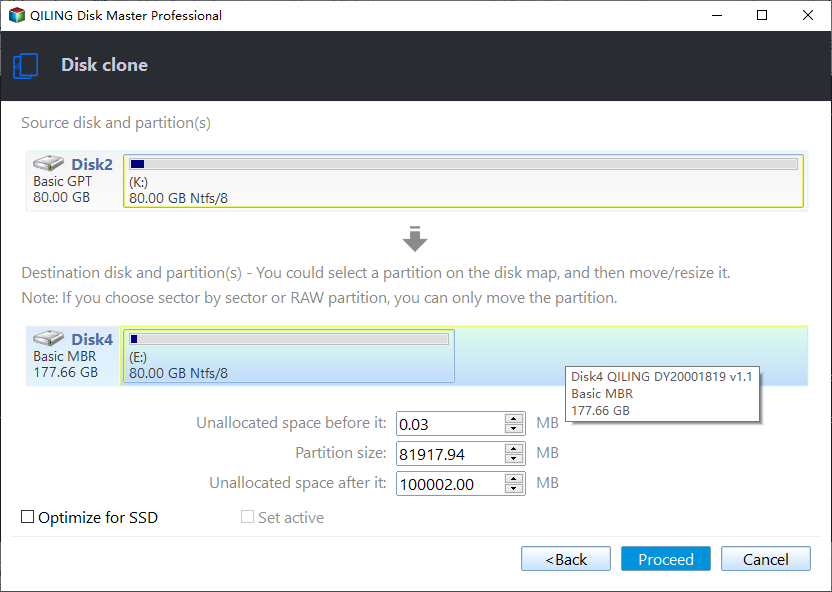
Step 2. Start the Clone
Select the destination, review the preview, and click Proceed. When the clone reports errors on specific sectors, let it continue; a copy with a few gaps is still far more useful than no copy at all.
Frequently Asked Questions
Can bad sectors be repaired?
They can be remapped, not repaired. A write forces the drive to use a spare sector, which hides the problem but does not restore the damaged area, and the spare pool shrinks with every remap.
Should I run CHKDSK /R on a failing drive?
Not before copying the data. CHKDSK with the repair option writes to the disk and can push a marginal drive over the edge.
How many reallocated sectors are too many?
Any nonzero count means the surface has degraded. The number matters less than its growth rate; a count that climbs quickly is a clear signal to replace the drive.
Is a surface test safe for an SSD?
A read test is harmless. Writing to every block on an SSD consumes endurance, so use vendor diagnostics and SMART data instead of a full write test.
If the drive already makes noise, read how to handle a hard drive that is making noise before running anything else.
Related Articles
- Check Disk Health
- How to Repair a Hard Drive Making Noise
- Check SSD TBW and Total Bytes Written on Windows
- Disk Queue Length and Latency: Is the Drive the Bottleneck?
Products
Articles & Tutorials
- Data Recovery
- Data Backup
- File Recovery
- File Backup
- System Backup and Restore
- Disk and Partition Clone
- Technical articles
- Mobile articles
- Disk Master Help
- Windows Data Recovery Tutorials
- Windows Secure Delete Tutorials
- Windows Partition Management Tutorials
- Windows File Backup and Restore Tutorials
- Windows System Backup and Restore Tutorials
- Windows Disk Backup and Restore Tutorials
- Windows Clone Tutorials