How Much GB is Fortnite on Laptop/PC | Get More Storage
Fortnite, developed by Epic Games and People Can Fly, is a highly popular Battle Royale game that has received a significant update with the release of Chapter 5 Season 1 on December 3. This update includes new content and marks the beginning of a new chapter, resulting in a slightly larger file size for the v28.00 patch.
If you're experiencing the "install failed not enough space" error, it means there's not enough space at the target partition. To determine the required space for Fortnite on your laptop or PC, you can check the game's system requirements, which typically include a minimum of 20-30 GB of free space. However, the actual space required may vary depending on the device and the operating system being used. If you're struggling with space, consider deleting unnecessary files or uninstalling other games to free up space.
Fortnite File Size on Laptop/PC
The minimum storage space requirement for Fortnite is 26 GB. Fortnite's file size will increase due to continuous updates, patches, and the game's transition to Unreal Engine 5, requiring more storage space in the future.
Fortnite's developers release regular patches to fix bugs and add new content. The Chapter 5 Season 1 update on PC/laptop is 25.90 GB, a larger size due to the addition of new maps, characters, weapons, and items.
If you're running out of space on your drive for Fortnite updates or installations, this post will help you.
Extra Tips: Free up Drive Space for Fortnite
Here are 5 methods to create more free storage space on your drive for holding and launching Fortnite.
- Way 1. Remove Unnecessary Features
- Way 2. Move Apps to Another Drive/Partition
- Way 3. Extend the Game Partition
- Way 4. Install an External Drive
- Way 5. Upgrade to a Larger Drive
Way 1. Remove Unnecessary Features
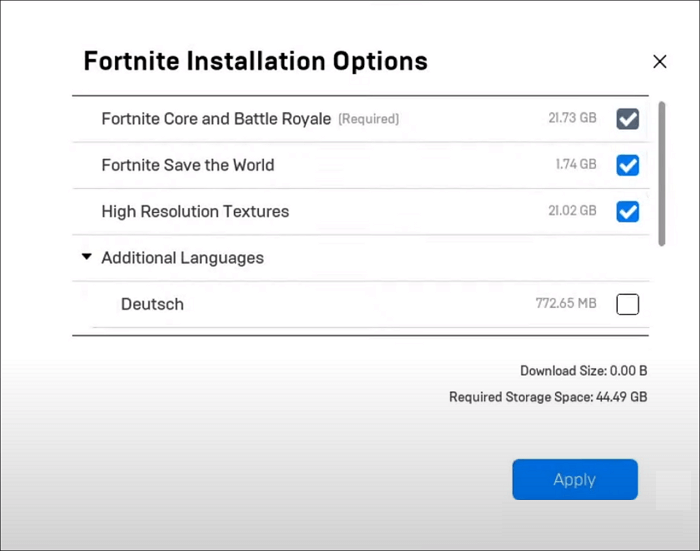
If you're having trouble installing the latest Fortnite update, try uninstalling unnecessary features like high-resolution textures or DLC and add-ons from Epic Games to free up hard drive space.
Step 1. Launch the Epic Games Store and go to "Library."
Step 2. Find Fortnite and hit the three dots beside the game.
Step 3. To access the Fortnite Installation Options window, select "Options" from the available choices.
Step 4. Uninstall unnecessary features by unchecking them and then clicking "Apply" to remove them.
Way 2. Move Apps to Another Drive/Partition
If the partition has enough space to install Fortnite and its updates, but is mostly occupied by other applications, a good solution is to transfer these apps to another drive or partition. This can be done quickly and safely using a tool like Qiling Disk Master Professional.
This tool has an additional feature called AppMove that allows you to easily transfer multiple applications to another drive or partition, freeing up space for games like Fortnite.
You can also refer to this article to move Fortnite to another drive with sufficient storage capacity.
How to Move Fortnite to Another Drive/PC (simple steps)
To transfer Fortnite to another drive without having to download it again, there are two methods to consider. For more information on how to accomplish this, you can check out this article.
Way 3. Extend the Game Partition
If you have multiple partitions on your hard drive and little need to store data on another partition, you can allocate one drive to add space to another partition, allowing you to extend or shrink partitions as needed.
Qiling Disk Master allows you to observe the changes in partition storage space intuitively, enabling a simple process with just a few clicks.
Step 1. Shrink partition to free up space to extend partition.
If the hard drive has enough unallocated space to extend the target partition, jump to Step 2, and continue. If not, free up space first by deleting or moving other files to make room for the extension.
- At the Partition Manager section, right-click on a partition next to the target partition and select "Resize/Move" to make adjustments.
- To free up space, drag the partition ends to create unallocated space behind the target partition.
Step 2. Extend the target partition.
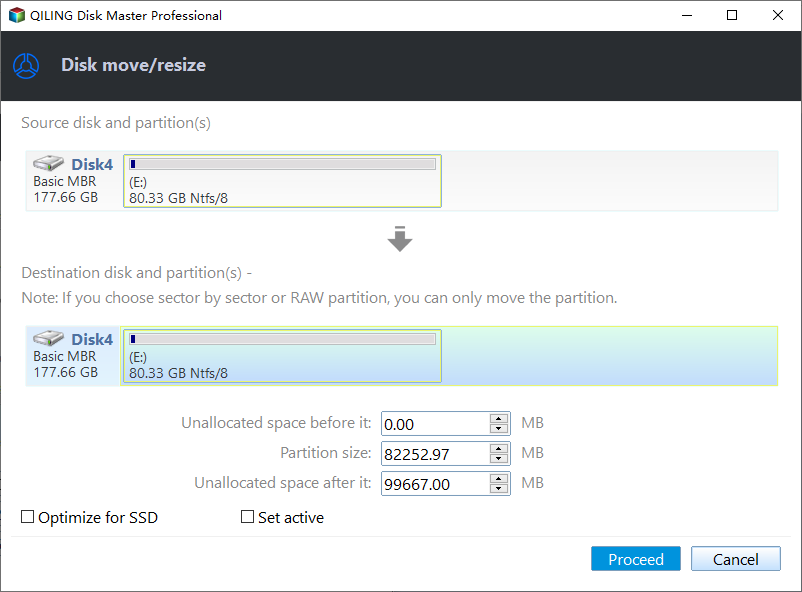
Right-To extend a partition, click on the target partition you want to extend and select "Resize/Move".

To extend the target partition, drag the partition handle into the unallocated space. This will allocate the unallocated space to the target partition, effectively increasing its size.

Step 3. Keep all changes.
Click the "Proceed" button to keep all changes.

Feel free to share this powerful tool with your friends who also need a solution for insufficient space, allowing them to easily organize and declutter their homes, offices, or any other space where storage is a challenge.
Way 4. Install an External Drive
If you're running out of space on your computer, consider buying an external hard drive or solid state drive to add extra storage. This way, you can store more apps and games on the external drive, freeing up space on your original drive. You can even move apps and programs from your PC to the external drive after connecting it. This can help you download and run games like Fortnite without worrying about space issues.
If you're interested in this method, you can read the article to learn how to choose a suitable SSD for gaming.
Newest Must-Have and High Performance External SSD for Gaming
To choose the best external SSD for gaming, consider the storage capacity, interface type (such as USB-C or Thunderbolt 3), and compatibility with your gaming console or PC. Look for an SSD with a high read and write speed, such as NVMe, to ensure smooth loading times and fast data transfer. Additionally, check the power consumption and durability of the external SSD, as well as any additional features like encryption or password protection. Research different brands and models, such as the Samsung T7 or WD My Passport, and read reviews to find the best option for your gaming needs.
Way 5. Upgrade to a Larger Drive
You can replace the old hard drive with a larger one, such as an SSD with more storage space, which also improves loading speeds. This allows for smoother gameplay in Fortnite. To transfer all data and apps, you can use Qiling Disk Master to clone all partitions to the new SSD.
Below are the detailed steps for cloning the disk:
Step 1. Select the source disk.
- To clone an operating system (OS) disk or a data disk, follow these steps: Click on the "Tools" tab page, then select either "Clone OS Disk" or "Clone Data Disk" and click "Next".
- Choose the source disk and click "Next".
Step 2. Select the target disk.
- Select the desired storage device, such as an external hard drive (HDD) or solid-state drive (SSD), as the destination for the backup, and then click the "Next" button to proceed with the backup process.
- Read Warning message and confirm "Yes" button.
Step 3. The disk layout can be viewed and the target disk partition size can be edited by accessing the disk management tool, selecting the desired disk, and adjusting the partition size as needed.
To erase a disk, open Disk Utility, select the target disk, and click the "Erase" button. A warning will appear stating that the process will wipe out all data on the disk. Click "Continue" to proceed. If the disk contains valuable data, back it up beforehand to avoid losing it.
You can customize your disk layout by selecting "Autofit the disk", "Clone as the source", or "Edit disk layout" and choosing the option that suits your needs, such as leaving more space for the C drive.
Step 4. Click "Proceed" to start the disk cloning process.
The cloned drive can be used as a replacement for the original one, and the old drive can be kept for backup or expansion purposes. If you have any questions, our support team is available to provide detailed assistance.
Fortnite file size is approximately 20-30 GB, depending on the platform and device. If you're experiencing insufficient space, there are several solutions to consider. You can delete unused files and clear cache, use cloud storage to free up space, or consider upgrading your device's storage capacity.
Conclusion
Fortnite takes up around 26 GB of storage space, but with frequent update patches and new chapters, the game's file size is continuously growing, especially with significant updates that bring major changes.
You can rely on Qiling Disk Master to help with insufficient space issues, as it allows you to better manage partitions and disks to modify space, ultimately getting enough space for Fortnite.
FAQs on How Much GB is Fortnite on Laptop/PC
1. How many GB is Fortnite on PS5?
The Fortnite installation on PS5 (and PS4) takes around 18-35 GB, with the exact size varying based on current updates and download options, potentially growing with future updates.
2. What are the minimum PC requirements for Fortnite?
To launch Fortnite with the most basic gaming settings, your PC should have an Intel HD 4000 or AMD Radeon Vega 8 GPU, run Windows 7/8/10 64-bit, Mac OS Mojave 10.14.6, and have a Core i3-3225 3.3 GHz processor, along with 4GB of RAM.
3. Why is Fortnite 90 GB?
Fortnite's initial PC file size is approximately 18 GB, but it has grown to 90 GB due to regular updates, which have added new content. To mitigate this, the developers are working on optimizations to reduce the size of future update files, preventing them from taking up excessive space.
Related Articles
- Your Easiest Guide for Running USB Flash Drive Speed Test Online
- Windows 11 Download Without TPM 2.0 & Run Windows 11 Without TPM
- ScanDisk Windows 10: How to Scan and Repair Drive Windows 10/8/7
- How to Fix Unexpected Store Exception in Windows 10/11
If your Windows computer is troubled by a blue screen of death (BSoD) error, specifically an Unexpected Store Exception error, this guide can help. - Solve Toshiba SSD Slow Write Speed [100% Working]
If you've noticed your Toshiba SSD's slow write speed lately, we've got some practical fixes to help you solve the issue. In this article, we'll explore six effective solutions to boost your Toshiba SSD's write speed, saving you time and hassle. - How to Transfer OEM Windows 10 to A New PC [Easy & Quick]
Transferring OEM Windows 10 to a new PC can be straightforward with the right guidance. By following the necessary steps, you can easily and quickly transfer your Windows 10 to the new PC, eliminating the hassle and ensuring a smooth transition.
Products
Articles & Tutorials
- Data Recovery
- Data Backup
- File Recovery
- File Backup
- System Backup and Restore
- Disk and Partition Clone
- Technical articles
- Mobile articles
- Disk Master Help
- Windows Data Recovery Tutorials
- Windows Secure Delete Tutorials
- Windows Partition Management Tutorials
- Windows File Backup and Restore Tutorials
- Windows System Backup and Restore Tutorials
- Windows Disk Backup and Restore Tutorials
- Windows Clone Tutorials