Best Solution to Resize FAT32 Partition Without Losing Data
FAT32 is a file system that is highly compatible with Windows, and when a single FAT32 partition runs out of space while another has plenty of room, resizing the FAT32 partition can help utilize the available space more efficiently.
When attempting to resize a FAT32 partition using Disk Management, you may encounter issues such as the inability to resize the partition due to its size limitations, or the need to convert the partition to a different file system like NTFS to take advantage of larger partition sizes. This can be frustrating, especially when dealing with large storage devices or when trying to free up space on a system drive.
Don't worry, we're here to help you figure out why you can't extend or shrink FAT32 on Windows. We'll also provide reliable software to help you easily resize the FAT32 partition without losing data.
Why Can't Resize FAT32 Partition in Disk Management
When trying to extend or shrink a FAT32 partition in Disk Management, you may encounter an issue where the "extend volume" or "shrink volume" option is greyed out, preventing you from modifying the partition size.
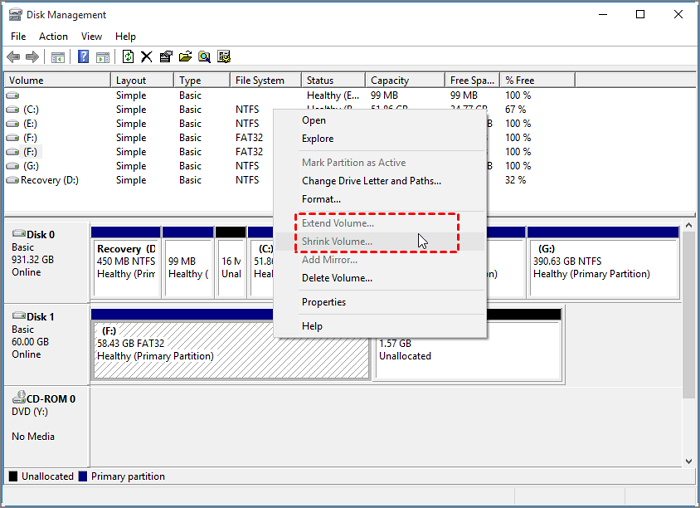
The Windows built-in Disk Management tool is unable to resize FAT32 partitions due to its limitations. This is because FAT32 partitions are typically used for older systems and the tool is not designed to handle them efficiently. As a result, users are unable to resize these partitions using the standard Disk Management tool.
- The wrong file system format is the reason Disk Management doesn't support shrinking a FAT32 volume.
- The unallocated space is on the left side of the target partition, not on the right side.
- Windows supports FAT32 file systems with a maximum capacity of 32GB.
- There does not exist enough space to shrink the partition.
To resize a FAT32 partition, you can convert it to NTFS, but this process can be troublesome and may result in data loss. Alternatively, you can use a third-party software like Qiling Disk Master Free to shrink or extend the FAT32 partition without losing data.
- Notice:
- Due to limitations in the Diskapart Command, it cannot support FAT32 partitions, resulting in an error message when attempting to shrink them. This issue prevents Diskapart from shrinking FAT32 partitions, prompting the need to use an alternative tool like Qiling Disk Master instead.
How to Resize FAT32 Partition Without Losing Data
Qiling Disk Master Free is a free, professional disk management tool that can be used on Windows 11/10/8/7 and XP, featuring a user-friendly interface to easily create, delete, shrink or extend partitions.
Even if you're a beginner, you can easily resize FAT32 partitions with Qiling Disk Master. To extend or shrink the FAT32 partition without losing data, follow these steps below.
Guide 1. Shrink FAT32 Partition
Step 1: Locate and select target partition to shrink
To shrink a partition, go to the Partition Manager section, right-click on the partition you want to shrink, and select "Resize/Move".
Step 2: Adjust to shrink partition
To shrink a partition using a mouse, click and hold the left mouse button on the end of the target partition, then drag it to the desired size. This will reduce the partition space.
You can also adjust the partition size box to shrink the target partition.
Step 3: Execute operation
Click the "Proceed" to keep all changes.
Guide 2. Extend FAT32 Partition
Step 1. Shrink partition to free up space to extend partition.
If the hard drive has enough unallocated space to extend the target partition, jump to Step 2. Otherwise, free up space first.
- To resize or move a partition, navigate to the Partition Manager section, right-click on a partition adjacent to the target partition, and select "Resize/Move".
- To free up space, drag the partition ends to the desired size, leaving enough unallocated space behind the target partition.

Step 2. Extend the target partition.
Right-Select the target partition you want to extend and click on "Resize/Move".
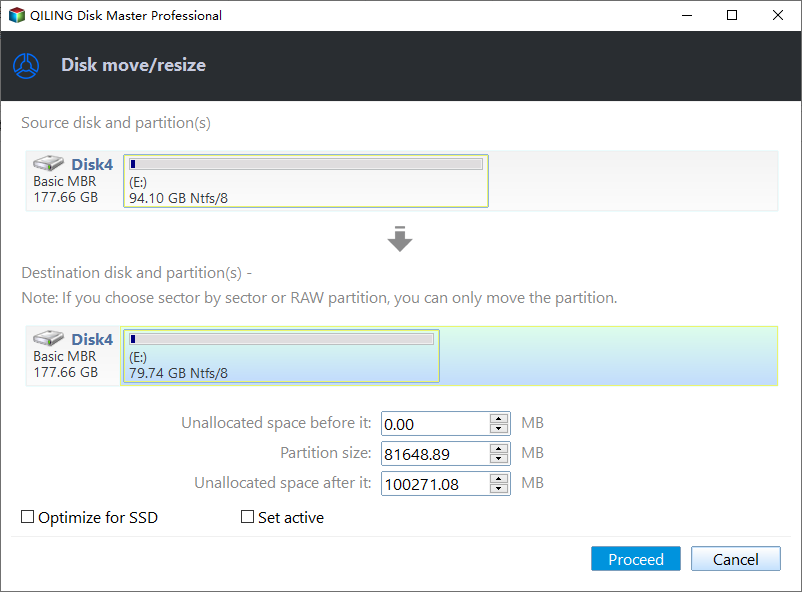
To extend the target partition, drag the partition handle into the unallocated space. This action will resize the partition to occupy the newly available space, effectively increasing its size.

Step 3. Keep all changes.
Click the "Proceed" to keep all changes.

What Else Can Qiling Disk Master Do
Resizing a FAT32 partition is a straightforward process, and Qiling Disk Master can assist with various disk partition-related issues. With its capabilities, you can resize the FAT32 partition, among other tasks, making it a helpful tool for managing your disk partitions.
- Delete FAT32 partition
- Merge non-adjacent partitions
- Merge partitions or split partitions
- Convert MBR to GPT for Windows 11
- Convert NTFS to FAT32 without data loss
Qiling Disk Master can be used to manage and maintain disk partitions, solving various partition-related problems. It can be downloaded to improve disk management.
Conclusion
Disk Management and Diskpart are unable to resize the FAT32 partition, but you can use Qiling Disk Master to resize it without losing data. Its "Resize/Move" function allows you to extend or shrink the FAT32 partition.
Qiling Disk Master can break the limitations of Windows built-in tools and meet more needs, making it a reliable choice. This software is a great solution for those who need more functionality. Additionally, there are three frequently asked questions about the FAT32 partition.
FAQs About Resize FAT32 Partition
1. Can you extend the FAT32 partition?
You can't extend a FAT32 partition using Disk Management or Diskpart because the "extend volume" option is greyed out. To overcome this, you can convert the FAT32 format to NTFS, which will allow you to extend the partition using Disk Management. Alternatively, you can use third-party software to achieve the same result.
2. How to extend the FAT32 partition?
You won't be able to extend a FAT32 partition using Windows' built-in Disk Management or Diskpart tools, as they only support NTFS partitions. However, a third-party tool like Qiling Disk Master can help, allowing you to use its "Resize/Move" or "Extend/Shrink" function to easily extend the FAT32 partition. To do this, follow these three steps.
Step 1. Right-click the FAT32 partition and select "Extend/Shrink."
Step 2. Extend the FAT32 partition by dragging the partition panel to increase its size, then click "OK" to confirm the changes.
Step 3. Execute the extend FAT32 partition task and click "Apply."
3. Can you partition a FAT32 drive?
You can partition a FAT32 drive on Windows using tools like Qiling Disk Master, Disk Management, and Diskpart command. To create a FAT32 partition via Disk Management, follow the steps.
Step 1. Press "Windows+R" and type "diskmgmt.msc".
Step 2. To create a new simple volume, right-click on the drive you want to use and select "New Simple Volume" from the context menu.
Step 3. Select "FAT32" as the file system format and click "Finish."
Related Articles
- Easy VHD to Physical Disk Solution
- Can I Make a System Clone on Windows 11? Yes, Sure! Your Guide Is Here
- 7 Top Best Free Disk Partition Software For Windows in 2026
- How to Expand RAID 5 Array Partitions in 2026 [New]
- [Guide]: How to Run Hard Drive Test in Windows 10
Do you know how to perform a hard drive test in Windows 11, 10, 8, and 7? You can find the answer from this article. - How to Unpartition Hard Drive on Windows 10 And 11
How to unpartition hard drive on Windows 10, 8, 7, as well as Windows 11? You can delete all partition on the hard drive to merge partitions back into a single unallocated space.
Products
Articles & Tutorials
- Data Recovery
- Data Backup
- File Recovery
- File Backup
- System Backup and Restore
- Disk and Partition Clone
- Technical articles
- Mobile articles
- Disk Master Help
- Windows Data Recovery Tutorials
- Windows Secure Delete Tutorials
- Windows Partition Management Tutorials
- Windows File Backup and Restore Tutorials
- Windows System Backup and Restore Tutorials
- Windows Disk Backup and Restore Tutorials
- Windows Clone Tutorials