DISM 0x800f081f After KB5132061 Corrupt Component Store
Quick Navigation:
- Why the Repair Wants a Source
- Read the Log Before You Retry
- Match the Source to the Build
- Work From a Rescue Disk
- Frequently Asked Questions
After KB5132061 the machine installs updates that fail, and the store repair ends with 0x800f081f and the line that the source files could not be found. The repair did not fail because the tool is broken. It found the damaged component, looked for a clean copy to replace it, and had nowhere to look, because the matching payload is no longer on the disk. The error is a sourcing problem that sits on top of a store problem. This guide explains what the repair needs, how to read the log that names it, and how to run the work from media when the desktop will not stay up.
Why the Repair Wants a Source
The servicing repair compares every component in the store against its manifest and replaces the entries that no longer match. For most components the replacement comes from the package cache that Windows keeps on the system volume. When an earlier cleanup removed that cache, the repair has to be pointed at another copy of the same build.
KB5132061 raises the system to build 26300.9974 and rewrites the boot payloads as part of the commit. A repair that runs after that update needs a source at the same build, because a component from an older build does not match the manifest that the new build installed.
This is why the error is so common after a feature update. The package cache holds the previous build, the installed system is on the new one, and the repair refuses to mix them. The disk is fine; the source simply does not exist on that machine any more.
Read the Log Before You Retry
The repair writes a log beside the Windows directory that names each component it could not source. Open that log and search for the first line that reports a missing payload; every later line repeats the same condition, so the first one is the useful entry.
The name of that component tells you which source to use. A component that belongs to a language pack needs the language pack media, a component from a feature update needs an image at the current build, and a driver component needs the vendor package. Aiming a full image at a single missing language file wastes an hour and changes nothing.
Also note whether the machine receives updates from a managed server rather than from the internet. In that configuration the repair is told to use the managed source, and a source path that points at Microsoft is ignored. The policy has to be lifted for the repair, or the source has to be placed where the policy expects it.
Match the Source to the Build
An image file at build 26300.9974 is the reliable source. Mount it, confirm the build number in its properties, and point the repair at the folder that holds the image rather than at the image file itself. A source that is one build behind returns the same 0x800f081f with a different component name.
If no matching image is available, run the repair with the package cache allowed to fill first: install the latest cumulative update again while connected, so the payload is written back to the disk, then repair without a source path. This works only when the store is damaged rather than emptied.
Keep the image on a separate disk or a USB drive. A source stored on the same volume that is being repaired can be moved or locked during the operation, and the repair then reports a missing file that was present when it started.
The repair tool itself is a Microsoft component, not part of Qiling Disk Master. Run it in its own session, after an image of the disk exists, because the store rewrite touches the boot files that KB5132061 just replaced.
Work From a Rescue Disk
Qiling Disk Master builds a bootable rescue environment that reads every partition without starting Windows, so the image and the disk check can run on a machine that no longer reaches the desktop. Start the media before the repair, not after it.
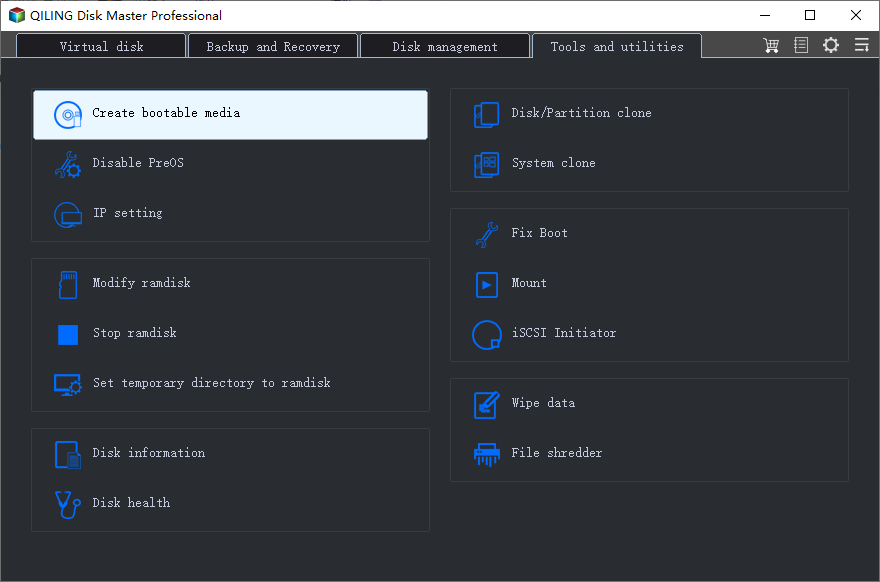
Step 1. Open Create Bootable Media
On the Tools and utilities tab, click Create bootable media. The wizard builds a WinPE environment that carries the backup, restore, and partition tools, so one stick covers both the repair session and the recovery that may follow it.
Step 2. Select the USB Drive
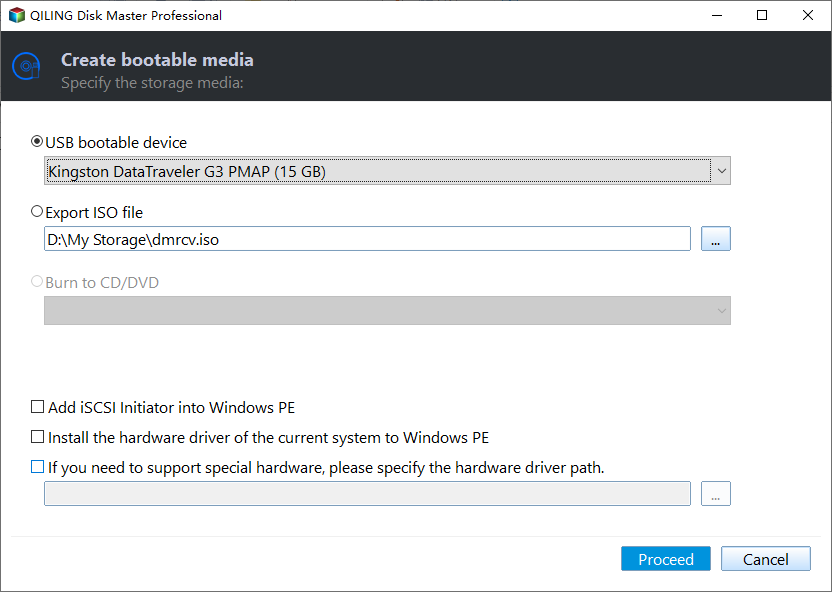
Choose USB bootable device and confirm that the letter and capacity match the stick you intend to erase. Unplug every other removable drive first, because the wizard writes over the whole device and does not ask twice.
Step 3. Boot From the Media and Open System Backup
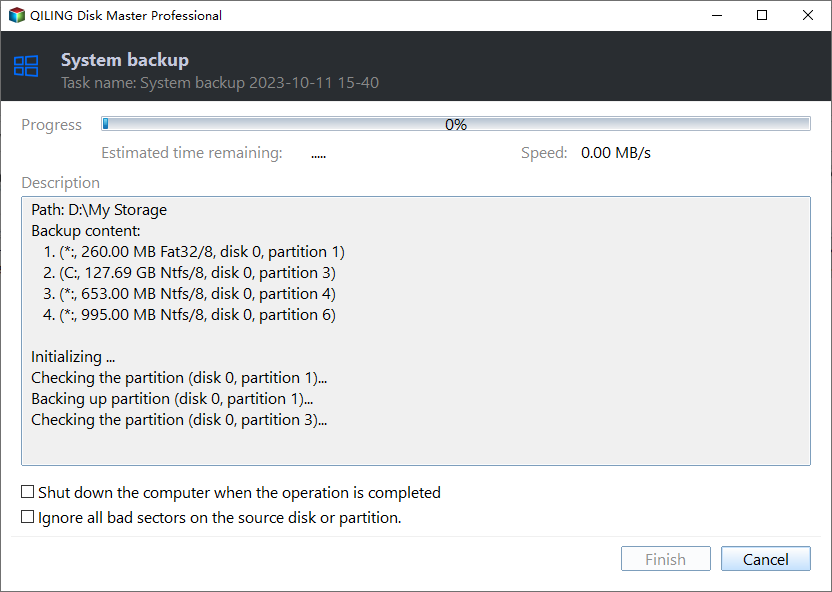
Start the machine from the stick and open System Backup in the rescue environment. Drive letters can differ from the ones in Windows, so match the source disk by capacity and model rather than by letter.

Step 4. Image the Disk Before the Repair
Choose a destination on a healthy disk, then preview the pending operation and click Proceed. Restore this image if the store repair leaves the machine without a boot entry, and keep it until KB5132061 is followed by two clean restarts.
Frequently Asked Questions
Can I skip the source and repair online instead?
Only when the store is damaged rather than emptied. An online repair replaces what it can find in the cache; a component that was deleted needs a matching offline source.
Does 0x800f081f mean the update itself is corrupt?
No. The update installed; the repair could not source a file for a later fix. The two events share a build number, not a cause.
Why does the repair fail at the same component every time?
Because the manifest points at one entry that has no clean copy anywhere on the disk. Change the source, not the number of attempts.
Related Articles
- DISM Error 4448 on Windows 11
- How to Run SFC and DISM in Windows 11
- KB5132061 Update Won't Boot: Fix the BCD Error
- Resize the EFI System Partition for a Windows 11 Update
- DISM Error 0x800f0915: Update Repair Failed
Products
Articles & Tutorials
- Data Recovery
- Data Backup
- File Recovery
- File Backup
- System Backup and Restore
- Disk and Partition Clone
- Technical articles
- Mobile articles
- Disk Master Help
- Windows Data Recovery Tutorials
- Windows Secure Delete Tutorials
- Windows Partition Management Tutorials
- Windows File Backup and Restore Tutorials
- Windows System Backup and Restore Tutorials
- Windows Disk Backup and Restore Tutorials
- Windows Clone Tutorials