DISM Error 0x800f0915: Repair the Component Store
Quick Navigation:
- Read the Error Correctly
- Check the Store State
- Why Offline Repair Wins
- Copy Data Out First
- Frequently Asked Questions
After a failed update, the recovery environment often refuses to repair the installation with error 0x800f0915. The code appears when the servicing stack cannot open a valid component store for the image it was pointed at, or cannot find a repair source that matches that image. Because the same stack performs both the scan and the repair, a machine that cannot start has no working path unless the image is serviced offline.
Read the Error Correctly
The component store is the WinSxS folder, the pool of servicing packages that every update and feature depends on. Error 0x800f0915 means DISM could not obtain a usable store for the target image: the folder is missing entries, its manifests no longer match, or the path given to DISM points at a volume that is not the Windows image.
In the recovery environment the target defaults to the offline installation under \Windows, which may be assigned a different letter than C:. Pointing DISM at the recovery environment's own image, or at a data volume, produces the same code as a genuinely damaged store, so the first check is that the path is correct.
This is not the same as a source error. A build mismatch or a missing install.wim normally returns 0x800f081f, which says the files were not found. 0x800f0915 says the store itself could not be used, and it survives a reboot, an SFC run, and a second DISM attempt.
Check the Store State
DISM is a Windows built-in tool and is not part of Qiling Disk Master, so the checks below are diagnostic steps that belong to the operating system. Run them from the recovery command prompt with the offline image path, and read the result before running any repair switch. The roles of SFC, CHKDSK, and DISM are compared in a separate breakdown.
Scan the image first, then check the health state. A report that names specific packages as repairable points at a store that can still be fixed from a matching source; a report that the store cannot be opened points at corruption that the offline servicing stack must handle.
Cross-check the log. The servicing log records each component it failed to open and the exact path it tried, and the difference between a missing manifest and an unreadable folder decides whether the repair should use a source or a rebuild. A WinSxS folder that is far smaller than the build expects has usually been cleaned by a third-party tool.
Free space on the Windows volume matters as well. The servicing stack needs several gigabytes of scratch space to stage a repair, and a volume with less than ten percent free fails with codes that look like corruption.
Why Offline Repair Wins
An online repair runs inside the installation it is trying to fix. When the damaged files are the servicing components themselves, the repair has to start from a store it cannot read, and no online switch can break that loop. That is why the same command that fails in Windows often succeeds from bootable media against a mounted image. A recovery environment that will not start at all is a separate fault, covered under Windows RE servicing failures.
The source has to match. A repair source is only accepted when its build and architecture agree with the target image, so an ISO for an earlier release supplies components that the store rejects and the error returns unchanged. Mount the install.wim from the media for the exact build that is installed and point the repair at the mounted folder.
If the store cannot be rebuilt even offline, the remaining option is an in-place repair install, which replaces the system files and keeps the programs and user folders. That path requires a running Windows, so a machine stuck in the recovery environment has to have its data copied out before the repair is attempted.
Copy Data Out Before the Repair
Qiling Disk Master works from bootable media, so a Windows volume that cannot start is still visible as a set of partitions with its user folders readable. Use it to move the data to an external disk before any repair writes to the system volume, because a failed repair install can leave the old installation in a folder that is harder to reach.
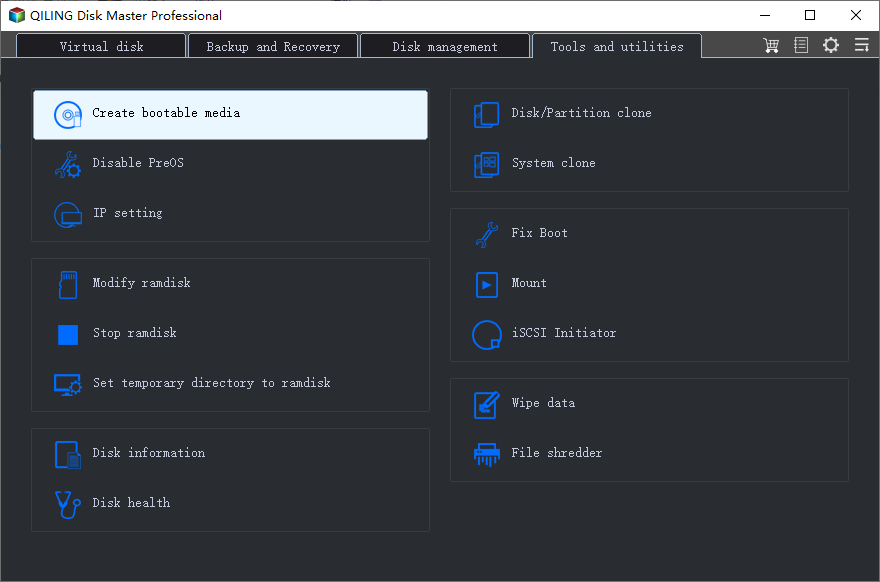
Step 1. Create Bootable Media
From a working PC, open the bootable media tool and choose a USB drive with at least 8 GB free. The wizard writes a WinPE environment that starts the program on a machine whose own installation cannot boot.
Step 2. Read the Disk Map From the Media
Start the failed machine from the USB drive and wait for the disk map to load. Identify the system disk by its capacity, then confirm that the Windows volume is present with its original size and that its folders can be opened.

Step 3. Back Up the Whole Disk
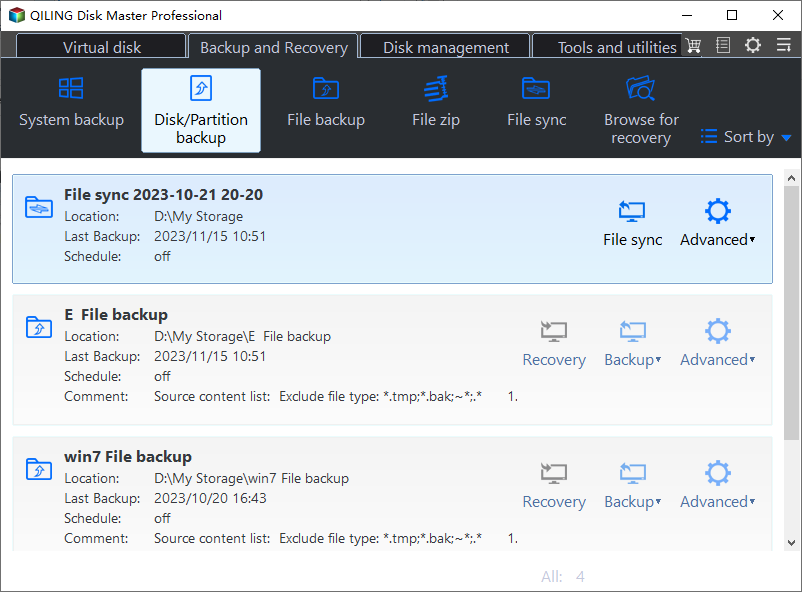
Open Disk backup and select the system disk as the source, then choose the external drive as the destination. Run the task once before the repair so the user folders and the current system state both exist outside the machine, and verify the image before you continue.
With the backup complete, run the offline store repair from the same bootable media. If it succeeds, start Windows normally and confirm that the update can install; if it fails again, run the in-place repair install with the data already safe.
Frequently Asked Questions
Does 0x800f0915 mean the disk has failed?
Not usually. The code describes a component store that cannot be used, which is a file-level problem. A surface test is still worth running when the error follows a power cut, since the same event can damage both.
Can SFC fix the component store?
Rarely. SFC compares protected system files against the store, so it depends on the store being intact. When the store is what failed, SFC usually reports that it could not perform the requested operation.
Will a repair install keep my programs?
Yes, an in-place repair install keeps programs, settings, and user folders. It still writes to the system volume, so copy the important data out first in case the repair does not complete.
Related Articles
- SFC, CHKDSK, and DISM: What Each One Fixes
- DISM RestoreHealth Stuck at a Percentage
- Fix DISM Error 87: Option Is Unknown
- Windows Recovery Environment Servicing Failed
- What to Do With a Corrupted Operating System
Products
Articles & Tutorials
- Data Recovery
- Data Backup
- File Recovery
- File Backup
- System Backup and Restore
- Disk and Partition Clone
- Technical articles
- Mobile articles
- Disk Master Help
- Windows Data Recovery Tutorials
- Windows Secure Delete Tutorials
- Windows Partition Management Tutorials
- Windows File Backup and Restore Tutorials
- Windows System Backup and Restore Tutorials
- Windows Disk Backup and Restore Tutorials
- Windows Clone Tutorials