KB5079473: C: Drive Missing After the Update
Quick Navigation:
- What the Update Changed
- Find the Volume on the Disk Map
- Assign the Letter Back
- Copy Data Before Repair
- Frequently Asked Questions
KB5079473 replaces part of the storage stack, and the mount table is rewritten during the first restart. When that rewrite is interrupted, the system volume keeps its partition entry and its files while the letter in front of it is left unassigned, so File Explorer shows no C: drive at all.
What the Update Changed
The letter in front of a volume is not stored inside the file system. It is an entry in the mount table, a list that Windows builds at every start and keeps in the registry, and the update rewrites part of that list when it installs the new storage components.
If the rewrite stops halfway, the volume keeps its partition entry and its file system while the letter is left unassigned. Disk Management then shows the volume with its size and file system but with no letter, and nothing appears in File Explorer.
Two variants show up in the reports. The letter is missing completely, or the volume is flagged as having no default drive letter, which hides it from Explorer until the flag is cleared. In both cases the data stays where it was.
Find the Volume on the Disk Map
Open Disk Management and compare the list at the top with the map at the bottom. The list shows the letter, label, file system, and capacity of every volume, which makes a volume without a letter easy to spot.
Identify the volume that used to be C: by its size, its label, and the presence of the Windows and Program Files folders when you open it through its disk number. A system volume is usually the largest NTFS volume on the boot disk.
If the file system column reports RAW instead of NTFS, stop and treat it as a different fault. A RAW volume needs a recovery step first, and assigning a letter to it changes nothing.
Assign the Letter Back
Right-click the volume and choose Change Drive Letter and Paths, then Add, and select C: from the list. Confirm with OK; the letter appears in Explorer at once when the volume is not the running system volume.
If C: is not offered, another device is still holding it. Unplug the card reader or the external drive that took the letter, refresh Disk Management, and add the letter again.
For the running system volume the change is written at the next start, and from a recovery environment the same dialog applies to the offline installation. Either way, the volume has to be online and healthy before a letter can be added to it.
Copy Data Before Repair
Restoring the letter makes the files reachable again, but it does not make them safe. Copy the folders you cannot lose to another disk before you run any repair, because a repair that rewrites the file system can end the copy for good. When the target disk has no spare partition, Qiling Disk Master can free a block for the copy without deleting anything.
Step 1. Confirm the Volumes on the Disk Map
Open the program and read the disk map: each volume is drawn with its letter, file system, capacity, and free space, and a volume without a letter still appears with its size. Note which disk has room for a copy and how much space the folders you want to keep will need.

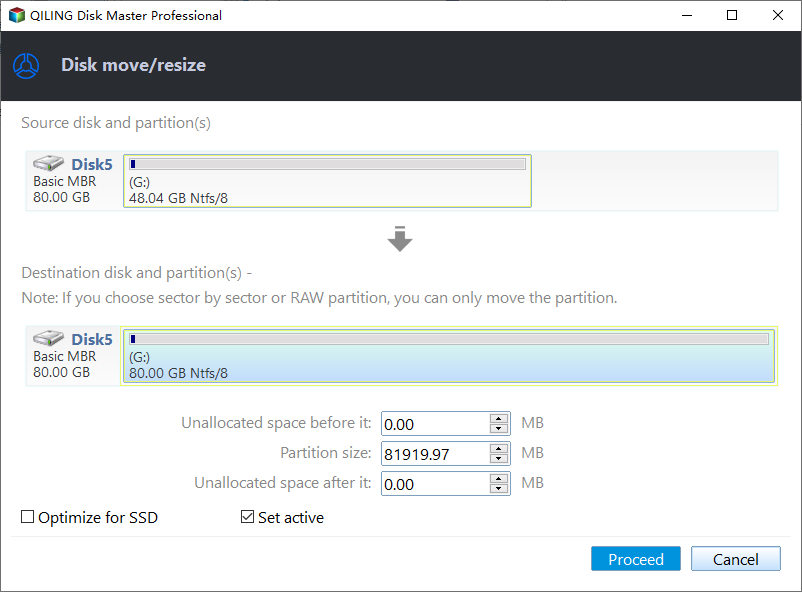
Step 2. Free a Block for the Copy
Right-click a volume on the target disk that has spare room and choose Move/Resize. The disk move/resize window opens with the unallocated space before and after the partition and the current partition size; reduce the partition size, keep the released space on the side you want, and click Proceed to start the change.
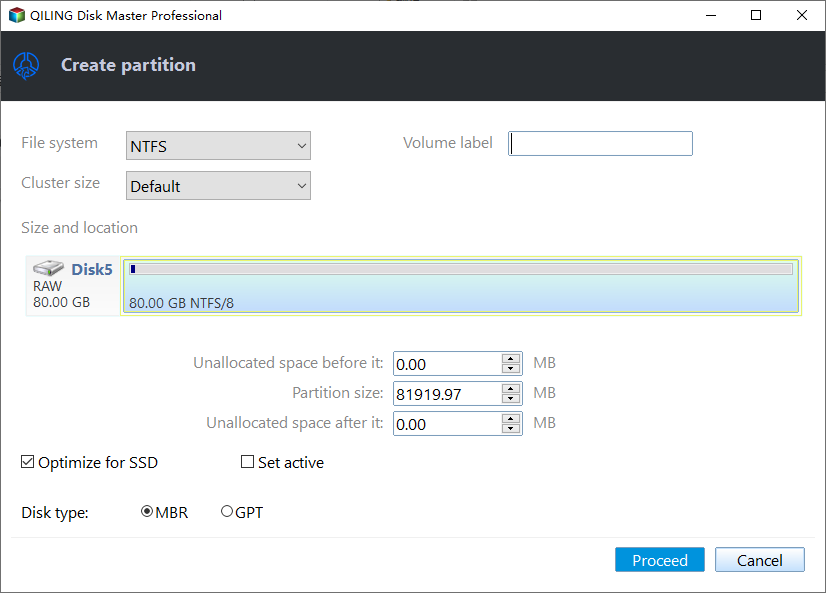
Step 3. Create a Partition for the Copy
Select the unallocated block on the disk map and choose Create Partition. The new partition window asks for a label, a file system, and a size; accept the full block, format it as NTFS, and finish. Then open File Explorer and copy the user folders into the new volume, and compare the folder count and total size before you delete anything from the old one.
Frequently Asked Questions
Will the letter return by itself after a restart?
Sometimes. If the update completed its rewrite on the second attempt, the mount table is rebuilt with the old letter. If the entry was removed, it stays gone until you add it again.
Can I assign A: or B: to the system volume?
Not recommended. Those letters are reserved for removable drives, and some installers refuse to run when the system volume does not use C:.
Is the data lost when C: disappears?
No. The letter is only a pointer; the partition and its files are intact. The risk comes from repairs that write to the volume before the data has been copied elsewhere.
If the volume came back as a new letter instead of disappearing completely, the steps in a new local disk appearing after an update apply to the same mount table.
Related Articles
- Local Disk E Appeared After an Update
- Move the Recovery Partition
- All Options Grayed Out in Disk Management
- Partition Turned Unallocated After 25H2
- 26H2 Upgrade Failed With 0x800F0922
Products
Articles & Tutorials
- Data Recovery
- Data Backup
- File Recovery
- File Backup
- System Backup and Restore
- Disk and Partition Clone
- Technical articles
- Mobile articles
- Disk Master Help
- Windows Data Recovery Tutorials
- Windows Secure Delete Tutorials
- Windows Partition Management Tutorials
- Windows File Backup and Restore Tutorials
- Windows System Backup and Restore Tutorials
- Windows Disk Backup and Restore Tutorials
- Windows Clone Tutorials