Local Disk E: Appeared After a Windows Update
Quick Navigation:
- Why a New Local Disk Appears
- Identify the Volume
- Remove the Letter Safely
- When the Volume Is Really New
- Frequently Asked Questions
After an update, File Explorer sometimes shows an extra drive with a plain name such as Local Disk (E:). The entry is usually not a new disk at all. It is a hidden recovery, OEM, or EFI partition that gained a drive letter during servicing, so the safest first move is to find out what the volume holds instead of formatting it.
Why a New Local Disk Appears
Windows keeps several small partitions that normally have no letter: the EFI system partition on GPT disks, the recovery partition that holds WinRE, and on some laptops an OEM partition with diagnostic tools. Explorer only shows them when a letter is attached.
Servicing can attach that letter. An update that resizes or recreates the recovery partition may mount it while it works, and a failed cleanup can leave the assignment in place. Some third-party tools also assign letters to every volume they detect.
The visible size is the first clue. A volume of roughly 100 MB, 300 MB, 500 MB, or 1 GB with no label and no user files is almost certainly a system partition, while a volume that matches the capacity of a disk you just connected is a real disk.
Identify the Volume
Compare the size with the disk layout before you touch anything. A recovery partition usually sits between the Windows volume and the end of the disk, and an EFI partition sits at the start of a GPT disk.
Open the disk map in a partition manager to see the type, size, position, and file system of every volume in one view. A FAT32 volume of 100 MB at the start of the disk is an EFI partition, while an NTFS volume of several hundred megabytes near the end is normally the recovery partition.
The recovery environment status helps as well. Settings shows under System and Recovery whether WinRE is enabled and which partition hosts it. If that status points at the volume now labelled E:, the letter is the only thing that changed.
Back up the user folders before any repair, and keep the letter in place until you have confirmed the volume type. Removing a letter is reversible; formatting or deleting the partition is not.
Remove the Letter Safely
Open Disk Management, right-click the volume, and choose the option to change the drive letter, then remove it. The partition stays where it is and Windows stops showing it in Explorer as soon as the letter is gone.
Do not delete the volume and do not format it. A recovery partition without a letter is normal; a recovery partition that has been deleted leaves the machine unable to use WinRE, and an EFI partition that has been formatted leaves it unable to boot.
If the letter returns after the next update, check whether a tool is re-lettering every volume at startup. Remove that behaviour from the tool rather than repeating the manual step after each patch.
When the Volume Is Really New
Sometimes the entry is a disk you added and never prepared, or a disk that a failed update left without a volume. Qiling Disk Master shows unallocated space next to the existing volumes, which separates an unused disk from a system partition that merely lost its letter.
Step 1. Read the Disk Map
Open the program and find the disk that owns the new entry. Match it by capacity, then check whether the space is unallocated or already formatted. A disk that is entirely unallocated is new; a small volume at the end of the system disk is a recovery partition.

Step 2. Create a Partition on the New Disk
Right-click the unallocated space, choose Create Partition, set the size, the drive letter, and the file system, then confirm the pending operation and click Proceed. Do not create a partition on the small system volumes identified in the previous step.
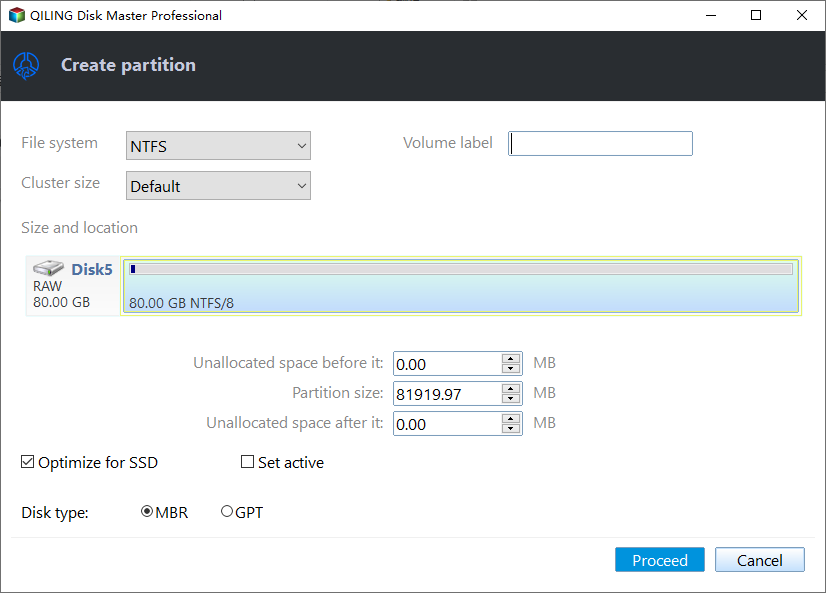
When the operation finishes, the new volume appears in Explorer with the letter you chose. If the entry still points at a system partition, go back and remove the letter instead.
Frequently Asked Questions
Can I format Local Disk E: to free space?
Only if the volume is a data partition you created. Formatting a recovery or EFI partition removes the tools Windows needs to repair or start the machine.
Is it safe to leave the letter in place?
It works, but the volume stays visible and can be selected by mistake in file operations. Removing the letter is the cleaner choice.
Why does the letter change after every update?
A servicing step or a third-party tool reassigns letters on each restart. Check the tool settings and keep the system partitions letterless.
For the related case of a recovery partition that grows or moves, see moving a recovery partition without breaking WinRE.
Related Articles
- Move the Recovery Partition Safely
- Remove a Recovery Partition
- All Options Grayed Out in Disk Management
- Partition Lost After the 25H2 Update
- Back Up Before a Feature Update
Products
Articles & Tutorials
- Data Recovery
- Data Backup
- File Recovery
- File Backup
- System Backup and Restore
- Disk and Partition Clone
- Technical articles
- Mobile articles
- Disk Master Help
- Windows Data Recovery Tutorials
- Windows Secure Delete Tutorials
- Windows Partition Management Tutorials
- Windows File Backup and Restore Tutorials
- Windows System Backup and Restore Tutorials
- Windows Disk Backup and Restore Tutorials
- Windows Clone Tutorials