KB5127648 Install Error 0x80070306: Service Dependency
Quick Navigation:
- What 0x80070306 Reports
- Find the Service That Refused
- Restore the Service Chain
- Image the System Before the Retry
- Frequently Asked Questions
KB5127648 stops within a minute and the update history shows 0x80070306, with no restart and no progress bar. The message is a dependency failure: the installer asked a service to start, that service refused, and the job never reached the file copy stage. On most machines the cause is a service that an optimization tool disabled months earlier, not the package itself. This guide explains what the code reports, how to find the service that blocked the install, and how to keep a clean image before the next attempt.
What 0x80070306 Reports
The code is a Windows status value that means a service could not start because a service it depends on failed. It is not a corruption code, and it carries no information about the package. The trigger is always the same: something in the startup chain of a required service is missing, disabled, or has crashed.
A cumulative update touches several services in sequence. One downloads the package, one verifies its signature, one stops and restarts the modules that own the files being replaced, and one writes the new state into the component store. If any link in that chain is set to a disabled startup type, the update returns 0x80070306 and never begins to install.
This is why reinstalling Windows or downloading the package again changes nothing. The payload was never the problem. The same code will appear on every attempt until the service that failed is allowed to start again.
Find the Service That Refused
Start with the Services console, which is a Windows built-in tool and not part of Qiling Disk Master. Sort the list by startup type and look for entries marked Disabled in the update path: the update client, the transfer service, the cryptographic service, and the modules installer that owns the component store.
Optimization scripts and cleanup utilities often disable exactly these services to reduce background load. A machine that was tuned this way months ago can install normal updates for a while and then fail when a package needs one of the disabled services for the first time.
Rule out the simpler blockers as well. A pending restart leaves the installer waiting on a state change, a system clock that is hours off breaks the certificate check, and a third-party security suite can block a service from starting without logging anything useful. Free space on the system volume belongs on this list too, since the installer checks it before the download is unpacked.
Restore the Service Chain
Set the affected services back to their default startup type rather than to automatic, then restart the machine once so the chain is rebuilt from a clean boot. Do not leave every service on automatic to compensate: a service that starts when it is not needed consumes memory and hides the next dependency problem.
If a service still refuses to start, open its properties and read the dependencies tab. The failure usually belongs to a service listed there, not to the one you clicked, and the error shown at that point names the real blocker. The Windows event log records the same refusal with a timestamp that matches the failed install.
Remove the optimization tool or restore the defaults it changed before you retry. A package that installs while the tool is still running will fail again at the next restart, and the second failure often looks like a different error code.
Retry once the machine has restarted cleanly, the clock is correct, and no pending restart is waiting. If the same code returns with every service enabled, the dependency is damaged rather than disabled, and a repair install of Windows is the supported path. Keep a current image of the system disk before that repair, because it rewrites system files.
Image the System Before the Retry
Qiling Disk Master can store a full image of the system disk, including the boot and recovery partitions that the installer rewrites, and keep it on a second drive or a network share. That image is the fastest way back if the service repair reaches deeper than expected.
Step 1. Open System Backup
On the Backup and Recovery tab, click System Backup. The screen lists the system disk and its hidden partitions, which are the ones a failed update rewrites, and each one carries a tick box that should stay selected.

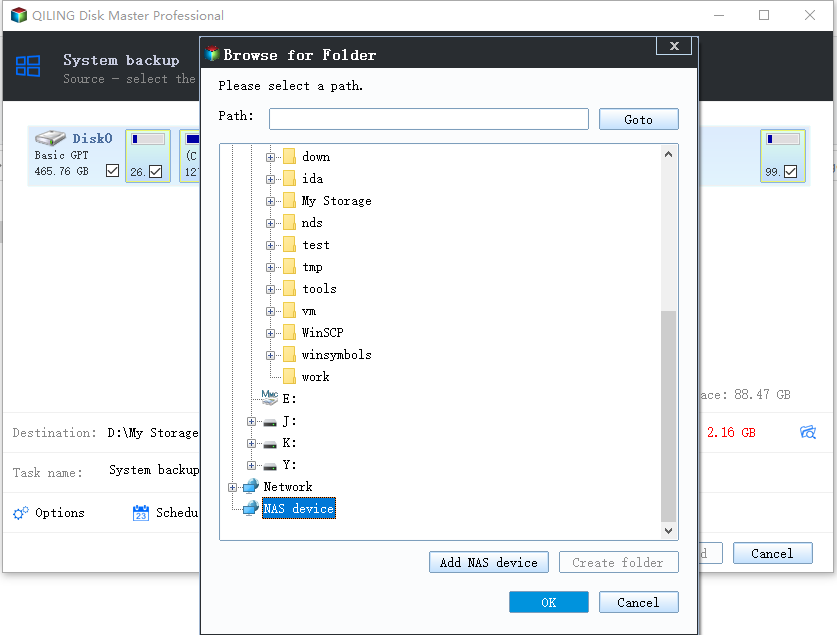
Step 2. Choose the Destination
Click the destination field and pick a disk that is not the one being serviced; a folder on a second drive or a network share both work. Compare the free space line with the required space before you continue, because a destination that is short will stop the image partway.
Step 3. Name the Task and Run It
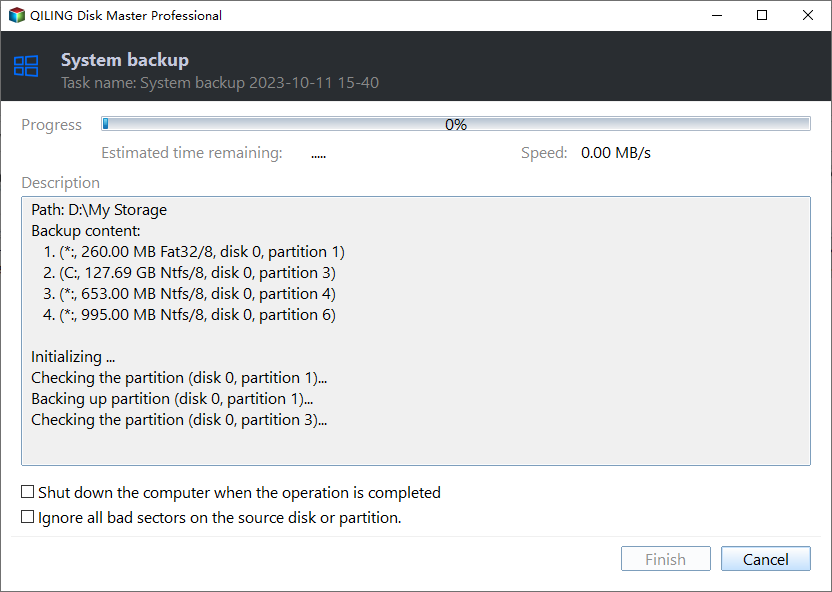
Give the task a name that records the build, then preview the pending operation and click Proceed. Keep the machine awake until the progress window reports completion, and leave the image in place until KB5127648 installs and the machine restarts twice without the code returning.
Frequently Asked Questions
Does 0x80070306 mean the update file is corrupt?
No. The package was verified and staged; the install stopped because a required service would not start. Downloading it again produces the same code.
Can I install KB5127648 in Safe Mode instead?
No. Safe Mode starts a reduced service set, so the installer hits the same dependency wall. Repair the services in a normal session and retry there.
Will resetting the services break other software?
Returning them to their default startup type is what the system expects. A tool that needs a non-default value documents it, and that setting can be restored after the update.
Related Articles
- Windows Update Error 0x80070422: Service Disabled
- Fix Windows 11 Update Stuck at the Same Percent
- KB5127648 Install Fails and Causes a Boot Loop
- Back Up Before a Windows 11 26H2 Update
- All Options Grayed Out in Disk Management
Products
Articles & Tutorials
- Data Recovery
- Data Backup
- File Recovery
- File Backup
- System Backup and Restore
- Disk and Partition Clone
- Technical articles
- Mobile articles
- Disk Master Help
- Windows Data Recovery Tutorials
- Windows Secure Delete Tutorials
- Windows Partition Management Tutorials
- Windows File Backup and Restore Tutorials
- Windows System Backup and Restore Tutorials
- Windows Disk Backup and Restore Tutorials
- Windows Clone Tutorials