KB5127936 Boot Loop on AMD Radeon Systems
Quick Navigation:
- Why the Loop Hits Radeon Systems
- Identify the Stage That Fails
- Get Back to the Desktop
- Make Room Before the Next Attempt
- Frequently Asked Questions
KB5127936 is the November 2026 cumulative update for Windows 11. It installs quietly on most machines, but on systems with an AMD Radeon RX 6000 series card the first restart can end before the login screen and begin again. The package is not corrupt in those cases; the display driver fails at a point where Windows cannot finish the start.
Why the Loop Hits Radeon Systems
The package replaces the components that hand the display over from the firmware to Windows. On a system with a discrete Radeon card that hand-over depends on the vendor driver, which loads earlier than most other drivers and has to initialize while the update is still finishing its first start.
Two conditions repeat in the reports. The installed graphics driver is older than the one the package expects, or a second monitor, a dock, or a USB display adapter is connected through the discrete card during the restart. Either one can make the driver fail to initialize at that moment.
When the driver fails, Windows marks the start as unsuccessful, rolls the package back, and restarts. If the rollback is interrupted as well, the next start begins the same attempt again, which is what makes the loop look permanent instead of like a single failed update.
Identify the Stage That Fails
Watch the screen and write down the last thing it shows before the restart: the vendor logo, the spinning dots, a black screen, or the login screen. Each of those points at a different stage, and the stage decides which repair is worth trying.
A loop that ends at the logo with a black screen means the display driver is failing while the session is being built. A loop that ends after the dots have been spinning for a while means the failure comes later, while services and the pending package are being processed.
On a machine that still reaches the desktop, open Windows Update and read the update history. A package marked as failed with a rollback means the system returned to the previous build, while the same package offered again means the attempt never reached that point.
Disconnect the second monitor, the dock, and any USB display adapter before the next start, and connect the monitor to the motherboard output when the processor has integrated graphics. A start that succeeds on that output confirms the discrete card is the trigger.
Get Back to the Desktop
Restart into the advanced startup menu, open Startup Settings, and choose Safe Mode once. Safe Mode loads a basic display driver, so a machine that reaches the desktop there has working system files and a driver problem rather than a damaged installation.
If Safe Mode fails too, open the recovery environment and run System Restore with the restore point created just before the update. That step returns the system files and the driver store to the earlier state and discards the staged package at the same time.
When no restore point exists, use Uninstall Updates in the recovery environment and remove the latest quality update. The rollback returns the machine to the previous build, which is enough to reach the desktop and copy your files.
Once Windows starts normally, open Device Manager, expand Display adapters, right-click the Radeon card, and use Roll Back Driver on the Driver tab. If that option is unavailable, install the current driver package from the vendor instead of the one Windows Update offers.
Make Room Before the Next Attempt
A loop that returns after the rollback usually has a second cause: the restart needs room to stage and then remove the package, and a system partition with almost no free space turns one failed attempt into a long cycle. Qiling Disk Master shows every partition and its free space on a single disk map, so the shortage is visible before the update runs again.
Step 1. Read the Disk Map
Open the program and match the disk number with the one shown in the firmware boot menu. Confirm that the EFI partition, the recovery partition, and the Windows volume are all present, compare the free space of each, and check that the Windows volume still carries its letter. A volume without a letter, or a recovery partition with no room left, explains why the rollback cannot complete.

Step 2. Open Move/Resize on the Volume That Is Short
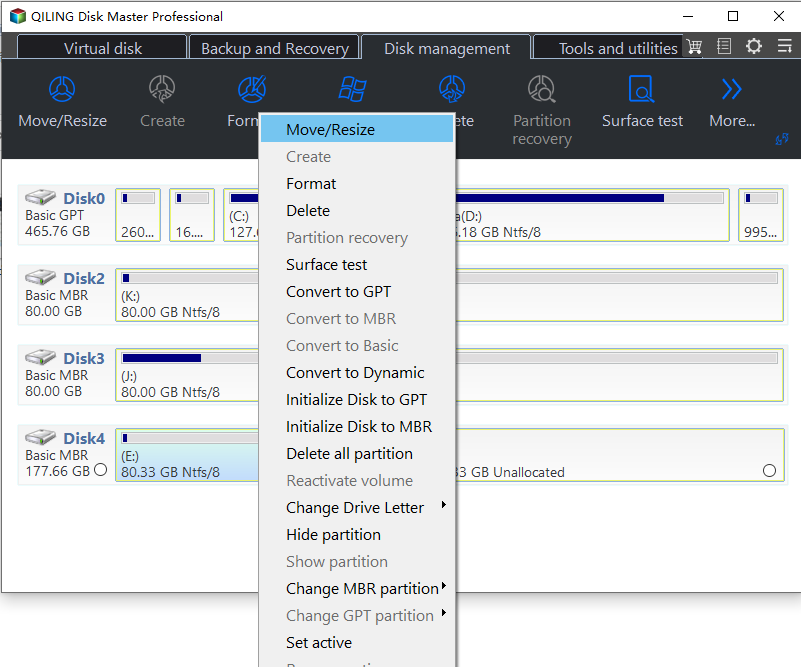
Right-click the volume that needs more room. The context menu lists Move/Resize together with the other disk operations, and choosing it opens the wizard for that partition. When the Windows volume is the one that is short, work on the neighbour behind it first; when the recovery partition is full, resize that partition itself.
Step 3. Set the Size and Click Proceed
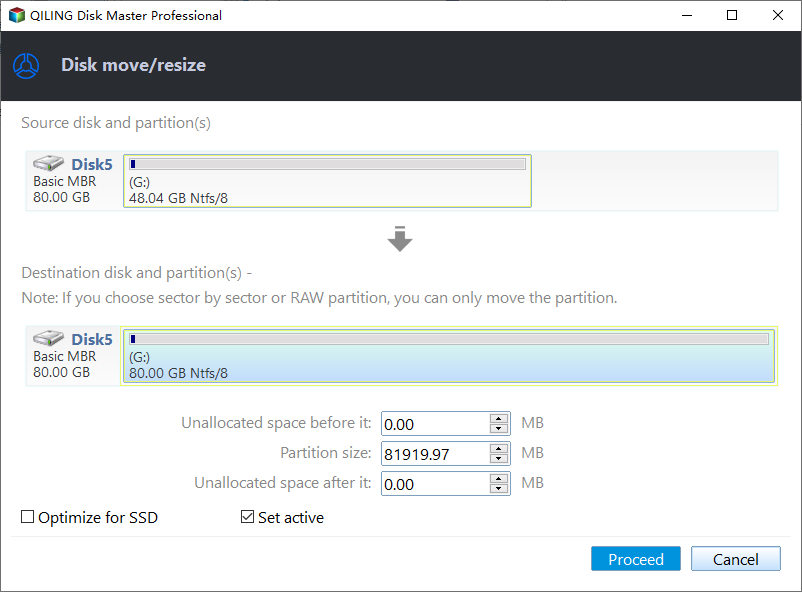
In the disk move/resize window, read the unallocated space before and after the partition, then type the partition size you need. The two values describe the same block of space, so a larger partition takes its room from one side and leaves less on the other. Click Proceed to start; the change then runs in a progress window that reports Moving or resizing until it finishes, and the machine restarts if a partition in use has to be moved. Leave it powered until that window closes, then confirm the free space on the system and recovery partitions before you let the update run again.
Frequently Asked Questions
Does the loop damage the Radeon card?
No. The card is not written to during the update; the loop happens because the driver cannot initialize at that moment. A card that works in Safe Mode or after a rollback has no hardware fault.
Will a newer graphics driver stop the loop?
In most reports it does, because the package expects a driver that handles the hand-over during the first start. Install the vendor driver before you retry the update, and connect only one monitor for that restart.
Can I hide or skip KB5127936?
You can pause updates for a few weeks and try again later. A cumulative update cannot be hidden permanently in Windows 11, so the practical answer is to fix the driver and the free space rather than avoid the package.
For the package that corrupted the boot files instead of looping, see a boot binary that broke after an update.
Related Articles
- KB5127648 Install Fails and Causes a Boot Loop
- Roll Back the Windows 11 26H2 Update
- Boot Binary Corrupt After an Update
- 844 MB Unallocated After a Windows 11 25H2 Update
- All Options Grayed Out in Disk Management
Products
Articles & Tutorials
- Data Recovery
- Data Backup
- File Recovery
- File Backup
- System Backup and Restore
- Disk and Partition Clone
- Technical articles
- Mobile articles
- Disk Master Help
- Windows Data Recovery Tutorials
- Windows Secure Delete Tutorials
- Windows Partition Management Tutorials
- Windows File Backup and Restore Tutorials
- Windows System Backup and Restore Tutorials
- Windows Disk Backup and Restore Tutorials
- Windows Clone Tutorials