How to Repair Invalid Dynamic Disk With Ease
| Workable Solutions | Step-by-step Troubleshooting |
|---|---|
| Method 1. Reconnect the Dynamic Invalid Disk | Step 1: Shut down the computer; Step 2: Remove the dynamic disk from your computer...Full steps |
| To convert a dynamic disk (invalid) to a basic disk using Partition Manager, follow these steps: | Step 1: Install and open Qiling Partition Master on your Windows computer; Step 2: RemoveSelect the disk that you want...Full steps |
| Method 3. Upgrade Windows OS | The other straightforward way to resolve the disk with the dynamic invalid error is to upgrade your computer OS...Full steps |
| Method 4. Reactivate Disk using Diskpart CMD | Step 1: Right-click the Windows icon, type cmd in the Search box; Step 2: Right-click Command Prompt...Full steps |
If your dynamic disk shows as invalid in Disk Management on Windows 10/8/7, this page can help. It explains the causes of this error and provides practical steps to fix it and recover your dynamic disk. You can use these methods to repair your dynamic disk and get it working normally again.
What Is an Invalid Dynamic Disk
When installing a new Windows OS on an HDD or SSD, you might encounter an "invalid dynamic disk" error in disk management. This can be puzzling, and you may wonder what step went wrong.
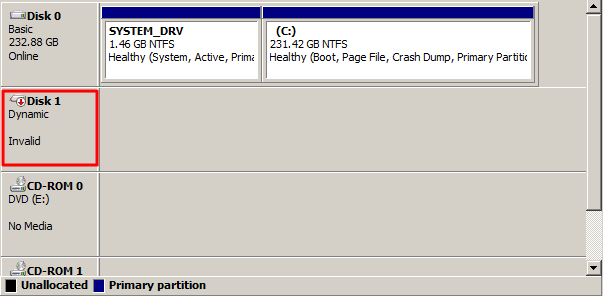
A dynamic disk is considered invalid when it becomes inaccessible, but your data is still safe. This can happen when your disk, such as disk 1, disk 2, or disk 0, shows as "Dynamic invalid" in Disk Management on Windows 10, 8, or Windows 7. Although Windows may not be able to access the disk, the saved data remains intact. Once the error is fixed, you can regain access to the disk and utilize the saved data again.
To convert an invalid dynamic disk and make it work again, you should first identify the causes of the issue. Once you know the root of the problem, you can choose the right solution to resolve it. Follow the next steps to learn how to get your dynamic invalid disk working properly.
What Causes Dynamic Disk Invalid
A dynamic disk can become invalid due to various reasons. Some of the top causes include issues with disk configuration, problems with disk metadata, disk corruption, disk driver failures, and hardware issues such as faulty disk controllers or disk failures. These problems can cause the dynamic disk to become invalid and may require disk recovery or repair to restore its functionality.
#1. Connection Issue
- Improperly connecting the dynamic disk to a computer.
- A faulty disk cable, specifically a bad SATA cable, can cause connection issues between the disk and the computer, resulting in problems.
- Switching dynamic disk to a new computer but not it is not correctly connected.
#2. OS Is Not Compatible to Dynamic Disk
- The current running Windows OS doesn't support dynamic disks, such as Windows 7 Home/Windows 7 Home Basic Edition, Windows Vista, etc.
- On dual-A dynamic disk created on one Windows OS is not recognized by another Windows OS, showing as invalid, while the first OS recognizes it normally.
Windows incompatibility issue is a common reason for invalid dynamic disk errors. To resolve this issue and get the invalid dynamic disk working again, practical fixes and solutions are available in the next part.
How to Repair Invalid Dynamic Disk
To correct the invalid dynamic disk error in Windows, you can try reconnecting the disk, upgrading the Windows operating system, or converting the dynamic disk to a basic disk, without losing any data.
Method 1. Reconnect the Dynamic Invalid Disk
To resolve a dynamic invalid disk error caused by improper disk connection, ensure that all disk connections are secure and properly seated. Check the disk cables and connectors for any signs of damage or wear.
Step 1. Shut down the computer.
Step 2. To remove a dynamic disk from your computer, you can simply disconnect it from your system. This involves unplugging the SATA cable and power cable that connects the dynamic disk to your computer.
Step 3. Reconnect the dynamic disk to your computer using the SATA cable and power cable, ensuring proper connection for correct functionality.
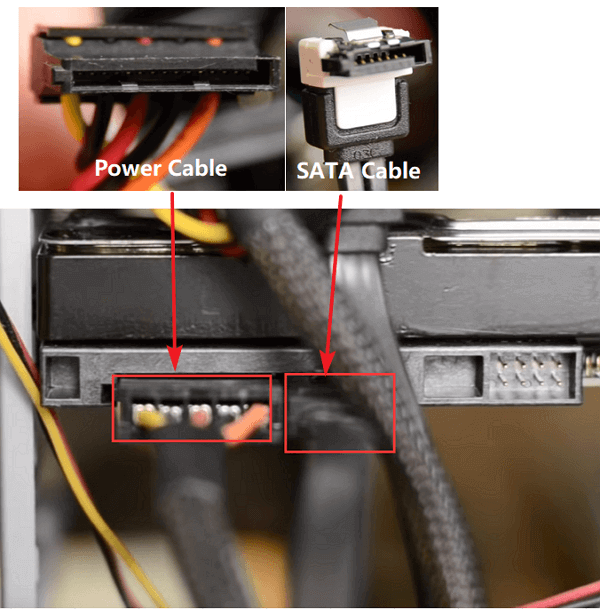
Step 4. To troubleshoot the issue where a dynamic disk displays as invalid in Disk Management, try rebooting your PC. This simple step can sometimes resolve the problem and allow the dynamic disk to be recognized correctly.
If the issue persists, try replacing the SATA cable and power cable to rule out any connectivity problems. If the issue is resolved, it means the original cables were faulty. If the problem persists, it may be a hardware issue with the disk or the computer.
If you've tried the previous steps but still encounter an invalid error on your computer, you can try the following methods for further assistance. These may include reinstalling the operating system, running a virus scan, checking for corrupted system files, or seeking help from a professional computer technician.
Method 2. Convert a Dynamic Disk (Invalid) to a Basic Disk
The goal is to resolve an issue with Windows OS that renders dynamic disks invalid, making them incompatible.
If your Windows OS doesn't support the Dynamic disk, you can resolve the error by converting a dynamic disk to a basic disk, making the disk compatible with the current OS.
You may be wondering if converting an invalid dynamic disk to a basic disk using a third-party Windows partition manager like Qiling Partition Master will result in data loss. Fortunately, the answer is no, thanks to the reliability of such software.
Qiling Partition Master allows Windows users to securely convert a basic disk to dynamic or vice versa, preserving data, and resolving invalid dynamic disk issues with a 3-step process.
Step 1. Install and open Qiling Partition Master on your Windows computer.
Step 2. To convert a disk, select the disk you want to convert, right-click it, and choose the conversion option.
- Basic to Dynamic: right-click a basic disk and select "Convert to Dynamic".
- Dynamic to Basic: right-click a dynamic disk and select "Convert to Basic".
Step 3. Click "OK" on the pop-up notice window and you will add this conversion to begin to convert the basic disk to dynamic or dynamic to basic.
Method 3. Upgrade Windows OS
To resolve the issue of a dynamic disk being incompatible with the operating system, the solution involves converting the dynamic disk to a basic disk. This process can be initiated through the Disk Management console in Windows.
To resolve the disk with the dynamic invalid error, you can try upgrading your computer's OS or reinstalling Windows to a compatible version. This should resolve the issue.
If you're using an outdated Windows 7 or Vista, we recommend upgrading to Windows 10. If upgrading is not possible, you can refer to this page for assistance with a clean install of Windows 10.
Method 4. Reactivate Disk using Diskpart CMD
This solution reactivates the invalid dynamic disk, resolving the issue, provided the Windows OS is compatible with dynamic disks.
If your Windows computer supports dynamic disk and you don't want to convert the disk to a basic version, you can use Diskpart CMD with the "reactivate disk" command to resolve the error.
Here are the steps:
Step 1. Right-click the Windows icon, type cmd in the Search box.
Step 2. Right-click Command Prompt and select "Open as Administrator" to continue.
Step 3. Type the following command line and hit enter each time:
- diskpart
- list disk
- select disk X (replace X with the disk number of your dynamic disk)
- online disk
Step 4. After this, you can type exit to close the Diskpart window.
By then, re-If the dynamic disk is not displaying correctly, open Disk Management and right-click the target dynamic disk, selecting "Reactivate Disk" to resolve the issue.
Bonus Tips: Recover Dynamic Disk Data, Re-create Disk Partition
If none of the above methods work to resolve the dynamic invalid disk issue, you can try restoring saved dynamic disk data, recreating partitions on the disk, and resaving data back to the disk. This process involves restoring the saved data, recreating the partition structure, and then resaving the data back to the disk.
#1. Recover Data from Invalid Dynamic Disk
If you have saved many important data on the disk, using reliable data recovery software like Deep Data Recovery to scan your device and find all data.
Deep Data Recovery allows for a streamlined process of scanning and restoring data from a disk in just three steps, making it an efficient solution for data recovery.
Step 1. Launch Deep Data Recovery software, select the desired file types, and click "Fast Scan" to initiate the recovery process.

Note: You can choose different search modes based on where and why the data was lost.
Step 2. To recover lost data, select the drive where the data was lost and click "Scan" to initiate the scanning process.

Step 3. When the scan is complete, use the "Filter" or "Search" feature to locate any lost files. This can help you quickly find the files you're looking for and recover them if needed.

Step 4. Select the files you want to recover and click "Recover". Then, save them to a secure location.
After restoring the data, save the data to an external hard drive to ensure greater security.
#2. Delete all existing partition on dynamic disk
Step 1. To delete a dynamic disk partition, open Disk Management, right-click on the dynamic disk partition, and select "Delete Volume".
Step 2. To delete all existing partitions on the disk, repeat the process of opening the Disk Management console and selecting the disk containing the partition you want to delete. Then, right-click on the partition and select "Delete Partition" or "Delete" from the context menu.
If disk management doesn't work to delete the volumes on the invalid disk, you can try Qiling Partition Master with its delete all partitions feature for help.
#3. Recreate volume on the disk
After deleting all partitions on the dynamic disk, you can then use Disk Management to recreate new volumes on the disk. This process allows you to start fresh and set up the disk with new volumes, effectively giving you a clean slate to work with.
Step 1. To create a new partition on your target disk using Open Disk Management, right-click on the unallocated space and select "New Simple Volume".
Step 2. To prepare the partition, set a new drive letter, assign NTFS as its file system, and adjust its partition size as needed.
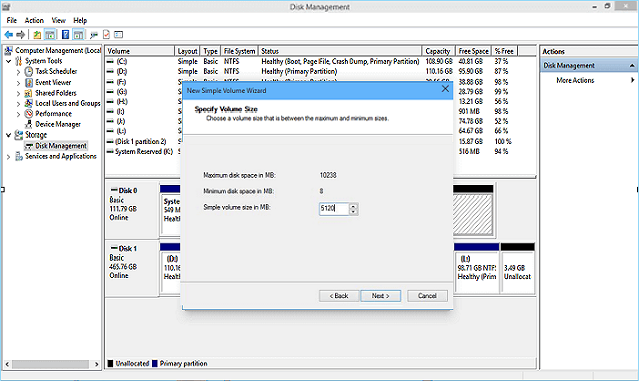
Step 3. Follow the on-screen guidelines and finish the process.
To create multiple partitions on the target disk, you can repeat the process of creating a new partition by selecting the target disk, clicking "New", and then following the on-screen instructions to set up the new partition. This process can be repeated as many times as needed to create the desired number of partitions.
Related Articles
- 2022 Sony USB/Pen Drive Format Tool Is Online | Free Download
- [Top 5] Best USB Format Tool | USB Formatter
- 4 Top Best Windows 11 Formatter Free Download with Tutorials
- Check Disk Windows 11/10: How to Check and Scan Hard Drive for Errors
- How to Resize NTFS Partition in Windows 11/10 [Full Guide]
This article will introduce how to resize NTFS partition on Windows 11/10. And you will learn three different ways to resize NTFS partition without losing data. You will get the Windows built-in tools and the best third-party software to finish the task. - How to Tell If a Hard Drive Is Corrupted (with Pictures)
Do you know how to tell if a hard drive is corrupted or not? On this page, we collected 3 major ways to assist you in confirming if your drive is corrupted or not by checking disk symptoms, file system format, or using third-party disk health checking software.
Products
Articles & Tutorials
- Data Recovery
- Data Backup
- File Recovery
- File Backup
- System Backup and Restore
- Disk and Partition Clone
- Technical articles
- Mobile articles
- Disk Master Help
- Windows Data Recovery Tutorials
- Windows Secure Delete Tutorials
- Windows Partition Management Tutorials
- Windows File Backup and Restore Tutorials
- Windows System Backup and Restore Tutorials
- Windows Disk Backup and Restore Tutorials
- Windows Clone Tutorials