System Reserved Partition Too Small for Windows Update
Quick Navigation:
- Why 100 MB Is No Longer Enough
- Confirm the Layout Before Resizing
- Enlarge the Partition
- Resize Safely With Qiling Disk Master
- Frequently Asked Questions
On an MBR system disk, Windows keeps a small System Reserved partition that holds the boot manager and the boot configuration. Older installations were created with 100 MB, while current updates expect at least 500 MB free for servicing. When that space is missing, the update stops and the machine reports a generic failure.
Why 100 MB Is No Longer Enough
The System Reserved partition stores the boot manager, the BCD store, and on some systems a small amount of servicing data. Each Windows release adds to the boot-time payload, and recent updates require room to stage that payload before switching it into place.
A partition created with 100 MB has no headroom once the existing files are counted. Setup cannot resize it during an update, so the job is aborted and the error points at the update rather than at the partition.
The symptom is easy to confirm: Disk Management shows a 100 MB System Reserved partition with almost no free space, and the update fails repeatedly at the same stage.
Confirm the Layout Before Resizing
Open Disk Management, switch to the volume list, and find the partition labelled System Reserved. Note its size, its position, and whether it carries the Active flag.
The partition sits at the start of the disk on an MBR layout, which means the space to enlarge it has to come from the volume immediately after it. Take a full image of the system disk before you move or resize anything.
Do not delete the partition to force an update. Without it the machine cannot boot, and rebuilding it requires a boot repair from installation media.
Enlarge the Partition
Shrink the Windows volume by roughly 400 MB, move it to the right if your tool requires that step, and then extend the System Reserved partition into the freed space.
Keep the Active flag and the partition type unchanged. A System Reserved partition that loses the active flag produces a machine that reports a missing operating system.
After the reboot, run the update again. If it still fails, check the free space on the partition rather than on the Windows volume.
Resize Safely With Qiling Disk Master
Qiling Disk Master can shrink, move, and extend partitions on the same disk in one pending operation, which is exactly what this layout requires. Disk Management cannot extend the System Reserved partition because it is not adjacent to the free space once the Windows volume is shrunk.
Step 1. Select the System Disk
Open the program and confirm the disk number against Disk Management. The System Reserved partition is small, has no drive letter, and sits at the start of the disk.
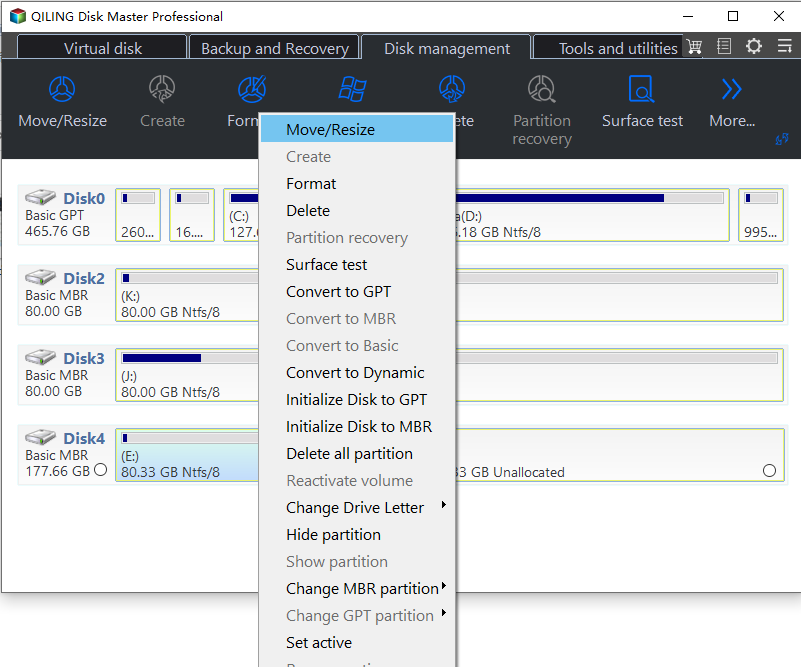
Step 2. Shrink the Windows Volume
Right-click the Windows volume, choose Resize Partition, and drag the left handle to the right by about 400 MB. Leave enough free space in Windows itself for normal operation.
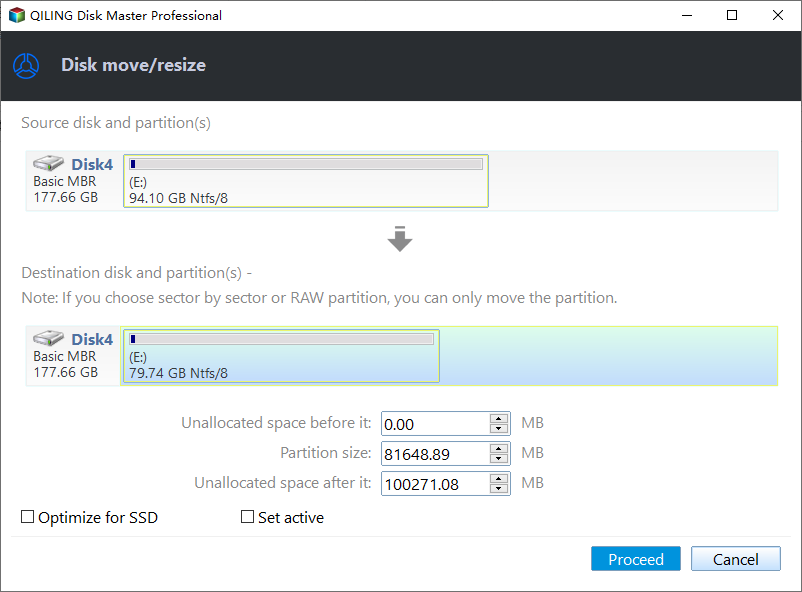
Step 3. Extend the Reserved Partition, then Preview and Proceed
Extend the System Reserved partition into the new gap, confirm the pending list shows the shrink before the extend, then click Proceed and allow the restart if requested.
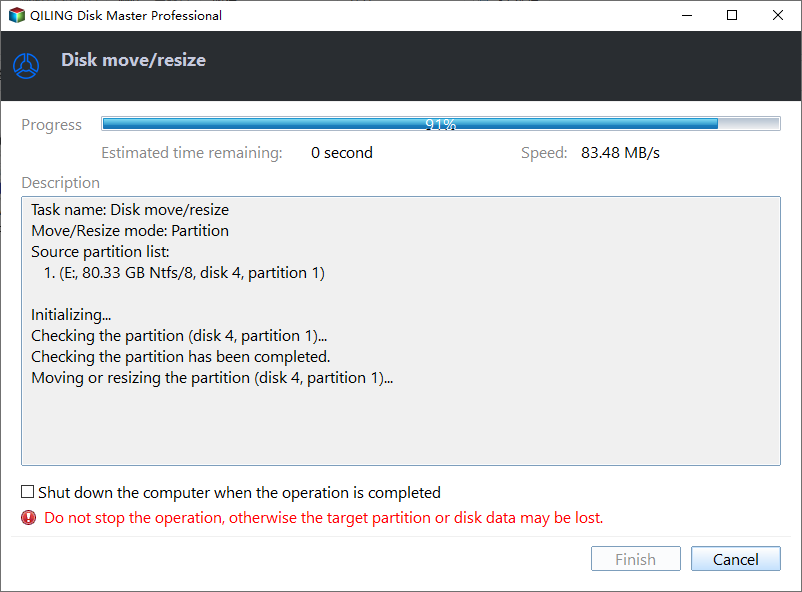
Step 4. Verify and Retry the Update
After the reboot, confirm the new size in Disk Management and run the update again. The partition should now report at least 500 MB in total.
Frequently Asked Questions
Can I extend the reserved partition with Disk Management?
Not once the Windows volume sits between it and any free space. Disk Management extends only into unallocated space directly to the right of the target.
Will resizing break the boot files?
No, as long as the partition keeps its type and active flag. Moving and resizing changes boundaries, not the content.
Does this only affect MBR disks?
The separate System Reserved partition exists on MBR layouts. GPT systems use an EFI system partition, which has its own sizing rules.
How much space should the reserved partition have?
500 MB is the practical minimum for current updates. 1 GB leaves headroom for future servicing.
For the GPT equivalent of this problem, see recovery partition too small for updates.
Related Articles
- Recovery Partition Too Small for Updates
- Can I Extend the C Drive From Another Disk
- Add Unallocated Space Without a Dynamic Disk
- 26H2 Upgrade Failed 0x800F0922
- All Options Grayed Out in Disk Management
Products
Articles & Tutorials
- Data Recovery
- Data Backup
- File Recovery
- File Backup
- System Backup and Restore
- Disk and Partition Clone
- Technical articles
- Mobile articles
- Disk Master Help
- Windows Data Recovery Tutorials
- Windows Secure Delete Tutorials
- Windows Partition Management Tutorials
- Windows File Backup and Restore Tutorials
- Windows System Backup and Restore Tutorials
- Windows Disk Backup and Restore Tutorials
- Windows Clone Tutorials