Windows Update Error 0xc1900130: Why Preparation Fails
Quick Navigation:
- Where the Update Stops
- The Four Common Causes
- Check Them in Order
- Protect the System Disk
- Frequently Asked Questions
Error 0xc1900130 appears while an update is still preparing, usually within the first third of the progress bar and before the machine restarts into setup. The update coordinator could not complete one of its preparation steps, so the package was never handed over to the installer. Nothing on the system volume has been replaced at that point, which is both the good news and the reason the same failure repeats on every retry.
Where the Update Stops
A feature update runs in phases: scan, download, prepare, install, and commit. Error 0xc1900130 belongs to the prepare phase, where the coordinator verifies space, checks driver and application compatibility, and stages the installation files. A failure here never reaches the boot-time portion of setup.
That placement explains the symptoms. There is no rollback, no Windows.old folder, and no partially migrated system; the machine simply returns to the desktop with the error. Repeated attempts mostly fill the download cache and the temporary folders, which is why a machine that fails five times often starts failing faster.
The code also appears when a previously downloaded package is stale. Windows keeps the prepared files between attempts, and a package that was staged against an older build can fail the same check on every later run until the cached copy is removed.
The Four Common Causes
Free space on the system partition is the first. A feature update needs roughly 20 GB to 25 GB free for staging, the old installation, and the rollback data, and a volume that reports 15 GB free can pass the initial check and still fail during preparation.
Security software and filter drivers are the second. Third-party antivirus, disk encryption filters, and older peripheral drivers are validated during prepare, and a driver that cannot be assessed blocks the coordinator. Disconnecting extra devices and temporarily pausing real-time protection is a legitimate test, not a permanent setting.
A damaged component store is the third, and it usually arrives with other symptoms such as failed cumulative updates or a File Explorer that crashes. The fourth is the state of the update services themselves: a pending restart, a disabled service, or a download cache stuck mid-transfer all produce a preparation failure that looks identical in the dialog.
Check Them in Order
Work from the cheapest check to the most invasive one. Read the free space on the system volume first, then remove USB drives and other peripherals and pause third-party security software for the length of one attempt. Neither step writes anything, and together they clear a large share of cases.
Next, confirm there is no pending restart and that the update services are running. A service that was disabled by a tweaking tool or an optimization script cannot be restarted by Windows Update itself, and the coordinator reports a generic failure rather than naming the service.
SFC and DISM are built into Windows and are not features of Qiling Disk Master. They belong to the operating system's own repair path, and they are the correct check for a damaged store, separate from any step that uses the software described below. Run a scan, read the result, and repair only if the scan reports damage.
If all four checks pass, stop retrying through Windows Update and use installation media for an in-place upgrade instead. A fresh download from the media avoids the cached package entirely, and it is also the only path that works when the coordinator keeps failing for reasons the logs do not explain.
Protect the System Disk
Qiling Disk Master covers the two disk-side risks in this scenario: a system volume that is too small for the update, and a disk whose layout is changed by repeated failed attempts. Image the disk first, then adjust the volume if space is the cause.
Step 1. Read the Disk Map and the Free Space
Open the disk map and check how much unallocated space follows the Windows volume. If the free block sits directly behind it, the volume can be extended in place; if another partition is in the way, that partition has to move first.

Step 2. Back Up the System Disk
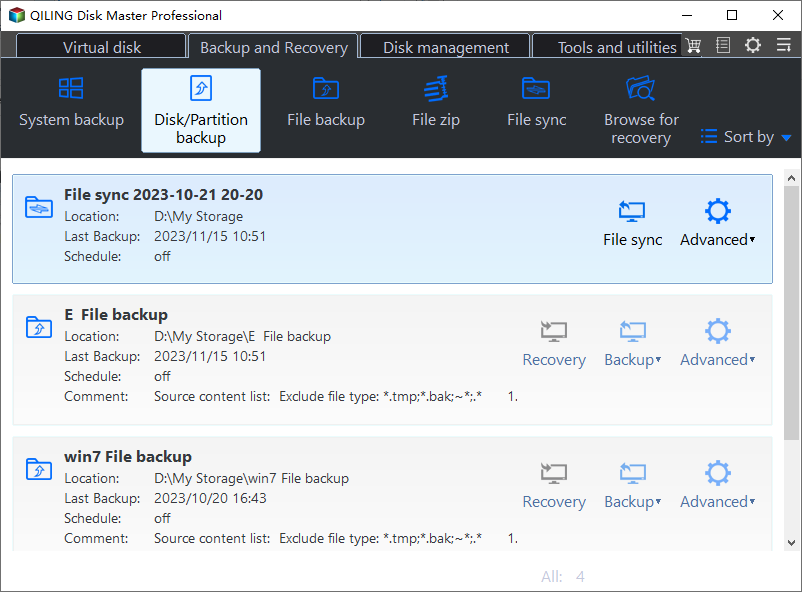
Open Disk backup, select the system disk as the source, and choose an external drive as the destination. Review the task summary and click Proceed, then confirm the image is complete before you change any layout.
Step 3. Extend the Windows Volume
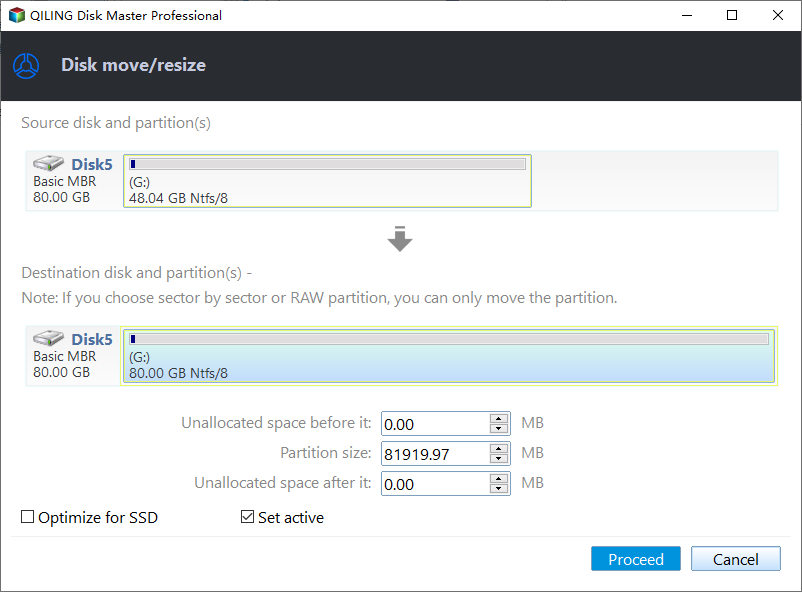
Right-click the system volume, choose Resize/Move, and drag the right edge into the unallocated space. Leave at least 25 GB free inside the volume after the resize so the update has room to stage its files.
Step 4. Preview the Layout and Proceed
Check the pending change with Preview, confirm that only the system volume grows, then click Proceed. The progress window reports the writes, and the machine may restart to apply the new layout.
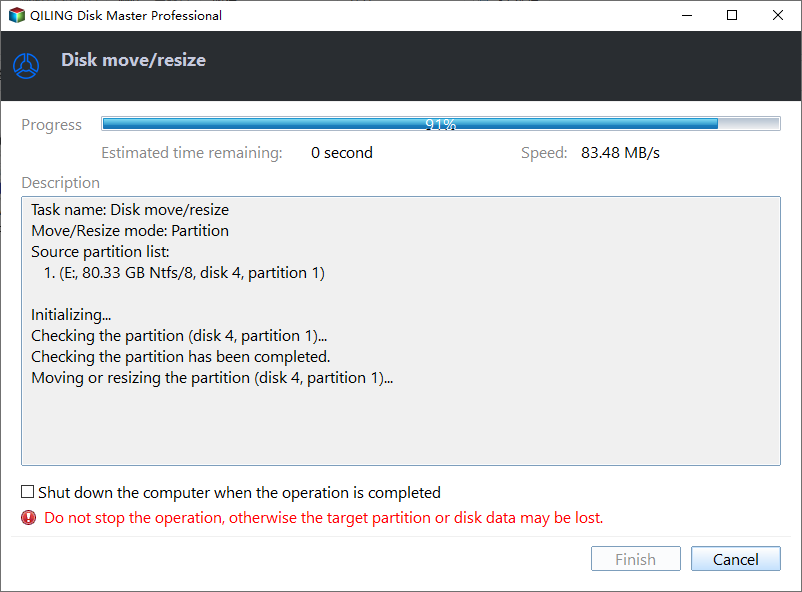
After the restart, retry the update once. If 0xc1900130 returns with the same code and enough free space, the cause is not the disk, and the media-based in-place upgrade is the next move. That upgrade is not risk-free either, as the update that left no bootable system shows, so keep the image until the upgrade has completed and the machine has started twice.
Frequently Asked Questions
Is 0xc1900130 dangerous?
No. The failure happens before setup replaces anything, so the system is intact and still bootable. The risk comes from repeated retries filling the system volume, and from a user who responds by resetting a machine that only needed free space.
Do I need to reinstall Windows?
Almost never. An in-place upgrade from installation media keeps programs and files, and it bypasses the cached package that keeps failing. A clean install is only worth considering when the store is damaged beyond repair and the data is already backed up.
Can I stop the update from retrying?
You can pause updates for a period in Windows Update settings, which is enough to stop the loop while you investigate. Pausing is temporary by design, so plan a real fix rather than relying on it; the same error is covered from the install side in the 0xc1900101 error guide.
Related Articles
- Fixed: 0xC1900101 Error in Windows 11
- Fix Windows Update Error 0x80070422 Without Losing Data
- Fix Windows 11 Update Stuck at 0% or 100%
- Windows 11 KB5026446 Update Error: Fixes and Reasons
- Five Things to Do Before a Windows Update
Products
Articles & Tutorials
- Data Recovery
- Data Backup
- File Recovery
- File Backup
- System Backup and Restore
- Disk and Partition Clone
- Technical articles
- Mobile articles
- Disk Master Help
- Windows Data Recovery Tutorials
- Windows Secure Delete Tutorials
- Windows Partition Management Tutorials
- Windows File Backup and Restore Tutorials
- Windows System Backup and Restore Tutorials
- Windows Disk Backup and Restore Tutorials
- Windows Clone Tutorials