Patriot Formatter | The Best USB Format Tool for Patriot Flash Drive
This post discusses the best tools for formatting Patriot devices and recovering lost files, including the top Patriot flash drive format tool and reliable USB, SD card, and memory card recovery software. If you're looking to format a Patriot device for free, Part 1 is the place to go, while Part 2 can help you recover lost files and photos from your Patriot SD card, USB drive, or other devices.
Part 1. How to Format Patriot Flash Drive with Patriot Formatter
When trying to use a Patriot USB flash drive, you may encounter an error message prompting you to format the disk before use. Despite following the system's guide, the issue persists, making it impossible to use the Patriot USB or memory card. This is often due to the need for an effective formatter to correctly format the USB and SD card. A suitable Patriot format tool can resolve this issue, allowing you to use your device as intended.
User Stories - How to Format Patriot USB Flash Drive
Case 1. You purchased a new Patriot USB drive, but when you tried to use it, a prompt appeared asking you to format the disk. You followed the Windows guide and formatted the drive, yet you're still unable to use it, which is frustrating and unexpected.
Case 2. "My USB drive, which I just bought a month ago, is suddenly not recognized and needs to be formatted. I had previously formatted it before saving photos to it, specifically a Patriot USB drive."
Case 3. You're trying to format a USB drive but getting an error message saying Windows can't complete the format. To help you, you can try using a third-party formatting tool like Qiling Partition Master or MiniTool Partition Wizard. These tools can help you format the USB drive without any issues. Alternatively, you can also try using the built-in Command Prompt to format the drive using the `format` command.
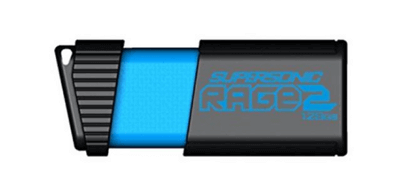
What Does Format Mean and What to Do Before Formatting
Formatting a drive, such as a hard disk, floppy disk, or flash drive, involves deleting all data and setting up a file system, typically NTFS for Windows or FAT32, to prepare it for use by an operating system.
Before you start formatting your flash drive, make sure you've backed up your data. If you haven't backed up your data and the files are important, try using a USB data recovery software to see if it can recover any of your files. Just connect your USB drive to your PC and let the recovery program scan your drive to see if it can find any recoverable items. If you're sure you want to format your drive, you can then proceed with the formatting process.
Download The Best Free USB Formatter for Patriot
Qiling Partition Master is a partition tool that allows you to format disk partitions, USB flash drives, and SD cards using its "Format" feature. This powerful tool makes formatting easy and convenient, especially when converting FAT to NTFS, and is particularly useful when working with Patriot USB devices. Its user-friendly interface and capabilities make it a valuable asset for formatting and converting file systems.
Step 1. Select the USB drive to format.
Connect the USB drive or pen drive to your computer, then download and launch Qiling partition software. Right-click the USB drive you intend to format and choose "Format" from the options.
Step 2. Set the drive letter and file system on USB.
The system will assign a new partition label, file system (NTFS/FAT32/EXT2/EXT3/EXT4/exFAT), and cluster size to the selected partition, then proceed.
Step 3. Check "OK" to confirm formatting USB.
Click "OK" if you see the Warning window. If you have important data on it, back up the data in advance.
Part 2. How to Recover Data from Patriot Memory Card or USB Flash Drive
If you have accidentally deleted or formatted files on a Patriot memory card or SD card, Deep Data Recovery can help restore lost files. With over a decade of data recovery experience, it provides a reliable way to retrieve deleted data.
- The device supports a wide range of storage devices, including USB, pen drives, memory cards, internal and external hard drives, RAID drives, digital cameras, video players, and more.
- Recovers photos, documents, videos, audio, emails, compressed files, etc.
- Supports FAT(FAT12,FAT16,FAT32), exFAT, NTFS, NTFS5, ext2/ext3, HFS+, ReFS.
Connect your USB flash drive or SD card to your computer and follow the guide to start the USB data recovery process.
Step 1. Select file types
Launch Deep Data Recovery, select the file types you want to recover, and click "Format Scan" to begin the recovery process.

Note: You can choose different search modes based on where and why the data was lost.
Step 2. Choose the USB drive to scan
To recover lost files from a USB drive, select the drive where the files were lost. Then, click the "Scan" button to initiate the recovery process.

Step 3. Check and preview USB drive data
After the scanning process is complete, you can quickly find a specific type of file by utilizing the Filter feature and the Search option, both of which can help you locate the desired file in a timely manner.

Step 4. Restore flash drive data
After finding lost USB drive files, click "Recover" to restore them and save the found files to a safe location on your PC, rather than to the USB drive itself.
Conclusion
Formatting a Patriot device erases all data on the disk surface, making it unrecoverable even with data recovery software. This process can be managed with Qiling Partition Master, which also allows for partitioning, shrinking, and extending operations.
Related Articles
- 3TB Hard Drive Only Shows 2TB - How to Break 2TB Limit and Format 3TB HDD Windows 11/10
- Featured Partition Magic for Windows Server Free Download 2022
- How to Repair and Restore Unallocated Space on a USB/SD Card
- How to Remove Partition on External Hard Drive in Windows 11/10
- Step-by-Step: Use DiskPart Convert MBR in Windows 11, 10, 8, 7
To use Diskpart to convert MBR in Windows 11, 10, 8, 7, you can follow the instructions in this article to learn how to do it. - How to Convert RAW to FAT32 Using CMD with Ease?
Here we show how to convert RAW to FAT32 using CMD for your reference. Then you can easily change RAW micro SD card, memory card, pen drive or USB flash drive to FAT32 file system when necessary.
Products
Articles & Tutorials
- Data Recovery
- Data Backup
- File Recovery
- File Backup
- System Backup and Restore
- Disk and Partition Clone
- Technical articles
- Mobile articles
- Disk Master Help
- Windows Data Recovery Tutorials
- Windows Secure Delete Tutorials
- Windows Partition Management Tutorials
- Windows File Backup and Restore Tutorials
- Windows System Backup and Restore Tutorials
- Windows Disk Backup and Restore Tutorials
- Windows Clone Tutorials