Recover Files After Accidentally Deleting the EFI Partition
Quick Navigation:
- Why the PC No Longer Boots
- What Not to Do Next
- Image the Disk, Then Plan the Repair
- Recover the Data with Qiling
- Frequently Asked Questions
Deleting the EFI system partition is one of those mistakes that looks fatal and usually is not. Windows stops booting because the firmware can no longer find the loader, yet every document, photo, and mail file sits on a different partition that was never touched. The job is to keep it that way: protect the disk, copy what matters, and only then rebuild the boot chain. This guide walks through that order.
Why the PC No Longer Boots
The EFI system partition is a small FAT32 volume, usually between 100 MB and 300 MB, that holds the files firmware hands to Windows. On a UEFI machine the firmware reads the partition table, looks for that volume, and runs the loader stored inside it. Delete the partition and the firmware finds nothing to start, so the machine reports no bootable device or opens its setup screen instead.
The deletion itself is a table edit. The entry that described the EFI partition disappears and its space becomes unallocated, while the Windows partition keeps its file system, its folders, and its user profiles. A machine that cannot boot is therefore not a machine whose data is gone. The only files genuinely at risk are the boot manager, the boot configuration data, and any recovery files that lived in that small volume.
What Not to Do Next
Do not initialize the disk. A wizard that offers to do it sees an unusual layout and assumes the drive is new; accepting writes a fresh partition table over the one that still maps your data. Do not accept a clean option either, and do not let a repair tool rewrite the table while you are still deciding how to recover.
Do not format the Windows volume to make it visible, and do not create a new partition in the unallocated block before the data is safe. Creating a partition is not destructive on its own, but every write near the start of the disk can cover remnants a scan needs, and the first sectors are exactly where the old table was.
Stop the startup repair loop as well. Each attempt rewrites boot areas and keeps writing to the same sectors, and a repair that cannot succeed never stops trying. Boot the machine from external media, or remove the drive and read it from another computer, so Windows is not running on the disk you are trying to preserve, and every restart makes it worse.
Image the Disk, Then Plan the Repair
Take a sector-level image of the whole disk before any repair. The image preserves the partition table exactly as it stands, including the unallocated block where the EFI partition used to be, so every later experiment runs against a copy. Store it on a drive with room for the disk's full capacity, not just the space in use, and label the drives first.
Two repair paths exist, and both should wait until your files are safe. The first is to scan the empty block, find the old FAT32 volume, and copy its boot files back into place. The second is to build a fresh EFI partition and let Windows write new boot files, which is the cleaner option when the old table is gone.
The second path relies on tools that ship with Windows: DiskPart for partition work and BCDBoot for writing boot files. Both are Microsoft components, not part of Qiling Disk Master, and they appear here only to explain the repair you may be offered elsewhere. Used carelessly they can overwrite the very disk you are trying to preserve, which is why they come after the backup.
Recover the Data with Qiling
Qiling Disk Master recovers the deleted boot files in three actions that belong to one tool: choose the disk or its image, scan the whole disk, then save the finds to another drive. Nothing is written to the original disk in any of them, so the remnants of the old FAT32 volume stay available until you have what you came for. If you have not imaged the disk yet, do that first as described in Part 3, then return here.
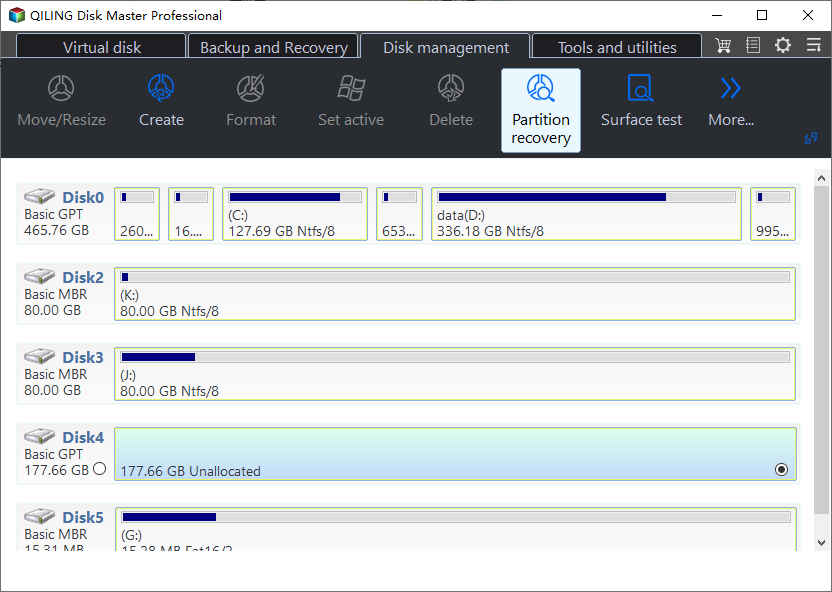
Step 1. Select the Disk or the Image You Took
Open the recovery wizard and choose the disk whose EFI partition is missing, or the image you made of that disk. Check that the same list shows the Windows volume behind the empty block at the front, because that volume holds the documents you are after. Match the disk by number and capacity before you continue.
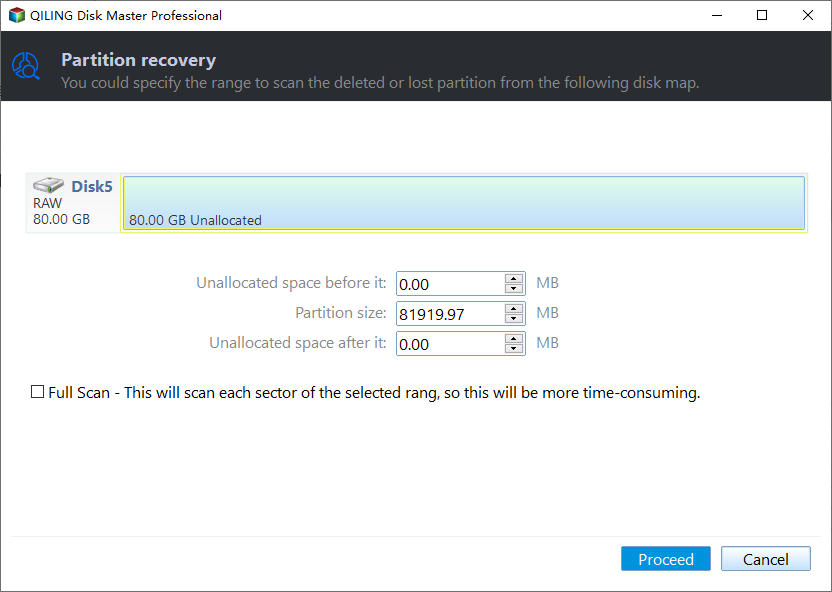
Step 2. Scan the Unallocated Area and the Windows Volume
Run the partition recovery scan over the whole disk rather than a single volume, so the scan reads both the empty block at the front and the Windows volume behind it. The results list the FAT32 volume with its boot files and the documents from the Windows volume in one tree. Wait until the scan reports completion before you open it, because a partial list hides the partitions indexed last.
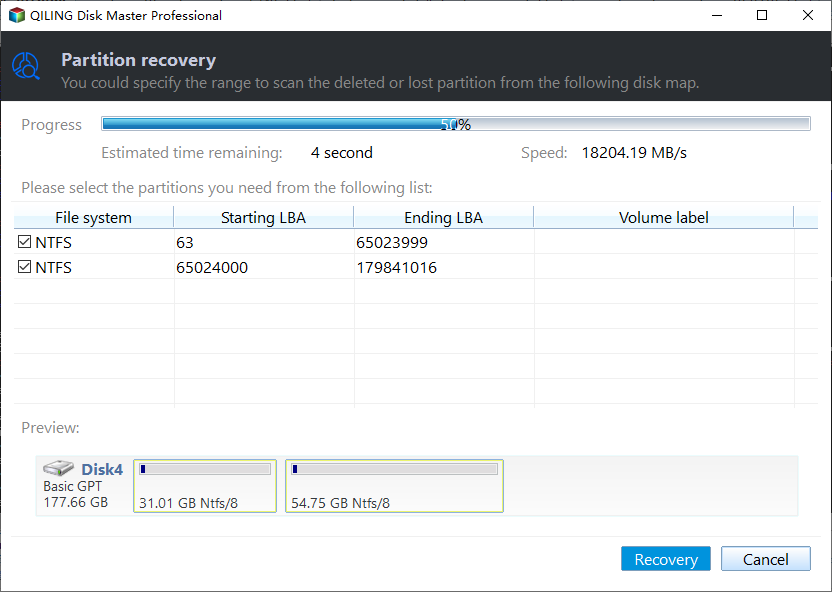
Step 3. Preview and Recover to Another Drive
Preview the FAT32 volume first and note where its boot files sit, then preview the documents on the Windows volume. Mark only what you need, set the destination to a separate drive, and click Recover; never write back to the disk whose EFI partition is missing. When the job finishes, confirm that one document opens and that the boot file folder is complete before you plan the rebuild.
Frequently Asked Questions
Will rebuilding the EFI partition delete my documents?
No. The EFI partition holds boot files only, while documents live on the Windows and data volumes. A rebuild writes a small FAT32 volume and new boot files at the front of the disk. It can, however, overwrite the remnants of the old partition, so recover first if you want those boot files back, because nothing in that volume is unique to the rebuild.
Can Windows repair itself without the EFI partition?
Not on its own. Firmware has no path to the loader, so the built-in startup repair never gets the chance to run. The machine must boot from external media, or the disk must move to a working computer, before any repair is possible. Starting one too early also writes over the layout you may still need, so plan for that before you begin.
How large should the new EFI partition be?
Microsoft's guidance is around 100 MB for a basic setup and 260 MB or more when the disk uses 4K native sectors. Making it a little larger than the minimum avoids a repeat of this problem the next time a Windows upgrade needs room for new boot files. Always keep the same partition style as the rest of the disk.
Related Articles
- Recover Files After a Partition Table Rebuild
- Recover Files After MBR2GPT Fails at 0x000036B7
- Recover Files After Accidentally Initializing a Disk
- Recover Files After Deleting a Partition in Windows 11
- Recover Data From a Laptop That Will Not Boot
Products
Articles & Tutorials
- Data Recovery
- Data Backup
- File Recovery
- File Backup
- System Backup and Restore
- Disk and Partition Clone
- Technical articles
- Mobile articles
- Disk Master Help
- Windows Data Recovery Tutorials
- Windows Secure Delete Tutorials
- Windows Partition Management Tutorials
- Windows File Backup and Restore Tutorials
- Windows System Backup and Restore Tutorials
- Windows Disk Backup and Restore Tutorials
- Windows Clone Tutorials