Recover Files After KB5132061 Leaves Windows Unbootable
Quick Navigation:
- Why the Update Breaks the Boot Chain
- Do Not Reinstall Over the Data
- Read the Disk From a Working PC
- Recover with Qiling Deep Data Recovery
- Frequently Asked Questions
A machine that stops booting after KB5132061 looks like a broken computer, yet the update only touches the files that start Windows. Your documents, photos, and project folders sit on the same volume as before, untouched and perfectly readable. The danger is not the failed update. It is the sequence of repairs, resets, and reinstalls that people try in the following hour, because each of them writes to the disk. Copying the data first takes a few minutes and removes all of the risk. This guide explains what the update changed, why the disk is still readable, and how to get the files out in the right order.
Why the Update Breaks the Boot Chain
Startup is a chain. The firmware loads a boot manager, the boot manager reads the boot configuration, and that configuration points at the Windows volume. An update that replaces the boot manager or rewrites the configuration can break one link while the rest of the disk stays exactly as it was.
The usual symptoms point at that chain rather than at the data. The logo appears and the machine restarts, the screen reports that a required device is not connected, or the recovery environment opens and offers startup repair. In every case the volumes are still on the disk and still readable from another system.
A rollback that cannot complete makes things worse. The machine alternates between undoing changes and the logo, and each pass writes to the same areas. That is the point where a boot problem starts to look like a data problem.
Do Not Reinstall Over the Data
Do not start a reinstall from installation media. Setup can repartition the disk, and even when it keeps the volumes it may place the old installation in a folder that is easy to miss and hard to move back.
Do not choose the reset option that removes everything, and be careful with the option that keeps files, because it rebuilds the installation and appends the old folders to a backup location. Neither is a recovery method, and both write a large amount of data to the disk.
Stop the restart loop as well. Hold the power button until the machine stays off, unplug external drives, and leave the disk alone until it can be read from another computer. Every extra boot cycle is another chance for the update to write over something useful.
Read the Disk From a Working PC
Remove the drive and connect it to a working desktop with a spare data cable, or place a laptop drive in a USB enclosure. The drive then appears as ordinary storage, and the folders can be copied without starting the broken installation at all.
Start with Desktop, Documents, Downloads, and Pictures, then add any project folder that lives on a second partition. Copy rather than move, because a move deletes the source as soon as the transfer ends and an unstable connection can stop halfway.
Image the drive before you copy, if the data matters more than the time. A sector-level image preserves the exact state, so a second attempt, a deeper scan, or a specialist can work from the copy while the original stays untouched.
Recover with Qiling Deep Data Recovery
Qiling Deep Data Recovery lists folders directly from the volume, including files that no longer appear in Explorer after a failed rollback. Use it on the working machine with the drive attached, preview what the scan finds, and save the results to a third disk.
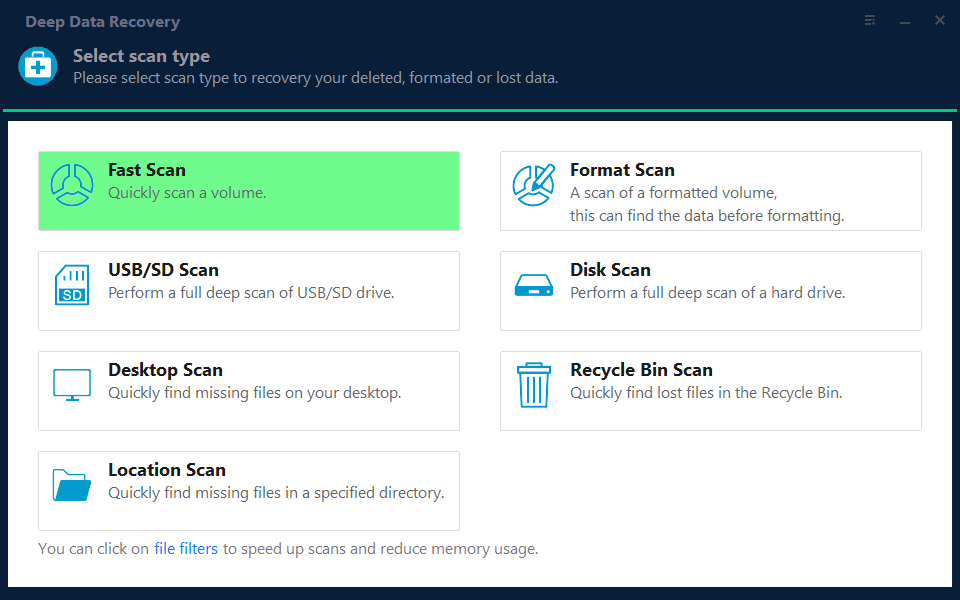
Step 1. Choose the Recovery Mode
Choose Fast Scan when the volume still opens and only some files are missing. Choose Disk Scan or Format Scan when the volume reports as RAW, or when a failed rollback left the partition without a readable file system.
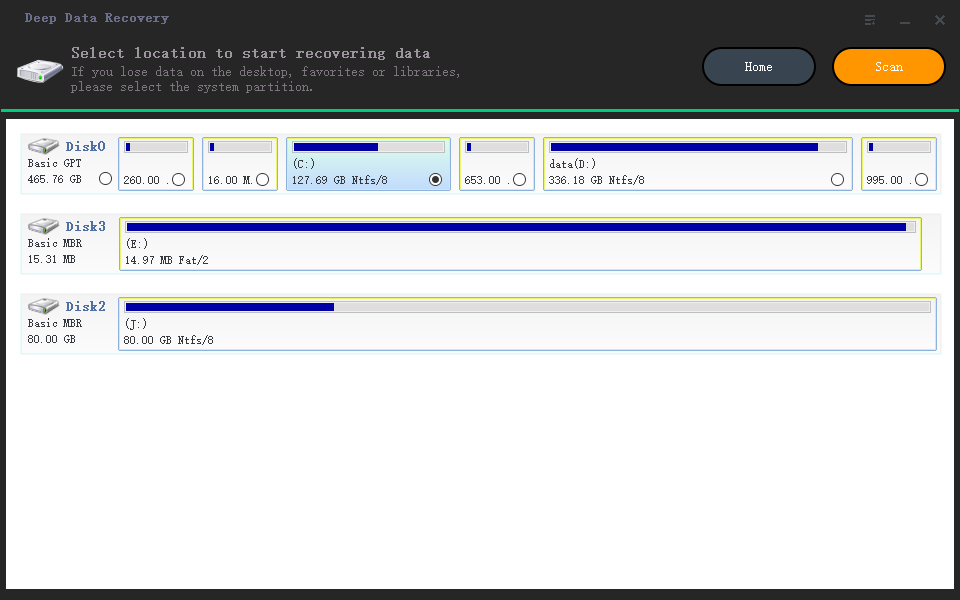
Step 2. Select the Attached Disk
Select the drive taken from the failing PC, using its model and capacity to be sure. Do not pick the system disk of the working computer, and do not pick the disk where the recovered files will be saved.
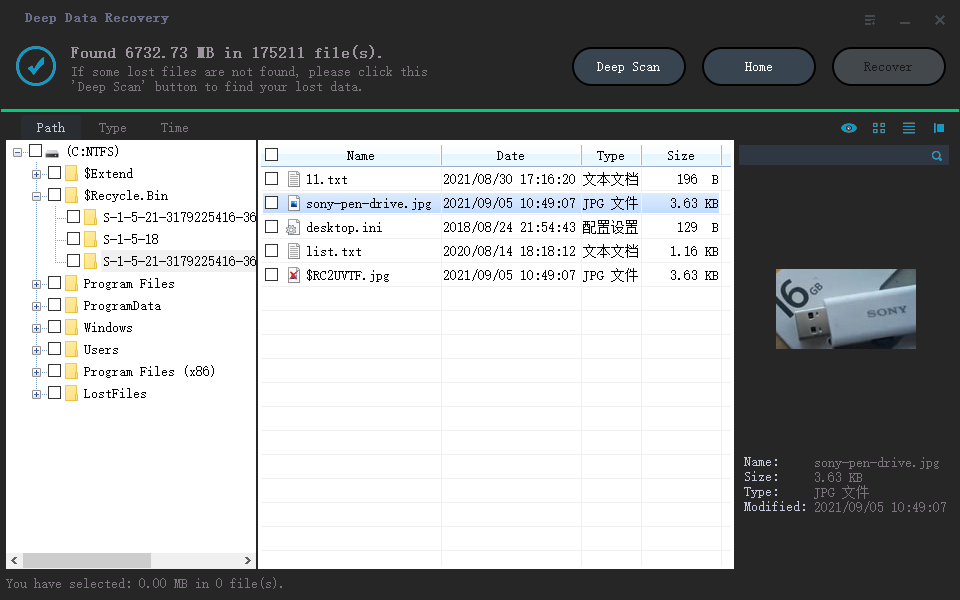
Step 3. Scan, Then Preview
Filter by folder name and by the date of the failed update, then open previews from several file types. A preview that renders is the proof that the content survived, so check it before you select a large batch.
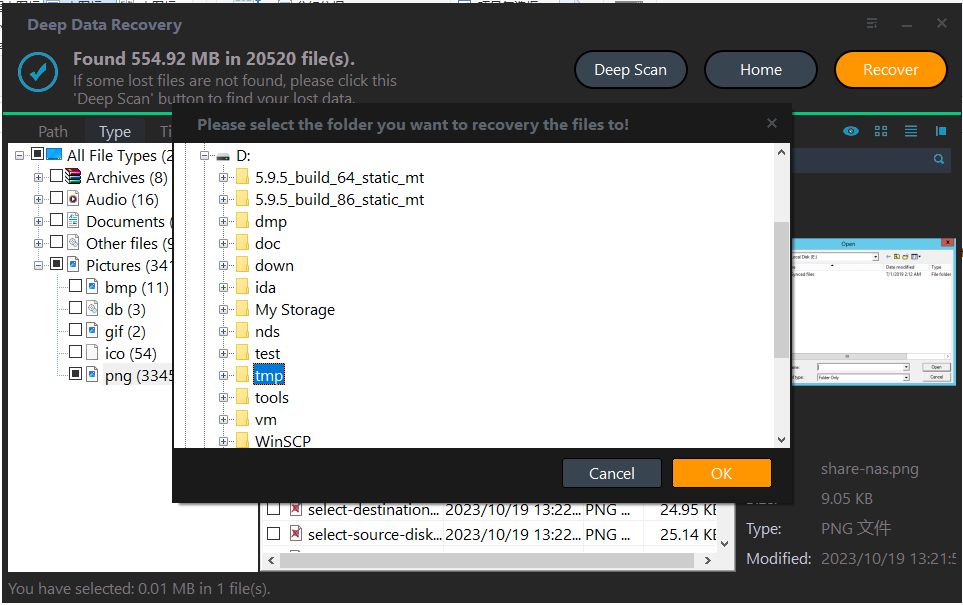
Step 4. Save to a Different Disk
Write the recovered files to an external drive or a second internal disk. Confirm that the folders open before you consider any repair of the original installation, so the data is safe whatever the repair does next.
Frequently Asked Questions
Is the data lost when Windows will not start?
No. A startup failure lives in the boot files, while user data stays on the same volume. Unless a reinstall or a format has run, the files are still there and can be copied from another computer.
Can I uninstall the update from the recovery menu first?
You can try, but do it after the files are copied. An uninstall rewrites system areas and may fail halfway, and by then the disk has been changed again for no benefit.
Will the drive still work after the files are recovered?
Usually yes. Once the data is safe, the installation can be repaired or rebuilt on the same drive. Replace the disk only if it reports health warnings or makes unusual noise.
Related Articles
- Recover Files After a KB5127936 Boot Failure
- Recover Files After KB5079473
- Recover Files After a Windows 11 Update
- Files Missing After an Update Changed the Drive Letter
- Recover Data From a Laptop That Will Not Boot
Products
Articles & Tutorials
- Data Recovery
- Data Backup
- File Recovery
- File Backup
- System Backup and Restore
- Disk and Partition Clone
- Technical articles
- Mobile articles
- Disk Master Help
- Windows Data Recovery Tutorials
- Windows Secure Delete Tutorials
- Windows Partition Management Tutorials
- Windows File Backup and Restore Tutorials
- Windows System Backup and Restore Tutorials
- Windows Disk Backup and Restore Tutorials
- Windows Clone Tutorials