Unformat SSD – How to Recover Data from Formatted SSD
Quick Navigation:
- Why format SSD?
- What happens to format SSD?
- What kind of SSD data recovery software you need to unformat SSD?
- How to unformat SSD to rescue data?
- Step 1. Install the Unformat SSD Tool
- Step 2. Select the type of file you want to recover
- Step 3. Select the formatted SSD to scan
- Step 4. Unformat SSD
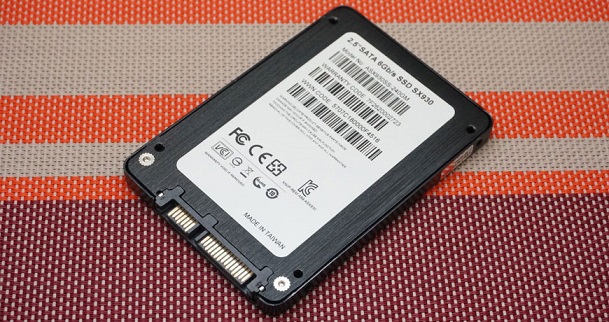
SSD, Solid State Drive or Solid State Disk, using flash memory as a storage medium, the reading speed is faster than a mechanical hard disk. So, people like to choose SSD to store applications or important data, like photos, music, videos, emails, documents, portable programs and more. It is a great device to extend your storage for the computer. However, from time to time, you might format it for some reasons, which will result in data loss and you need to unformat SSD.
Why format SSD?
- Accidental/unintentional format: it is quite easy to format the SSD. You just right-click on it and select "format", then it is done and done. Because it is so easy to format SSD, people may do it accidentally.
- RAW SSD: When an SSD displays as RAW or shows a message saying 'Media/Drive is not formatted, would you like to format now?', it can be a sign of a formatting issue. Here are some possible reasons why this might happen:
- Virus attack: When an SSD is used to store files that have been virus-attacked, it can become infected. If no precautionary measures have been taken to prevent virus attacks, the SSD may become a breeding ground for malware. Formatting the SSD can be a way to clear the virus-infected files and restore the drive to its original state.
- SSD get corrupted: while you using the SSD, it may get corrupted due to the operating system issues. Formatting will reset the SSD to the original settings, fixing the corruption problem.
- SSD Re-partitioned: Some users, particularly those with technical expertise, may choose to manage their SSD partitions. This can involve resizing or extending the partition to optimize storage space.
What happens to format SSD?
When formatting an SSD, all files on the device, including photos, videos, emails, and audio files, are marked as deleted and become invisible. This means that these files are still present on the SSD, waiting to be overwritten by new data.
Important: When files are lost due to formatting an SSD, it's essential to act quickly to recover them. The sooner you start the recovery process, the better. This is because the longer you wait, the more likely it is that new data will be written to the SSD, overwriting the deleted files.
What kind of SSD data recovery software you need to unformat SSD?
When it comes to recovering data from a formatted SSD, it's essential to choose a professional and reliable tool. There are many options available online, but not all of them are created equal.
Your Powerful & Effective Unformat SSD Tool
- Professional, stable, easy-to-use. It doesn't require you to learn any SSD data recovery techniques to use it.
- Supports more than 550+ file types, covering the commonly photos, videos, audio files, official documents, all kinds of pictures, emails, and more.
- Fully compatible unformat SSD in Windows 10/7/8/XP/Vista and Mac OS X 10.6 and later.
How to unformat SSD to rescue data?
Deep Data Recovery is a professional and user-friendly SSD data recovery tool that can help you recover data from your SSD. This tool is designed to make the data recovery process as smooth and hassle-free as possible.
Step 1. Install the Unformat SSD Tool
Click the download link to install the Unformat SSD Tool on your computer. Both the Windows data recovery and Mac data recovery are available currently. Next, follow the built-in wizard to install the unformat software on your computer. It is a secure tool, will not bring you any virus or affect other programs on your computer.
Step 2. Select the type of file you want to recover
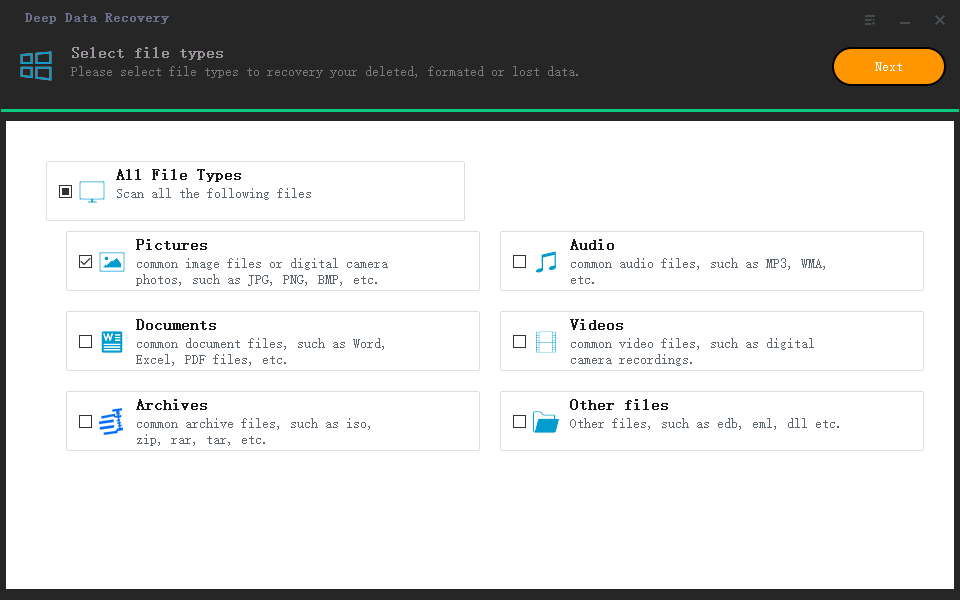
The unformat SSD software supported all file types. By default, all of them are checked and the unformat SSD software is ready to scan for all of them. If you want to unformat SSD quickly for the target files, I suggest you uncheck the unneeded ones. Otherwise, it takes longer for scanning unwanted files. After selecting file types to unformat, you need to click the "Next" button to unformat your SSD.
Step 3. Select the formatted SSD to scan
To select the SSD to unformat using the Unformat SSD Tool, follow these steps:

Step 4. Unformat SSD
How long it takes to scan for the formatted SSD fully depends on how many files it scan for. If it takes longer than you expected to scan for the formatted files, calm down, it means it can find more files for you. The longer it takes, the better the result is. After the scanning process, the result will be displayed. You can unfold the categories respectively to preview files belong to them. When you find the target files, you can click "Recover" to recover data from formatted SSD.

If you are not content with the result the unformat SSD software offer to you, please try the "deep scan". It will dig deeper for the formatted SSD data fro you.
My suggestion: It's always better to be prepared for the unexpected. When it comes to important files on your hard drive, regular backups are a must. You can use Qiling Disk Master to schedule backups, ensuring that your data is safe and secure.
Related Articles
- Unformat USB Drive - How to Recover Formatted Files from USB
- How to Recover Data on Formatted Hard Drive
- How to Recover Formatted Partition in Windows 10/Windows 7
- Where Is My Hosts File and How to Reset Hosts File to Default in Windows 10
Are you looking for a method for How to Reset Hosts File Default In Windows? Then you've found a helpful guide; this guide helps you with just that! - Which USB Format to Boot Windows: FAT32, NTFS, or exFAT? [Best Solutions]
this guide will introduce which USB format to boot Windows: FAT32, NTFS, or exFAT. You can find the most suitable USB format for booting Windows and master how to format a bootable USB on Windows. - What Is Win32 Disk Imager?A Complete Guide on It
Win32 Disk Imager is an open-source and free Windows application that allows creating ISO images on a portable drive like USB, CD, DVD, etc. This article provides a complete guide on Wind32 Disk Image, including definition, system requirements, and how to use it. - How to Open a Corrupt Word File on Mac and Recover Deleted Word
When a Word document is deleted or corrupted on a Mac, users may encounter the error message “This document is either deleted or not currently accessible.” To resolve this issue, users can employ a professional data recovery tool to retrieve deleted Word files or utilize the provided methods to.
Products
Articles & Tutorials
- Data Recovery
- Data Backup
- File Recovery
- File Backup
- System Backup and Restore
- Disk and Partition Clone
- Technical articles
- Mobile articles
- Disk Master Help
- Windows Data Recovery Tutorials
- Windows Secure Delete Tutorials
- Windows Partition Management Tutorials
- Windows File Backup and Restore Tutorials
- Windows System Backup and Restore Tutorials
- Windows Disk Backup and Restore Tutorials
- Windows Clone Tutorials