Which USB Format to Boot Windows: FAT32, NTFS, or exFAT? [Best Solutions]
Choosing the right file format for your bootable USB drive is crucial for a successful operating system installation on your new computer. The three common Windows file systems to consider are FAT32, NTFS, and exFAT.
This article will cover the three main file systems, provide a hint on which USB format to use for booting Windows, and also discuss using Qiling Partition Master to format a USB drive.
What Is USB to Boot Windows?
A bootable USB drive is a portable storage device that contains an operating system, allowing a Windows device to boot from it instead of the internal hard drive. It can be used to troubleshoot and repair the OS, install new software, reinstall the operating system, create backups, or transfer the OS to a new device.
What Is a Bootable Drive?
A bootable USB drive is an external device that contains a complete operating system (OS) setup, allowing it to boot up a computer successfully. It can be used to rescue a malfunctioning computer, providing an alternative way to access the OS.
What Are the Benefits of a Bootable USB?
Bootable USB drives are essential as they replace the need for CD drives in modern computers. They offer several benefits, including the ability to install operating systems, transfer data, and run applications directly from the USB drive, making them a convenient and versatile tool for various tasks.
- A bootable USB can enhance the safety of your data by allowing you to keep it in a secure location, making it inaccessible to others.
- A USB drive lets you change the data on it by adding or changing information and taking it with you wherever your computer operating system goes.
- Bootable USB drives are convenient as they eliminate the need for optical media like CDs or DVDs and also hard drives, making them a reliable and portable option.
When choosing a USB drive for booting your Windows device, it's also important to select the right file system format. The correct file format ensures that your device boots correctly and you can easily access all the files and data on your computer storage. In the next section, we'll discuss the available file formats for Windows and recommend the best one for you.
Which USB Format to Boot Windows: FAT32, NTFS, or exFAT?
Windows devices can be booted using various file formats, including FAT32, NTFS, and exFAT. FAT32 is a widely supported, older format that's still compatible with many devices, but it has limitations on file size and partition size. NTFS is a more modern, secure format that supports larger file sizes and is the default for Windows devices, but it may not be compatible with older systems.
What Are FAT32, NTFS, and exFAT?
Below is a description of the three file formats:
- FAT32: The FAT32 file system is widely compatible with various operating systems and devices, including USB drives, external hard drives, and flash drives. It uses a file allocation table to track file locations on a storage device. FAT32 is known for its broad compatibility, making it a popular choice for removable storage devices that need to work across multiple systems.
- NTFS is a file system primarily used for the Windows NT family, superseding the FAT file system and becoming the most preferred on Windows. It also supports other operating systems, including Linux and BSD.
- exFAT is optimized for flash memory, such as SD cards and USB drives, and has a higher file size limit than FAT32.
Which Format Is Best for Bootable USB drives?
To choose the best file format for your bootable USB drive, refer to the comparison table below. It will help you decide which format suits your needs.
| Aspect | FAT32 | NTFS | exFAT |
|---|---|---|---|
| Functions | FAT32 is widely compatible and can be used on almost all operating systems, making it highly portable across various devices. | The proprietary journaling file system, also known as NTFS, is the default file system for the Windows NT family, providing a proprietary journaling mechanism. | exFAT is an improved version of FAT32 that can be used where NTFS is not feasible, offering larger file size support. |
| Maximum File Size | 4GB | 8PB | 16EB |
| Maximum Cluster Size | 64KB | 2MB | 32MB |
| Maximum Volume Size | 16TB | 8PB | 128PB |
| Pros |
|
|
|
| Cons |
|
|
|
| Compatibility | Windows, Linux, Mac, Android, Chrome OS, and various gaming consoles like PS3 and PS4, as well as printers and Xbox 360. | Windows XP/7/8/10, Linux, macOS | Windows, Mac OS X 10.6.5 and later, Android, and Xbox One. |
FAT32 is the best file system for bootable USB drives, except for transferring large files over 4GB, due to its convenience in working with bootable drives.
Set the Best File System Format- FAT32 as USB Format to Boot Windows
To create a bootable USB on Windows, you'll need to follow three steps: set the bootable USB format, create the bootable USB format, and install the operating system. Specifically, to set the FAT32 format as a bootable USB for Windows, you'll need to follow these steps.
Step 1. Set FAT32 as the Bootable USB Format
To set FAT32 as the file system for your bootable USB drive, you can use a disk manager software like Qiling Partition Master Free to simplify the process, which may involve formatting the USB drive if it's not already in FAT32 format.
Step 1. Select the USB drive to format.
Connect the USB drive or USB flash drive to your computer, then download and launch Qiling partition software. Next, right-click the USB drive you intend to format and choose "Format".
Step 2. Set the drive letter and file system on USB.
Assign a new partition label, file system (NTFS, FAT32, EXT2, EXT3, EXT4, exFAT), and cluster size to the selected partition.
Step 3. Click Proceed to format.
Click the "Proceed" button to format the USB drive.
Step 4. Check "Yes" to confirm formatting USB.
Click "Yes" if you see the Warning window. If you have important data on it, back up the data in advance. This will ensure that you don't lose any important information during the process.
Qiling Partition Master allows you to convert NTFS to FAT32, making it a versatile tool for partition management. It is also suitable for new disks, enabling you to customize the number of partitions and set them as either MBR or GPT.
Step 2. Create the Bootable USB
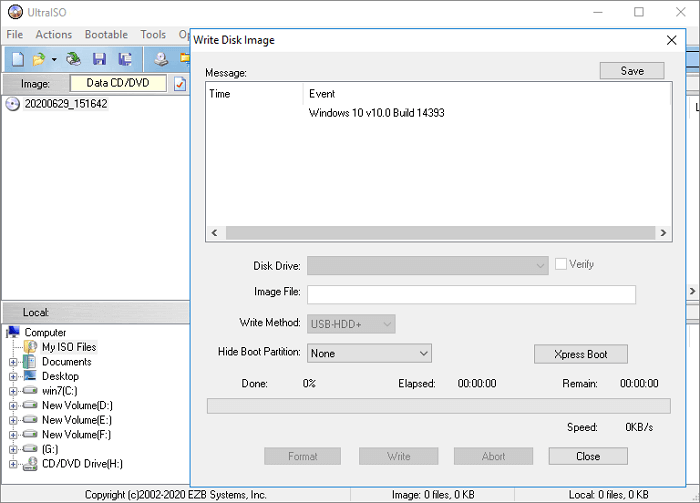
To create a bootable USB format, select FAT32 as your preferred format and use a tool like Qiling OS2Go to clone an operating system to the USB drive, making it bootable.
How to Create a Windows 10/11 Bootable USB
Fortunately, this job becomes easy if you learn how to create a Windows bootable USB media, and if you don't know why you need a Windows 10 bootable USB or how to do it, our article covers both aspects.
Step 3. Install the Operating System
After creating a bootable USB drive, you can install the system on a new computer by plugging in the drive and running it on your computer, following the link to learn the installation process.
How to Install Windows 11/10 from USB on New PC
To install Windows 11/10 on a new PC using a bootable USB, you can follow the step-by-step guide linked below. The process involves booting from the USB drive and following the Windows Setup wizard to complete the installation.
Conclusion
The best USB format to boot Windows is FAT32, a file system that is portable across many operating systems, including Windows, Linux, Mac, Android, Chrome OS, PS3, PS4, Printers, Xbox 360, etc. It also has the advantage of being compatible with most USB drives, unlike NTFS and exFAT.
Considering FAT32 as your default bootable USB format and using Qiling Partition Master to format your USB drive may be helpful. This article has come to an end, and I hope you found it informative. Please feel free to share your thoughts in the comments section and share this article if you found it useful.
FAQ of Which USB Format to Boot Windows
Do you still have any queries about which USB format to boot Windows? You can read through the questions below and have your queries answered.
1. Should Windows 10 Use Bootable USB FAT32 or NTFS?
FAT32 is generally recommended for bootable USB drives because it offers the widest compatibility across different systems and devices. However, if your Windows 10 ISO contains files larger than 4GB, you may need to use NTFS or exFAT instead.
2. What Format Should a Bootable USB be for Windows 10?
If you're creating a recovery drive, format your drive to FAT32, but for storage, format it to NTFS, which is the default for Windows 10.
3. How Do I Make a USB Stick Bootable?
To create a bootable USB drive using Rufus, first install the software on your computer, and then follow the steps below to create a bootable USB drive.
Step 1. Insert a USB stick of at least 8GB into your computer and launch Rufus.
Step 2. Set the device to your USB stick and select the installation media.
Step 3. Set the volume label to a default value and ensure that the file system and cluster size are set to their default settings.
Step 4. To create a bootable USB drive using Rufus, click on the Start button, which will initiate the Rufus program to create an installation media on the USB stick and make it bootable.
Related Articles
- The Operation Could Not Be Completed Because the Volume is Dirty [SOLVED]
- How Do I Password Protect My Files and Folders [All You Should Know]
- 4 Solutions | Fix Bootable USB Not Working in Windows 10/8/7
- How to Install Windows 10 on New PC [Step-by-Step Guide]
- How to Change Time and Date on Windows 10/11
Learn how to change time and date on Windows 10 or 11. Adjust time zone, sync internet time, and fix incorrect system clock. - How to Change Network Names on Windows
To change the name of your network on Windows 10, you can follow the steps outlined in this post, which offers two methods to update your network name. By reading the full post, you'll be able to determine which method is most suitable for your needs.
Products
Articles & Tutorials
- Data Recovery
- Data Backup
- File Recovery
- File Backup
- System Backup and Restore
- Disk and Partition Clone
- Technical articles
- Mobile articles
- Disk Master Help
- Windows Data Recovery Tutorials
- Windows Secure Delete Tutorials
- Windows Partition Management Tutorials
- Windows File Backup and Restore Tutorials
- Windows System Backup and Restore Tutorials
- Windows Disk Backup and Restore Tutorials
- Windows Clone Tutorials