SD Card Recovery for Digital Camera Memory Cards
An SD card is a small, portable storage device used in digital cameras and other devices to store a large amount of data, such as photos, videos, music, and documents. Unfortunately, users may experience data loss due to accidental deletion or formatting, which can be frustrating and inconvenient.
SD cards retain data even after removal, so knowing SD card recovery is crucial for retrieving important data in case of loss.
This article provides an ultimate guide on SD card recovery, covering how data can be lost on an SD card, methods to recover files from an SD card, and the top SD card data recovery software available for various operating systems.
SD Card Recovery in Different Data Loss Situations
SD cards can be prone to various data loss situations, including accidental deletion, formatting, corruption, and virus attacks, among other causes.
Formatted SD Card
The camera may prompt you to format the SD card if it's not detected, but formatting it will erase your data. Fortunately, there are software solutions that can recover data from formatted SD cards.
Delete files from SD cards
Intentional or unintentional deletion is one of the biggest reasons for SD card file loss. However, memory card recovery software can recover deleted files from SD cards.
SD card gets corrupted/damaged
Data loss from SD cards can be caused by damaged or corrupted SD cards due to file system problems, but using SD card recovery software can help restore lost files.
Virus infection
SD cards are vulnerable to infection as they need to be plugged in and connected to various devices, increasing the risk of a virus getting in. Once a virus infects an SD card, it can lead to data loss, making it essential to take precautions to protect the sensitive information stored on these cards.
Dos or Don'ts for SD Card Recovery
When attempting SD card recovery, it's essential to follow the right steps to maximize the chances of success. To do this, you should immediately stop using the SD card, as any further activity can cause data loss or overwrite. Next, try to identify the type of data that was stored on the card, as this can help guide the recovery process.
Do:
- Start SD card data recovery as soon as you can.
- Use a reliable SD card recovery software to scan your SD card and recover lost or deleted files.
- Connect your SD card to a computer using a compatible card reader.
Don't:
- Do not attempt to recover data without using professional software, as this can cause permanent damage to your files.
- Do not write new data to the SD card before attempting recovery, as this could overwrite the lost data and make it unrecoverable.
- Using a damaged SD card can cause further corruption and make it even harder to recover your files. It's best to stop using it and try to recover your files as soon as possible.
By following these simple tips, you can give yourself the best chance of recovering lost or deleted data from your SD card.
Recover Files from SD Card with Memory Card Recovery Software
If you've accidentally deleted files from your SD card or it's become corrupt and unreadable, don't worry! You can use memory card recovery software to recover your important data.
Deep Data Recovery supports undeleting files from SD cards in any case, including FAT12, FAT16, FAT32, NTFS, and exFAT file systems, and also recovers deleted files from external hard drives, HDD, SSD, USB flash drives, and other devices.
Qiling SD card recovery software stands out as one of the best due to its key features.
- Support multiple types of memory cards:
Qiling memory card recovery software supports data recovery from various types of memory cards, including SD, SDHC, micro SD, MMC, CF, and mini SD cards.
- Support SD cards from all popular brands:
This software allows you to recover deleted files from various SD card brands, including Sandisk, Sony, Lexar, Transcend, Samsung, Delkin, and Verbatim.
- Support for numerous camera brands.
- Support any file on an SD card.
Qiling data recovery software supports the recovery of over 200 data types, including various file formats such as documents, photos, videos, and audio files, that can be stored on an SD card.
To recover files from an SD card, this software scans the card for any lost or deleted files and then gives you the option to recover them.
Step 1. To recover data from a memory card using Qiling, simply connect the SD card to your computer via a USB cable and launch the software. The program will then detect the SD card under External drives, allowing you to click "Scan" to initiate a quick scan for recently deleted files, or a deep scan for more challenging recoveries.
Step 2. You can monitor the scan's progress and view the actual scan results. You can pause the scan if desired data is found or wait for it to complete. If there are many files, you can use the Filter feature and search functions to quickly locate specific types, such as photos, documents, videos, or emails.
Step 3. After selecting the files you want to recover, preview them and then click "Recover" to restore them to your device. For safety, store the recovered files in a different location, such as your computer or another external drive, rather than the original SD card.

Query: What's the Best SD Card Recovery Software for PC
Many SD card data recovery software options are available, each with its own strengths and weaknesses. We offer detailed reviews and comparison tutorials for various software, including several popular options, to help you make an informed decision. You can read more about these options to find the one that best suits your needs.
- 1. Deep Data Recovery
- 2. Recuva
- 3. Stellar Data Recovery
- 4. Disk Drill
- 5. R-Studio
LEARN MORE
For those looking to recover data from their SD cards, there are several free software options available. To get more instructions on the top 10 best free SD card data recovery software, you can visit a website that provides detailed guides and reviews of these programs.
Recover Deleted Files from SD Card with a Data Recovery Service
If data recovery software fails to recover files from an SD card, a data recovery service can be used as a last resort. These services are typically provided by companies specializing in data recovery and may be the final chance to retrieve lost data.
Qiling data recovery service offers advanced techniques to recover SD cards and fix corrupted devices in a well-equipped lab. After a free evaluation, they provide additional services without charging for unsuccessful data recovery, allowing for confident consultation.
- Unformat SD card and restore lost files
- Repair a damaged RAW partition and recover lost files
- Recover/repair lost partition and repartitioned drive
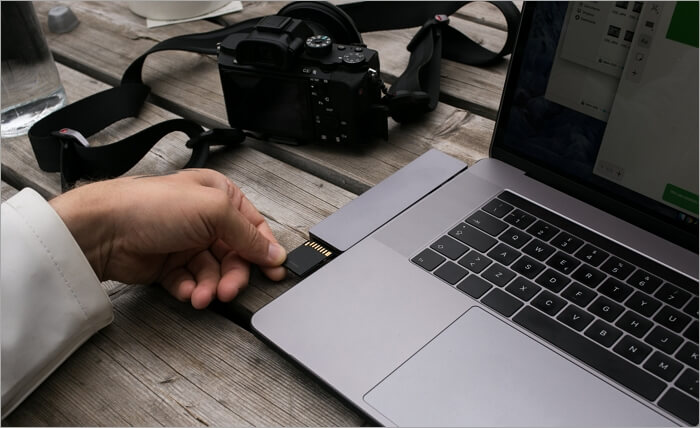
How to Recover Deleted Files from SD Card on Mac
It is possible to recover deleted files from an SD card on a Mac, with methods including using Mac SD data recovery software or the Terminal.
Data recovery software can be used to scan an SD card for deleted files and recover them, making it a good option for those not comfortable using the Terminal. Mac users can consider Deep Data Recovery and TestDisk software.
The Terminal can be used to recover deleted files from an SD card, but this method requires more technical knowledge. However, it can be a very effective way to recover lost data.
Step 1. Connect the SD card to your Mac directly or connect it with a card reader.
Step 2. Run Terminal and use the diskutil list command to find the device name of your SD card.
Step 3. Once you have the device name, you can use the dd command to copy the data from the SD card to a file, which can then be copied to another location for recovery.
How to Recover Deleted Files from SD Card on Android
If you've accidentally deleted files from your SD card on Android, don't worry - they can be recovered. You can use a file recovery program like Qiling MobiSaver for Android to retrieve your lost data from the SD card.
To scan your SD card for recoverable files, you can use the following method: Simply insert your SD card into your computer, open the program, and let it scan your card. The program will then attempt to recover any files it finds, and you can choose to save them to your computer. This method is a good option if you're looking to recover files from your SD card.
Step 1. Connect your Android phone with an SD card to your computer and launch the program.
Step 2. After scanning your SD card, the program will display a list of files that can be recovered.
Step 3. Select the photos or videos you want to recover and click the "Recover" button.
LEARN MORE
Read the full guide on SD card data recovery for Android.
SD Card Recovery FAQs
If you have other questions about recovering files from SD cards, here are the answers.
1. Is SD card recovery possible?
Data recovery from damaged or corrupted SD cards is possible, but its success depends on the extent of the damage and the type of data stored on the card.
2. How can I recover my SD card data for free?
You can try to recover your SD card data for free by checking if you have a backup that includes the deleted files, or by using a free data recovery tool like Deep Data Recovery Free, which allows you to recover up to 2GB of data for free.
3. Is it possible to recover a deleted video from a memory card?
Deleted videos from a memory card can be recovered using special software and technical knowledge, but it is also possible to use Qiling video recovery software to recover videos from an SD card on Windows.
Step 1. Insert your SD card into your computer and run Qiling video recovery software.
Step 2. Choose your SD card and begin the scan.
Step 3. Locate the missing files and recover.
4. How do you fix a corrupted SD card?
If your SD card is corrupted, try using a different computer to see if the issue is with the card or device. If it's the card, try reformatting it, but be aware that this will erase all data. If that doesn't work, you may need to buy a new SD card.
5. How to recover deleted files from an SD card without software?
To recover deleted files from an SD card without using software, you can try checking if you have a backup of the files on another storage device or on your computer, and copy them to the target location. Alternatively, if you had saved and backed up the files on your computer, you can restore them from the Windows backup. This approach allows you to recover deleted files without needing specialized software.
6. How can I recover my SD card that won't read?
Here are the solutions: if your SD card won't read, check the card's physical condition, make sure it is properly inserted into the device, and try accessing it on a different device. If the issue persists, check for physical damage, use a card reader, or format the card after backing up or recovering important data.
- If your card is locked, you won't be able to use it. To unlock it, you'll need to follow the specific steps for your card, which may involve entering your PIN, using a specific app, or contacting your bank. Once your card is unlocked, you should be able to use it as normal. If you're still having trouble, you may want to contact your bank's customer service for further assistance.
- To recover data from a damaged SD card, first, use a data recovery software to scan the card and retrieve files. Then, use an SD card file recovery tool to restore files from it before formatting the card.
- If neither of the previous methods work, you may need to contact a professional data recovery service to fix your SD card and recover data.
7. Mini SD card vs. Micro SD card vs. SD card
SD cards come in three main types: Mini SD, Micro SD, and standard SD. The main differences between them are size, storage capacity, and price, with Mini SD being the smallest and standard SD being the largest.
SD cards come in various sizes, including mini SD cards (2GB-32GB), Micro SD cards (2GB-128GB), and standard SD cards (4GB-256GB).
Final Verdicts
SD cards can be prone to data loss due to accidental deletion, formatting errors, or corruption, making them a risk for users who rely on them for storing important files.
Fortunately, there are several ways to recover lost data from an SD card. This can be done using SD card recovery software, which scans the card and attempts to recover lost files, or by sending the card to a professional data recovery service, which can often successfully recover data from even severely damaged cards.
If you've lost data from an SD card, don't panic! With the right tools and methods, you can often recover your lost files. Just remember to back up your important files in the future to avoid this situation again.
For recently deleted camera images, scan the card without taking new photos and verify full-resolution JPG or RAW files.
Related Articles
- How to Recover Deleted Videos on Any Device
- (July 2022) Ultimate Guide to Mac Time Machine Backup
- Data Recovery Software for Windows 10/Mac/iPhone/Android
- File Repair| How to Repair Corrupted File (PST, PDF, Photo, etc.)
- SQL Recovery Program Download: Repair SQL Server Database
A SQL recovery program is capable of repairing corrupted MDF and NDF files, restoring deleted records, and even fixing SQL databases affected by 823/824/825 errors. - How to Fix SQL Server Database Stuck in Restoring State
A Microsoft SQL database can become stuck in a restoring state after a restore operation, causing issues. This problem can occur due to various reasons, and to resolve it, you can try troubleshooting solutions.
Products
Articles & Tutorials
- Data Recovery
- Data Backup
- File Recovery
- File Backup
- System Backup and Restore
- Disk and Partition Clone
- Technical articles
- Mobile articles
- Disk Master Help
- Windows Data Recovery Tutorials
- Windows Secure Delete Tutorials
- Windows Partition Management Tutorials
- Windows File Backup and Restore Tutorials
- Windows System Backup and Restore Tutorials
- Windows Disk Backup and Restore Tutorials
- Windows Clone Tutorials