Recover Data from a Corrupted SD Card
How to Tell If an SD Card Is Corrupted
A corrupted SD card is typically identified by a Windows PC, Android phone, or digital camera's inability to read or recognize it, resulting in error messages that prevent accessing data in it.
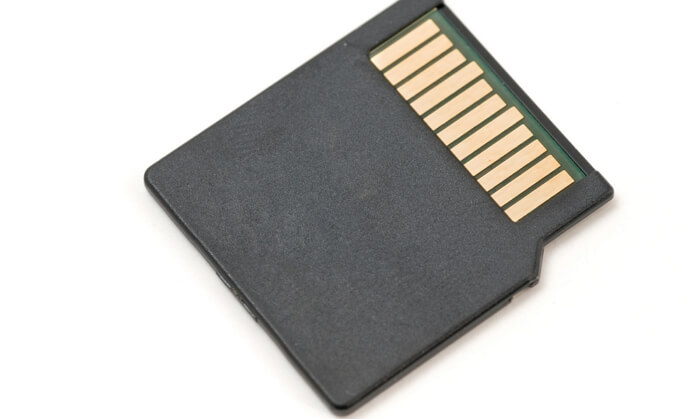
If you're observing the following symptoms on your memory card, your SD card might be on the verge of losing data.
- SD card files not showing up
- No memory card found in Android or camera
- SD card is not showing up in Windows Explorer
- SD card shows no media in Disk Management
- SD card shows RAW in Disk Management
- SD card damaged, try reformatting it
- Cannot open SD card due to access denied
- The memory card is not formatted, do you want to format it now?
When an SD memory card starts malfunctioning, you can try to fix it using various tools, but if it's physically damaged or broken, it may be beyond repair.
The standard process to fix a corrupted SD card involves two phases: recovering data from the corrupted card and then troubleshooting the issue. First, we'll explore how to recover data from a corrupted SD card, and then we'll offer the five best ways to fix the corrupted card.
How to Recover Data from Corrupted SD Card (3 Ways)
We can access the connected SD card in Windows Explorer (Windows Key + E), but if it gets corrupted, it won't show up there 99% of the time. In such cases, we can check the SD card in Windows Disk Management (This PC/My Computer > Manage > Disk Management), where it may appear as RAW or unallocated space.
Method 1. Recover Corrupted SD Card with Data Recovery Software
The best way to recover data from a corrupted SD card is by using Deep Data Recovery, a data recovery software that can scan any storage drive that you cannot currently open or access.
You can recover files like photos, videos, and personal data from a corrupted SD card by downloading the Qiling corrupted SD card recovery software.
Step 1. Connect the SD card, memory card, or CF Card to your computer and launch Qiling memory card recovery software. Select the desired file types and click "USB/SD Scan" to initiate the recovery process.

Note: You can choose different search modes based on where and why the data was lost.
Step 2. To recover data from an SD card, first, connect the SD card to your computer using an SD card reader. Then, go to the Devices section in the software you're using, and select the SD card. Click "Scan" to begin the data recovery process.

Step 3. The software automatically starts a scan, which is powerful enough to find lost files, including those with lost file names. After scanning, you can view deleted items in a tree-view panel on the left. If needed, you can filter the results by file type, such as photos, documents, videos, or emails.

Step 4. You can directly double-click on the files to preview their content, and then select the desired files to recover by clicking "Recover" to restore them to a secure location on your PC or external storage devices.
Don't miss: How to fix corrupted files after recovery
Method 2. Run Data Recovery Service for A Corrupted SD Card
The article previously introduced an efficient corrupted SD card recovery software that can recover all kinds of data files from a corrupted SD card.
When a memory card is corrupted or becomes inaccessible, data security is a top priority. Fortunately, third-party data recovery software can often retrieve most of the data. However, if the corrupted SD card damages files, it's recommended to contact experts to repair the files on the SD card.
Consult with Qiling Data Recovery Experts for one-on-one manual recovery service, which includes a free diagnosis and the following services offered afterwards.
- To repair a corrupted RAID structure, unbootable Windows OS, or a corrupted virtual disk file (.vmdk, .vhd, .vhdx, etc.), you can use a tool like Deep Data Recovery or a similar software. This tool can scan the corrupted disk or RAID structure, identify the damaged files, and recover them.
- Recover/repair lost partition and re-partitioned drive.
- Unformat hard drive and repair raw drive(Bitlocker encrypted drive)
- Fix disks that become GPT protected partitions
Method 3. Retrieve SD Card Files from a Backup on Windows 10/8.1/8/7
If your SD card is corrupted, you may be able to retrieve the data from a backup, but the process will vary depending on the type of backup you have.
For example, if you have a backup on your computer:
- 1. Navigate to the file location of your backup.
- 2. Select the files you want to restore and click the "Restore" button.
- 3. Save the restored files to a desired location by selecting it and clicking "OK".
If you have a cloud-based backup, you can download the data from the backup onto your computer and then transfer it to the SD card.
How to Fix Corrupted SD Card: With/Without Formatting (5 Solutions)
If your SD memory card is corrupted, don't worry, as most of them can be fixed. In Windows 10/8/7, there are five solutions that can help you fully recover a corrupted SD card.
#1. Change the SD Card Drive Letter
The drive letter conflict can cause Windows not to recognize the removable disk, making the SD card look corrupted. Assigning a new unique drive letter to the SD card can help Windows re-recognize it.
Step 1. The SD card should be detected and listed in Disk Management. You can then format it to make it usable with your computer.
Step 2. Right-click on the SD card and select "Change drive letter and path...".
Step 3. Set a new drive letter for the card.
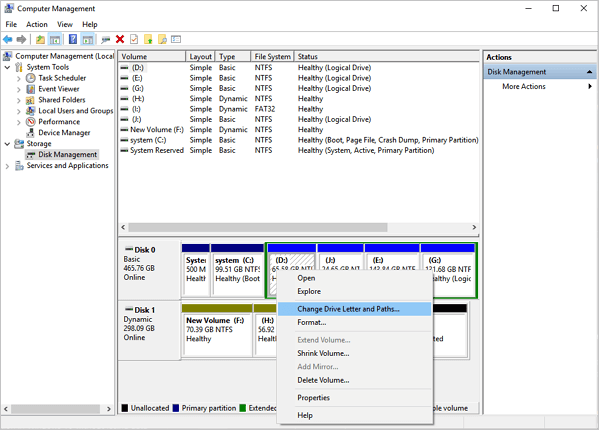
When the process finishes, check if you can access your card. If you can, then the card was successfully activated.
#2. Repair Corrupted File System on SD Card Using CMD
When the file system of an SD card becomes corrupted, it can display error messages such as "the file system is RAW", "the disk is not formatted", or "the drive is not accessible", rendering the memory card unable to function normally.
Here, we'll try to fix the corrupted SD card using CMD.
Step 1. To resolve the issue, first, insert the corrupted SD card into your PC using a card reader. This will allow you to access the card's contents and potentially recover your data.
Step 2. Go to "This PC" and find your SD card. Note the assigned drive letter.
Step 3. To open the Command Prompt, click on the "Start" button on your Windows computer, and type "cmd" in the search box. This will open the Command Prompt window, allowing you to execute commands and interact with your computer's operating system.
Step 4. Right-click "Command Prompt" and then select "Run as administrator".
Step 5. To run a check on your SD card, type the command "chkdsk [sd card drive letter]: /f /r /x" and press Enter, replacing [sd card drive letter] with the actual letter of your SD card drive. For example, if your SD card is located at drive E:, you would type "chkdsk E: /f /r /x". This command will scan the SD card for any errors, attempt to fix them, and then remove any locked files.
Caution:Before running the command, ensure you recover data from your corrupted SD card using reliable file recovery software, as this operation may result in a permanent file loss error.
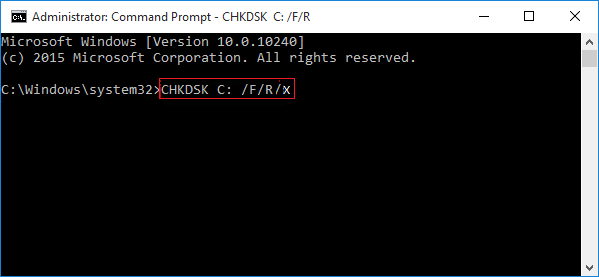
Chkdsk will start checking and fixing any possible errors on the corrupted SD card, aiming to make it readable again.
#3. Repair Corrupted File System on SD Card Using Software
Step 1. To check the file system on a partition using Open Qiling Partition Master, open the software, locate the disk, right-click the partition you want to check, and select "Advanced" followed by "Check File System".
Step 2. In the Check File System window, select the "Fix the error on the disk" option and click "Proceed".
Step 3. The software will start scanning your partition file system on your disk. Once it's done, click "Finish".
#4. Update SD Card Driver
If your SD card is malfunctioning, the worst-case scenario is not being able to find it in Windows Disk Management. To troubleshoot the issue, check the driver update information for the SD card in Windows Device Manager. An outdated or corrupted driver can cause the SD card to malfunction, so updating the driver may resolve the problem.
Step 1. Connect the corrupted SD card to your PC, then right-click on "This PC" or "My Computer" and select "Manage" from the context menu.
Step 2. Click "Device Manager" and expand "Disk drivers".
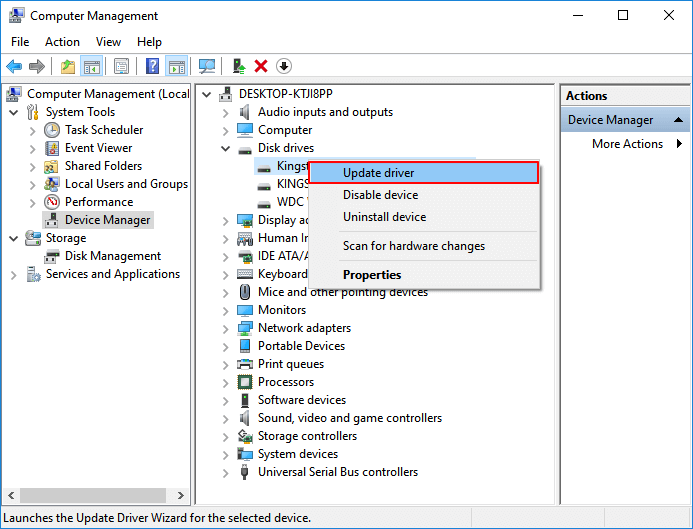
Step 3. Right-click on the SD card and select "Update driver".
Step 4. To update the graphics driver, click on the "Start" button and select "Device Manager". In the Device Manager window, expand the "Display Adapters" section and right-click on the graphics driver you want to update.
Step 5. When you turn on your computer again, Windows will automatically install the latest driver for your SD card.
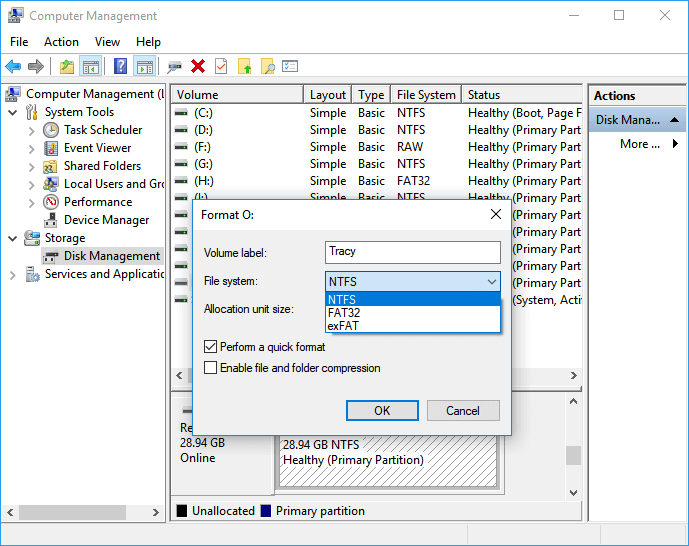
#5. Format Corrupted SD Card
Formatting the SD card is often the most effective way to fix memory card issues, but it will erase all data on the card. Before formatting, it's recommended to apply data recovery steps to prevent losing important information. If you've already formatted the corrupted SD card without backing up its data, you can still use Deep Data Recovery to recover data from the formatted SD card.
Step 1. Keep the SD card connected to your PC. Right-click on This PC/My Computer and select "Manage".
Step 2. To format an SD card, click on "Disk Management" in the computer's control panel, locate the SD card, right-click on it, and select the "Format" option.
Step 3. Select the file system for the SD card as FAT32/NTFS/exFAT and confirm the selection by clicking "OK".
Bonus Tips to Avoid Memory Card Corruption
To protect your SD card data, consider using a password-protected case or container to store your card, keep it away from extreme temperatures and physical damage, and regularly back up your data to a computer or cloud storage service. This will help prevent accidental deletion or corruption of your files, and ensure that you have a safe and accessible copy of your data in case of an emergency. Additionally, you can also use a data recovery software to recover your deleted or corrupted files.
- Be sure to use a reputable brand of SD card and ensure it's compatible with your devices. This will prevent any potential issues or data loss.
- Avoid using the SD card in extreme temperatures.
- Store the SD card in a safe, dry place when not in use. This will help prevent damage from moisture and physical stress, ensuring it remains functional for future use.
- It's generally recommended to safely eject the SD card from a device before removing it, to prevent data corruption and potential damage to the card or device. This can usually be done by going to the device's settings, finding the option to safely eject the SD card, and following the prompts to complete the process.
- Regular backups of your data are crucial to avoid losing important files.
If you follow these tips, you can help protect your SD card data from corruption and loss, but it's still important to have a backup plan in place, which you can make with the help of Qiling Backup software.
Conclusion
If your SD card becomes corrupted, you can try to recover data from a backup or use data recovery software to scan and recover lost files. To prevent data loss, take precautions like backing up your data and having a backup plan in place. This ensures your important data is safe and accessible.
Related Articles
- FIX: Seagate External Hard Drive Not Working Without Losing Data
- How Long Do Hard Drives or External Hard Drives Last (If Unused)
- Fix SanDisk Cruzer Not Recognized Issue
- Fix SD Card Files Not Showing in Mobile Phone, Camera or PC
- Fixed: Recover Lost Google Play Music Files
If you're having trouble restoring music on your PC using the Google Play Music web player, professional Google Play Music file recovery services are available to help you recover lost or deleted files without any issues. - How to Recover HFS, HFS+ Partition Data on Mac
If you've lost, deleted, or formatted files from your Mac's HFS or HFS+ partition, you can recover your data using Qiling Mac data recovery software, as outlined on this page. This software can help you restore your lost files from HFS/HFS+ partitions.
Products
Articles & Tutorials
- Data Recovery
- Data Backup
- File Recovery
- File Backup
- System Backup and Restore
- Disk and Partition Clone
- Technical articles
- Mobile articles
- Disk Master Help
- Windows Data Recovery Tutorials
- Windows Secure Delete Tutorials
- Windows Partition Management Tutorials
- Windows File Backup and Restore Tutorials
- Windows System Backup and Restore Tutorials
- Windows Disk Backup and Restore Tutorials
- Windows Clone Tutorials