How to Recover Word DOCX/DOC Files
DOCX/DOC Word Files Loss Trouble
Losing a Word document can be devastating, especially when it contains hours of hard work. Disasters like hacker or virus attacks, HDD corruption, or power failures can't be avoided, and accidents can happen when you don't properly close the application. Even transferring files to a server or other locations can lead to corruption, resulting in the loss of valuable articles, reports, and graphics.
Losing .docx or .doc files due to deletion or formatting can be frustrating. Fortunately, there are methods to recover deleted and unsaved DOC/DOCX files, allowing you to restore all lost Word files.
Part 1. Recover Deleted DOC/DOCX Files (Free)
If you've lost your Word files due to accidental deletion, formatting, or a virus attack, you can recover them using Qiling data recovery software, which can easily and quickly restore lost DOCX or DOC files with just a few clicks.
Step 1. Choose file types and click "Fast Scan" to start
Run Deep Data Recovery on your computer. Choose the file types you want to recover and click "Fast Scan" to begin the process.

Note: You can choose different search modes based on where and why the data was lost.
Step 2. Choose the Word file location
To initiate the scanning process, select the drive or a specific folder you want to scan and click the "Scan" button.

Step 3. Locate your Word files
The software will immediately start scanning all lost data on the selected drive, then after the scan, you can click the "Documents" option in the left panel, choose "Word" from the category bar, and finally click "Preview" to view the recovered files.

Step 4. Recover Word files
After previewing the lost Word files, select the desired Word files and click "Recover". Then, select a folder to store the Word files.
Part 2. Recover Unsaved DOCX/DOC Files (3 Solutions)
If you forget to save your days of hard work in Word, it is very unpleasant and sad. Fortunately, there are three possible ways to bring back these files, including using the 'Recover Unsaved Documents' feature, checking the 'AutoRecover' file, and using a third-party recovery tool.
Note: To create, edit, and manage a document in Word 2016, follow these steps: create a new document by clicking on "File" > "New", add a table of contents by clicking on "References" > "Index and Tables", insert a new page break by clicking on "Layout" > "Breaks", save your document by clicking on "File" > "Save As", print your document by clicking on "File" > "Print", share your document by clicking on "File" > "Share", collaborate with others by clicking on "Review" > "Track Changes", protect your document by clicking on "File" > "Protect Document", convert your document to another format by clicking on
Solution 1. Recover Unsaved DOCX/DOC from AutoRecover
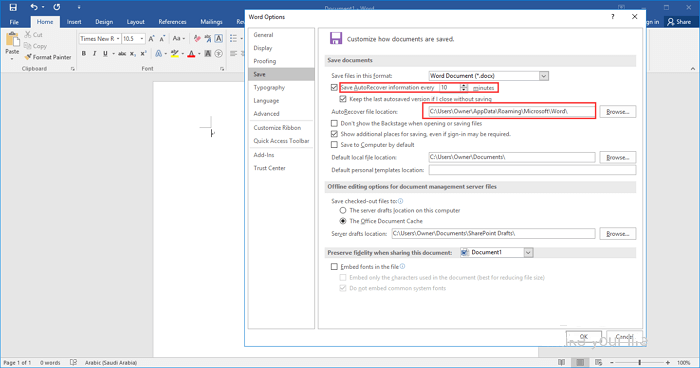
1. Open the Word program, and click "File" > "Options".
On the left navigation pane, click "Save", then copy and paste the AutoRecover file location path into File Explorer.
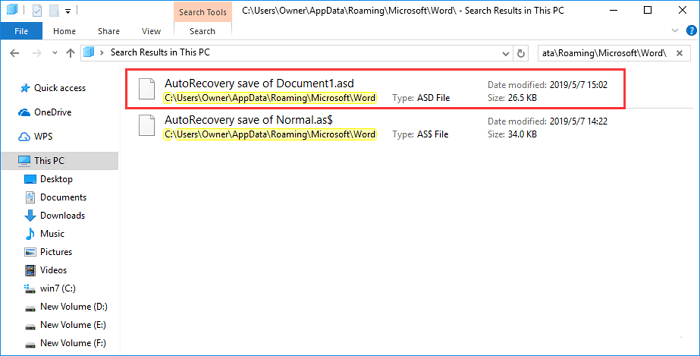
2. Scroll to the end of all recent documents and copy the .asd file.
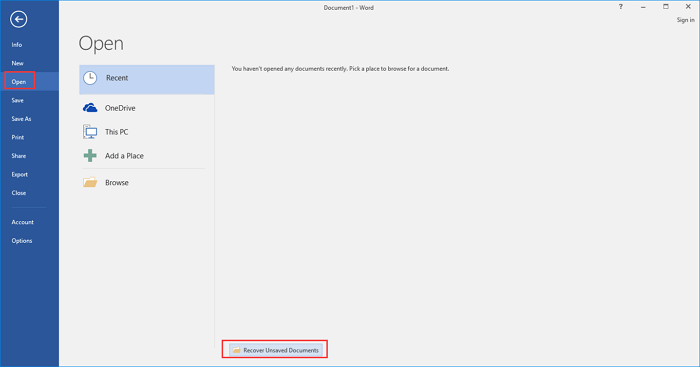
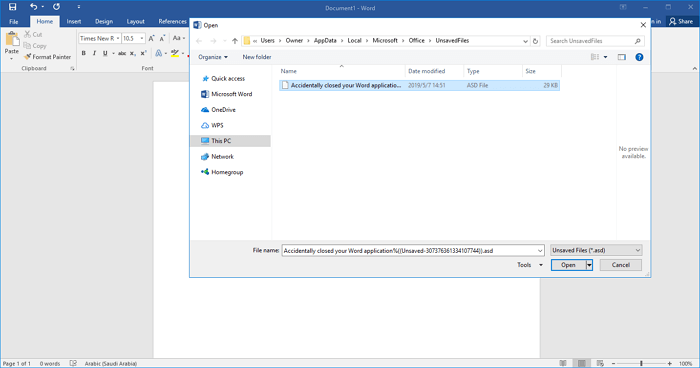
3. Go to your Word app, click "File" > "Open" > "Recover Unsaved Documents" at the bottom.
4. To recover a Word file, you would need to open the Word application, go to the "File" menu, and select "Open" to browse for the file. Then, select the file you want to recover and click "Open". If the file is corrupted or damaged, you might be able to recover it using the "Recover Text from Any File" feature in Word. This feature can try to extract text from a damaged file, but it's not always successful.
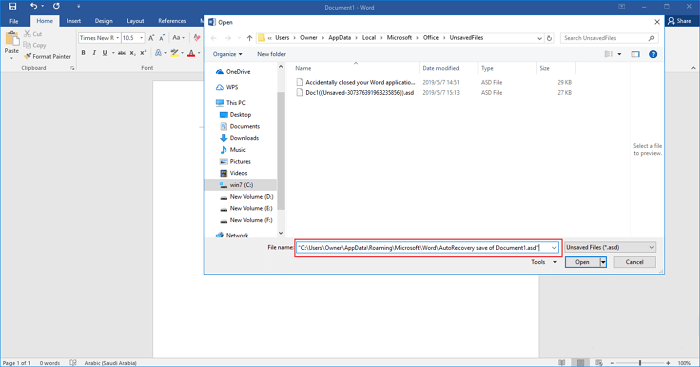
Solution 2. Recover from Temporary Files
You can find unsaved DOCX/DOC files directly through the following paths:
- For Windows 7 users: C:\Users\name\AppData\Roaming\Microsoft\Word\
- For Windows 8/10 users: C:\Users\\AppData\Local\Microsoft\Office\UnsavedFiles\
Or you can follow the steps below to find them:
1. Open the Word program, click the "File" tab, and then click "Info" followed by "Manage Document".
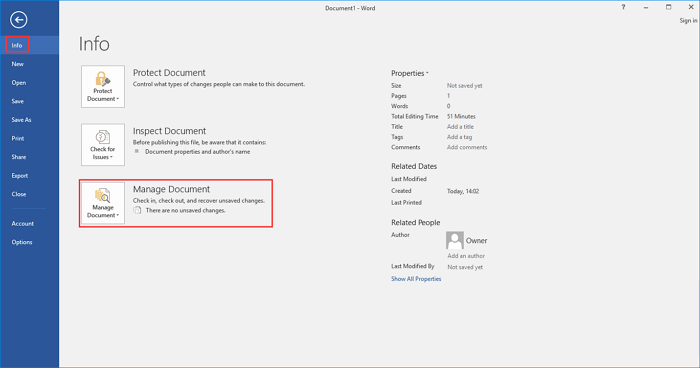
2. Click "Recover Unsaved Documents" from the drop-down menu.
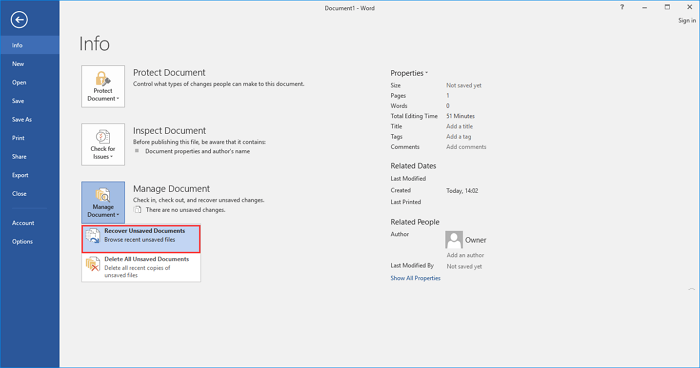
3. Select the unsaved file, click "Open", then choose "Save As" to save it to a desired location.
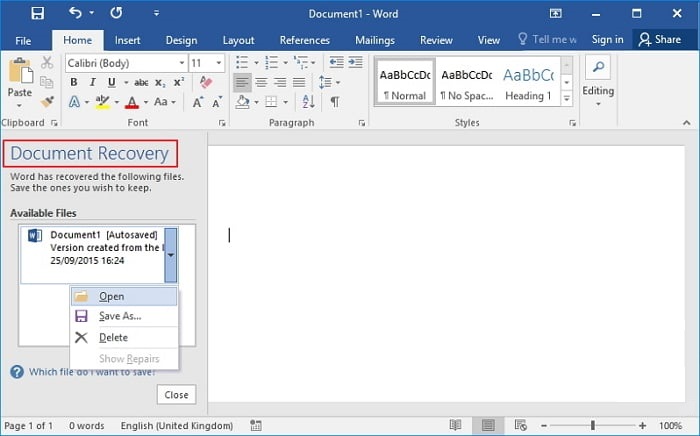
Solution 3. Recover DOCX/DOC from Document Recovery
If Word crashes or your computer suddenly shuts down without saving your document, you can recover the unsaved Word file using the Document Recovery feature in Word. This feature allows you to retrieve the file and continue working on it where you left off.
Also read: how to recover unsaved Word document on Mac.
Related Articles
- How to Recover Files After Factory Reset Laptop/PC [Solved]
- Top 10 Best Hard Drive Recovery Software for Windows and Mac
- How to Format SD Card Without Losing Data
- Top 10 Best Hard Drive Repair Software
- Undo ESD-USB | Convert 32GB ESD-USB Hard Drive/External Hard Drive to Normal
If you've accidentally converted your hard drive or external hard drive into a 32GB ESD-USB drive and lost data, there are solutions to restore it to its full capacity without losing any data. - Unlock Hard Drive | Fix Drive Where Windows Installed Is Locked
When trying to install or restore Windows from recovery media or start your PC, you may encounter the error “The drive where Windows is installed is locked.
Products
Articles & Tutorials
- Data Recovery
- Data Backup
- File Recovery
- File Backup
- System Backup and Restore
- Disk and Partition Clone
- Technical articles
- Mobile articles
- Disk Master Help
- Windows Data Recovery Tutorials
- Windows Secure Delete Tutorials
- Windows Partition Management Tutorials
- Windows File Backup and Restore Tutorials
- Windows System Backup and Restore Tutorials
- Windows Disk Backup and Restore Tutorials
- Windows Clone Tutorials