Recover Lost/Hidden Users Folder in C Drive
C:/Users Folder Missing in Windows 7/8/10
The Users folder, which comes with the C drive by default when installing Windows, contains multiple sub-folders used to store frequently used data, including user profiles, contacts, favorites, downloads, music, documents, videos, and games.
To address the disk-consuming Users folder, users can consider moving large files to an external drive or a network location, deleting unnecessary files, and compressing files to save space, thus preventing the Users folder from consuming too much disk space on the C drive.
- Move Users Folder to another drive like E:, F:, G:.
- Hide Users Folder, though it doesn't make any sense.
- Directly delete Users folder along with all the sub-folders.
The actions of deleting, moving, or corrupting the User folder can cause it to go missing in Windows 10/8/7 PCs, potentially leading to data loss. If you're experiencing this issue, follow the recovery solutions provided to retrieve your missing User folder.
Recover Missing/Deleted/Hidden C Drive Users Folder
To avoid system errors, it's best not to move the Users folder in the C drive. If you accidentally delete files in the C drive and also remove the User folder, you can recover the missing folder using a reliable hard drive recovery software. Alternatively, if the User folder is missing only because it was hidden, you can make it visible.
Two Solutions to Recover Lost/Hidden User Folder
Solution 1. How to Recover Deleted Users Folder
After deleting the User folder, check the Windows recycle bin first. If it's permanently deleted, use a data recovery tool like Qiling Data Recovery Wizard to restore the missing User folder as soon as possible, following a simple wizard-based interface.
This data recovery tool can recover data from various scenarios, including file and folder recovery, RAW partition recovery, lost partition recovery, virus attack recovery, recycle bin emptied data recovery, and even formatted hard drive recovery, among others. You can use this tool to recover your missing User folder in just three steps by downloading and using the Qiling folder recovery tool.
Step 1. Choose file types and click "Fast Scan" to start
Launch Deep Data Recovery. Select the file types you want to recover and click "Fast Scan" to proceed with the recovery process.

Note: You can choose different search modes based on where and why the data was lost.
Step 2. Select a folder to scan for lost files
1) Go to the location where you lost the folder. 2) Click on "Scan" to start the scanning process. This will help you locate the lost folder.

Step 3. Find and preview found files in the lost folder
If you remember the folder name, type it into the search box to quickly locate the lost files. Once found, open the folder and double-click on the scanned files to preview them. Alternatively, use the Filter feature to find specific types of files.

Step 4. Recover and save the lost folder
Select the folder and files you need, click "Recover", and choose a new & secure location on your PC to keep the recovered data.
Solution 2. How to Restore Missing Users Folder in Windows 10/8/7
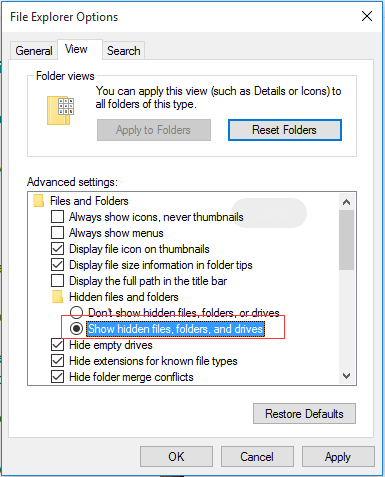
If Windows hides the C:\Users\ folder, you can easily make it reappear by making some changes to the file options setting. Despite being hidden, the folder remains intact and preserved, with its contents still accessible, and can be restored to its original location without any issues.
Windows operating systems, including Windows 10, have a feature that allows users to recover hidden folders. This feature is accessible by following a specific set of steps.
Step 1. Open control panel and find "File Explorer Options".
Step 2. Click inside, in the "View" part, find "Hidden files and folders".
Step 3. Tick "Show hidden files, folders, and drives".
Step 4. "Apply" the change and go back to Computer, you'll find Users folder in C drive.
Related Articles
- Recover Deleted Chrome Downloads and Resume Canceled Chrome Downloads
- How to Recover Permanently Deleted Files from OneDrive on Windows 11/10
- Microsoft Has Committed to Right to Repair, What Does It Mean?
- How to Recover Deleted or Lost PS4 Game Files from PS4 Hard Drive
- Accidentally Closed Word Without Saving in MS Word 2003/2007/2010/2013/2016
If you accidentally closed Microsoft Word without saving your document. You can recover unsaved Word files from Recent Documents, Manage Version, or Temporary Files in Microsoft Office. - Adata Flash Drive Recovery Tool
If the Adata flash drive is damaged or inaccessible, the best thing you must do is to retrieve the data trapped there. This article tell you how to retrieve the data.
Products
Articles & Tutorials
- Data Recovery
- Data Backup
- File Recovery
- File Backup
- System Backup and Restore
- Disk and Partition Clone
- Technical articles
- Mobile articles
- Disk Master Help
- Windows Data Recovery Tutorials
- Windows Secure Delete Tutorials
- Windows Partition Management Tutorials
- Windows File Backup and Restore Tutorials
- Windows System Backup and Restore Tutorials
- Windows Disk Backup and Restore Tutorials
- Windows Clone Tutorials