Solved: iPhone Deletes Photos by Itself (6 Ways)
Summary
If your iPhone is deleting photos by itself, don't worry, there are ways to stop it! To prevent your iPhone from automatically deleting Camera Roll pictures, try checking your iPhone's storage space. If it's running low, your iPhone may delete photos to free up space. To fix this, delete unnecessary files, apps, or photos, and consider upgrading your storage to a larger capacity.
To fix the error -If your iPhone is deleting photos on its own, it's likely due to a storage issue or a glitch in the Photos app. To resolve this issue, try checking your storage space on your iPhone by going to Settings > General > iPhone Storage.
| Workable Solutions | Step-by-step Troubleshooting |
|---|---|
| 1. Restart iPhone | Press and hold either the volume button or the side button until the power-off slider...Full steps |
| 2. Check the "Recently Deleted" | Go to Photos > Album > Recently Deleted...Full steps |
| 3. Free Up Storage Space | Go to "Settings" on your iOS device. Tap "General" > "iPhone Storage"...Full steps |
| 4. Disable Optimize iPhone Storage | To manage your iCloud storage, go to "Settings > iCloud > Storage > Manage Storage". Under the heading "Storage Summary", you can see how much storage you're using and how much is available. From there, you can delete files and data to free up space. You can also upgrade your storage plan if you need more space.Full steps |
| Other Workable Solutions | Install the Newest iOS on iPhone > Fix iPhone Hardware Issues...Full steps |
Why Do My iPhone Photos Disappear Suddenly?
Are you confused to see your iPhone deleting photos by itself? From what we observed, the incident of iPhone photos deleting themselves widely occur in the three scenarios.
- 1. The iPhone's storage space is full, causing it to automatically delete old photos due to an unknown iOS setting.
- 2. Some hardware-related issues occurred, such as water damage, which led to a random deletion.
- 3. A new iOS system bug has been introduced, causing many devices to restart repeatedly. In addition to the restarts, users have also reported that their photos, music, and videos have mysteriously disappeared.
- 4. The option "Optimize iPhone Storage" is enabled.
Part 1. Recover Deleted Photos on iPhone/iPad Without Backup
iPhone owners who have experienced the issue of their photos being randomly deleted from the Camera Roll and Photo Stream should prioritize iPhone photo recovery before attempting any troubleshooting methods. This approach ensures that any lost photos are recovered and preserved, making it easier to identify and resolve the underlying issue.
Qiling MobiSaver is a versatile iPhone data recovery software that supports both Windows and macOS versions, allowing users to recover deleted photos from their iPhone or iPad in three places: the phone's memory, iCloud backup, and iTunes backup.
Qiling iOS Data Recovery Software
- It is compatible with the latest iPhone and iOS.
- Recover data from iPhone,iTunes, and iCloud with simple steps.
- Recover a wide range of data from your device, including photos, videos, contacts, messages, call logs, notes, chat history, and much more.
- Recover deleted chat history from various messaging apps, including WeChat, WhatsApp, Line, Viber, and more.
To recover lost iPhone photos, download and run iOS data recovery software to get back your photos as soon as possible.
Step 1. Select file types and click "Fast Scan" to start
Launch Qiling MobiSaver, select the file types you want to recover and click "Fast Scan" to begin the recovery process.

Note: You can choose different search modes based on where and why the data was lost.
Step 2. Connect iPhone to Your PC
Choose "Recover from iOS Device" on the left, and click "Scan".

Step 3. Scan for Lost iPhone Photos
Qiling MobiSaver will automatically scan your iPhone and find both present and lost photos for you.

Step 4. Preview and Restore Photos
To recover photos, first select the "Photos" option on the left side, allowing you to view and choose the desired photos from your phone. Then, choose either "Recover to PC" or "Recover to Device" to initiate the recovery process.
Part 2. How to Stop iPhone from Deleting Photos by Itself
If your iPhone is deleting photos by itself, it's likely due to a software issue. To fix this problem, you can try restarting your iPhone, checking for software updates, and disabling the "Optimize Storage" feature, which may be deleting your photos to free up space. You can also try resetting the camera app and checking for any issues with your iCloud storage. If none of these solutions work, you may need to restore your iPhone to its factory settings.
Method 1. Restart iPhone, iPad, or iPod Touch
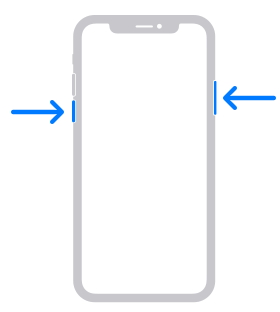
If your iPhone is deleting photos without asking, try restarting your device. To restart your iPhone, follow the steps specific to your model: for iPhone X, 11, 12, or 13, press and hold the Sleep/Wake button on the top right side until the "Slide to Power Off" slider appears, then release the button and slide the slider to the right to turn off your iPhone. Wait for 30 seconds and press the Sleep/Wake button again to turn it back on. This may resolve the issue.
Step 1. Hold either the volume button or the side button until the power-off slider appears.
Step 2. Wait 30 seconds for your device to turn off completely. Then, press and hold the power button until your device turns back on.
Step 3. To turn your iPhone back on, press and hold the side button (on the right side of your iPhone) until you see the Apple logo.
Method 2. Check the "Recently Deleted" Album
Check your Recently Deleted Album to recover lost photos.
- Go to Photos > Album > Recently Deleted
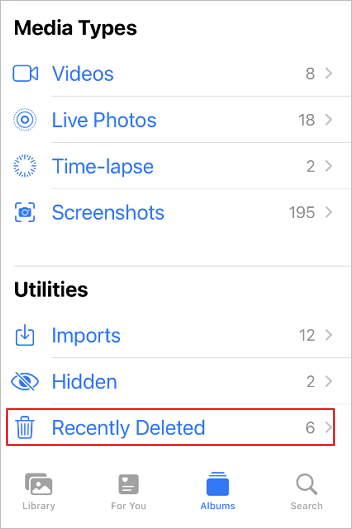
When you delete images and pictures from your iPhone, you will see them all disappear, with the number of days remaining before each is permanently deleted.
Method 3. Free Up Storage Space and Increase iPhone Memory
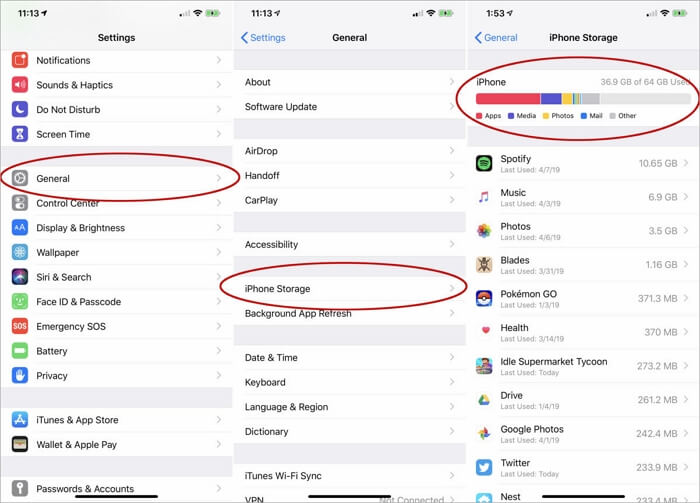
If your iPhone has insufficient space, it may delete photos, files, and other data without asking, so you can check and free up iPhone space to fix it.
1 - Check the iPhone space:
Step 1. Go to "Settings" on your iOS device.
Step 2. To see how much storage each app is using, go to "Settings" > "General" > "iPhone Storage". This shows you a list of all the apps on your device, along with the amount of space each one is taking up.
2 - Free up iPhone space:
Follow this guide: How to Free Up Space on iPhone in Every Way
Method 4. Turn off the Optimize iPhone Storage Option
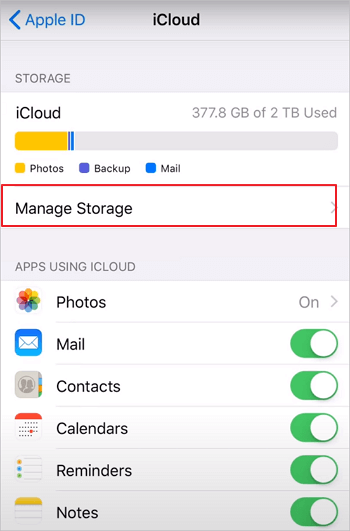
To turn off the Optimize Storage feature on your iPhone, go to Settings, then tap on [Your Name] at the top, followed by iCloud, then iCloud Storage, and finally toggle off Optimize Storage. Alternatively, you can also go to Settings, then tap on General, then iPhone Storage, and toggle off Optimize Storage.
Step 1. Go to "Settings > iCloud > Storage > Manage Storage".
Step 2. To disable storage optimization on an iPhone, go to Settings, then tap on "Storage Optimization" under the "General" section, and toggle the switch next to "Optimize iPhone Storage" to the off position. This will stop the feature from automatically deleting old conversations and attachments.
Method 5. Install the Newest iOS on iPhone
To resolve the issue of an iPhone deleting photos by itself, you can try updating to the latest version of iOS. This can be done by going to Settings, then General, and finally Software Update. If an update is available, tap "Download and Install" to upgrade your iPhone's operating system.
Step 1. Back up your device using iCloud or your computer.
Step 2. Plug your device into power and connect to the internet using Wi-Fi.
Step 3. Go to "Settings > General > Software Update".
If you see two software update options available, choose the one that you want to install.
Step 4. To install the update, tap "Install Now" on the screen. If you see "Download and Install" instead, tap it to download the update, then enter your passcode and tap "Install Now" again.
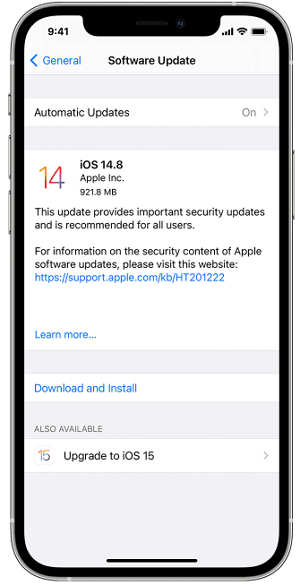
After the installation, you can restart your iPhone to see if you have solved the problem.
Method 6. Fix iPhone Hardware Issues
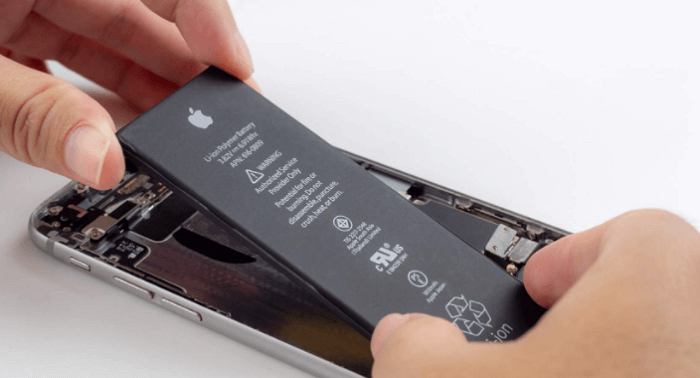
iPhone hardware issues can be complex to diagnose and fix, especially if you're experiencing slow performance and an unresponsive screen. Rather than attempting to disassemble the phone yourself, it's best to take it to the Apple store and have them assess the problem. They can then replace the faulty device with a brand new one, providing a hassle-free solution.
Final Words
To fix the issue of your iPhone deleting photos, it's essential to take preventative measures first. Before attempting any solutions, make sure to back up or recover all your precious photos using Qiling MobiSaver.
Related Articles
- Free iPod Music Recovery
- Top 4 Best iPad for Students That Really Work
- iPhone Files App | How to Use Files App and How to Recover Files on iPhone and iPad
- How to Restore Old & Deleted Voice Memos on iPhone
- Get Your Answer: Does Formatting A Laptop Remove Viruses?
Formatting a laptop or PC does not directly remove viruses, as it only erases personal data and does not affect malware. To remove viruses, a more targeted approach is needed, such as using antivirus software or a virus removal tool. - Does Updating to Windows 11 Delete Files? Here's the Answer
Updating to Windows 11 does not delete files, and you can upgrade for free. However, if you do lose data after the upgrade, you can recover lost and deleted files using Deep Data Recovery software.
Products
Articles & Tutorials
- Data Recovery
- Data Backup
- File Recovery
- File Backup
- System Backup and Restore
- Disk and Partition Clone
- Technical articles
- Mobile articles
- Disk Master Help
- Windows Data Recovery Tutorials
- Windows Secure Delete Tutorials
- Windows Partition Management Tutorials
- Windows File Backup and Restore Tutorials
- Windows System Backup and Restore Tutorials
- Windows Disk Backup and Restore Tutorials
- Windows Clone Tutorials