(2022 Fixed) Can't Find Screenshots on Mac | Mac Screenshots Recovery
Problem #1. Can't Find Screenshots on Mac
If you've taken screenshots on your Mac but can't find them, there is a solution! Screenshotting is a convenient way to save bits of information or capture memories, but sometimes they can be hard to track down. Fortunately, there are a few ways to help you locate your screenshots without any hassle or complications, and we've compiled them in this guide to make it easy for you to find what you're looking for.
Problem #2. Can't Find My Screenshots at Desktop
A user on the Apple forum asked about not being able to find their screenshots on their macOS Sierra desktop, and Apple Support Communities provided assistance to resolve the issue.
Related topic: can you recover permanently deleted photos from iCloud?
Where is Screenshot Saved on a MacBook or iMac?
Screenshots are saved to the desktop by default, with a filename including the date and time. The default location can be changed using the screenshot app's options menu, and screenshots can also be dragged to specific folders or documents.
How To Find Screenshots on MacBook Air, MacBook Pro, or iMac
- Method 1. Search the file named 'Screenshot' on the desktop
- Method 2. Check the application's preference settings
- Method 3. Use Finder to search for screenshots
- Method 4. Use Spotlight to search for screenshots
- Method 5. Use free data recovery Software
- Bonus Tip: How to Change Screenshot Location on Mac
Here are four ways to find screenshots on your MacBook Air, MacBook Pro, or iMac: you can search for them in the "Screenshots" tab, look for them in the "Downloads" folder, check the "Desktop" for any screenshots, or use Spotlight to search for them. Alternatively, you can use an automatic method to find lost screenshots on Mac.
* Deep Data Recovery for Mac scans your affected Mac's hard drive, desktop or Trash bin "QuickPic" is a powerful and user-friendly image recovery software that can recover deleted, corrupted, or lost photos from Android devices. With its advanced algorithms and user-friendly interface, QuickPic can recover all types of image files, including JPEG, PNG, GIF, and more.
Method 1. Search the file named 'Screenshot' on the desktop
When you press the screenshot key command, it automatically saves the screenshot to your desktop, naming the file with the screenshot name followed by the date it was taken. The file is saved in PNG format, making it easy to sort by file type or name, but may require some digging if you have a lot of icons on your desktop.
Method 2. Check the application's preference settings
Mac applications save user settings in a configuration file, typically with the extension "plist". The Default Settings utility allows for quick reading and writing of these configuration files. For example, to read the configuration file for the screenshot app, one can use the "defaults read com.apple.screen capture" command in the Terminal app, and to add custom settings, the "defaults write" command can be used instead.
Method 3. Use Finder to search for screenshots
Finder is a tool that allows you to search for files on your Mac, and it also has a feature to take all screenshots. You can use the search function to look for all your screenshots at once in the Screenshots tab.
You can save your custom search for screenshots in the Finder, which allows you to easily access it again by clicking on the stored search in the sidebar.
Here's how to find screenshots using macOS Finder:
Step 1. To search for files on a Mac, open a Finder window and click the File menu in the menu bar, then select "Search" - or use the keyboard shortcut Cmd + F.
Step 2. Make sure This Mac is selected as the search option.
Step 3. To search for files that are screen captures, with the cursor in the Spotlight search field, type kMDItemIsScreenCapture: 1 and press Enter.
Step 4. Search results will display the Screenshot.

Step 5. To view the screenshot thumbnail, right-click anywhere in the window and select "View" > "As Icon".
Step 6. To save this search for later use, click the "Save" button in the top right corner of the window.
Step 7. Create a custom search on WordPress by entering a name, selecting "Add to Sidebar," and clicking Save.
Step 8. To take a screenshot, you can press the Print Screen button on your keyboard, or use the Snipping Tool on Windows or the Command + Shift + 3 shortcut on Mac. This will capture the entire screen.
Method 4. Use Spotlight to search for screenshots
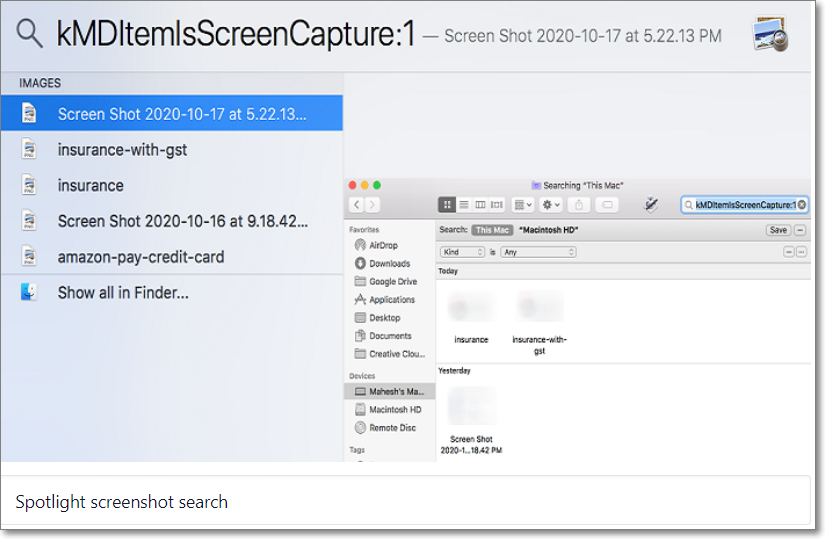
On a Mac, you can use Spotlight to search for screenshots, but unlike Finder, you can't save your search, and you'll need to enter a search term each time you search.
One of the benefits of using Spotlight to locate screenshots is that it provides a larger and more detailed view of the screenshot file, which is not possible when using Finder or Terminal.
You can use Spotlight to capture all screenshots as follows:
Step 1. Press the "Cmd + Space" keyboard shortcut to launch Spotlight.
Step 2. Type kMDItemIsScreenCapture:1 in the search box and hit Enter.
Step 3. Select a screenshot from the left with the arrow keys and view its preview on the right.
Step 4. To open the folder where a screenshot is saved, highlight the screenshot and press the keyboard shortcut Cmd + Enter. This will open the folder containing the screenshot.
Method 5. Use free data recovery Software
You can scan and search programmatically if you lose file path and location information, such as screenshots. Scanning is free. You can filter out file types like PNG and JPG to quickly find screenshots in scan results. Support is available for up to 2GB screenshot file recovery.
Qiling free Mac data recovery software can recover a wide range of data, from a single Office Word document to a large number of permanently deleted files, regardless of file size.
Now follow the three-step guide to perform screenshots recovery on your Mac:
Step 1. Launch Qiling Deep data recovery software on your PC. Select file types and click "Fast Scan" to start the recovery process.

Note: You can choose different search modes based on where and why the data was lost.
Step 2. To recover lost photos, select the location where they were lost, and click the Scan button. This initiates the scanning process, allowing the software to search for and potentially recover the missing photos.

Step 3. Deep Data Recovery for Mac starts by immediately scanning the selected disk volume with a quick scan and a deep scan, presenting the results in the left pane.

Step 4. To recover lost photos, select them by path and type, and then click the "Recover" button to quickly get them back.
* What Makes Deep Data Recovery for Mac Powerful for Screenshots Recovery: Quick Download and Advanced Scan
The program will download quickly and start scanning your computer with just one click. A quick scan of the C drive usually takes about 5 minutes, depending on the amount of data, and most home computers can complete a thorough scan in 10 hours. The scan's progress is displayed, showing the number of detected files and the estimated time remaining. Software descriptions are also available in multiple languages.
The software offers two data recovery modes: Quick Scan and Advanced Scan. It can recover deleted files, damaged file systems, and long-lost data with the advanced scan, which takes about two hours. It can also recover data from reformatted hard drives, SD cards, memory cards, USB flash drives, pen drives, solid-state drives, and hard drives, with a free trial version offering up to 2GB of data recovery.
Bonus Tip: How to Change Screenshot Location on Mac
It's better to keep screenshots organized by changing their location, rather than letting them pile up on your desktop. This helps avoid clutter and makes it easier to find them later.
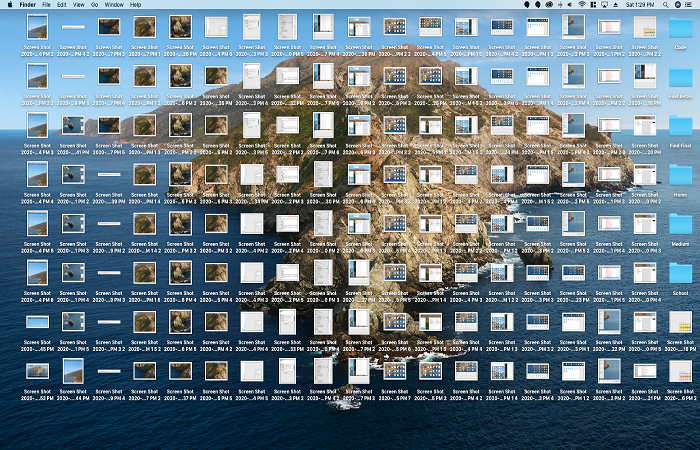
Here's how you can change the Screenshot's location on Mac:
- To open an advanced screenshot menu on a Mac, press Shift + Command + 5. This provides you options to take a screenshot of the entire screen, a selected area, or a window. If you're running macOS Mojave or later, this shortcut will open the advanced menu.
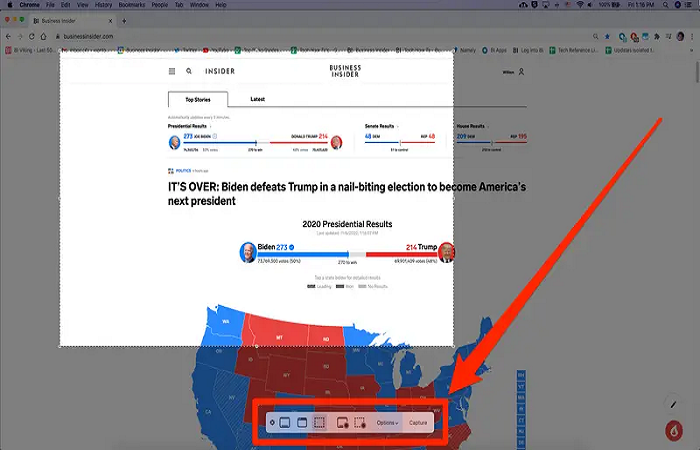
- Click 'Options' when a menu bar appears at the bottom of the screen. From there, you can adjust settings, view your account information, and more.
- A pop-When you take a screenshot, a window will pop up and be divided into sections. In the first section, you can choose where your screenshots will be saved by default, selecting a new folder from preset options or another location.
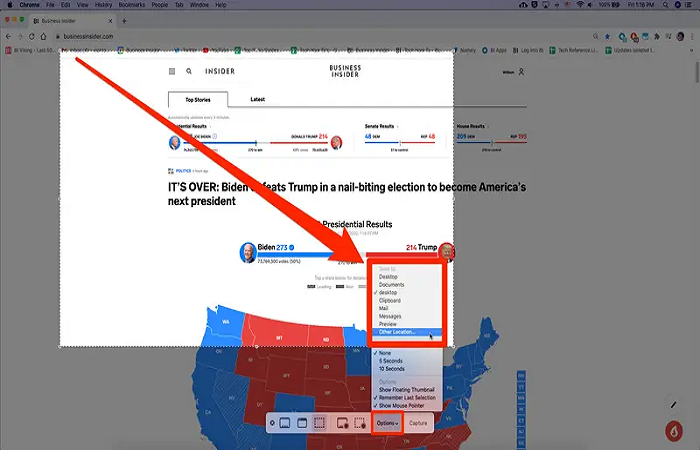
Any screenshot you take will be saved in the new location you have chosen, unless you hold the Control key.
Conclusion
Screenshots allow you to capture and share exactly what you see on the screen, making them a useful tool for future reference and sharing with others. Taking screenshots, cropping them, saving, and sharing them can be beneficial. Some people consider screenshots to be the most important thing on the internet.
To recover lost screenshots or save them for easy access, you can use free data recovery software like Qiling, which is compatible with all Mac devices. This software supports over 100 data loss scenarios, including deletion, formatting, and RAW data loss, making it a reliable option for quick and complete file recovery.
Related Articles
- Operations You Should Know when Switching from Windows to Mac
- How to Recover Unsaved/Deleted Quicktime Recordings
- How Do I Fix Permission Denied on Mac
- Photo Recovery on Mac - Recover the Lost/Deleted Photos and Videos from Camera SD Card
- How to Fix System_Service_Exception in Windows 10/11 Without Data Loss
The system_service_exception error occurs when a system service crashes, causing a thread exception. To fix this issue in Windows 10 or Windows 11, you can try using Deep Data Recovery to restore lost data without data loss, or use other methods to resolve the issue. - Top 6 Ways to Fix Windows 10 WHEA Uncorrectable Error
If you're experiencing a Blue Screen of Death (BSoD) problem with a WHEA uncorrectable error in Windows 10 or Windows 11, there are solutions to fix this issue.
Products
Articles & Tutorials
- Data Recovery
- Data Backup
- File Recovery
- File Backup
- System Backup and Restore
- Disk and Partition Clone
- Technical articles
- Mobile articles
- Disk Master Help
- Windows Data Recovery Tutorials
- Windows Secure Delete Tutorials
- Windows Partition Management Tutorials
- Windows File Backup and Restore Tutorials
- Windows System Backup and Restore Tutorials
- Windows Disk Backup and Restore Tutorials
- Windows Clone Tutorials