How to Recover Deleted Files/Folder from Desktop in Windows 11/10/8/7
Lost desktop files without a backup, how to recover?
"Yesterday, I accidentally deleted a desktop folder that contains a lot of precious pictures and home videos of my families for many years. I checked the recycle bin, nothing was found. I am wondering is there any way to recover the deleted files from desktop? I'm using Windows 10."
Accidental deletion, storage device formatting, hard drive damage, OS crashes, recycle bin emptying, and virus attacks are common causes of data loss.
If you've accidentally deleted files from your Windows 10/8/7 desktop, you can recover them using two useful methods. You can either restore the deleted files from the previous version or use powerful third-party data recovery software, with step-by-step tutorials provided. Follow these methods to try and recover your deleted desktop files.
How to Recover Deleted Files from Desktop via Previous Versions
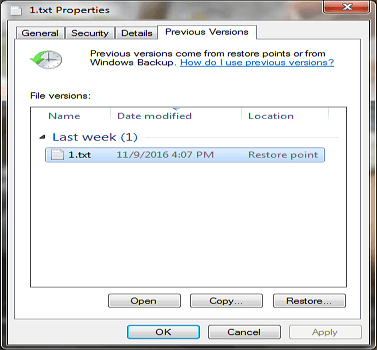
You can restore deleted files or folders from the previous version for free. These previous versions are either copies of files and folders created by Windows Backup or copies of files and folders that Windows automatically saves as part of a restore point. To try this, simply follow the steps to restore your deleted files or folders.
- To recover a deleted file or folder, find the folder that contains the deleted item, right-click on it, and select "Restore previous versions".
- To restore a previous version of a file or folder, select the desired version from the list and click "Open" to preview it and confirm it's the correct version, before clicking "Restore" to bring it back to its original location.
- Then, click "Restore" to recover deleted files from Desktop.
- Tip
-
- The recovered file or folder will replace the current version, and the replacement cannot be undone.
- If the Restore button isn't available, it likely means that you can't restore a previous file or folder version to its original location, but you may be able to open and save it in a different location.
If you've deleted files or folders from your desktop without a backup, Deep Data Recovery can help. Unlike recovering from previous versions, which requires Windows Backup or automatic backup, Deep Data Recovery offers an alternative solution. With its advanced technology, it can scan your computer and recover deleted files or folders, even without a backup. This means you can potentially restore your lost data, giving you peace of mind and a second chance to retrieve your important files.
How to Recover Desktop Files with Data Recovery Software
Deep Data Recovery allows you to recover deleted files or folders from your desktop in three simple steps on Windows 10/8.1/8/7/Vista/XP and Windows Server, including permanently deleted ones.
Besides, to recover deleted files on Mac, Deep Data Recovery for Mac is available to you.
Step 1. Select file types and click "Fast Scan" to start
Launch Deep Data Recovery, select the file types you want to recover and click "Fast Scan" to start the recovery process.

Note: You can choose different search modes based on where and why the data was lost.
Step 2. Select a folder to scan for lost files
To recover a lost folder, select "Select Folder" under Specify a location and browse to the location where the folder was lost, then click "OK" to initiate the scan.

Step 3. Find and preview found files in the lost folder
If you remember the folder name, you can quickly find the lost files by typing it in the search box. Once found, open the folder and double-click on the scanned files to preview them. Alternatively, you can use the Filter feature to find specific types of files.

Step 4. Recover and save the lost folder
To recover your data, select the folder and files you need, then click "Recover" and choose a new and secure location on your PC to keep the recovered data.
Useful Tips to Prevent Data Loss
- Back up of crucial files automatically with schedule backup software
- Eject the external storage device before disconnecting
- Manage files carefully to avoid accidental loss of data
- Before formatting your hard drive or performing a major Windows update, it's a good idea to back up your data to an external drive or cloud storage service. This will ensure that your files, documents, and other important data are safe and can be easily restored if anything goes wrong during the formatting or updating process.
- Keep a data recovery software handy to recover lost data in time
Related Articles
- Excel Cannot Open the File Because The File Format or File Extension Is Not Valid
- Folder Shows Empty but Files Are There Windows 10/8/7
- Microsoft Excel Cannot Paste the Data? [Fixed]
- [Solved] Double Click Won't Open Files Windows 11/10/8/7
- Fixed: Samsung 860 EVO Not Detected in Windows 10/11
If you're experiencing issues with Windows 10 not recognizing your Samsung 860 EVO, this article provides a comprehensive guide to help you resolve the problem. - SanDisk Memory Card Repair Tool Free Download for Windows/Mac
SanDisk memory card repair tool from Qiling allows you to recover data from corrupted, write-protected, or inaccessible SanDisk memory SD card/USB/hard drive or other brands of storage devices.
Products
Articles & Tutorials
- Data Recovery
- Data Backup
- File Recovery
- File Backup
- System Backup and Restore
- Disk and Partition Clone
- Technical articles
- Mobile articles
- Disk Master Help
- Windows Data Recovery Tutorials
- Windows Secure Delete Tutorials
- Windows Partition Management Tutorials
- Windows File Backup and Restore Tutorials
- Windows System Backup and Restore Tutorials
- Windows Disk Backup and Restore Tutorials
- Windows Clone Tutorials