How to Recover Deleted/Unsaved Numbers Files on Mac
Overview of Recovering Numbers Files
"My computer just shut down, and when I restarted, I lost a critical numbers document I was working on with data I cannot easily restore. PLEASE tell me there is a way to recover this file and how to do so?"
- TGGMD from Apple Community
Files can get deleted or unsaved due to various reasons such as a virus attack, misoperation, power off, or hard drive formatting, leading to data loss. However, there are still chances to recover deleted Numbers files on Mac, either from the trash bin or using a data recovery tool. If the files were never saved, they can be retrieved from an AutoSave folder. To recover the Numbers spreadsheets on Mac, you can try the following fixes.
| Workable Solutions | Step-by-step Troubleshooting |
|---|---|
| Fix 1. Recover with Software | Choose the location > scan > preview...Full steps |
| Fix 2. Recover from Trash | Go to the Trash Bin on your Mac...Full steps |
| Fix 3. Recover with Autosave | Go to System Preferences > General...Full steps |
3 Ways to Recover Deleted/Unsaved Numbers Files on Mac
If you have lost a file, there's a little hope of restoring your data directly from your computer because you must have searched your computer already. But it doesn't mean you can do nothing. Here we list three methods for you to try to recover deleted/unsaved Numbers files on Mac.
Method 1. Recover Unsaved and Deleted Numbers Files on Mac with Recovery Software
If you've lost Numbers files due to disk formatting or a virus attack, data recovery software can help. Deep Data Recovery for Mac is a specialized tool that scans your hard drive, external drive, SD card, or USB flash drive to find lost data on Mac OS X/macOS. It can even recover files from an emptied trash bin.
Download the software now and try to recover deleted Numbers files on your Mac.
Step 1. Launch Deep Data Recovery. Select file types and click "Fast Scan" to start.

Note: You can choose different search modes based on where and why the data was lost.
Step 2. To recover unsaved files, hover the mouse over the device where you lost the file and click "Scan" to initiate the recovery process.

Step 3. After scanning, click on "Type" and expand "Unsaved Documents", then select the exact file type you lost without saving - such as Word, Excel, PowerPoint, Keynote, Pages, or Numbers.

Step 4. To recover a saved file on a Mac, double-click on the file to open it and then select the correct version from the versions available. Click "Recover" to save the file to a secure location.
If you've accidentally clicked "Don't Save" in Word on a Mac, your document might still be recoverable. When you click "Don't Save," Word saves a temporary autosave file for 10 minutes. To recover the unsaved Word document, go to the "File" menu, click on "Recent," and select "Recover Unsaved Documents.
Method 2. Recover Deleted Numbers Files on Mac from Trash Bin
If you're not familiar with Mac's Trash Bin, you can recover deleted files from it as long as you haven't emptied the Trash Bin after deleting them. This method allows you to retrieve your files, but only if you act before emptying the Trash Bin.
Step 1. Go to the Trash Bin on your Mac.
Step 2. Add filters in the toolbar to list all the deleted Numbers files.
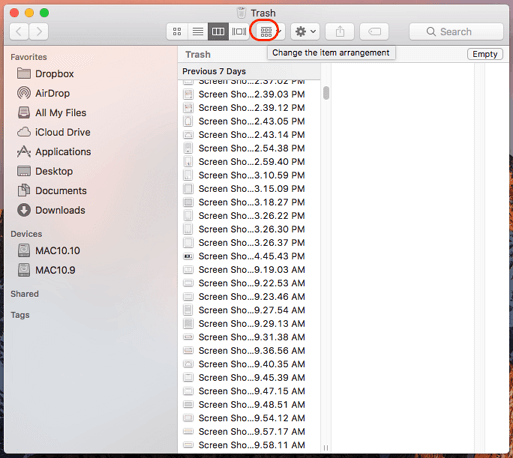
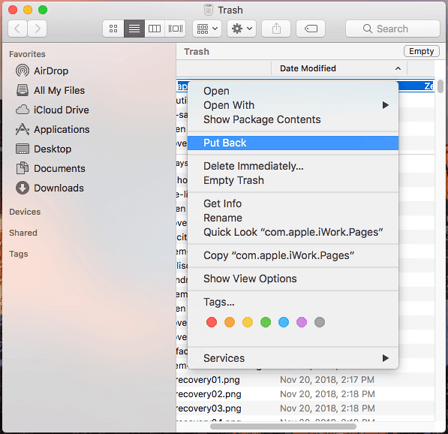
Step 3. To restore a file or folder that was previously deleted, find the file or folder you want to restore, and click "Put Back" to restore the chosen content to your Mac.
Method 3. Recover Numbers Spreadsheet with AutoSave
AutoSave is a built-in feature. To recover an unsaved Numbers spreadsheet, enable AutoSave, a Mac feature that saves a version of the document at least once per hour, and also when the document is opened, duplicated, locked, renamed, reverted, or manually saved. This ensures that a previous version of the document is available if you need to recover it.
Step 1. To check if AutoSave is enabled, go to System Preferences > General and see if "Ask to keep changes when closing documents" is unchecked. If it's unchecked, AutoSave is on, and your unsaved Numbers files may have been saved. If AutoSave is not enabled, try Method 1 to recover your data.
Step 2. Go to the location on your hard drive where your personal files are stored, specifically the "Library" folder within your home folder, then navigate to "Containers" and find the folder named "com.apple.iWork.Numbers".
Step 3. Then right-click the "com.apple.iWork.Numbers." file, and select "Show Package Contents".
Step 4. To find your unsaved Numbers file, go to Data > Library > Autosave information. Your file may be located here.
The Bottom Line
To avoid losing your Numbers files, make a full backup on your Mac, enable iCloud auto-backup, or use data recovery tools like Deep Data Recovery to restore lost files from a backup drive.
Related Articles
- Apple Mail Recovery | Recover Deleted Emails Messaged on Mac
- How to Repair Bad Sectors on External Hard Drive Mac Without Losing Data
- Deleted Files Mac But Still No Space: Reasons and Solutions
- (Easy!) How to Delete Apps on Mac
- Download Free USB Flash/Pen Drive Repair Tool and Recover Data
Here, you can fix your USB for free. Windows chkdsk and Windows disk error checking methods can repair errors on your disk from the command line, and with Qiling data recovery software, you can recover your data from a failed pen drive without losing files. - [SOLVED] USB Keeps Disconnecting and Reconnecting Windows 11/10
You're about to learn four effective solutions to fix the error of a USB device randomly disconnecting and reconnecting in Windows 11/10/8/7. These solutions can help troubleshoot the issue, and the step-by-step guide will walk you through the process.
Products
Articles & Tutorials
- Data Recovery
- Data Backup
- File Recovery
- File Backup
- System Backup and Restore
- Disk and Partition Clone
- Technical articles
- Mobile articles
- Disk Master Help
- Windows Data Recovery Tutorials
- Windows Secure Delete Tutorials
- Windows Partition Management Tutorials
- Windows File Backup and Restore Tutorials
- Windows System Backup and Restore Tutorials
- Windows Disk Backup and Restore Tutorials
- Windows Clone Tutorials