Recover Deleted or Lost AppData Folder and Files in Windows 11, 10, 8, 7
Can I recover deleted or lost AppData folder and files
"Does anyone knows how to recover lost AppData folder and files You're looking for autosaved Excel files in the AppData folder. The AppData folder is a hidden system folder where Windows stores temporary files, including autosaved versions of documents. To find the autosaved Excel files, you can navigate to the AppData folder in the Excel directory, typically located at `C:\Users\YourUsername\AppData\Roaming\Microsoft\Excel`, and look for files with the `.
The AppData folder is a hidden folder in Windows, and it's possible that it was accidentally deleted or emptied. To recover lost files and folders, you can try the following:"
If you're experiencing issues with restoring or finding the AppData folder or files in Windows 10, 8, or 7, there's a straightforward method to resolve this problem. You can try the following steps to restore the AppData folder and files: Go to the Run dialog box by pressing the Windows key + R, type %appdata% in the field, and press Enter. This will take you to the AppData folder, where you can find your files.
Recover emptied AppData folder or restore lost AppData folder
To recover lost or find emptied AppData files, it's recommended to refrain from saving new data to the hard drive and utilize a suitable recovery tool.
If you're looking to recover a lost AppData folder, we recommend using the Deep Data Recovery software. This tool allows you to effectively find and restore lost files and folders in just 3 simple steps on Windows 11, 10, 8, or 7 systems. You can download it for free and let it help you restore your lost AppData folder with its files.
How to recover AppData folder in 3 steps
Step 1. Select file types and click "Fast Scan" to start
Launch Deep Data Recovery. Select file types and click "Fast Scan" to start.

Note: You can choose different search modes based on where and why the data was lost.
Step 2. Select a folder to scan for lost files
To recover a lost folder, choose "Select Folder" under Specify a location, then click "Browse" to select the location where the folder was lost. Click "OK" to initiate the scan.

Step 3. Find and preview found files in the lost folder
If you remember the folder name, type it in the search box to quickly find the lost files, then open the found folder and double-click to preview scanned files, or use the Filter feature to find a certain type of files.

Step 4. Recover and save the lost folder
Select the folder and files you need, click "Recover", and choose a new and secure location on your PC to keep the recovered data.
To resolve the issue, create a new folder named AppData and copy the files from the C drive back to the username folder in AppData.
Read also:
How to Restore Missing AppData Folder in Windows 10
The AppData folder, located in the Users folder on the C drive, may be hidden or deleted. To unhide it, type %AppData% in the Windows 10 search box. Alternatively, use a data recovery software like Qiling to restore the missing AppData folder.
Manual Way to solve "accidentally deleted AppData folder"
If you prefer the manual way to restore AppData folder in Windows 10, you can try the steps below, but this method may not be able to recover all files in AppData folder. The best one is to use data recovery software in Part 1.
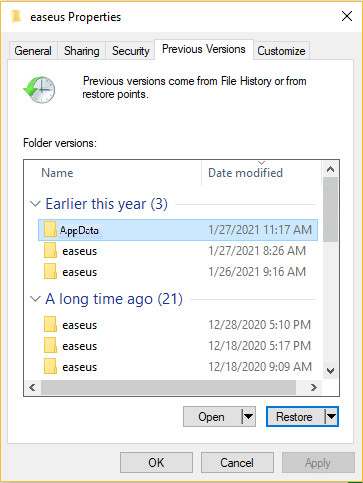
Step 1. Recreate the AppData folder.
Step 2. Right-click the folder and click Properties. Restore the previous version.
Step 3. Follow the prompts to complete the process.
Sum Up
If you need to recover deleted data, we recommend using Qiling Data Recovery, which offers a higher chance of success. If you have any questions about restoring the AppData folder, feel free to contact us via online chat.
Related Articles
- How to Recover Deleted or Lost PS4 Game Files from PS4 Hard Drive
- Fix Word Document Is Blank When Opened
- How to Recover Deleted Temp Files
- Recover Sticky Notes in Windows 10/8/7
- What Is an SD Card and What Is It Used For
An SD card is a type of flash memory storage used in various electronic devices, such as digital cameras, baby monitors, and handheld computers. It can be used to store data, and if lost, data can be recovered using software like Qiling SD data recovery. - Solved: What to Do with A Dying Hard Drive
A dying hard drive often shows signs such as slowing computer performance, frequent freezes, blue/black screen of death, and accumulative bad sectors. It may also produce strange sounds or display S. M. A. R. T errors.
Products
Articles & Tutorials
- Data Recovery
- Data Backup
- File Recovery
- File Backup
- System Backup and Restore
- Disk and Partition Clone
- Technical articles
- Mobile articles
- Disk Master Help
- Windows Data Recovery Tutorials
- Windows Secure Delete Tutorials
- Windows Partition Management Tutorials
- Windows File Backup and Restore Tutorials
- Windows System Backup and Restore Tutorials
- Windows Disk Backup and Restore Tutorials
- Windows Clone Tutorials