Recover Deleted Safari Bookmarks on Mac with/without Time Machine [Big Sur Compatible]
How do I recover accidentally deleted Safari bookmarks on Mac?
"I accidentally deleted all of my bookmarks from Safari on my MacBook while trying to delete my history. I didn't notice that I was in the bookmarks folder and I pressed select all and delete. I have been pulling my hair and searching for a solution to recover the deleted Safari bookmarks on Mac online for hours.
Unfortunately, I haven't found any provided solutions online worked. Please help me. I have been saving bookmarks for 2 years, and some of the bookmarks were important college-related sites."
When you delete Safari bookmarks on a Mac computer, you can recover them using methods similar to restoring deleted files on Mac with Time Machine or third-party Mac data recovery software. If you need quick access to the lost bookmarks or didn't have a Time Machine backup, you can use professional Mac data recovery software for a quick and effective recovery. Alternatively, if you have Time Machine backups, you can follow a guide to restore your Safari bookmarks.
| Workable Solutions | Step-by-step Troubleshooting |
|---|---|
| Fix 1. Recover without Time Machine | Download software > select the disk location to scan > preview files and recover...Full steps |
| Fix 2. Restore from Time Machine | Press Command-N to open a new Finder window > hold down the Option key and choose to Go > Library > open Safari folder...Full steps |
Part 1. Recover deleted Safari bookmarks without Time Machine
If you don't have a time machine backup, you should use a third-party Mac data recovery software to recover your Safari bookmarks. Qiling's Data Recovery Wizard for Mac is a professional and powerful tool that can help you scan and restore your bookmarks lost due to deletion, browser crash, or other reasons.
As Safari is a pre-Safari bookmarks are easily located by checking the Home/Directory/Library/Safari folder, where they are saved as a file called Bookmarks.plist.
This software is installed on the system disk, so you need to select the Mac system disk to scan and find lost Safari bookmarks using Deep Data Recovery for Mac.
Step 1. Launch Deep Data Recovery. Select file types and click "Fast Scan" to start the recovery process.

Note: You can choose different search modes based on where and why the data was lost.
Step 2. Select the disk location where you lost data and click the "Scan" button.

Step 3. Deep Data Recovery for Mac will immediately scan your selected disk volume and display the scanning results on the left pane.

Step 4. To recover your files, select the desired file(s) from the scan results and click the "Recover" button to have them restored.
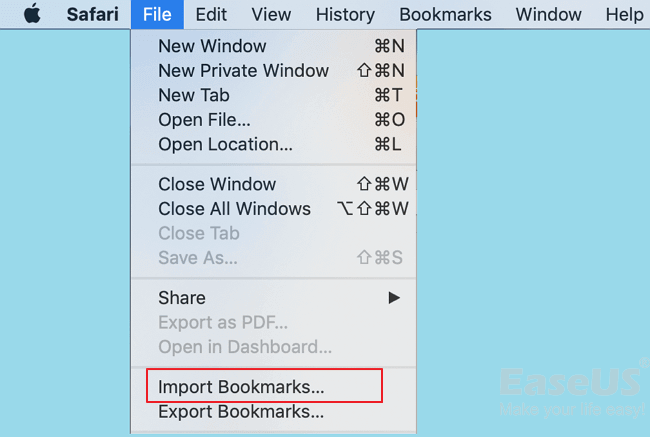
After recovering the SafariBookmarks.plist file, you can either copy it back to its original location on your Mac and save the changes, or import the restored bookmarks by launching Safari and going to File > Import Bookmarks.
Part 2. Restore deleted safari bookmarks from Time Machine
If you've accidentally deleted or lost your Safari bookmarks on Mac, you can try to retrieve them back using Time Machine, a free and efficient recovery method. To do this, you'll need to restore your Mac to a previous backup, which should contain your original bookmarks. This process allows you to recover your lost bookmarks and get back to browsing with your familiar favorites.
Step 1. Press Command-N to open a new Finder window.
In the Finder, hold down the Option key and choose to Go > Library.
Open the Safari folder in the Library, where you'll find a Bookmarks.plist file containing all of Safari's bookmarks.
To enter the Time Machine, click and open it, then select "Enter Time Machine" from the menu.
To recover deleted bookmarks in Safari, go to Time Machine, which can be found in the Utilities folder within Applications, then navigate to the time when the bookmarks were deleted, and Time Machine shows you the state of your computer at that point, allowing you to restore the deleted bookmarks.
Once you have selected the exact day and time you want to restore your iPhone to, tap the "Restore" button. This will initiate the restore process, and your iPhone will begin to download the iOS version that was available on the selected date and time. Be sure to follow the on-screen instructions and wait for the restore process to complete.
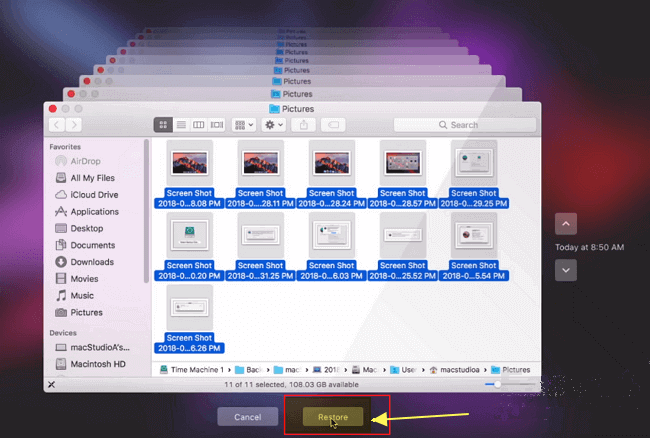
You will be given an option to either keep the original file or have both, depending on your choice, hit the desired option. It's recommended to keep both to retain the deleted bookmarks and new ones.
Conclusion
Safari bookmarks are stored in a recoverable file format that can be restored with or without Time Machine. However, if Time Machine fails to work due to corruption or other issues, you can still recover your bookmarks.
Qiling Mac data recovery software is the best choice for recovering data, and if you have other Mac-related issues, you can find solutions on the Mac File Recovery source page.
Related Articles
- GetDataBack Mac & Windows
- Fix External Hard Drive 'Read Only' Error on Mac Without Losing Data
- How to Recover Formatted Hard Drive on Mac with Unformat Software
- 5 Best Free Snipping Tools for Mac
- Best 5 SD Card Photo Recovery Apps to Recover Deleted Photos from SD Card
Here are the top 5 best apps to recover deleted photos from SD card, helping you keep all the great moments safe and in good situation. They apply to the SD card photo recovery app for Android, Windows PC or Mac OS. - Best Canon Data Recovery for Mac & Windows PC
Canon Data Recovery software allows you to recover deleted or lost files, including videos, photos, documents and more from Canon camera memory SD card on Mac and Windows PC.
Products
Articles & Tutorials
- Data Recovery
- Data Backup
- File Recovery
- File Backup
- System Backup and Restore
- Disk and Partition Clone
- Technical articles
- Mobile articles
- Disk Master Help
- Windows Data Recovery Tutorials
- Windows Secure Delete Tutorials
- Windows Partition Management Tutorials
- Windows File Backup and Restore Tutorials
- Windows System Backup and Restore Tutorials
- Windows Disk Backup and Restore Tutorials
- Windows Clone Tutorials