[Sovled] Lost or Missing Desktop Files After Windows 10 Update
How do I get my desktop back on Windows 10/11
You're having a problem with your desktop files and some apps disappearing after a Windows 10 update. You're not sure where to find them. Try checking the "Previous Versions" folder in File Explorer, the "Recycle Bin", or searching for them using the Windows search bar. If you're still having trouble, check the Windows 10 settings to see if any new folders or apps were created during the update.
To recover lost files and restore your Windows 10 desktop to normal, try using the built-in File Recovery feature, or third-party software like Deep Data Recovery. You can also check the System Restore point to see if there's a previous version of your desktop that you can revert to. Additionally, ensure that Windows Update is enabled and that your system is up to date, as updates often include fixes for issues like these.
| Workable Solutions | Step-by-step Troubleshooting |
|---|---|
| Fix 1. Show Desktop Icons | Right-click on the desktop, go to View, and uncheck "Show desktop icons"...Full steps |
| Fix 2. Set Icons to Show Up | Open "Settings" and click on "Personalization" > "Themes" > "Desktop icons settings"...Full steps |
| Fix 3. Switch User Account | Click the Windows icon and click your username at the top. Select the other visible account...Full steps |
| Fix 4. Disable Tablet Mode | Right-click on the Windows icon and select "Settings". Click "System" > "Tablet mode"...Full steps |
| Fix 5. Go Back to the Previous Build | Go to Settings > Click "Update and security" > Go to the Recovery tab...Full steps |
Windows 10 updates have been known to delete some files on the system drive or cause desktop apps to go missing. To fix this issue, you can try running the System File Checker (SFC) and the Deployment Image Servicing and Management (DISM) tools to scan and replace any corrupted system files. Additionally, you can also try resetting Windows 10 to its default settings or performing a clean installation of the operating system.
To find a missing desktop file, first check if it's lost or missing. You can do this by right-clicking on the Windows icon, opening File Explorer, and navigating to either C:\Users\Public or C:\Users\UserName\Documents, then searching for the missing file name in the search bar on the right.
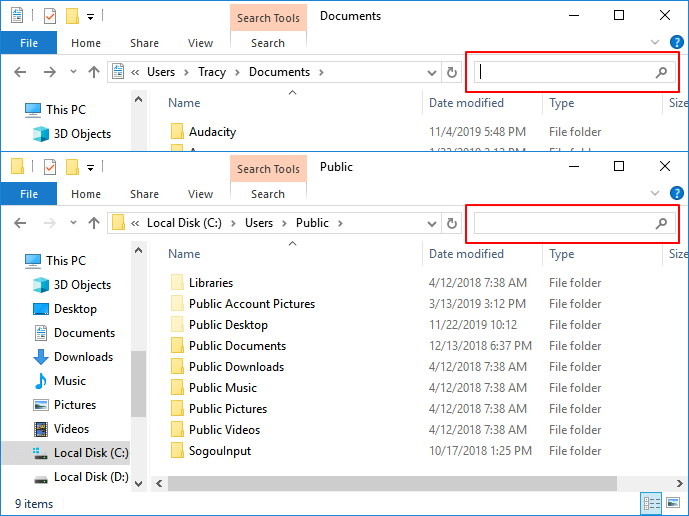
Next, choose the right solutions toward your current issues:
If files appear in File Explorer after searching, they are likely saved on your PC and not lost. To restore your Windows desktop icons and files, follow the manual solutions. If searching in File Explorer doesn't yield any results, your files may be hidden or lost, and you should refer to the solutions to recover missing files first.
Part 1. Recover lost or disappeared Dekstop files
Files that have disappeared from the desktop may be deleted by a Windows 10 update or hidden by the OS or other programs. To restore the lost or missing files, you have two options: 1) check the Recycle Bin to see if the files were accidentally deleted and can be recovered, or 2) use a file recovery tool to scan the computer for any deleted files.
Method 1. Show hidden files on Windows 10 desktop
Step 1. To change the folder options, open Windows Explorer, click on "Views" in the toolbar, then select "Options" from the dropdown menu. This will open the Folder Options window, where you can make any desired changes.
Step 2. To view hidden files, folders, and drives, go to the View tab, check the box next to "Show hidden files, folders, and drives," and uncheck the box next to "Hide protected operating system files" (if it's available). Then, click "OK" to save the changes.
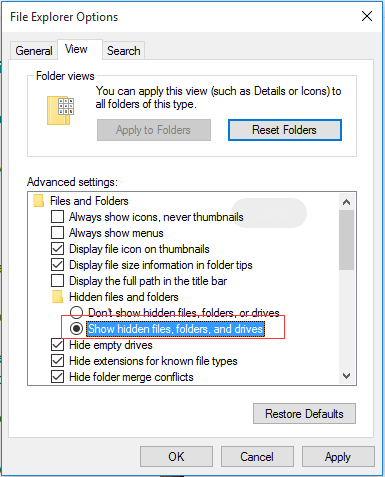
To find saved documents and files, close the Folder Options window and go back to the desktop.
If no files, folders, or apps are found, you may need to use a more advanced data recovery software to resolve the issue.
Method 2. Recover lost desktop files with data recovery software
Reliable data recovery software, such as Deep Data Recovery, can effectively recover disappeared or lost desktop files on PC due to Windows system updates, allowing you to recover lost files, apps, or folders in Windows PC or storage devices even in complex situations.
Deep Data Recovery supports various recovery scenarios, including USB recovery, hard drive recovery, and external hard drive recovery. It allows users to restore desktop files in a few simple steps.
Step 1. Choose file types and click "Fast Scan" to start
Launch Deep Data Recovery. Choose file types and click "Fast Scan" to start.

Note: You can choose different search modes based on where and why the data was lost.
Step 2. Select a folder to scan for lost files
To recover a lost folder, select the location where the folder was last saved, click the "Scan" button, and let the system scan the area for the missing folder.

Step 3. Find and preview found files in the lost folder
If you remember the folder name, type it in the search box to quickly find the lost files. You can then open the found folder and double-click on the files to preview them. Alternatively, you can use the Filter feature to search for a specific type of file.

Step 4. Recover and save the lost folder
To recover your data, select the folder and files you need, click "Recover", and choose a new and secure location on your PC to save the recovered data.
Part 2. Five ways to restore missing desktop apps and files
If you've experienced the Windows 10 bug where your desktop and saved files disappear after an update, there are manual methods you can try to recover your lost desktop.
Method 1. Show desktop icons
Step 1. Right-click on the desktop, go to View, and uncheck "Show desktop icons".
Step 2. The Show desktop icons option should be checked to display desktop icons and files. If they don't appear, try repeatedly unchecking and re-checking the box to troubleshoot the issue.
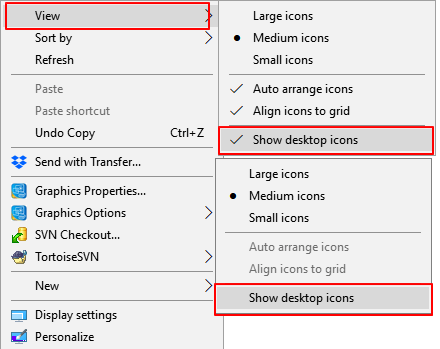
When the desktop files and icons appear, proceed with the next step to organize your desktop.
Step 3. To change the arrangement of icons on your desktop, right-click on the desktop, select "View", and then check or uncheck the box next to "Auto Arrange Icons".
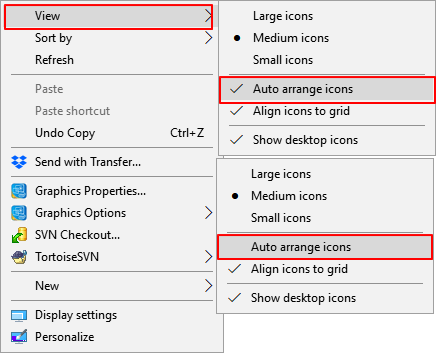
The new layout would place all files and folders on the left side of the screen, allowing users to easily drag and drop them to desired locations.
Method 2. Manually set Windows icons to show up
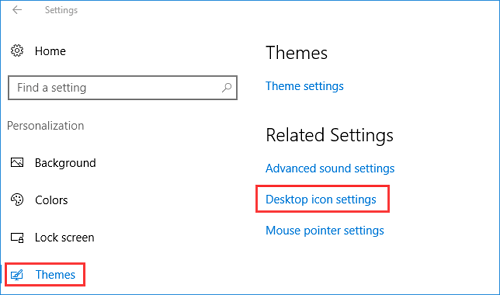
Step 1. To change the desktop icon settings, go to Settings, then click on Personalization, followed by Themes, and finally Desktop icons settings.
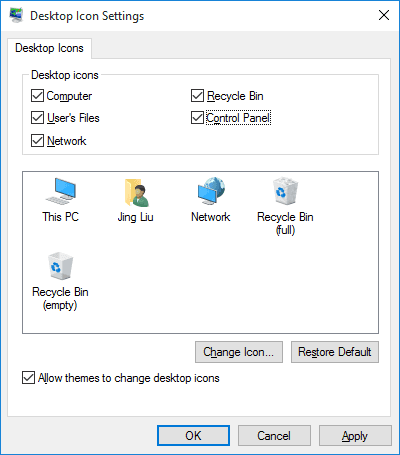
Step 2.Check desktop icons like Computer (This PC), User's Files, Network, Recycle Bin, and Control Panel that you'd like to show on your desktop.
Click "Apply", then "OK".
Method 3. Switch User Account to find missing Desktop files
If you've logged into the wrong account, you may find that your saved files and installed applications have disappeared from your Desktop. Fortunately, this is an easy fix - simply switch to the correct account, and your missing files and apps should reappear.
Step 1. To access the user account settings, click the Windows icon and click your username at the top.
Step 2. To switch to the other visible account on the list, click on the account you want to switch to. This will take you to the account details page.
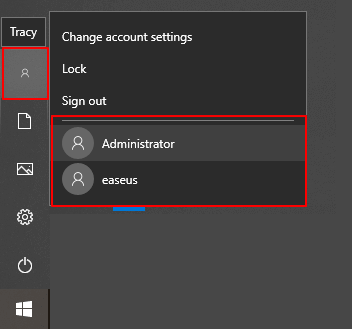
Step 3. Sign in with the password of the other user account.
Once you've completed the steps to reset your iPhone, your files and app icons should reappear. This is because the process clears any temporary issues that might have caused them to disappear.
Method 4. Disable Tablet mode, switch to desktop mode
This method only works on a device with a touch screen, and enabling Tablet mode on Windows 10 may cause issues such as missing desktop or icons.
Here are the steps to disable the Tablet mode:
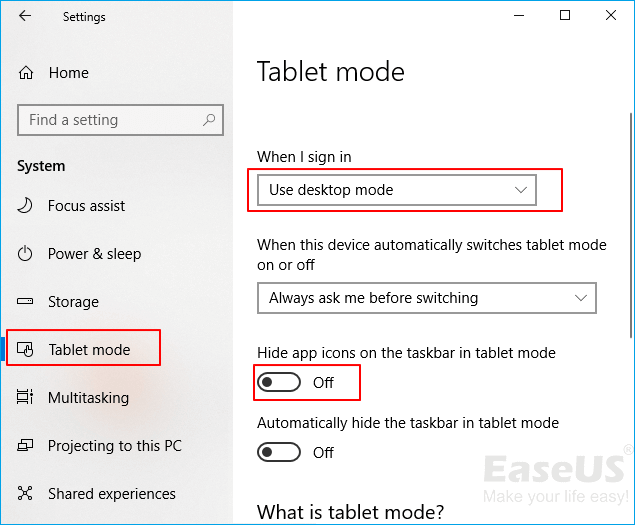
Step 1. Right-click on the Windows icon and select "Settings".
Step 2. Click "System" > "Tablet mode".
Step 3. To sign into your device, select the "Use desktop mode" option and toggle the switch next to "Hide app icons on the taskbar in tablet mode" to the "Off" position.
Method 5. Go back to the previous Windows build
To resolve the issue of a missing desktop after a Windows 10 update, you can revert to the previous Windows Build. This involves going to Settings > Update & Security > Recovery, selecting "Get started" under "Go back to the previous version of Windows 10," and following the prompts to roll back to the previous build.
Step 1. To update Windows, go to Settings, click on "Update and security", and then select the "Recovery" tab.
Step 2. To get back to the previous version of Windows 10, click "Get Start" under the "Go back to the previous version of Windows 10" option.
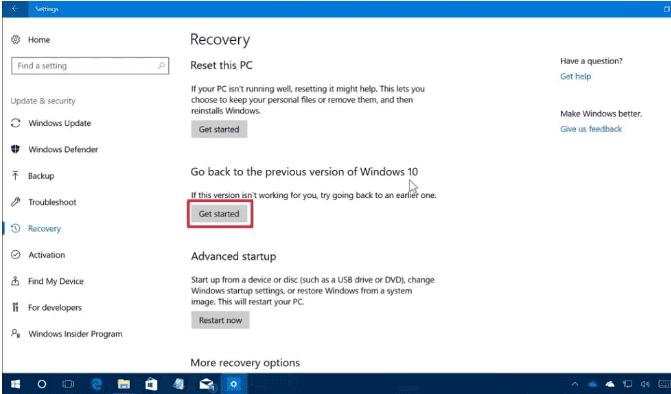
To restore the missing desktop, follow the onscreen instructions to roll back Windows 10. This will bring back the desktop, which should resolve the issue.
Bonus tips to protect Windows desktop files
When your desktop files or icons disappeared or are lost, you can effectively restore them by following the solutions provided in Part 1 and Part 2. Besides, you may also want some practical tips to protect the Windows desktop files. Here, we've collected two reliable tips to help.
# 1. Create backups for Desktop valuable files
To prevent similar issues from happening again, it's recommended to create backups for desktop files and important data on your PC before installing the Windows update.
To ensure the security of your files, consider copying valuable files from your desktop to another secure device or using a powerful file backup software to create a full backup of all files on your PC at one time.
Here are the detailed steps of creating a backup image of Desktop files in 3 steps:
Step 1. When you first use Qiling Backup to back up files, click the "File backup" option on the home screen.

Step 2. You can select any type of file to back up, including pictures, videos, documents and more.

Step 3. To back up files, folders, or directories, follow the paths to locate the items you want to save, then select them all.
Step 4.To select a backup location, you will need to choose a folder or drive where you want the backup to be saved. This is typically a location on your computer or an external drive that you have available.

Step 5.Qiling Backup allows users to save backup files to various devices, including local hard drives, external USB drives, SD cards, network drives, and NAS drives, or a Qiling cloud drive. We recommend choosing the cloud drive for greater accessibility, flexibility, and safety.

Step 6. To set up an automatic and intelligent backup schedule for the next file backup task, go to the "Options" setting and customize the backup scheme to specify the time for the next backup. You can also encrypt confidential files and compress the backup image size for added security and efficiency.

Customize an advanced and automatic backup task here:

Step 7. Click "Proceed" to start the file backup process, and your completed backup files will be visible in a card style on the left area.

# 2. Turn on Windows Defender and clear disk errors
If your Desktop apps and files suddenly disappear due to a virus infection or disk error, consider turning on Windows Defender or using virus cleaner software to protect your PC. Additionally, running a disk check command can help clear existing errors on your local hard drive, which may also help prevent this issue in the future.
Steps to turn on Windows Defender, Virus & threat protection
Step 1. To access the Windows Defender Security Center, right-click the Windows icon and select "Settings". Then, click on "Update and Security" and finally click on "Open Windows Defender Security Center".
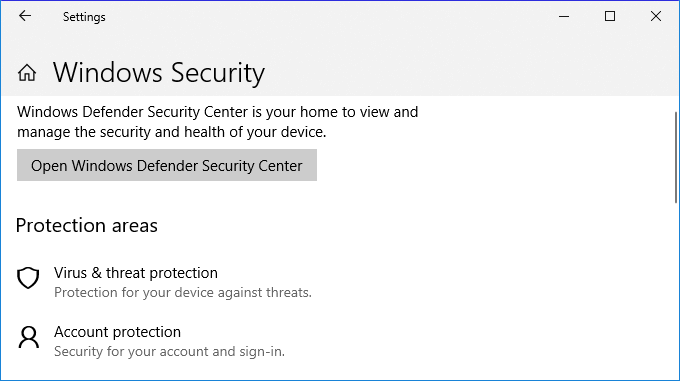
Step 2. Click "Virus & threat protection" on the new window. Go to Virus & threat protection settings.
Step 3. To enable advanced security features, turn on the following three options in your antivirus software: Real-time protection, Cloud-delivered protection, and Automatic sample submission. This will ensure your device is always protected, utilize the cloud to detect and block threats, and automatically submit suspicious files for analysis.
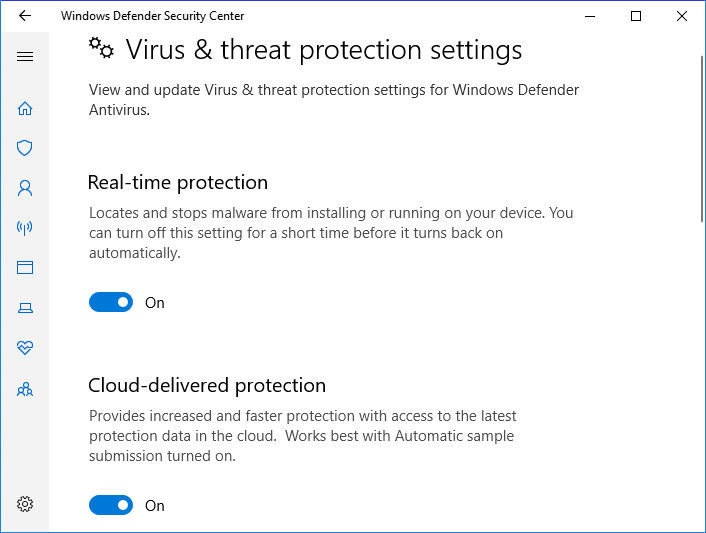
Steps to run a disk error check
Step 1.To access the properties of the C: drive, follow these steps: Open My Computer/This PC, locate the C: drive, right-click on it, and select "Properties". This will display the drive's properties, including its total capacity, used space, and free space.
Step 2. To check for errors on your drive, go to "Tools" under "Error-checking", select to scan existing errors, and then click "Check" to start the process.
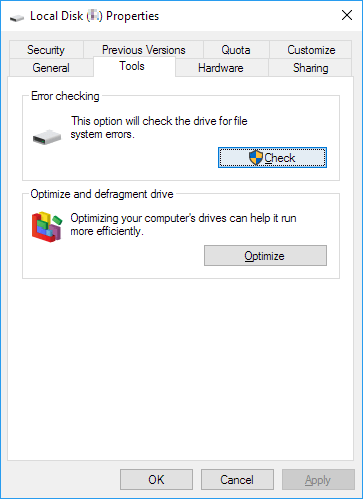
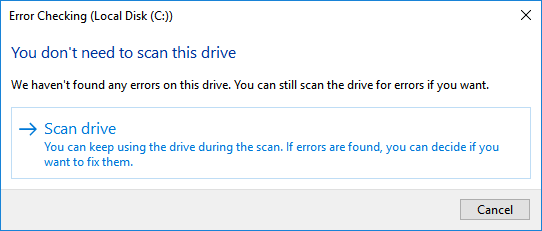
Step 3.To start the scanning and repairing process, click on "Scan drive" to initiate the process and identify any hard drive errors that need to be fixed.
Related Articles
- Recover Deleted Files from Downloads Folder
- How to Retrieve Deleted Emails from Gmail, Outlook, Hotmail, and Yahoo Step by Step
- How to Restore Missing AppData Folder in Windows 10/11
- Unlock PDF Without Password | Remove Password from PDF Files [2022 Real Fix]
- How to Recover Deleted/Lost Files in Windows 10/8/7/XP
If you accidentally deleted or lost files in Windows, you can try the following way for how to recover deleted/lost files in Windows 10/8/7/XP. - How to Recover a Deleted Folder in Outlook
To recover a deleted folder in Outlook, follow these steps: Go to the "Deleted Items" folder, right-click on the folder you want to recover, and select "Restore" or "Move to" and choose the original folder.
Products
Articles & Tutorials
- Data Recovery
- Data Backup
- File Recovery
- File Backup
- System Backup and Restore
- Disk and Partition Clone
- Technical articles
- Mobile articles
- Disk Master Help
- Windows Data Recovery Tutorials
- Windows Secure Delete Tutorials
- Windows Partition Management Tutorials
- Windows File Backup and Restore Tutorials
- Windows System Backup and Restore Tutorials
- Windows Disk Backup and Restore Tutorials
- Windows Clone Tutorials