Remove/Hide Macintosh HD on Mac Desktop
| Workable Solutions | Step-by-step Troubleshooting |
|---|---|
| 1. What is Macintosh HD | Macintosh HD is the name for the internal hard drive of a Mac which operates macOS 10.15...Full steps |
| 2. Remove/Hide Macintosh HD | Select "Finder" in the "Preferences" > click on "General" > Disable the Hard drives option by...Full steps |
| 3. Erase Macintosh HD | Press the command and R button > Select Macintosh HD from the Disk Utility menu and...Full steps |
| 4. Macintosh HD vs. Macintosh HD Data | Many Mac users find it difficult to distinguish between Macintosh HD and Macintosh...Full steps |
To keep their desktop/computers clear of unnecessary clutter, one can consider hiding the Macintosh HD symbol, which is a file and folder found on the hard drive, by right-clicking on it and selecting 'Hide'. This will keep the desktop organized and free from clutter.
The problem is that the Macintosh HD disk icon has appeared on the desktop and is neither removable nor ejectable, which is a common issue when installing or upgrading a Mac. This usually involves removing or hiding the Macintosh HD symbol from the desktop.
To remove the Macintosh HD icon from your Mac's screen, follow these steps: Click on the Apple menu, select System Preferences, and then choose Displays. In the Displays window, click on the Arrangement tab and uncheck the box next to "Show mirroring options in the menu bar." Then, go to the System Preferences window and click on the "Dock" option.
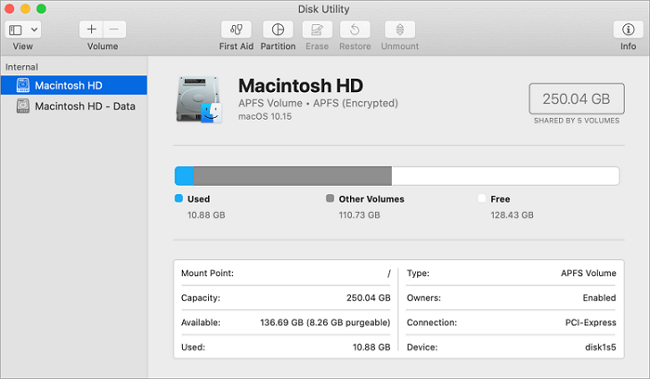
What is Macintosh HD
The internal hard drive of a Mac running macOS 10.15 Catalina, macOS 11 Big Sur, or macOS 12 Monterey is referred to as "Macintosh HD".
On macOS 10.15 or later, Macs have a default configuration of two volumes on their internal hard disk. The Macintosh HD volume holds the computer system and software-related data.
The Macintosh HD on a Mac computer has two volumes: one for the operating system and applications, and another for user data. The two volumes are shown as a single "Macintosh HD" in the Finder and on the desktop, but they are separate entities.
How to Remove/Hide Macintosh from Mac Desktop
The Macintosh HD icon on your desktop can't be deleted, but you can make it disappear from your desktop by adjusting Finder preference settings. Follow the steps below to remove the Macintosh HD icon from your desktop on macOS Monterey, Big Sur, and Catalina.
Step 1. Select the Finder tab from the menu bar.
Step 2. To make the changes, navigate to the top-level menu in the Finder and select "Finder" in the "Preferences".
Step 3. In the Finder Preferences, click on General.
Step 4. To disable the hard drives option and remove external hard drives from your computer, click on the Hard drives option to disable it, and also remove the External disks option from your desktop. This will prevent external hard drives from being accessed.
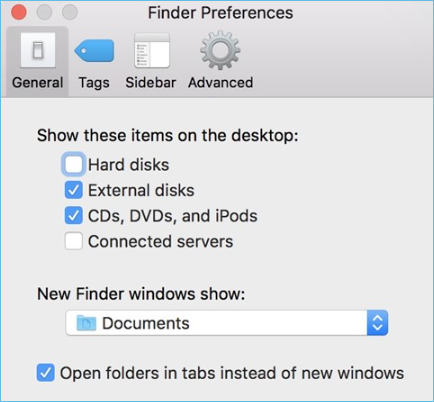
Step 5. Close the Finder Preferences window and exit the program.
Step 6. The Macintosh HD symbol will no longer appear on your desktop when you start up your MacBook Pro, MacBook Air, or other models.
Can I Erase Macintosh HD
The "Macintosh HD" is your computer's internal hard drive, containing the operating system and data, making it inoperable to unmount, remove, or destroy.
To remove the Macintosh HD, you cannot simply right-click on the Macintosh HD symbol on your screen. Since there's no option to move it to the Trash, you'll need to use Disk Utility instead. You can't erase it by using the Command + Delete shortcut keys or dragging the Macintosh hard drive to the Trash. However, you can remove the Macintosh HD from Disk Utility by following the steps there.
Step 1. To start your Mac in macOS Recovery mode, press the command and R keys simultaneously, enter the administrator's password, and select Disk Utility from the Utilities window.
Note: Before removing Macintosh HD, make sure to back up your data to avoid any potential loss. Don't worry if data is lost during the removal process, as a powerful Mac data recovery software can help you recover deleted or lost files, hard drives, and even the entire operating system with minimal effort.
Step 2. Select Macintosh HD from the Disk Utility menu and click on the Erase button.
Note: You may be asked to provide your Apple ID and password during this step.
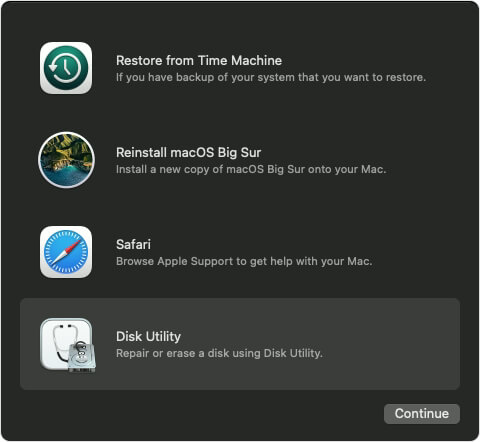
Step 3. You can delete the volume from the sidebar menu after completing the erase process.
Step 4. You can select "reinstall macOS" from the utility menu and follow the on-screen instructions to reinstall the macOS.
[macOS Guide] | How to Reinstall macOS
If you're wondering how to reinstall macOS on your iMac, MacBook Pro, or Air without using a USB flash drive or a disc, the process can be a bit tricky, but it's doable. Reinstalling macOS successfully in a single try is like acing a challenging test. To do this, you'll need to follow a series of steps, including backing up your data, booting from the internet, and following the on-screen instructions to complete the installation process.

Macintosh HD vs. Macintosh HD - Data
Mac users often get confused between Macintosh HD and Macintosh HD Data, but the new macOS Catalina operating system has made it clearer by dividing the Mac operating disk into two independent entities.
The separation of system files from user files on a macOS system protects the operating system from inadvertent tampering, malware, and system damage by keeping them discrete or isolated. This separation is what differentiates Macintosh HD data from user data.
Macintosh HD: The Mac user is unable to make changes to system files while the disk is open, as it is read-only. The disk contains the macOS data and applications. The user cannot create, remove, or alter any system files.
Macintosh HD - Data: Mac user data is stored on the storage disk volume itself, giving them control over their files, whereas Windows user data is stored on the system drive, which can be locked down for security reasons.
Conclusion
To remove the Macintosh HD icon from the shortcuts on your Mac, simply click and hold on the icon until all the icons start jiggling, then click the minus button on the top left corner of the icon to delete it. If you need further clarification, you can visit the website for a step-by-step guide.
To remove the Macintosh HD, it's recommended to back up your data first or use a data recovery software like Deep Data Recovery for Mac to recover any deleted or lost data. This ensures that your personal files are safe before proceeding with the removal.
Related Articles
- Know All: The Latest Mac OS Update in 2022
- 100% Working Qiling Data Recovery Key and License Code for Mac
- Repair and Recover Your Corrupted SD Card on Mac
- TRIM SSD Data Recovery
- (Recommended) How to Recover Hidden Partition Windows 7?
Want to recover hidden partition windows 7? Learn more about how to show hidden partition in windows 7 with efficient solutions. - How to Recover Items Deleted from Recycle Bin?
This article aims to recover items deleted from Recycle Bin, even if it has been emptied, and provides users with 6 proven methods below.
Products
Articles & Tutorials
- Data Recovery
- Data Backup
- File Recovery
- File Backup
- System Backup and Restore
- Disk and Partition Clone
- Technical articles
- Mobile articles
- Disk Master Help
- Windows Data Recovery Tutorials
- Windows Secure Delete Tutorials
- Windows Partition Management Tutorials
- Windows File Backup and Restore Tutorials
- Windows System Backup and Restore Tutorials
- Windows Disk Backup and Restore Tutorials
- Windows Clone Tutorials