Repair and Format Corrupted Android SD Card Without Losing Data
Quick Guide - What To Do for SD Card Repair:
- 1. Make a backup of all data on the card.
- 2. Format the card using a computer.
- 3. Reinsert the card into the Android device.
- 4. If the card is not detected, format the card on the Android device by going to Settings > Storage > SD card > Format SD card.
- 5. Insert the card into the computer and restore the data.
- 6. Insert the card into the Android device.
An SD card is a crucial storage device for Android phones, allowing users to save data and expand storage space. However, when an issue arises with the SD card, it can lead to a serious data loss problem, with Android SD card corruption being a common issue that can occur.
If your Android SD card is corrupted, you may experience issues such as being unable to access or read files, or the card being unrecognized by your device. This can be caused by various factors such as physical damage, software glitches, or improper ejection of the card.
- Clear Error messages:
- SD card unexpectedly removed
- SD card is damaged. Try reformatting it.
- Symptoms without warnings
- SD card fails to show up on the Android phone
- SD/memory card becomes undetectable/unrecognizable on the Android phone
- A common issue with Android phones is that the SD card with saved data may show as 0 bytes. This can be due to a corrupted file system, a software glitch, or a hardware issue.
- The SD card cannot be read by the Android phone nor the PC because the SD card is corrupted or damaged. The SD card may have been physically damaged, or the file system on the SD card may have become corrupted.
If your Android phone's SD card is malfunctioning, causing issues like inability to access, corruption, or failure to detect, you can troubleshoot it by following these steps: export data, quick format, and run chkdsk to repair file system corruption.
First. Extract/Restore Data from Corrupted Android SD card
To recover data from a corrupted SD card, it's recommended to extract or restore data first. You can use professional SD card recovery software, such as Qiling card recovery software, to recover data from an inaccessible SD card. Simply download and install the software on your computer, and then follow the guidelines to restore data from the corrupted Android SD card.
Step 1. Connect your SD card, memory card, or CF Card to your computer and launch Qiling memory card recovery software. Select the desired file types and click "Format Scan" to initiate the recovery process.

Note: You can choose different search modes based on where and why the data was lost.
Step 2. To recover lost data from an SD card, first ensure the card is recognized by your computer. This can be done by inserting the card into a card reader or a USB adapter and connecting it to your computer. Once the card is detected, open a file recovery software, such as Deep Data Recovery, and follow the on-screen instructions to scan the card for lost data.

Step 3. The software will automatically start a powerful scan that can find all lost files, including those with unknown file names. After the scan, you can view deleted items in the tree-view panel on the left, and if needed, use the "Filter" option to narrow down the search by file type, such as photos, documents, videos, or emails.

Step 4. After previewing the files, you can select the desired ones and click "Recover" to restore them to a secure location on your PC or other external storage devices.
Consult with Qiling Data Recovery Experts for one-on-one manual recovery service. After a FREE diagnosis, we could offer the following services:
- Repair corrupted RAID structure, unbootable Windows OS and corrupted virtual disk file (.vmdk, .vhd, .vhdx, etc.)
- Recover/repair lost partition and re-partitioned drive
- Unformat hard drive and repair raw drive (BitLocker encrypted drive)
- Fix disks that become GPT-protected partitions
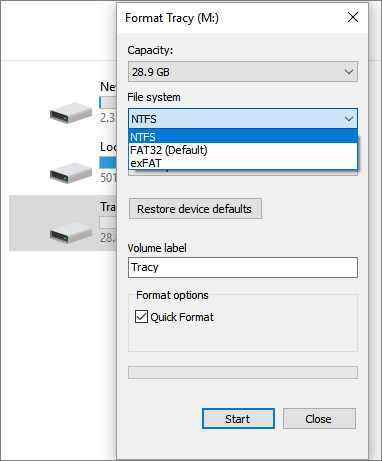
Second. Format Android SD Card to FAT32
For an Android device, the compatible file system of external storage is FAT32 or exFAT. If your memory card has bad sectors or a corrupted file system, re-formatting can resolve the issue. There are three common methods to format a memory card, USB flash drive, or HDD, including using Windows built-in tools, the Command Prompt, or a third-party free SD card formatting tool, such as Windows Explorer.
Step 1: Connect/insert the Android SD card to your PC.
Step 2: Open File Explorer and locate the corrupted SD card, which will appear as a removable disk.
Step 3: Right-click on it and select Format.
Step 4: To format an SD card to FAT32, reset the file system to FAT32 and click Start to begin the formatting process. This will erase all data on the card, so be sure to back up any important files before proceeding.
Step 5: The new policy aims to improve the overall quality of life for residents by increasing the availability of affordable housing, enhancing public transportation, and promoting a more vibrant and diverse community. This will be achieved through a combination of zoning changes, tax incentives, and community outreach programs.
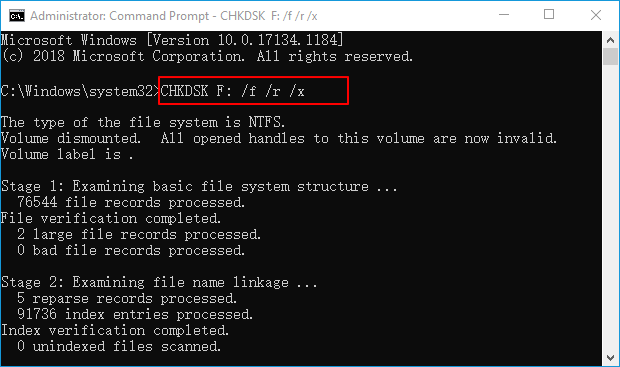
Third. Repair Corrupted Android SD Card with CHKSDK Command
Caution: Before running the CHKDSK command to fix Android SD card corruption error, make sure to recover all saved data with reliable file recovery software, as this process will permanently delete all data on the SD card.
Step 1: Connect the Android SD card to your PC.
Step 2: Right-click on Start and select Command Prompt (Admin).
Step 3: To access the Command Prompt as an administrator, follow these steps: sign in as an administrator, then type: diskpart and hit Enter. This will allow you to execute disk-related commands.
Step 4: To run a full disk check on your Android SD card, open the Command Prompt on your computer, type `chkdsk f: /r/f`, replacing `f` with the drive letter of your SD card, and press Enter. This command will initiate a thorough scan and repair of any errors on the SD card. Once the scan is complete, you can safely remove the SD card from your computer.
Qiling CleanGenius is a user-Introducing a user-friendly computer fixing tool that's both safe and lightweight, making it an ideal alternative to the CHKDSK command. With just one click, this tool allows you to easily fix damaged file systems, providing a hassle-free solution for PC maintenance.
Step 1. DOWNLOAD Qiling CleanGenius on your computer and complete the installation.
Step 2. Run the software. Click "Optimization", and then choose "File Showing".
Step 3. Select the drive with a corrupted file system. Tick the "Check and fix file system error" option and click "Execute".
Step 4. Wait the tool performs the repairing task. After that, click the "here" button to check the drive.
Wait for the process to complete and then check if the computer can open the SD card. If not, use corrupted memory card repair software for further troubleshooting.
You can now use your SD card to save important files and personal data on your Android phone again.
Related Articles
- Fix Micro SD Card Not Detected in PC, Android Mobile Phone or 3DS
- How to Recover (Permanently) Deleted Files from Google Drive [5 Proven Ways]
- Fix 'This Drive Is Read Only' on SD Card/USB/Hard Drive [5 Methods]
- [Fixed] Drive Is Not Accessible, Access Is Denied in Windows 10/8/7
- How to Repair A Corrupted Word Document in Windows 11/10
If your Word document is corrupted and becomes unreadable or inaccessible on Windows 11/10/8, there are some Word doc recovery & repair solutions that can help fix it. You can try these solutions to recover your Word file. - How to Recover Files Deleted from USB Flash Drive/SD Card Not in Recycle Bin [2023]
If you deleted files from a USB drive or SD card and they're not in the recycle bin. You can use Deep Data Recovery software to try and recover the deleted files.
Products
Articles & Tutorials
- Data Recovery
- Data Backup
- File Recovery
- File Backup
- System Backup and Restore
- Disk and Partition Clone
- Technical articles
- Mobile articles
- Disk Master Help
- Windows Data Recovery Tutorials
- Windows Secure Delete Tutorials
- Windows Partition Management Tutorials
- Windows File Backup and Restore Tutorials
- Windows System Backup and Restore Tutorials
- Windows Disk Backup and Restore Tutorials
- Windows Clone Tutorials