Mac Desktop Empty: How to Restore Missing/Disappeared Mac Desktop Files and Icons
To restore disappeared Mac desktop icons and lost files, follow these steps: First, restart your Mac and immediately hold down the 'Shift' key while it boots up. This will boot your Mac in a safe mode, allowing you to access your desktop.
| Workable Solutions | Step-by-step Troubleshooting |
|---|---|
| Phrase 1. Display Missing iCons | Method 1. Use Finder...Full steps Method 2. Use Time Machine Backup...Full steps |
| Phrase 2. Get Missing Files | Method 1. Use Mac File Recovery Software...Full steps Method 2. Use iCloud Backup...Full steps Method 3. Use Stacks...Full steps Method 4. Use Trash...Full steps |
Everything on My Mac Desktop Disappeared, Help
If your Mac desktop icons have disappeared, you're not alone. Two common scenarios include everything on the desktop vanishing or only the desktop files going missing. Fortunately, you can find solutions to both dilemmas on this page and restore your Mac desktop icons and missing files on your own.
Why Did Everything on My Desktop Disappear on Mac?
Here are some normal reasons why the files and icons on your Mac desktop might be missing:
- An update to macOS or Mac OS X can cause Mac desktop icons and items to become lost, leading to confusion and frustration for users. The update can sometimes alter the system's configuration, resulting in icons and items being misplaced or deleted, making it difficult for users to access their files and applications. This issue can be resolved by restarting the computer, checking the Trash for deleted items, and potentially reinstalling the operating system.
- To disable the default settings of Finder that makes no icons and items appear on Mac desktop, you can follow these steps: Go to Finder > Preferences > General, and uncheck the box next to "Always show these items on the desktop." This will allow you to see your desktop icons and items again. Alternatively, you can also try resetting the Finder preferences by holding down the Shift key while opening Finder.
- #3. Set files to hide on Mac
- #4. The false operation that deletes items on Mac
If you find yourself in a situation where your files and icons have disappeared from your Mac desktop, don't panic! Simply restart your Mac, and check if the items reappear. If a restart doesn't work, try checking the following points to see if you can restore the disappeared files and icons from the desktop.
Part 1. Show and Retrieve Missing Mac iCons
Mac icons disappearing usually happens after a macOS installation or upgrade, often due to accidental deletion or an application overwriting desktop display settings. However, you can easily show the disappeared Mac desktop icons using one of the following methods.
Method 1. Use Finder to Show Missing Mac iCons
Step 1. Click on the Finder icon on your desktop.
Step 2. From the menu bar, select "Finder Preferences".
Step 3. In the Finder Preferences window that opens, click the "General" tab.
Step 4. Place a checkmark next to the items you wish to display on the desktop.
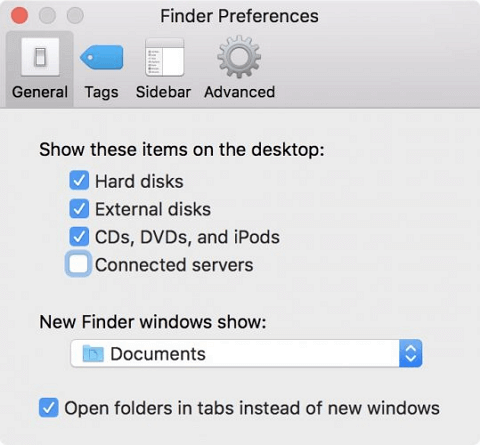
To display the selected devices on your desktop, first, go to Finder Preferences, and under the 'General' tab, check the boxes next to the devices you want to display. Then, close the Finder Preferences window. The selected devices will reappear on your desktop.
Method 2. Retrieve Mac Desktop iCons from Times Machine Backup
Pre-condition: You have successfully created a Time Machine backup of your Mac desktop before the icons and files were missed, which should restore your desktop to its previous state. This means that any changes or additions made since the backup was created will not be included in the restored version, and you'll have to re-add them manually.
To recover lost Mac desktop icons, you can try restoring from a Time Machine backup. This will revert your Mac to a previous state when the icons were still present. If you have a Time Machine backup, follow these steps: Connect your Mac to the Time Machine backup drive.
Step 1. Connect the external Time Machine backup disk to your Mac, then go to the Time Machine menu and select "Enter Time Machine".
Step 2.To restore a backup, click on the timeline or use the up and down arrow to browse and select the desired backup point. This will allow you to choose a specific point in time to restore your data from.
Step 3. The 2023 Ford Bronco is a mid-size SUV that has a 2.0L EcoBoost engine, a 10-speed automatic transmission, and a 4-wheel drive system.
Step 4. Click "Restore" to restore the selected file.
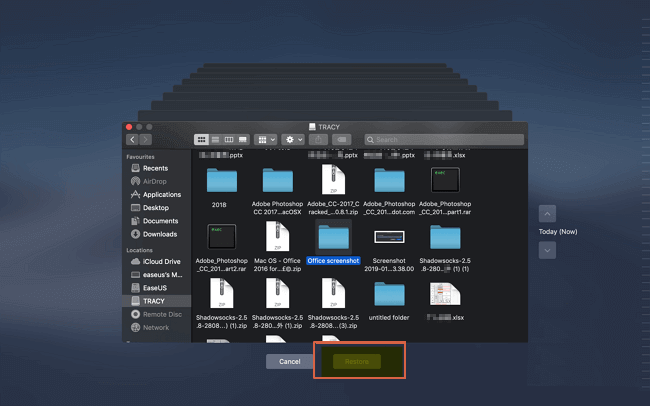
After you've completed the steps, you can view and check items like icons saved on your Mac desktop again, including the missing files.
Part 2. Recover Missing Desktop Files/Folders on Mac
If it is the files and folders on your desktop disappeared, you should apply other methods to bring them back. Here we have listed 5 possible ways for you to try, note that the former method is presented, the more effective it will be.
Quick Fix: Check if the desktop files are hidden
Mac has a You can use the Terminal application to search, delete, or modify files and folders. This method will close Mac Terminal and shows all hidden files on your desktop, but if it doesn't work, try other methods mentioned below.
Step 1. Go to Mac terminal on Mac.
Step 2. Type defaults write com.apple.Finder AppleShowAllFiles true and press Return.
Step 3. Type killall Finder and hit Return.

Method 1. Restore Missing Files/Folders with File Recovery Software
Applies to: All levels of Mac users can restore missing Mac desktop files and folders using various methods. Beginners can try using the "Recently Deleted" folder, while intermediate users can use the "Time Machine" backup feature to recover deleted files.
A professional Mac data recovery software like Deep Data Recovery can help you retrieve files and folders lost due to false operation. This software scans the storage device and recovers lost data, making it a reliable tool for recovering deleted files and folders on a Mac.
- To quickly scan and list all lost files and folders on your Mac, you can use the built-in "Time Machine" feature or third-party software like Disk Drill or Deep Data Recovery. These tools can help you recover lost data by scanning your Mac's hard drive or external storage devices for deleted files.
- Data loss can occur due to various scenarios, including accidental deletion, virus attacks, system crashes, or human errors, highlighting the need for effective data protection measures.
- Support to preview recoverable files before actual recovery process.
- Only need three simple steps to recover.
- Approved by authorities like MacWorld, TechRadar, and PCmag, etc.
To recover missing desktop files and folders on your Mac, download the Deep Data Recovery software and follow these steps.
If you only need to recover a few files less than 2GB, you can try the free version of Deep Data Recovery for Mac, which works exactly like the pro version.
Steps to Restore Missing/Lost Mac Desktop Files
Step 1. Select the file types. Click the "Fast Scan" button.

Note: You can choose different search modes based on where and why the data was lost.
Step 2. Select the disk location where you lost data and files, then click the "Scan" button.

Step 3. Deep Data Recovery for Mac will immediately scan your selected disk volume and display the scanning results on the left pane.

Step 4. To recover your files, select the desired file(s) from the scan results and click the "Recover" button to have them restored.
You can save the found files back to your Mac desktop and use them again after this.
Method 2. Restore Lost Mac Desktop Files via iCloud Backup
Applies to: To restore missing Mac desktop files from an iCloud backup, iCloud users who have set up iCloud to sync Mac files can follow these steps: Go to System Preferences > Apple ID > iCloud, then click on the 'iCloud Drive' tab. From there, select the 'Options' button next to 'iCloud Drive' and choose 'Desktop'.
If you've synced Mac files to your iCloud, you can recover missing desktop files like documents by accessing your iCloud account.
Here are the steps:
Step 1. To access your iCloud account, go to iCloud.com and sign in with your Apple ID and password.
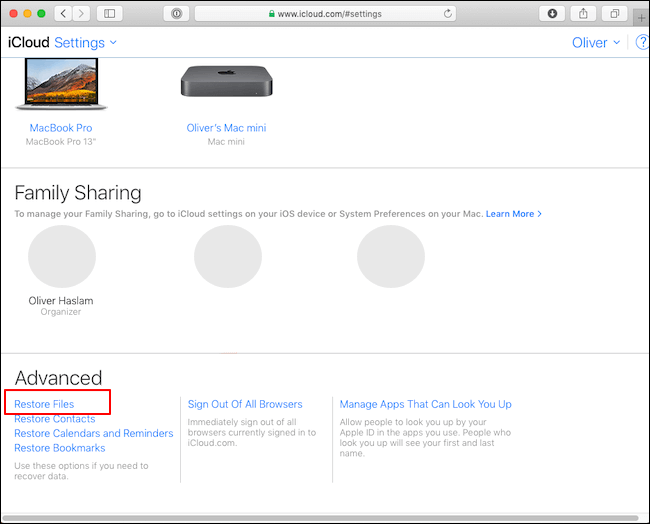
Step 2. To access iCloud settings, click on the settings icon, then scroll down to the bottom and click on "iCloud". From there, click on "Advanced" and then click on "Restore Files" at the bottom.
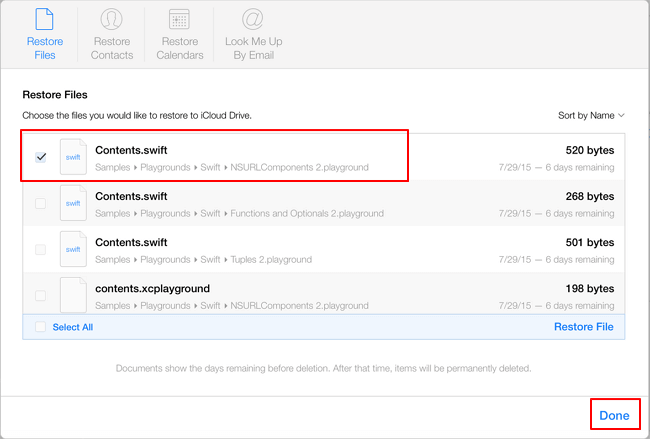
Step 3. To recover lost files on a Mac, find the files you want to restore in the "Recently Deleted" folder, tick the boxes next to them, and click "Restore" to retrieve them.
Method 3. Use Stacks to Find Missing Desktop Files on Mac
Applies to: Re-organize and make Mac desktop files show up.
On macOS Catalina and Mojave, you can use Stacks to automatically organize your desktop files by file type, making it easier to find what you need.
If you're experiencing lost or missing files on your Mac desktop, try using Stacks. This feature may surprise you with its ability to help you locate and organize your files, potentially resolving the issue.
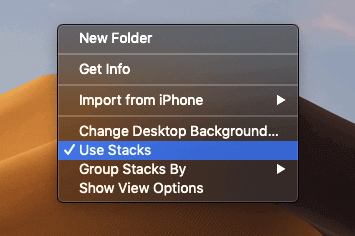
Step 1. To bring up the Context Menu on a Mac desktop, right-click an empty space. This will display a menu with various options, including the ability to create a new folder, add a new shortcut, or take a screenshot, among others.
Step 2. Uncheck "Use Stacks".
Step 3. Repeat Step 1 again, and check "Use Stacks" this time.
To restore the missing files, you can try restarting your computer in safe mode. This will allow you to access the desktop and potentially recover the files that were deleted or hidden.
Method 4. Restore Missing Mac Desktop Files from Trash
Applies to: All levels of Mac users can recover deleted files saved on their desktop from the Trash.
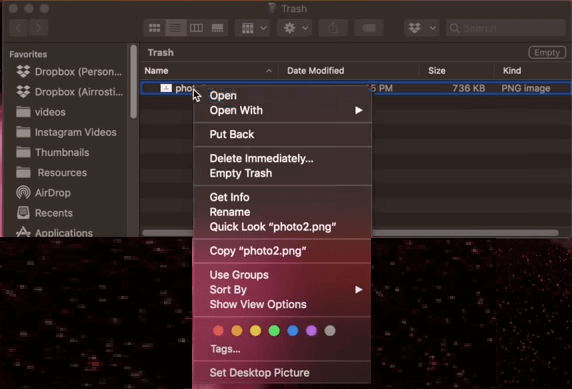
When you accidentally delete files on your Mac desktop, you can usually find them in the Trash bin, where they remain until you empty the bin. Simply navigate to the Trash, locate the deleted files, and click "Put Back" to restore them to their original location. If you've already emptied the Trash, you can try using the "Time Machine" feature to recover previous versions of the files, or use a third-party data recovery software to scan your Mac's storage for deleted files.
Here are the steps:
Step 1. Unfortunately, there is no "Open Trash Bin" option on a Mac desktop. However, you can click on the Trash icon in the Dock, which is usually located at the bottom of the screen, to open the Trash folder and view its contents.
Step 2. To recover deleted files, drag the files you want to recover from the trash to the desktop. This will move the files from the trash to the desktop, effectively recovering them.
Or you can right-click on the file and select "Put Back".
Conclusion
The desktop icons and folders on Mac have gone missing, and this can be frustrating. To recover them, you can try checking the Finder preferences, looking for the "Show" dropdown menu, and ensuring that the "Hard Drives" or "Devices" option is selected.
Mac desktop items disappearing is not a typical issue, but if it happens, it can be difficult. This article aims to help you resolve the problem. To prevent similar issues, such as data loss, from occurring in the future, it's highly recommended to regularly back up your Mac.
Related Articles
- How to Recover Deleted/Unsaved Numbers Files on Mac
- Repair Photos Library and Recover Lost Photos on Mac
- Recover Files from a Dead/Crashed iMac with Qiling Data Recovery
- Operations You Should Know when Switching from Windows to Mac
- How to Recover Files from Raw SD Card
If you're wondering if it's possible to recover files from a raw SD card, this guide is for you. It provides a step-by-step method to recover RAW SD card for free, so you can retrieve your important files. - How to Recover Files from Seagate External Hard Drive
To recover files from a Seagate external hard drive, you can follow a step-by-step guide that involves using Seagate hard drive data recovery software to get back lost or deleted files. This software allows you to free try and recover your files on both Mac and Windows PC.
Products
Articles & Tutorials
- Data Recovery
- Data Backup
- File Recovery
- File Backup
- System Backup and Restore
- Disk and Partition Clone
- Technical articles
- Mobile articles
- Disk Master Help
- Windows Data Recovery Tutorials
- Windows Secure Delete Tutorials
- Windows Partition Management Tutorials
- Windows File Backup and Restore Tutorials
- Windows System Backup and Restore Tutorials
- Windows Disk Backup and Restore Tutorials
- Windows Clone Tutorials