How to Restore or Unlock an Encrypted Excel File Without Password
This page offers three parts to help you effectively restore deleted or lost Excel files, unlock encrypted Excel or Excel sheets without the password.
| Workable Solutions | Step-by-step Troubleshooting |
|---|---|
| Fix 1. Restore from Recycle Bin | Open "Recycle bin". Locate and right-click the deleted Excel, choose "Restore"...Full steps |
| Fix 2. Search Excel File Name | Open Windows File Explorer, type the file name of your lost or missing excel...Full steps |
| Fix 3. Use File Recovery Software | Run Qiling Data Recovery Software. Choose the drive X: or perhaps a specific folder...Full steps |
| Fix 4. Remove Excel Password | Create a new folder and drag password-protected excel into the folder, open "Folder" Option....Full steps |
| Fix 5. Decrypt Protected Excel | To create a new Excel file and open the VBA window, start by opening Excel and creating a new file. Then, press Alt + F11 to open the Visual Basic for Applications (VBA) editor. In the VBA window, click on the "Insert" menu to add a new module, which will allow you to write and run VBA code.Full steps |
| Fix 6. Try Password Removal Tool | You can selectively try any one of the recommended tools online and let it unlock Excel...Full steps |
| Fix 7. Remove Password Protection | Copy the encrypted Excel as a backup, and change the file extension of original excel from .xlsx...Full steps |
Can I Recover Lost Excel and Decrypt It without Password
"Hi there, do you know how to restore lost Excel file and decrypt it without a password? I lost an important Excel file that was encrypted by a password.
I couldn't find it in the recycle bin and nothing was found on my PC by searching the file name. If anyone of you has a way to help me restore and unlock Excel file without a password, please contact us."
Losing Excel files or Word documents on a Windows PC is a common problem, and losing an encrypted Excel file without the unlocking password can be particularly concerning.
If you're experiencing issues with an Excel file, try the solutions in the next parts to restore and unlock the file on your own.
Part 1. 3 Methods to Restore Deleted or Lost Excel Files
If you've accidentally deleted or lost an important Excel file with a password, there's hope for recovery. You can try restoring the lost Excel file using one of the following three methods.
1. Undelete Excel from Recycle Bin
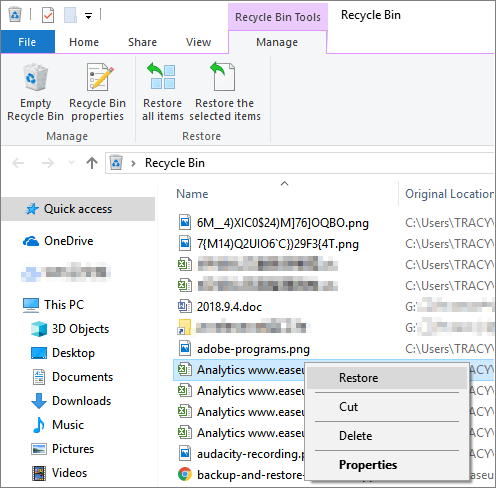
To undelete Excel from the Recycle Bin, follow these steps: First, open the Recycle Bin, then look for the Excel file you want to recover. If it's there, right-click on it and select "Restore.
Step 1. Open "Recycle bin".
Step 2. Locate and right-click the deleted Excel, choose "Restore".
2. Search Excel File Name on PC
If you're unable to find your Excel file, try searching for it on your PC by typing its file name in the search bar. This might help you locate the file even if it's not in its usual location.
Note: This method is more efficient in finding missing files that still exist on your PC or storage devices.
Step 1. Open Windows File Explorer, type the file name of your lost or missing Excel file at the right search column.
If you can't remember the file name, you can search with the file extension, such as .xls or .xlsx.
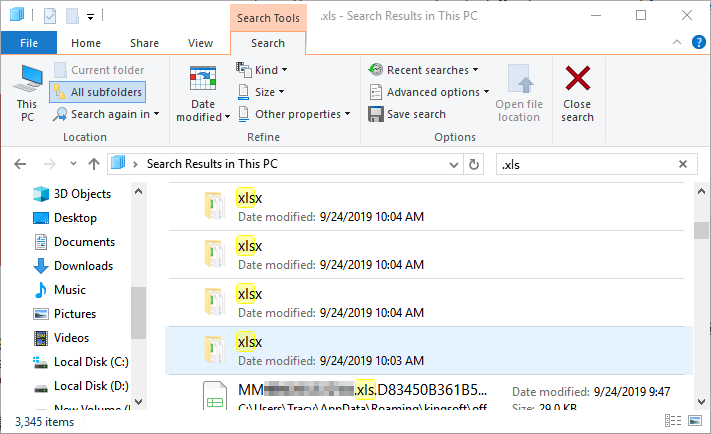
Step 2. Check and open the displaying excel files and see if you can find them.
3. Use File Recovery Software for Help
If the above methods don't work, you can use a file recovery software like Deep Data Recovery to recover deleted or lost Excel files efficiently.
Qiling File Recovery Software
Qiling data recovery software offers a simple 3-step recovery process to scan and find lost data on Windows 11/10/8/7 and older OSes. Additionally, it can automatically repair corrupted Excel files if encountered during the recovery process.
Step 1. Select file types and click "Fast Scan" to start
Launch Deep Data Recovery, select the desired file types, and click "Fast Scan" to initiate the recovery process.

Note: You can choose different search modes based on where and why the data was lost.
Step 2. Select location and click "Scan"
Choose the drive or a specific folder on Desktop or somewhere else where you lost the excel files, and click the "Scan" button.

Step 3. Locate your excel files
After scanning, click on "Documents" in the left panel, select "Excel", and then click "Preview" to verify the Excel files are the desired ones.

Step 4. Recover Excel files
Select the desired Excel files, click the "Recover" button, and choose a folder to save the recovered Excel files to a new location.
If the restored Excel is encrypted, use your password to unlock it. If you forgot the password, follow the methods provided to decrypt it.
Part 2. Decrypt Excel File Without Password
You can try using a password recovery tool to help you regain access to your encrypted Excel file. These tools can attempt to crack the password by trying various combinations, but be aware that this process can be time-consuming and may not always be successful. If you're unable to recover the password, you may need to contact the creator of the file or seek assistance from a professional.
Here are the methods to remove password protection from an Excel file without knowing the password:
Method 1. Remove Excel Password
Step 1. To resolve the issue, create a new folder and drag the password-protected Excel file into it. Then, open the Folder Options and navigate to the View tab.
Step 2.To view file extensions, go to the View tab, scroll down to uncheck "Hide extensions for known file types" and click "Apply".
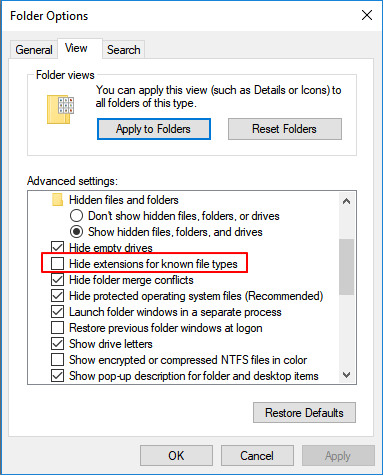
Step 3. Now change the Excel extension from .xlsx to .zip.

Step 4. To view the contents of a zip file, you need to open it with an unzip program, then navigate to the xl folder, select Worksheets, and choose Sheet1.xml. Once you have selected the file, you can open it with Notepad to view its contents.
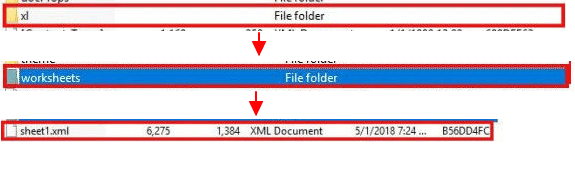
Step 5. Delete the Sheet protection password="**" in the quotes and save the Notepad and click "Yes".
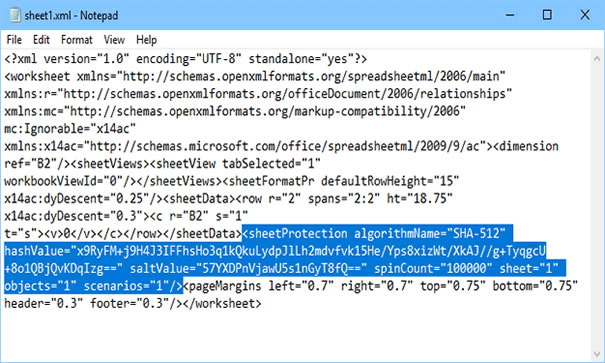
Step 7. Change the extension from .zip to .xlsx again, open the Excel and go to Review, click Unprotect Sheet.
You can now edit your Excel file and make it reusable again.
Method 2. Decrypt Protected Excel Without a Password by VBA Code
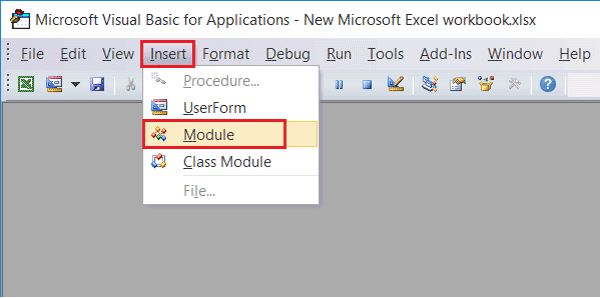
Step 1. Open a new Excel file, and press Alt + F11 to open the VBA window.
Step 2. Click on Insert, select "Module".
Step 3. On the General window enter the VBA code.
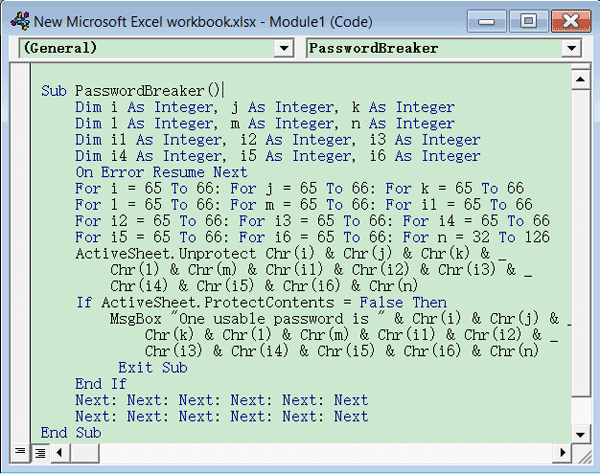
Step 4. To run the Python script, click on the "Run" button or press the F5 key. This will execute the script and display the output in the console.
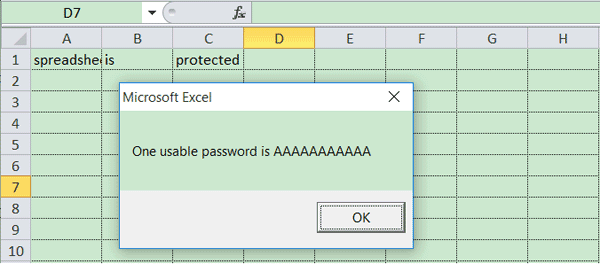
Step 5. Clicking "OK" in the small box that pops up and closing the VBA window will result in your Excel sheet being unprotected without the need for a password.
Method 3. Try Excel Password Removal Tool
If you prefer a software or tool to help you remove password protection from your Excel file, you can consider using a password recovery or removal tool. These tools can help you bypass the password protection and access your file.
Or you want to unlock Excel file without a password, you may try the recommended password removal tools:
- Excel Password Remover
- Excel Password Recovery Lastic
- Excel Password Genius
- Excel Password Refixer
- PassFab for Excel
To access an Excel file without a password, you can try using online tools that specialize in password recovery. These tools can help unlock the file, allowing you to view its contents.
If you encounter the issue of Excel not saving your file, you can refer to online resources on how to recover an unsaved Excel file.
Part 3. Remove Password Protection from Excel Sheets
Step 1. Copy the encrypted Excel as a backup, and change the file extension of original excel from .xlsx to .zip.
Step 2.To open the zipped file, use an unzip file to extract its contents. Once extracted, locate and open the xl folder. Within the xl folder, find and copy the workbook.
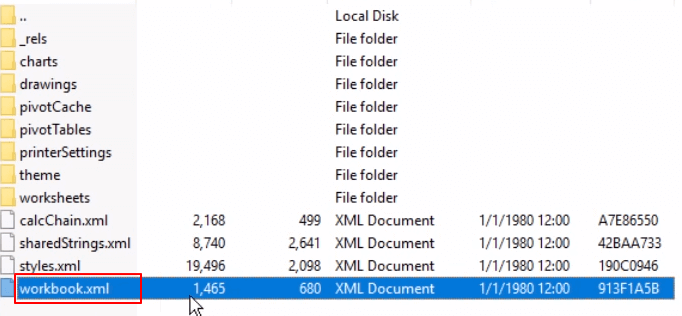
Step 3.To change the lockStructure number in an XML file, open the file with Notepad, locate the line containing the "lockStructure" number, and replace the value "1" with "0".

Step 4.Save the changed file and copy it back to the unzipping window, replacing the old workbook.xml file.
Step 5. After making the necessary changes, switch the zip file back to Excel by changing its file extension from .zip to .xlsx again.
Step 6. Open the excel file again, and click "Enable Connection".
There, you can edit the Exel sheet again and the password encryption has been removed.
Related Articles
- How to Open Numbers File in Excel
- Recover Files Deleted Long Time Ago
- Recover 0 Byte Files in Windows 10/8/7
- How to Corrupt a PDF File so That It Can't Be Opened (Step-by-Step Guide)
- How to Recover Deleted Photos/Videos/Files from Phone Memory Card
If you've lost photos, videos, or deleted files from your phone's memory card, you can try using Deep Data Recovery software to recover them quickly. - How to Recover Deleted/Lost Photos from Memory Card
Want to know how to recover deleted photos from memory card on Mac or Windows 11/10/8/7? Here are the simple step-by-step guide for memory card photo recovery.
Products
Articles & Tutorials
- Data Recovery
- Data Backup
- File Recovery
- File Backup
- System Backup and Restore
- Disk and Partition Clone
- Technical articles
- Mobile articles
- Disk Master Help
- Windows Data Recovery Tutorials
- Windows Secure Delete Tutorials
- Windows Partition Management Tutorials
- Windows File Backup and Restore Tutorials
- Windows System Backup and Restore Tutorials
- Windows Disk Backup and Restore Tutorials
- Windows Clone Tutorials