SD Card and Disk Video Recovery Free: Recover Deleted Videos from SD Card
Guide for How to Recover Deleted Video from SD Card
Insert the SD card into your PC or laptop if it has a slot for it, or connect it to your PC using a card reader.
Install the SD card video recovery tool for free.
Select the SD Card to scan for deleted videos.
Recovering deleted video from the SD card.
SD Card Video Recovery Overview
To recover deleted videos from an SD card, you can use specialized recovery software such as Deep Data Recovery, Disk Drill, or Recuva. These tools can scan the SD card for deleted files, including videos, and allow you to recover them. Simply connect the SD card to your computer, download and install the recovery software, and follow the on-screen instructions to scan the card and recover the deleted video files. Be sure to stop using the SD card immediately to prevent overwriting the deleted files and making recovery more difficult.
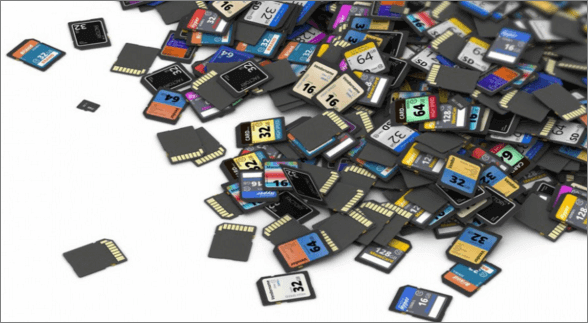
The SD card is a popular storage device used in various devices, including Android phones and tablets, digital cameras, and camcorders. It allows users to save a large number of media files, such as photos and videos, even when the internal memory is limited. However, these files can get lost or corrupted due to various reasons, making video recovery urgent. To solve this issue, a professional SD card and disk video recovery tool can be used to recover deleted videos from the SD card.
SD Card and Disk Video Recovery Free Download
When you lose important videos, you can try either a professional manual service or third-party data recovery software to retrieve them. However, we recommend the latter option as it is more cost-effective and often works better than the manual service.
Deep Data Recovery is highly recommended as the top rank SD card video recovery software. It is very powerful and effective in dealing with all data loss situations on the SD card, and can help you get back your video files no matter how you lost them.
- Recovering lost video from an SD card, commonly used in mobile phones, cameras, and other devices, can be a challenging but not impossible task. The process typically involves using specialized software to scan the SD card for any remaining video files, even if they're not accessible through the device's normal operating system.
- I need help recovering lost video due to various reasons, including accidental deletion, a formatted memory card, a virus attack, or a device's system crash.
- Repair corrupted videos automatically with video repair utility.
- The supported video formats are MP4, AVI, MOV, MKV, M4V, 3GP, 3G2, WMV, ASF, FLV, SWF, and MPG, as well as RM and RMVB.
- This software is compatible with Windows 10, 8, 7, XP, and Vista operating systems, as well as macOS and Mac OS X versions 10.8 and above.
How to Recover Deleted Videos from SD Card with SD Card Video Recovery Software
To recover deleted or lost videos from an SD card, download a free memory card video recovery software and follow these steps.
- To avoid overwriting the data on the SD card, it is recommended to remove it from the device before making any changes or installations. This will prevent any new data from being written to the card, thereby preserving the existing data.
- Prepare a card reader and a computer
Step 1. Run Deep Data Recovery and select file types, then click "USB/SD Scan" to continue.

Note: You can choose different search modes based on where and why the data was lost.
Step 2. Run Deep Data Recovery, select the location or device where the videos were lost/deleted, and click "Scan" to find the missing videos.

Step 3. After the scan, select "Videos" in the left panel and go to "Lost" or "All" to find the wanted videos, then select the found videos and click "Preview".

Step 4. Select the video files you want to recover, then click "Recover" to save them to a secure location on your PC or external storage device.
If you've accidentally deleted videos or photos from your SD card, there are ways to recover them without needing a computer. You can use a recovery app on your phone or a USB recovery tool to scan the SD card and retrieve the deleted files.
Frequently Asked Questions to SD Card Video Recovery
If you've deleted videos from your SD card and want to recover them, you're likely wondering how to do so. You might be experiencing issues like being unable to find the deleted files, having them overwritten, or struggling to access them due to formatting or corruption. You may also be wondering how to recover deleted videos from an SD card that's been formatted, or if it's possible to recover deleted videos from a corrupted SD card.
How can I recover deleted videos from my SD card?
To recover deleted videos from an SD card on a mobile phone, connect the SD card to your computer and download Qiling SD card video recovery software, which offers a free version. Install and use the software to recover video files from the SD card with the following steps.
Step 1. Connect the SD Card with Your PC
To connect your SD card to your computer, you can either insert it directly into a slot on your device, if available, or use an SD card reader to connect it to your computer.
Step 2. Install the SD Card Video Recovery Tool
Download the trial version of Qiling Data Recovery Wizard, a software compatible with both Windows and Mac computers. Run the installation package to install it on your computer and launch it.
Step 3. Select the SD Card to Scan
Qiling SD card video recovery software will detect all available hard drives and external hard drives for scanning, allowing you to select the SD card where videos were deleted to scan directly. The scan time depends on the SD card's health and file size.
Step 4. Preview and Recover Deleted Video from the SD Card
Found pictures and videos will be displayed, and you can filter out video files using the Filter feature. Select the desired files, then preview and recover them from the SD card. Finally, save the recovered videos on your computer.
Can you recover deleted video from SD card?
You can recover deleted videos from an SD card, but be careful not to save any new data or files on the card until the recovery process is complete to avoid overwriting the deleted videos.
How do I recover pictures and videos from my memory card?
If you've deleted photos and videos from your memory card, don't touch it! Instead, immediately use a professional data recovery tool to recover the lost files. This will help you get back your cherished memories without causing further damage.
Step 1.Download and install the Qiling data recovery memory card file recovery suite on your computer.
Step 2.To recover pictures and videos from a memory card, connect the card to a computer and run Deep Data Recovery software. This will initiate a scan to find recoverable files. To narrow down the search, use the Filter option to locate and view pictures and videos.
Step 3.This file recovery program can preview and recover all deleted photos and videos from your memory card, and it's also great at repairing corrupted JPEG/JPG files.
How do I recover deleted videos from my Android SD card?
Recover deleted or lost videos from your Android SD card with Qiling Android SD card recovery software. This software can help you retrieve lost videos from your Android device's SD card, even if they have been deleted or lost due to various reasons such as accidental deletion, formatting, or corruption.
Step 1. Connect your Android phone to the computer, install and run Qiling data recovery for Android Free.
Step 2. Connect your Android phone to the computer with the USB cable to recover deleted videos from the phone's SD card.
Step 3. Scan the Android SD card to find the lost videos.
Step 4. Preview and recover videos from Android SD card.
Related Articles
- Synology Data Recovery: How to Recover Deleted Files from Synology NAS Device
- Reset and Recover Instagram Password Without Email
- Free Hard Disk Repair Software for Hard Disk | Step-By-Step Guide
- Top10 Best USB Repair Tool 2022 Update
- Genshin Impact Game Folder Empty, Get the Answers Here!
If you're experiencing an empty Genshin Impact game folder, you can find the solution here. The post provides answers on why your Genshin Impact game folder might be empty and how to fix it. - Genshin Impact Progress Lost : Restore Lost Genshin Data [Quick & Easy]
if you encounter the Genshin Impact progress lost. We will introduce two methods to recover lost Genshin Impact game progress. You can recover game data with Deep Data Recovery or recover the lost account.
Products
Articles & Tutorials
- Data Recovery
- Data Backup
- File Recovery
- File Backup
- System Backup and Restore
- Disk and Partition Clone
- Technical articles
- Mobile articles
- Disk Master Help
- Windows Data Recovery Tutorials
- Windows Secure Delete Tutorials
- Windows Partition Management Tutorials
- Windows File Backup and Restore Tutorials
- Windows System Backup and Restore Tutorials
- Windows Disk Backup and Restore Tutorials
- Windows Clone Tutorials