SQL Database Restore Failed Database Is in Use
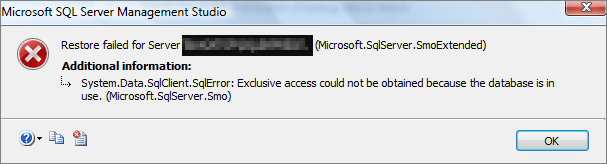
Error Details - SQL Database Is in Use
To resolve the issue of restoring a database from a .bak file in SQL Server 2008 R2, try stopping the SQL Server service, then run the RESTORE DATABASE command to restore the database. This should allow the restore process to complete without the "database in use" error. Alternatively, you can try using the WITH REPLACE option in the RESTORE DATABASE command to overwrite the existing database. If the issue persists, consider checking for any open connections to the database and closing them before attempting the restore.
When trying to restore a database in Microsoft SQL Server Management Studio (SSMS), the process fails due to other users currently accessing the database, resulting in an error message.
Restored failed for Server
The error "Exclusive access could not be obtained because the database is in use" in System.Data.SqlClient is caused by the database being locked by another process, preventing the current process from accessing it exclusively. This can happen when a database is being used by another application or process, or if the database is being backed up or restored. To resolve this issue, you can try stopping the application or process that is holding the lock, or you can try to access the database in a different mode, such as in read-only mode.
Solutions - How to Fix Database in Use Problem
To resolve the issue of the SQL Server service not starting, the problem can be addressed by checking the SQL Server error logs for any error messages that may indicate the cause of the failure. The service may not start if there are issues with the service account, such as a password expiration or incorrect password. Additionally, the SQL Server service may not start if there are issues with the SQL Server instance, such as a corrupted registry key or a missing DLL. In such cases, the service can be started by manually editing the registry to correct the issue, or by reinstalling the SQL Server software.
To resolve SQL Server issues, any version can benefit from the provided solutions. While restarting the Server service may be a solution, it's not the first step, especially when data safety is a concern. Instead, users should go through the four procedures to rectify the problem.
1. Check active users
Since the error message indicates that someone is using the database, you need to identify who it is and notify them to stop using it. To do this, administrators typically use built-in SQL Server systems like sp_who and sp_who2 to find processes and users accessing the database.
This is a necessary step to prevent users from being disconnected without warning, especially during critical tasks. It ensures a smoother experience and provides a courtesy notification, making it a necessary precursor to releasing the occupied database.
2. Restart the service
If you're unable to find any active users by running sp_who or sp_who2, it's generally safe to restart the SQL server service without any data loss concerns. However, if there are active users, it's not recommended to restart the service at this initial step for data safety reasons.
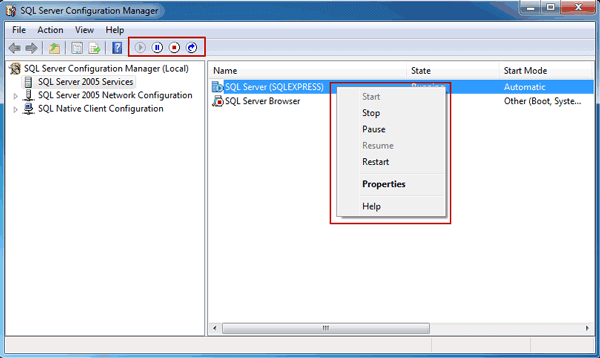
To restart the SQL Server service, there are several methods available, including using SQL Server Management Studio (SSMS), Microsoft Services Console, Command Line, SQL Server Configuration Manager, and PowerShell. However, we will focus on restarting the service using the SQL Server Configuration Manager. This tool allows you to easily manage and configure various SQL Server services, including restarting the service when needed.
Step 1: To access SQL Server Configuration Manager, click Start, then navigate to Programs > Microsoft SQL Server > Configuration Tools > SQL Server Configuration Manager.
Step 2:In the SQL Server Configuration Manager, click on SQL Server Services in the left pane, and in the right pane, right-click on the SQL Server service and select Restart from the context menu.
3. Start SQL Server in Single-user Mode
To disable all connected users without notifying them, you can alter the default multiple-user mode to single-user mode. Before attempting to restore, use this code to abort all existing connections.
USE master;
GO
ALTER DATABASE YourDB
SET SINGLE_USER
WITH ROLLBACK IMMEDIATE;
ALTER DATABASE YourDB
SET MULTI_USER;
GO
4. Fix Corrupted Database or Backups
If the SQL server restore process is experiencing an error, trying to restart the service or disable connected users under single-user mode may resolve the issue and prevent it from recurring. However, if the problem persists, it could be related to the database or backup itself.
When faced with a complex issue in SQL Server that has been extensively troubleshooted, it's often beneficial to let the software itself guide the recovery, repair, or rebuilding of the master database, as it may have built-in mechanisms to resolve the issue in a more effective way.
Qiling SQL Server Recovery software is designed to restore a corrupted SQL database to a normal state, providing an economical and simple solution for cases such as SQL server shutdowns, corruption, backup failed, restore failed, and deleted records. It can be a last resort if other solutions don't work, allowing you to repair the corrupted database and backups.
Step 1. To stop the SQL Service, navigate to the Task Manager or SQL Server Manager Console, and locate the SQL Service. Once found, right-click on it and select "Stop" to close the service.
Step 2. Run Qiling MS SQL Recovery and click "Fast Scan" to start.

Note: You can choose different search modes based on where and why the data was lost.
Step 3. To repair a corrupted database, select the location where the database is saved, then click "Scan" to initiate the analysis process.

Step 4. When the scan is complete, select the files you want to repair and click "Recover".

Step 5. Turn on the SQL service, you can choose to export the repaired files to database to export it as SQL scripts.
Related Articles
- How to Recover Deleted SQL Server Database without Backup
- SQL to XML | How to Export Data from SQL Server to XML
- MS SQL Database Restore with Recovery and Norecovery Options
- Restore Database from MDF and LDF Files in SQL Server 2017/2014/2012
- 4 Best Ways to Recover Lost Save Data in Hogwarts Legacy
If your Hogwarts Legacy progress and game save are gone or missing. There are four working ways to recover lost Save data in Hogwarts Legacy, and using Qiling Data Recovery Wizard is the most effective method. - How to Recover Lost Save Data in the Star Wars Jedi: Survivor
If you lose your Star Wars Jedi: Survivor game save, four efficient methods are provided on this page to recover deleted saved data in the Star Wars Jedi: Survivor. Qiling Data Recovery Wizard is the best program for recovering lost saved data.
Products
Articles & Tutorials
- Data Recovery
- Data Backup
- File Recovery
- File Backup
- System Backup and Restore
- Disk and Partition Clone
- Technical articles
- Mobile articles
- Disk Master Help
- Windows Data Recovery Tutorials
- Windows Secure Delete Tutorials
- Windows Partition Management Tutorials
- Windows File Backup and Restore Tutorials
- Windows System Backup and Restore Tutorials
- Windows Disk Backup and Restore Tutorials
- Windows Clone Tutorials