Mac TextEdit Recovery: Recover Deleted/Unsaved TextEdit Files
Mac OS X stores unsaved TextEdit documents in a temporary folder, which is usually located at /tmp/. If you exit TextEdit without saving, the document will be saved in this folder. You can try looking for the document in this folder to recover it. However, please note that the contents of the /tmp/ folder are deleted periodically, so it's a good idea to save the document as soon as possible.
You can easily undo a TextEdit file after a wrong typing, but recovering unsaved and permanently deleted TextEdit documents requires patience.
| Workable Solutions | Step-by-step Troubleshooting |
|---|---|
| Recover Unsaved TextEdit Files | Method 1. Recover from TextEdit autosave...Full steps Method 2. Recover from iCloud backup...Full steps Method 3. Recover from Time Machine backup...Full steps |
| Recover Deleted TextEdit Files | Run TextEdit recovery software > Scan...Full steps |
About TextEdit Mac
TextEdit is a standard application on Mac OS X and macOS, allowing you to create and edit HTML documents, convert rich text documents to other formats, and more - and it's likely already installed on your Mac, so you won't need to download it separately.
To find TextEdit on your Mac, click Finder, then select Applications, and finally TextEdit.
TextEdit is a simple yet powerful text editing and word processing tool that can't be replaced by Pages or Microsoft Word. It offers two typing modes: plain text and rich text. To avoid losing your work, remember to save your files frequently by pressing Ctrl+S, especially when typing HTML codes or paragraphs.
- Accidentally press delete
- Computer shuts down suddenly
- Close the TextEdit before clicking save
- TextEdit crashes, freezes or force quits unexpectedly
Related post: How to recover unsaved Word document on Mac
How to Recover Unsaved TextEdit Files on Mac - 3 Ways
Thanks to the autosave feature in TextEdit and backup features in iCloud and Time Machine, it's possible to recover lost documents and HTML files you don't save immediately on TextEdit. Next, we'll walk you through the three solutions to unsaved TextEdit file recovery on Mac with detailed guides.
1. Recover Unsaved TextEdit Files from Autosave
If you've lost an unsaved TextEdit file due to the software crashing or freezing, you can recover it by reopening TextEdit. Since autosave is enabled by default, the program will show the unsaved file when you relaunch it. Simply name the file and save it on your Mac to recover the lost document. This process allows you to recover both untitled and unsaved TextEdit files on your Mac.
To find unsaved TextEdit documents, you can manually search the autosave location, which is typically the "Unsaved TextEdit Document.rtf" file located in the following path: /Users/your_username/Library/Group Containers/UBF8T346G9.Office/Group Container/Unsaved TextEdit Document.rtf.
TextEdit autosave location: ~/Library/Containers/com.apple.TextEdit/Data/Library/Autosave Information
Step 1. To access the Library folder in Finder, press shift+command+G, and copy/paste the path /Library into the Go To Folder dialog.
Step 2. To find the .rtf file, open the folder where you think it's located, and search for the file name.
2. Recover Unsaved TextEdit Files from iCloud
If you've saved TextEdit files to iCloud, you can retrieve documents from the past 30 days, including unsaved documents called Untitled.rtf.
Step 1. Open your browser and go to www.icloud.com.
Step 2. Enter your Apple ID, go to Settings from the main menu, scroll down to the Advanced section, and select Restore Files.
Step 3. To recover a lost .rft file, locate the file in the list, check the box next to it, and click "Done". The recovered file can then be viewed in TextEdit.
3. Recover Unsaved TextEdit files from Time Machine
If you've experienced data loss on your Mac, you can recover your TextEdit files using Time Machine backup, provided you had turned on Time Machine and the lost files were backed up. If your backup disk is unavailable, you can learn how to recover files on Mac without Time Machine.
Step 1. Connect your backup disk to your Mac and turn on your computer.
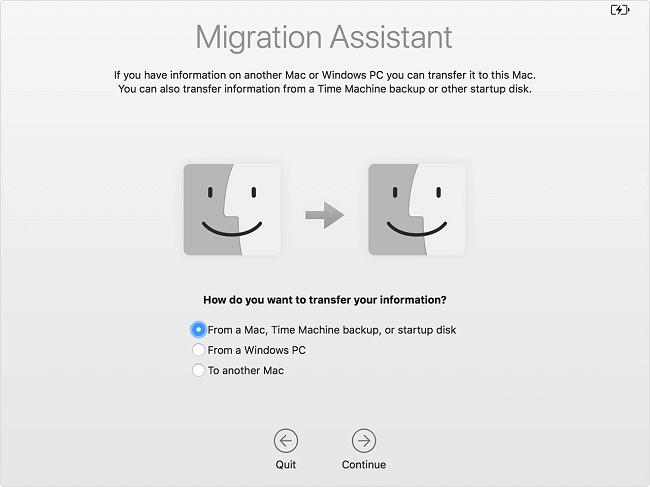
Step 2. If your Mac starts up to the setup assistant, set the details of your country, keyboard, and network, then transfer your information from a Time Machine backup using the Migration Assistant. If it starts up to the Finder, go to Applications > Utilities > Migration Assistant and choose to transfer your information from a Time Machine backup.
Step 3. Select the wanted Time Machine backup and click "Continue".
Step 4. If you have multiple backup options, pick one and proceed with the next step.
Step 5. Choose the files to transfer and click "Continue".
Step 6. When the transfer is complete, restart your computer and log in to the target account, where you'll find all the recovered files.
How to Recover Deleted TextEdit Files on Mac
Recovering deleted text files on a Mac is relatively easier than restoring unsaved files, thanks to the availability of Mac file recovery software. Even if you've emptied the Trash or used permanent deletion, you can still retrieve your lost data from your Mac drive, USB flash drive, or memory card.
It takes three steps to undo TextEdit files on Mac:
Step 1. Launch Deep Data Recovery, select the desired file types, and click "Fast Scan" to initiate the recovery process.

Note: You can choose different search modes based on where and why the data was lost.
Step 2. Please select the location where your important data & files were deleted, then click the "Scan" button.

Step 3. The software will conduct both a quick scan and a deep scan on the selected volume, working diligently to identify as many deleted files as possible.

Step 4. To retrieve the lost files, select them in the left pane and click the "Recover" button. This will restore the files.
This software can recover deleted TextEdit files, as well as other types of files, from various storage devices, including Macs, external hard drives, SD cards, and USB flash drives. It can also retrieve deleted or formatted files such as photos, videos, audio files, Office files, and emails. Users can use it to recover deleted PPT files or files from a formatted USB flash drive.
If you have Time Machine backup available, you can use it to recover deleted TextEdit files on Mac. However, if the backup fails to work, you can use third-party TextEdit recovery software like Deep Data Recovery as an alternative choice.
Related Articles
- Recover Deleted GarageBand Files/Tracks on Mac
- Top 5 Best Mac Data Recovery Software in 2025
- Mac Cache Recovery: How to Recover Deleted Cache Files on Mac
- Upgrade to Mac OS X El Capitan 10.11.6, No Data Loss [2022 Tutorial]
- LINE not Receiving/Sending Messages on iPhone/Android
If the LINE app is not sending or receiving messages on your Android or iPhone, try restarting the app, checking your internet connection, and updating the app to the latest version. - iPhone Photos Gray Box | How to Fix Grey Boxes Photos on iPhone/Android
If your pictures are appearing gray on your iPhone or Android, you can figure out why and easily fix the issue. Whether you're seeing a gray box over photos or contacts on both iPhone and Android, you can resolve the problem with a few simple steps.
Products
Articles & Tutorials
- Data Recovery
- Data Backup
- File Recovery
- File Backup
- System Backup and Restore
- Disk and Partition Clone
- Technical articles
- Mobile articles
- Disk Master Help
- Windows Data Recovery Tutorials
- Windows Secure Delete Tutorials
- Windows Partition Management Tutorials
- Windows File Backup and Restore Tutorials
- Windows System Backup and Restore Tutorials
- Windows Disk Backup and Restore Tutorials
- Windows Clone Tutorials