Why Does My Computer Keep Freezing When Playing Games?
Why does my computer keep freezing on Windows 10? Quick navigations for the top reasons and solutions.
| Top Reasons | Step-by-step Troubleshooting |
|---|---|
| Reason 1. Too Many Programs Opened | Multitask can result in the computer keeps freezing. The best solution is to open only the required...Full steps |
| Reason 2. Overheating Issue | Now just like a vehicle, a PC or laptop can also overheat. Moreover, the CPU should not be overburdened...Full steps |
| Reason 3. Hardware Failure | Hardware failure can be the culprit for the computer keeps randomly freezing. Perform a routine checkup...Full steps |
| Reason 4. Outdated Disk Drivers | Outdated disk drivers cause the window to slow down or freeze. Update the old disk drivers...Full steps |
| More causes of why computer keeps freezing | Software issues, virus or malware attack, system disk is full are other reasons for computer keeps freezing...Full steps |
Imagine being in the midst of a crucial project, like your final year project, only to have your computer freeze on you, causing unnecessary stress. This is a common problem that many users face, and it's not just you who's experiencing it.
Many Windows 10 users have experienced the frustration of their computer freezing, and they're left wondering, "Why does my computer keep freezing Windows 10?" Fortunately, there are solutions to this problem. To address this issue, let's explore 7 main reasons why computers keep crashing Windows 10, along with their solutions, to help users avoid such situations in the future.
7 Main Reasons for Why Computer Keeps Freezing
As highlighted, there could be several reasons why does my computer keep freezing Windows 10? Here are the top 7 reasons.
1. Too Many Programs Opened
The most common reason for computers freezing is extensive multitasking, especially when a PC or laptop has mediocre specifications. While multitasking may seem fine on paper, it can be problematic if too many programs are opened at the same time, causing the computer to become slow or even freeze.
When working on a single application with multiple programs running, the processor and RAM get overloaded, causing Windows 10 to get stuck. To solve this, it's best to only open the required programs at one time. This helps prevent overloading and keeps the system running smoothly.
You can open new applications, but you should close the ones that are already running. This allows the system to efficiently manage and keep track of all opened applications.
2. Overheating Issue
Just like a vehicle, a PC or laptop can overheat due to its mechanical components, such as the CPU, which requires proper ventilation to work at an ideal temperature rating.
The CPU should not be overburdened, but the specific guidelines for this vary depending on the computer manufacturer, so it's best to follow their recommendations.
The CPU's ideal temperature rating and maximum clock speed should be considered to ensure optimal performance. Additionally, the computer's cooling fans should be functioning properly, and any dust accumulation should be cleaned to prevent overheating issues.
To prevent your PC from overheating and getting stuck, keep an eye on its temperature, clean dust from the CPU and case, ensure good airflow, and avoid blocking the vents. This will minimize the chances of your PC getting stuck.
3. Hardware Failure
Hardware failure, including issues with the memory unit (RAM) that may need replacement or upgrade, and loose connections on the motherboard, can cause system performance problems.
To ensure your computer system is running smoothly and safely, it's recommended to perform a routine checkup. If you're not tech-savvy, consider taking your computer to an expert for a thorough examination.
4. Outdated Disk Drivers
Outdated disk drivers can cause Windows to slow down or freeze, making it difficult for users to identify the root cause of the issue.
To resolve the issue, you'll need to update your computer's disk drivers. If you're not comfortable with technical tasks, consider seeking help from an expert.
5. Software Errors
If your computer frequently freezes, it may be due to several installed applications. To address this, open your Control Panel and check how many third-party software programs are installed on your computer. This can help identify the potential cause of the freezing issue.
Uninstalling unnecessary third-party software can free up system resources, potentially leading to improved overall speed and performance.
6. Virus or Malware Attack
When you install any third-Using a multi-user system on your computer can make it more vulnerable to malware attacks, so it's best to install reliable antivirus software to keep your system safe.
Malware attacks are a common reason for computer freezing. To resolve this issue, scan your PC for viruses using antivirus software, which can automatically detect and remove any malicious programs.
7. The System Disk Is Full
Experts advise freeing up some space on your hard drive to prevent slowdowns and freezing.
If your Windows OS is running low on storage space, you can consider freeing up space by deleting unnecessary files, uninstalling unused programs, and compressing files. If that's not possible, you can consider upgrading to a new hard drive for more space and smooth functioning of your Windows OS.
How to Recover Unsaved Word/Excel/PPT When Computer Freezes
If your computer suddenly freezes while you're working on something important, there are ways to recover your unsaved files and data.
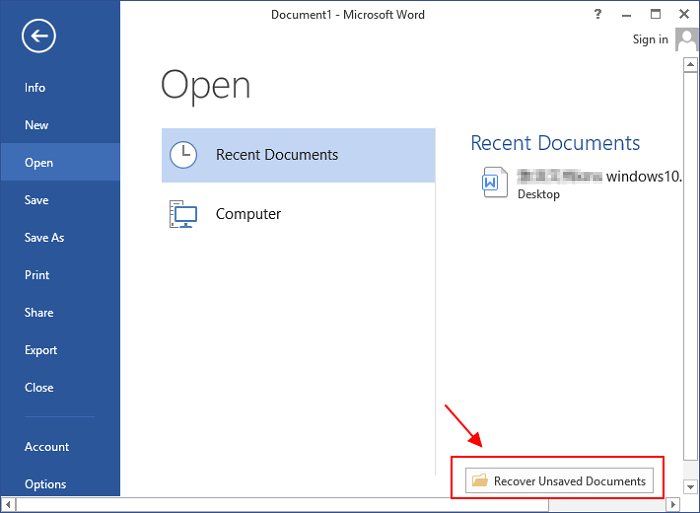
To recover an unsaved Word file, go to the "Files" section, click on "Recent Documents" to access recently closed files, and look for the "Recover Unsaved Files" button at the bottom of the tab.
To recover unsaved Word files, click on the file and it will display all unsaved files on your computer, allowing you to recover them.
How to Recover Lost or Delete Files with Data Recovery Software
If you need to restore deleted or lost files on your Windows computer, consider using data recovery software to automate the process. Qiling Data Recovery Wizard is a top choice that can help you retrieve photos, videos, documents, and more in just a few minutes, allowing you to recover data from various storage devices, including hard drives, memory cards, and USB drives.
- Windows PC
- Laptops
- Portable storage devices (USB, USB flash drive, SD card, etc.)
- HDD, SSD, external hard drive, and more
Qiling offers an easy-to-use interface that allows novice users to recover unsaved, deleted, and corrupted files on their computer, providing a solution for data recovery in case of system crashes or unexpected power offs.
The pro version of Qiling offers unlimited data recovery and the ability to preview files before recovering them, while the free version allows for the recovery of up to 2 GB of data.
Step 1. Select file types and click "Fast Scan" to start
Launch Deep Data Recovery, select file types, and click "Fast Scan" to initiate the recovery process.

Note: You can choose different search modes based on where and why the data was lost.
Step 2. Select the location to scan
To recover permanently deleted files, choose the specific device and drive where the files were deleted using Shift delete or emptied from the recycle bin. Next, click the "Scan" button to initiate the file recovery process and locate the lost files.

Step 3. Check the results
The software will automatically scan the selected drive. Once the scan is complete, select the "Deleted Files" and "Other Lost Files" folders in the left panel, then apply the "Filter" feature or click "Search files or folders" to quickly find the deleted files.

Step 4. Recover deleted files
Select the deleted files, click "Preview", then click "Recover" to save them to a secure location.
Wrap Up
Your computer freezing in Windows 10 can be caused by various reasons, including hardware failures, software errors, or other issues. If your computer hangs, you can recover your important data without any hassle.
Top-With the help of rated data recovery software like Qiling Data Recovery Wizard, recovering any form of data has become a quick and easy process, taking just minutes to complete. This software is ideal for file recovery in various data loss situations.
Related Articles
- What Is Dynamic Disk | Everything About Windows Dynamic Disk
- Hard Drive Randomly Wiped Data! What's WRONG? I Want Data Back
- Hard Drive Not Showing Up or Detected in Windows? Learn How to Fix
- Convert RAW to NTFS Without Losing Data
- External Hard Drive Not Recognized After Unplugging [Solved]
Unplugging an external USB hard drive without safely ejecting it can cause serious problems, such as the drive not being recognized or becoming inaccessible. - How to Fix External Hard Drive Takes Long Time to Open and Read
If your external hard drive is taking a long time to open and read data, First, recover your data from the external hard drive using a reliable file recovery software like Qiling, and then follow the fixes provided to resolve the issue and get your external hard drive back to normal. - Fix Windows 11 Freezing Randomly (2026 Guide)
Products
Articles & Tutorials
- Data Recovery
- Data Backup
- File Recovery
- File Backup
- System Backup and Restore
- Disk and Partition Clone
- Technical articles
- Mobile articles
- Disk Master Help
- Windows Data Recovery Tutorials
- Windows Secure Delete Tutorials
- Windows Partition Management Tutorials
- Windows File Backup and Restore Tutorials
- Windows System Backup and Restore Tutorials
- Windows Disk Backup and Restore Tutorials
- Windows Clone Tutorials