How to Encrypt a Drive Before a Windows Update
A major Windows update can restart the PC several times, change the boot configuration, and rebuild parts of the disk. If your protection is set up correctly, your encrypted files ride through it untouched; if it is not, an update is the moment things break.
This guide shows how to encrypt a drive before a Windows update so your data stays safe before, during, and after the process.
PAGE CONTENT
- Why Updates Threaten Encryption
- Back Up Before the Update
- Encrypt a Drive with Safe Disk
- What to Check During and After the Update
- Mistakes to Avoid
- FAQs About Updates and Encryption
- Back Up Windows Before You Change Settings
Why Updates Threaten Encryption
Updates do more than install patches; they change the way the PC starts and how disks are handled.
- Multiple restarts. An update reboots several times, testing every piece of your setup.
- Boot changes. The update rewrites boot files, which whole-disk encryption depends on.
- New versions can reset defaults. A feature update may switch encryption settings back on or off.
- Interrupted is dangerous. Cutting power mid-update can leave a disk in a fragile state.
- A container is immune. Because it is just a file, an update does not touch its internals.
Most update damage happens to full-disk methods. A container simply sits on the disk and waits, unaffected. If your protection is tied to the system disk, see How to Encrypt Your Windows System Drive.
Back Up Before the Update
- Image the whole PC. A system image is the surest way to recover from a failed update.
- Copy your data off. Keep your protected files on a separate drive as well.
- Verify the backup. Open a few files from the copy before you start the update.
- Record the recovery key. If any disk encryption is active, note its key and store it safely.
- Free up space. An update needs room, so clear enough on the Windows disk first.
An update that fails is an inconvenience. An update that fails with no backup is a crisis. For the routine, see How to Back Up an Encrypted Drive.
Encrypt a Drive with Safe Disk
Qiling Safe Disk stores files in a container that survives Windows updates intact. Download and install it first.
Step 1. Open Qiling Safe Disk and review your containers before the update begins.
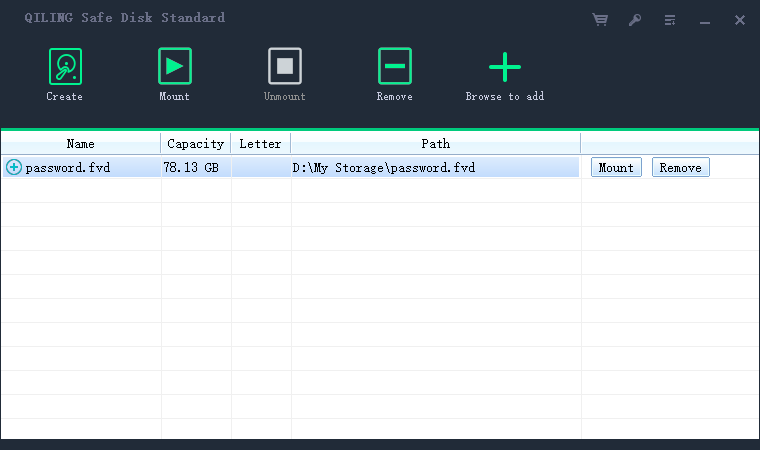
Step 2. Mount the container and confirm your files open, so you know the password works.
Step 3. Unmount every container and close the program before you restart for the update.
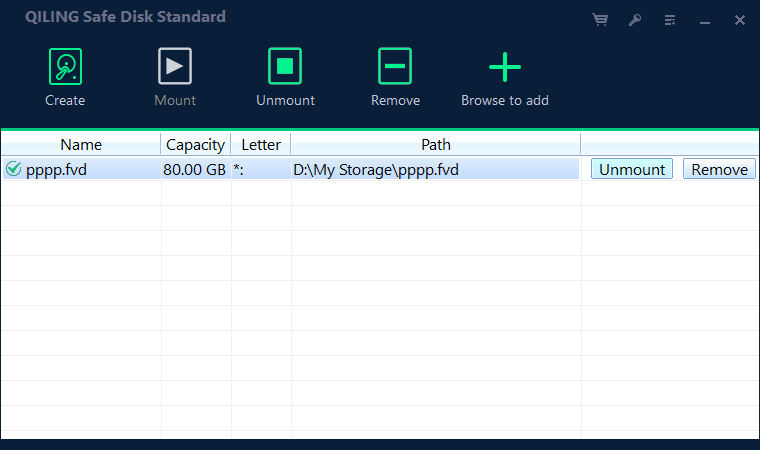
Step 4. After the update finishes, mount the container again and check that the files are intact.
What to Check During and After the Update
- Let it finish. Do not force a restart while the update is still working.
- Keep the PC powered. Use a stable power source so the update is not interrupted.
- Confirm the containers are closed. No container should be mounted when the PC reboots.
- Reopen and verify. After the update, mount the container and open a few files.
- Recheck the disk. Confirm the drive still shows the protection you expect.
A quick check afterward confirms whether the update changed anything important.
Mistakes to Avoid
- Updating with a container mounted. A restart can leave an open container in an unclear state.
- Skipping the backup. An update is exactly when a spare copy matters most.
- Ignoring a key prompt. If an encryption screen asks for a key and you have none, the update stops.
- Unplugging drives mid-update. Removing external disks can interrupt the process.
- Assuming nothing changed. Always verify the encryption status after a feature update.
Treat the update like any risky change: back up first, keep things closed, and verify afterward.
FAQs About Updates and Encryption
Will a Windows update erase my encrypted files?
Not if the container is closed and you have a backup. Updates change Windows, not the contents of your container.
Should encryption be on before or after the update?
Set it up before. Protecting your files ahead of time means the update cannot disturb them.
Why did an update ask for a recovery key?
A whole-disk encryption method needed its key after the boot configuration changed. Have it stored in advance.
Can I keep working during the update?
No. Close your files and containers, then let the update restart the PC on its own.
How do I confirm my drive is still encrypted?
Open the tool and read the status, or mount the container and check that it still asks for your password.
Back Up Windows Before You Change Settings
Before installing security software or changing storage, create a full Windows backup. Qiling Disk Master creates a system image you can restore from.
Step 1. Open Qiling Disk Master and select System Backup to include Windows and the boot partitions.
Step 2. Save the image to a drive other than the Windows disk and start the backup.
Step 3. If a change causes issues, restore from the image to return Windows to its working state.
Conclusion
Preparing encryption before a Windows update is really about controlling risk. Back up first with a system image, keep your protected files inside a container so the update cannot disturb their internals, and close every container before the restart. Whole-disk methods are the ones an update can break, because they depend on files and settings Windows rewrites; a container simply waits on the disk, unaffected. After the update, mount the container, open a few files, and confirm the drive still shows the protection you expect. Qiling Safe Disk keeps this routine simple, and Qiling Disk Master gives you the recovery image in case the update misbehaves.
For more on protecting drives through risky changes, see How to Create an Encrypted Virtual Drive, How to Encrypt a Drive Before PC Repair, How to Encrypt a Second Internal Drive, and How to Use Qiling Safe Disk.
Related Articles
- How to Check If a Drive Is Encrypted on Windows
Confirm the protection status after an update. - Encrypted Drive vs BitLocker: Which Should You Use?
Compare container encryption with full-disk encryption. - Is Encryption Enough to Protect Your Data?
Understand what encryption must be paired with to work. - Is an Encrypted Drive Safe from Hackers?
See what encryption protects against and what it does not. - Can Antivirus Scan an Encrypted Drive?
See how security tools behave with a locked drive.
Products
Articles & Tutorials
- Data Recovery
- Data Backup
- File Recovery
- File Backup
- System Backup and Restore
- Disk and Partition Clone
- Technical articles
- Mobile articles
- Disk Master Help
- Windows Data Recovery Tutorials
- Windows Secure Delete Tutorials
- Windows Partition Management Tutorials
- Windows File Backup and Restore Tutorials
- Windows System Backup and Restore Tutorials
- Windows Disk Backup and Restore Tutorials
- Windows Clone Tutorials